

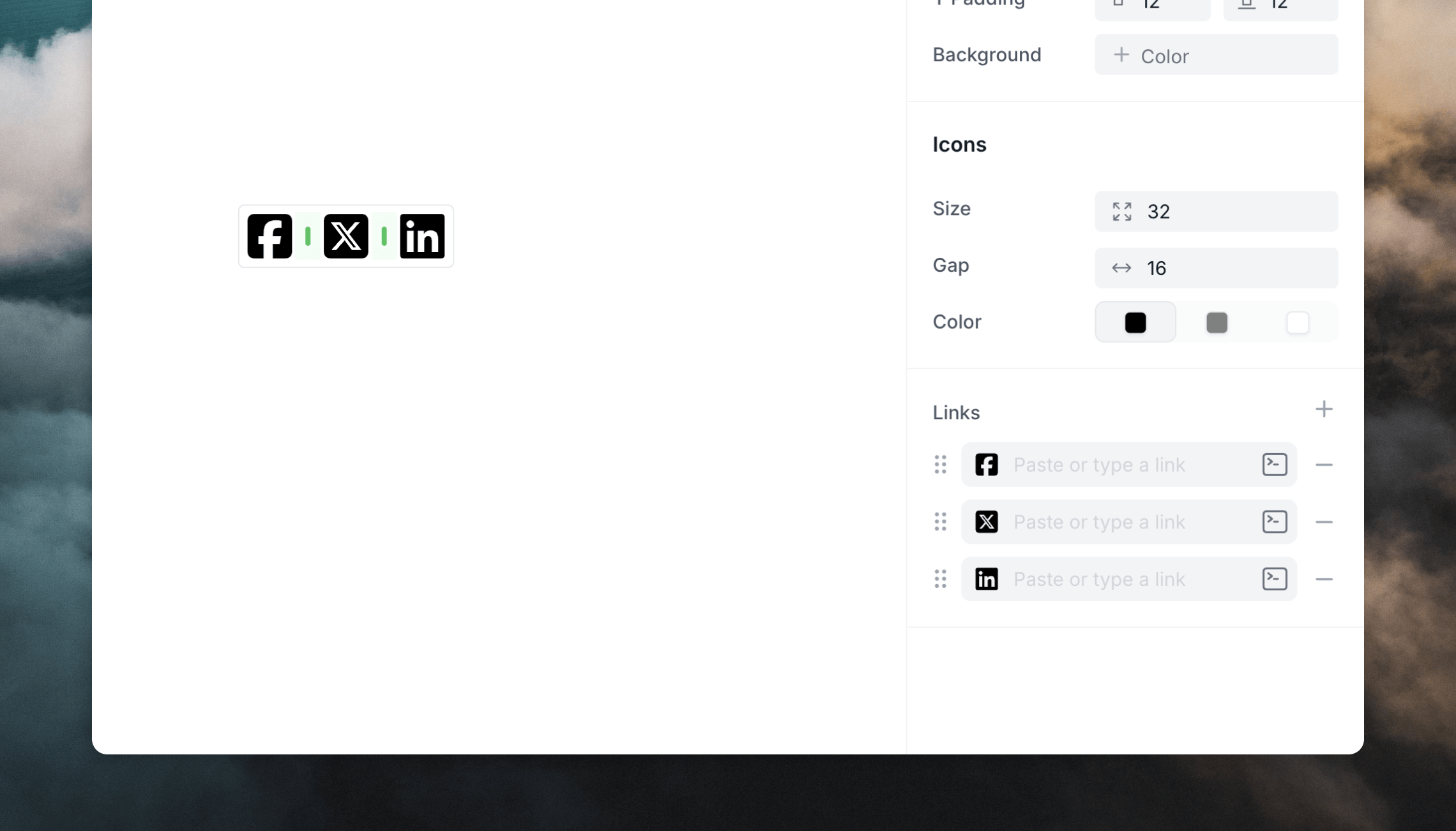
Adding icons
Add a social icon block:- by selecting the globe icon in the editor toolbar
- by typing
/in the editor and selecting Icons - by hovering over an existing element in your email and clicking the
+plus icon on the left and selecting Icons
+ icon in the editor panel.
To rearrange icons, you can drag them around in the editor or in the Links list in the editor panel.
You can also change padding, alignment and more using the Block styles.
Available icons
| Company | Icon name |
|---|---|
| 42 Group | 42-group |
| 500px | 500px |
| Accessible Icon | accessible-icon |
| Accusoft | accusoft |
| Adn | adn |
| Adversal | adversal |
| Affiliatetheme | affiliatetheme |
| Airbnb | airbnb |
| Algolia | algolia |
| Alipay | alipay |
| Amazon | amazon |
| Amazon Pay | amazon-pay |
| Amilia | amilia |
| Android | android |
| AngelList | angellist |
| Angrycreative | angrycreative |
| Angular | angular |
| App Store | app-store |
| App Store iOS | app-store-ios |
| Apper | apper |
| Apple | apple |
| Apple Pay | apple-pay |
| Apple Podcast | apple-podcast |
| Arch Linux | arch-linux |
| Artstation | artstation |
| Asymmetrik | asymmetrik |
| Atlassian | atlassian |
| Audible | audible |
| Autoprefixer | autoprefixer |
| Avianex | avianex |
| Aviato | aviato |
| AWS | aws |
| Bandcamp | bandcamp |
| Battle Net | battle-net |
| Behance | behance |
| Behance (square) | square-behance |
| Bilibili | bilibili |
| Bimobject | bimobject |
| Bitbucket | bitbucket |
| Bitcoin | bitcoin |
| Bity | bity |
| Black Tie | black-tie |
| Blackberry | blackberry |
| Blogger | blogger |
| Blogger B | blogger-b |
| Bluesky | bluesky |
| Bluesky (square) | square-bluesky |
| Bluetooth | bluetooth |
| Bluetooth B | bluetooth-b |
| Board Game Geek | board-game-geek |
| Bootstrap | bootstrap |
| Bots | bots |
| Brave | brave |
| Brave Reverse | brave-reverse |
| Btc | btc |
| Buffer | buffer |
| Buromobelexperte | buromobelexperte |
| Buy N Large | buy-n-large |
| BuySellAds | buysellads |
| Canadian Maple Leaf | canadian-maple-leaf |
| Cash App | cash-app |
| Card - Amazon Pay | cc-amazon-pay |
| Card - Amex | cc-amex |
| Card - Apple Pay | cc-apple-pay |
| Card - Diners Club | cc-diners-club |
| Card - Discover | cc-discover |
| Card - JCB | cc-jcb |
| Card - Mastercard | cc-mastercard |
| Card - PayPal | cc-paypal |
| Card - Stripe | cc-stripe |
| Card - Visa | cc-visa |
| Centercode | centercode |
| CentOS | centos |
| Chrome | chrome |
| Chromecast | chromecast |
| Circle Zulip | circle-zulip |
| Claude | claude |
| Cloudflare | cloudflare |
| Cloudscale | cloudscale |
| Cloudsmith | cloudsmith |
| Cloudversify | cloudversify |
| Cmplid | cmplid |
| Codepen | codepen |
| Codiepie | codiepie |
| Confluence | confluence |
| Connect Develop | connectdevelop |
| Contao | contao |
| Cosmos | cosmos |
| Cotton Bureau | cotton-bureau |
| Cpanel | cpanel |
| Creative Commons | creative-commons |
| Creative Commons By | creative-commons-by |
| Creative Commons NC | creative-commons-nc |
| Creative Commons NC EU | creative-commons-nc-eu |
| Creative Commons NC JP | creative-commons-nc-jp |
| Creative Commons ND | creative-commons-nd |
| Creative Commons PD | creative-commons-pd |
| Creative Commons Pd Alternative | creative-commons-pd-alt |
| Creative Commons Remix | creative-commons-remix |
| Creative Commons SA | creative-commons-sa |
| Creative Commons Sampling | creative-commons-sampling |
| Creative Commons Sampling Plus | creative-commons-sampling-plus |
| Creative Commons Share | creative-commons-share |
| Creative Commons Zero | creative-commons-zero |
| Critical Role | critical-role |
| CSS | css |
| CSS3 | css3 |
| CSS3 Alternative | css3-alt |
| Cuttlefish | cuttlefish |
| D And D | d-and-d |
| D And D Beyond | d-and-d-beyond |
| Dailymotion | dailymotion |
| Dart Lang | dart-lang |
| Dashcube | dashcube |
| Debian | debian |
| Deezer | deezer |
| Delicious | delicious |
| Deploydog | deploydog |
| Deskpro | deskpro |
| Deskpro (square) | square-deskpro |
| Dev | dev |
| Deviantart | deviantart |
| DHL | dhl |
| Diaspora | diaspora |
| Digg | digg |
| Digital Ocean | digital-ocean |
| Discord | discord |
| Discourse | discourse |
| Disqus | disqus |
| Dochub | dochub |
| Docker | docker |
| Draft2digital | draft2digital |
| Dribbble | dribbble |
| Dribbble (square) | square-dribbble |
| Dropbox | dropbox |
| Drupal | drupal |
| Duolingo | duolingo |
| Dyalog | dyalog |
| Earlybirds | earlybirds |
| eBay | ebay |
| Edge | edge |
| Edge Legacy | edge-legacy |
| Elementor | elementor |
| Eleventy | eleventy |
| Ello | ello |
| Ember | ember |
| Empire | empire |
| Envelope | envelope |
| Envelope (square) | square-envelope |
| Envira | envira |
| Erlang | erlang |
| Ethereum | ethereum |
| Etsy | etsy |
| Evernote | evernote |
| Expeditedssl | expeditedssl |
facebook | |
| Facebook (square) | square-facebook |
| Facebook F | facebook-f |
| Facebook Messenger | facebook-messenger |
| Fantasy Flight Games | fantasy-flight-games |
| FedEx | fedex |
| Fediverse | fediverse |
| Fedora | fedora |
| Figma | figma |
| Figma (square) | square-figma |
| Files Pinwheel | files-pinwheel |
| Firefox | firefox |
| Firefox Browser | firefox-browser |
| First Order | first-order |
| First Order Alternative | first-order-alt |
| Firstdraft | firstdraft |
| Flickr | flickr |
flipboard | |
| Flutter | flutter |
| Fly | fly |
| Font Awesome | font-awesome |
| Font Awesome (square) | square-font-awesome |
| Font Awesome (square, stroked) | square-font-awesome-stroke |
| Fonticons | fonticons |
| Fonticons Fi | fonticons-fi |
| Forgejo | forgejo |
| Fort Awesome | fort-awesome |
| Fort Awesome Alternative | fort-awesome-alt |
| Forumbee | forumbee |
| Foursquare | foursquare |
| Free Code Camp | free-code-camp |
| FreeBSD | freebsd |
| Fulcrum | fulcrum |
| Galactic Republic | galactic-republic |
| Galactic Senate | galactic-senate |
| Get Pocket | get-pocket |
| Gg | gg |
| Gg (circle) | gg-circle |
| Git | git |
| Git (square) | square-git |
| Git Alternative | git-alt |
| Gitee | gitee |
| GitHub | github |
| GitHub (square) | square-github |
| GitHub Alternative | github-alt |
| Gitkraken | gitkraken |
| GitLab | gitlab |
| GitLab (square) | square-gitlab |
| Gitter | gitter |
| Glide | glide |
| Glide G | glide-g |
| Globaleaks | globaleaks |
| Gofore | gofore |
| Golang | golang |
| Goodreads | goodreads |
| Goodreads G | goodreads-g |
google | |
| Google Drive | google-drive |
| Google Pay | google-pay |
| Google Play | google-play |
| Google Plus | google-plus |
| Google Plus (square) | square-google-plus |
| Google Plus G | google-plus-g |
| Google Scholar | google-scholar |
| Google Wallet | google-wallet |
| Gratipay | gratipay |
| Grav | grav |
| Gripfire | gripfire |
| Grunt | grunt |
| Guilded | guilded |
| Gulp | gulp |
| Hacker News | hacker-news |
| Hacker News (square) | square-hacker-news |
| HackerRank | hackerrank |
| Hashnode | hashnode |
| Hips | hips |
| Hire A Helper | hire-a-helper |
| Hive | hive |
| Hooli | hooli |
| Hornbill | hornbill |
| Hotjar | hotjar |
| Houzz | houzz |
| HTML5 | html5 |
| Hubspot | hubspot |
| Hugging Face | hugging-face |
| Ideal | ideal |
| IMDb | imdb |
instagram | |
| Instagram (square) | square-instagram |
| Instalod | instalod |
| Intercom | intercom |
| Internet Explorer | internet-explorer |
| Invision | invision |
| Ioxhost | ioxhost |
| Itch Io | itch-io |
| iTunes | itunes |
| iTunes Note | itunes-note |
| Java | java |
| Jedi Order | jedi-order |
| Jenkins | jenkins |
| Jira | jira |
| Joget | joget |
| Joomla | joomla |
| Js | js |
| Js (square) | square-js |
| Jsfiddle | jsfiddle |
| Julia | julia |
| Jxl | jxl |
| Kaggle | kaggle |
| Kakao Talk | kakao-talk |
| Keybase | keybase |
| Keycdn | keycdn |
| Kickstarter | kickstarter |
| Kickstarter K | kickstarter-k |
| Ko Fi | ko-fi |
| Korvue | korvue |
| Kubernetes | kubernetes |
| Laravel | laravel |
| Lastfm | lastfm |
| Lastfm (square) | square-lastfm |
| Leanpub | leanpub |
| LeetCode | leetcode |
| Less | less |
| Letterboxd | letterboxd |
| Letterboxd (square) | square-letterboxd |
| Line | line |
| Link | link |
linkedin | |
| LinkedIn (square) | square-linkedin |
| LinkedIn In | linkedin-in |
| Linktree | linktree |
| Linode | linode |
| Linux | linux |
| Lumon | lumon |
| Lumon Drop | lumon-drop |
| Lyft | lyft |
| Magento | magento |
| Mandalorian | mandalorian |
| Markdown | markdown |
| Mastodon | mastodon |
| MaxCDN | maxcdn |
| Mdb | mdb |
| Medapps | medapps |
| Medium | medium |
| Medrt | medrt |
| Meetup | meetup |
| Megaport | megaport |
| Mendeley | mendeley |
| Meta | meta |
| Microblog | microblog |
| Microsoft | microsoft |
| Mintbit | mintbit |
| Mix | mix |
| Mixcloud | mixcloud |
| Mixer | mixer |
| Mizuni | mizuni |
| Modx | modx |
| Monero | monero |
| Napster | napster |
| Neos | neos |
| Nfc Directional | nfc-directional |
| Nfc Symbol | nfc-symbol |
| Nimblr | nimblr |
| Node | node |
| Node.js | node-js |
| Notion | notion |
| Npm | npm |
| Ns8 | ns8 |
| Nutritionix | nutritionix |
| Obsidian | obsidian |
| Octopus Deploy | octopus-deploy |
| Odnoklassniki | odnoklassniki |
| Odnoklassniki (square) | square-odnoklassniki |
| Odysee | odysee |
| Old Republic | old-republic |
| OpenAI | openai |
| Opencart | opencart |
| OpenID | openid |
| Openstreetmap | openstreetmap |
| Opensuse | opensuse |
| Opera | opera |
| Optin Monster | optin-monster |
| Orcid | orcid |
| Osi | osi |
| Padlet | padlet |
| Page4 | page4 |
| Pagelines | pagelines |
| Palfed | palfed |
| Pandora | pandora |
| Patreon | patreon |
| PayPal | paypal |
| Perbyte | perbyte |
| Periscope | periscope |
| Phabricator | phabricator |
| Phoenix Framework | phoenix-framework |
| Phoenix Squadron | phoenix-squadron |
| Phone | phone |
| Phone (square) | square-phone |
| PHP | php |
| Pied Piper | pied-piper |
| Pied Piper (square) | square-pied-piper |
| Pied Piper Alternative | pied-piper-alt |
| Pied Piper Hat | pied-piper-hat |
| Pied Piper PP | pied-piper-pp |
pinterest | |
| Pinterest (square) | square-pinterest |
| Pinterest P | pinterest-p |
| Pix | pix |
| Pixelfed | pixelfed |
| Pixiv | pixiv |
| Playstation | playstation |
| PostgreSQL | postgresql |
| Product Hunt | product-hunt |
| Pushed | pushed |
| Python | python |
qq | |
| Quinscape | quinscape |
| Quora | quora |
| R Project | r-project |
| Raspberry Pi | raspberry-pi |
| Ravelry | ravelry |
| React | react |
| Reacteurope | reacteurope |
| Readme | readme |
| Rebel | rebel |
| Red River | red-river |
reddit | |
| Reddit (square) | square-reddit |
| Reddit Alien | reddit-alien |
| Red Hat | redhat |
| Renren | renren |
| Replyd | replyd |
| Researchgate | researchgate |
| Resolving | resolving |
| Rev | rev |
| Rocketchat | rocketchat |
| Rockrms | rockrms |
| Rust | rust |
| Safari | safari |
| Salesforce | salesforce |
| Sass | sass |
| Scaleway | scaleway |
| Schlix | schlix |
| Screenpal | screenpal |
| Scribd | scribd |
| Searchengin | searchengin |
| Sellcast | sellcast |
| Sellsy | sellsy |
| Servicestack | servicestack |
| Shirtsinbulk | shirtsinbulk |
| Shoelace | shoelace |
| Shopify | shopify |
| Shopware | shopware |
| Signal Messenger | signal-messenger |
| Simplybuilt | simplybuilt |
| Sistrix | sistrix |
| Sith | sith |
| Sitrox | sitrox |
| Sketch | sketch |
| Skyatlas | skyatlas |
| Skype | skype |
| Slack | slack |
| Slideshare | slideshare |
| Snapchat | snapchat |
| Snapchat (square) | square-snapchat |
| Solana | solana |
| SoundCloud | soundcloud |
| SourceTree | sourcetree |
| Space Awesome | space-awesome |
| Speakap | speakap |
| Speaker Deck | speaker-deck |
| Spotify | spotify |
| Squarespace | squarespace |
| Stack Exchange | stack-exchange |
| Stack Overflow | stack-overflow |
| StackPath | stackpath |
| Staylinked | staylinked |
| Steam | steam |
| Steam (square) | square-steam |
| Steam Symbol | steam-symbol |
| Sticker Mule | sticker-mule |
| Strava | strava |
| Stripe | stripe |
| Stripe S | stripe-s |
| Stubber | stubber |
| Studiovinari | studiovinari |
| Stumbleupon | stumbleupon |
| Stumbleupon (circle) | stumbleupon-circle |
| Superpowers | superpowers |
| Supple | supple |
| Supportnow | supportnow |
| Suse | suse |
| Svelte | svelte |
| Swift | swift |
| Symfony | symfony |
| Symfonycasts | symfonycasts |
| Tailwind CSS | tailwind-css |
| TeamSpeak | teamspeak |
| Telegram | telegram |
| Tencent Weibo | tencent-weibo |
| Tex | tex |
| The Red Yeti | the-red-yeti |
| Themeco | themeco |
| Themeisle | themeisle |
| Think Peaks | think-peaks |
| Threads | threads |
| Threads (square) | square-threads |
| Threema | threema |
| Tidal | tidal |
| TikTok | tiktok |
| Tor Browser | tor-browser |
| Trade Federation | trade-federation |
| Trello | trello |
| Tumblr | tumblr |
| Tumblr (square) | square-tumblr |
| Twitch | twitch |
twitter | |
| Twitter (square) | square-twitter |
| TypeScript | typescript |
| Typo3 | typo3 |
| Uber | uber |
| Ubuntu | ubuntu |
| UIkit | uikit |
| Ultralytics | ultralytics |
| Ultralytics Hub | ultralytics-hub |
| Ultralytics Yolo | ultralytics-yolo |
| Umbraco | umbraco |
| Uncharted | uncharted |
| Uniregistry | uniregistry |
| Unison | unison |
| Unity | unity |
| Unreal Engine | unreal-engine |
| Unsplash | unsplash |
| Untappd | untappd |
| UPS | ups |
| Upwork | upwork |
| Upwork (square) | square-upwork |
| USB | usb |
| USPS | usps |
| Ussunnah | ussunnah |
| Vaadin | vaadin |
| Venmo | venmo |
| Venmo V | venmo-v |
| Viacoin | viacoin |
| Viadeo | viadeo |
| Viadeo (square) | square-viadeo |
| Viber | viber |
| Vim | vim |
| Vimeo | vimeo |
| Vimeo (square) | square-vimeo |
| Vimeo V | vimeo-v |
| Vine | vine |
| Vk | vk |
| Vnv | vnv |
| Vsco | vsco |
| Vue.js | vuejs |
| W3C | w3c |
| Watchman Monitoring | watchman-monitoring |
| Waze | waze |
| Web Awesome | web-awesome |
| Web Awesome (square) | square-web-awesome |
| Web Awesome (square, stroked) | square-web-awesome-stroke |
| Webflow | webflow |
| Weebly | weebly |
weibo | |
| Weixin | weixin |
whatsapp | |
| WhatsApp (square) | square-whatsapp |
| WHMCS | whmcs |
| Wikipedia W | wikipedia-w |
| Windows | windows |
| Wirsindhandwerk | wirsindhandwerk |
| Wix | wix |
| Wizards Of The Coast | wizards-of-the-coast |
| Wodu | wodu |
| Wolf Pack Battalion | wolf-pack-battalion |
| WordPress | wordpress |
| WordPress Simple | wordpress-simple |
| WPBeginner | wpbeginner |
| WPExplorer | wpexplorer |
| WPForms | wpforms |
| Wpressr | wpressr |
| X/Twitter | x-twitter |
| X/Twitter (square) | square-x-twitter |
| Xbox | xbox |
xing | |
| Xing (square) | square-xing |
| XMPP | xmpp |
| Y Combinator | y-combinator |
| Yahoo | yahoo |
| Yammer | yammer |
| Yandex | yandex |
| Yandex International | yandex-international |
| Yarn | yarn |
| Yelp | yelp |
| Yoast | yoast |
| YouTube | youtube |
| YouTube (square) | square-youtube |
| Zhihu | zhihu |
| Zoom | zoom |
| Zulip | zulip |