
Footer content
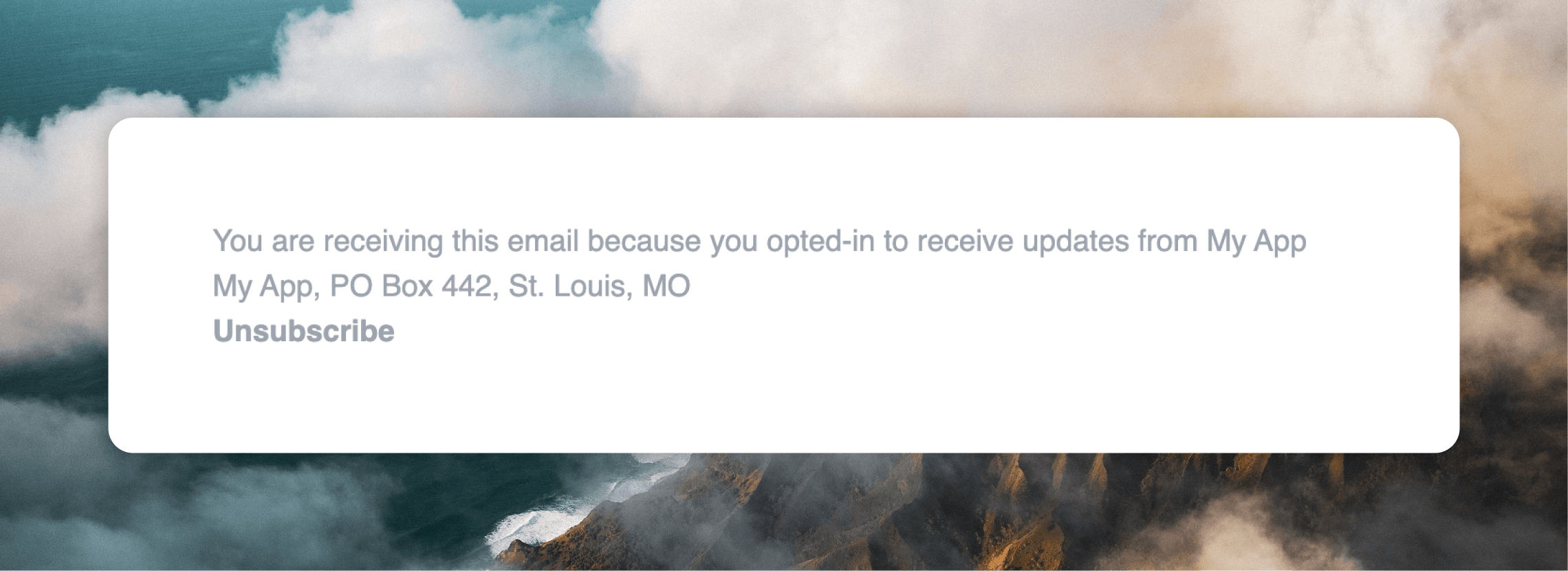
Email footers are required for deliverability and anti-spam compliance. They must include three elements:- Your company name
- Your company address
- An unsubscribe link
Unsubscribe link
Unsubscribe links help prevent your messages from being marked as spam and ensure that your messages are willingly being received by an engaged audience, helping your deliverability. The unsubscribe link leads to a Preference Center, where your contacts can manage their own subscriptions to both your audience and any public mailing lists.Company name and address
The company name and address come from your settings at Settings -> Domain. A physical address is required for anti-spam compliance.Mailing list name
If your email was sent to a mailing list, the footer will also include the name of the list the email was sent to.Custom footers
If you want to edit your emails’ footers, you can do so from Settings -> Footers. Click Create footer to add a new footer. In the editor, you can rewrite the default content or create a completely new footer, with the same styling controls as your emails.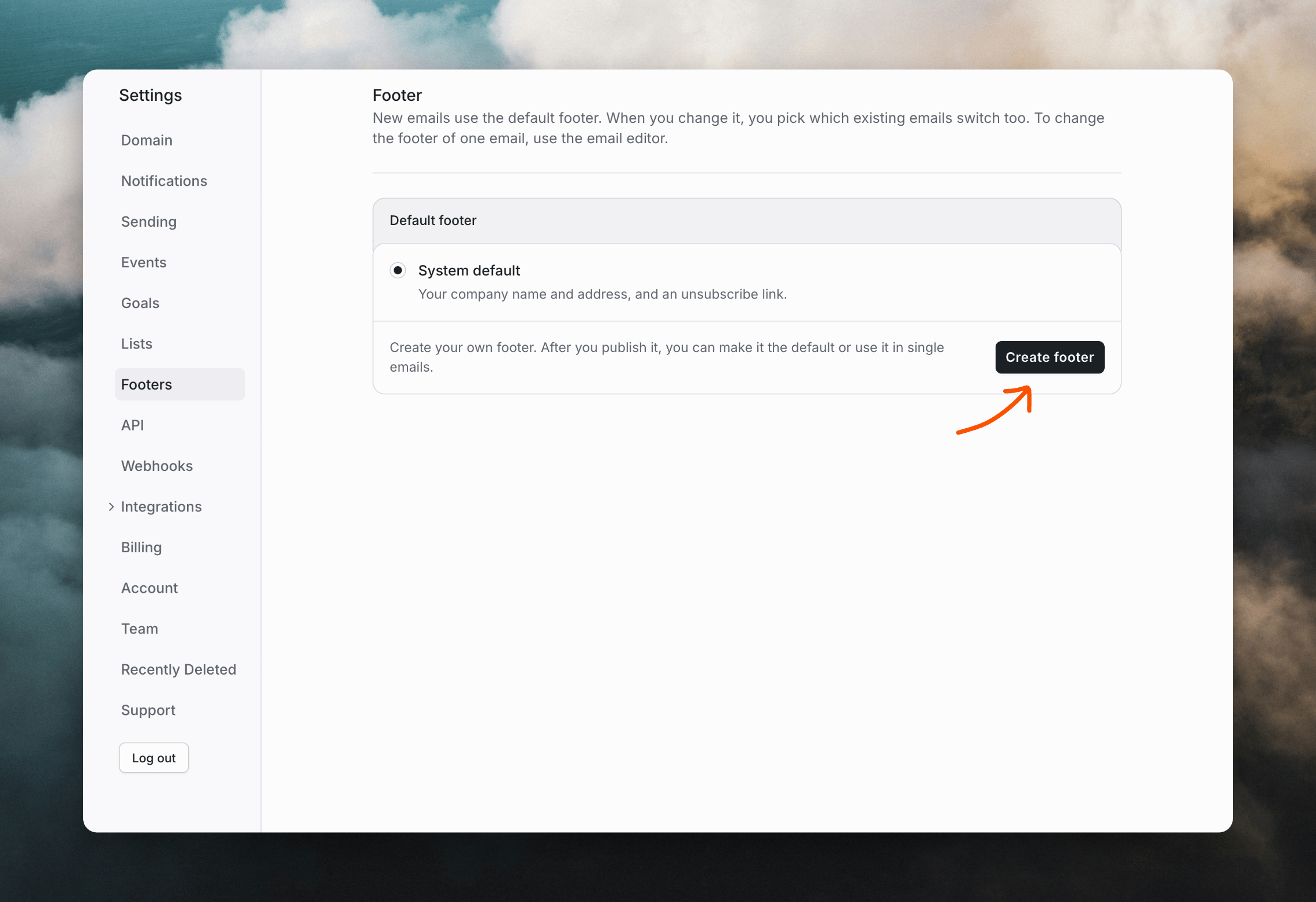
Required content
When editing a footer you need to include three variables:- Company name
- Company address
- Unsubscribe link
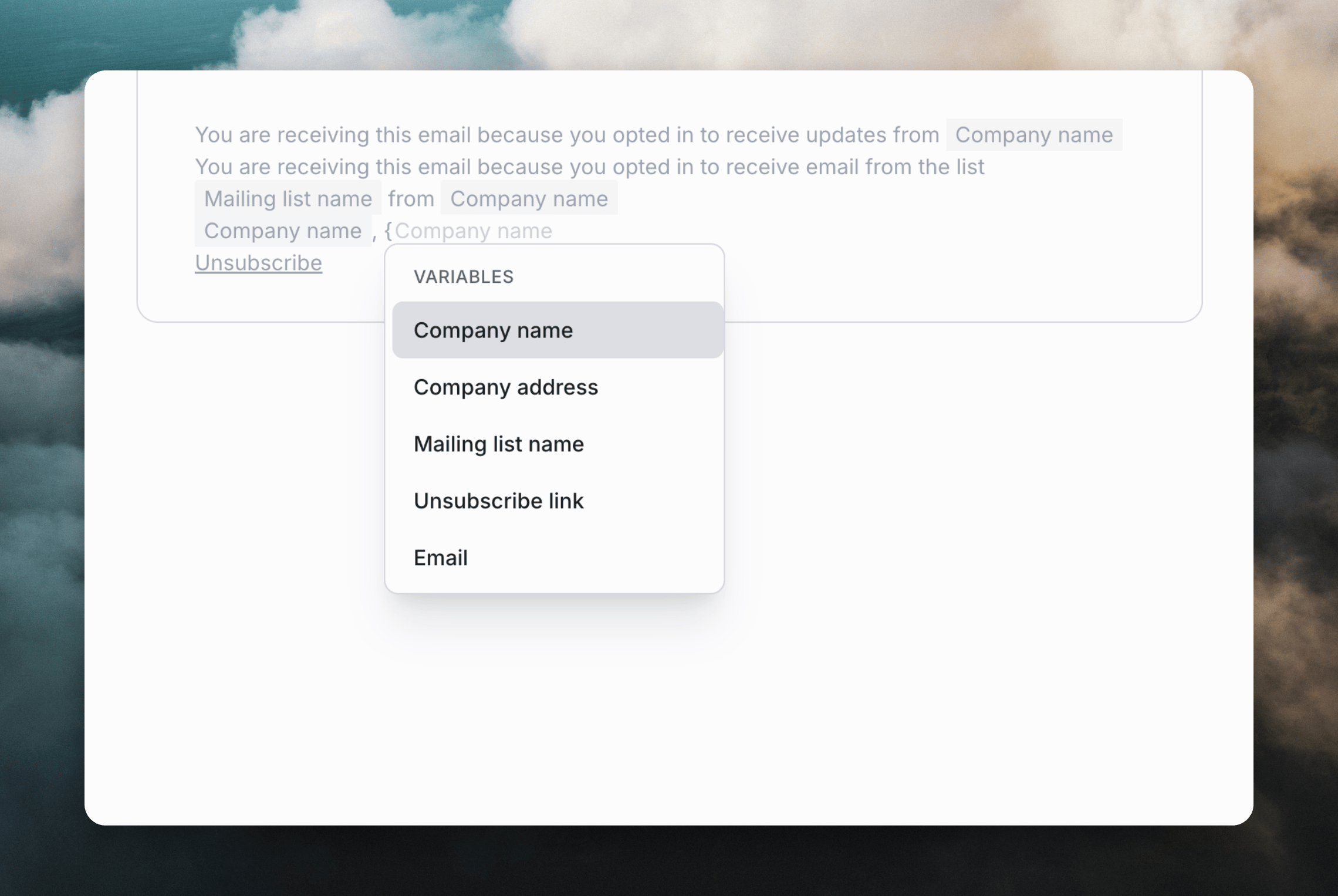
{ or typing / and selecting Variable, and then selecting the variable from the list.
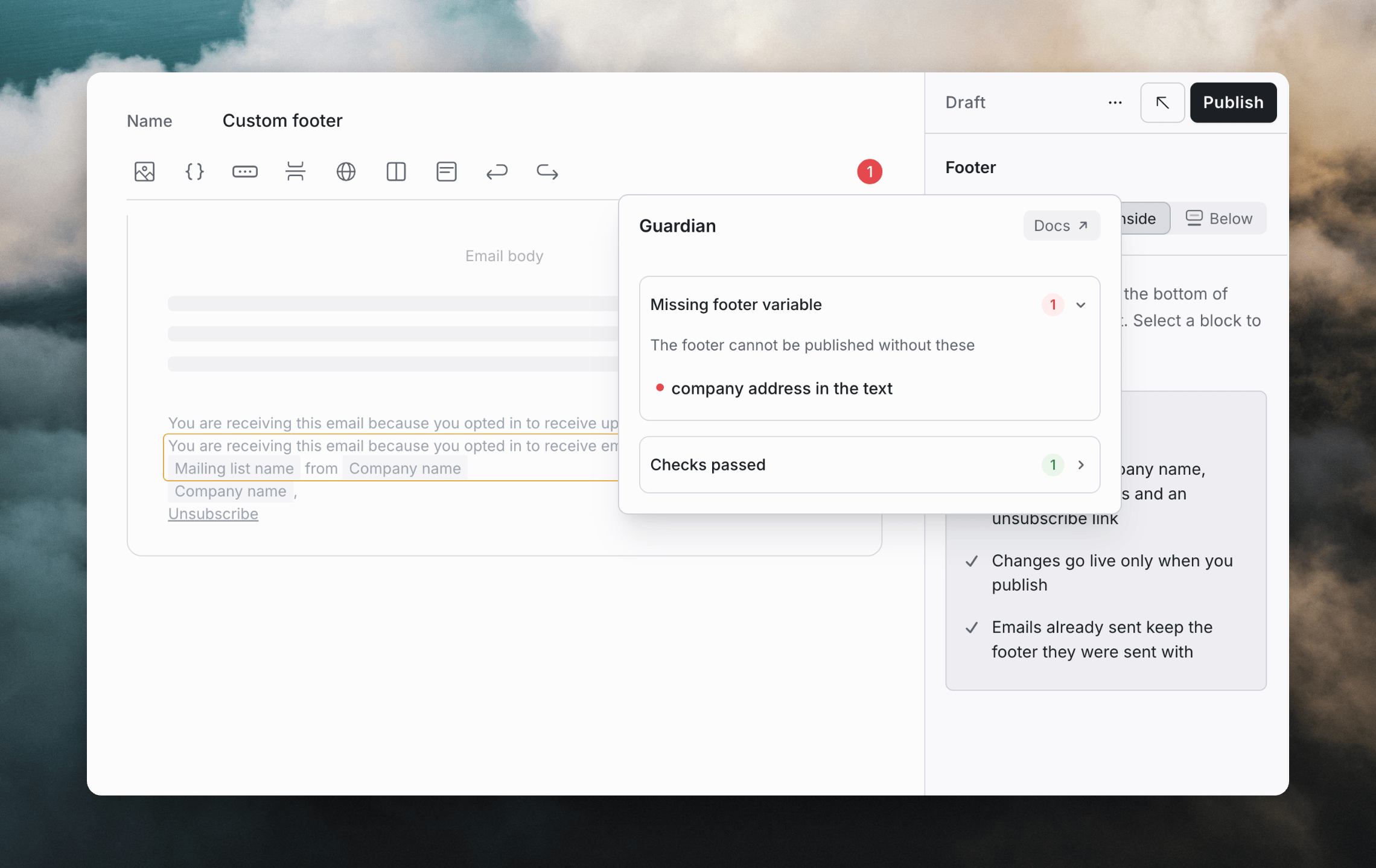
Conditional sections
When you create a new footer, two conditional sections are added to the footer, one for emails sent to mailing lists and one for emails not sent to mailing lists. This allows you to change footer content when a mailing list is present (by default, the mailing list name is included in the footer). You are free to delete these conditional sections if you don’t need them.Undoing your changes
If you want to revert your changes, from the••• menu in the top right, you can click Discard changes to undo any current edits since the last publish, or Reset to default to go back to the original default version.
Previewing your footer
You can preview your footer in-situ by going to the Preview tab in the editor. At the top of this page you can select different emails to view your footer alongside.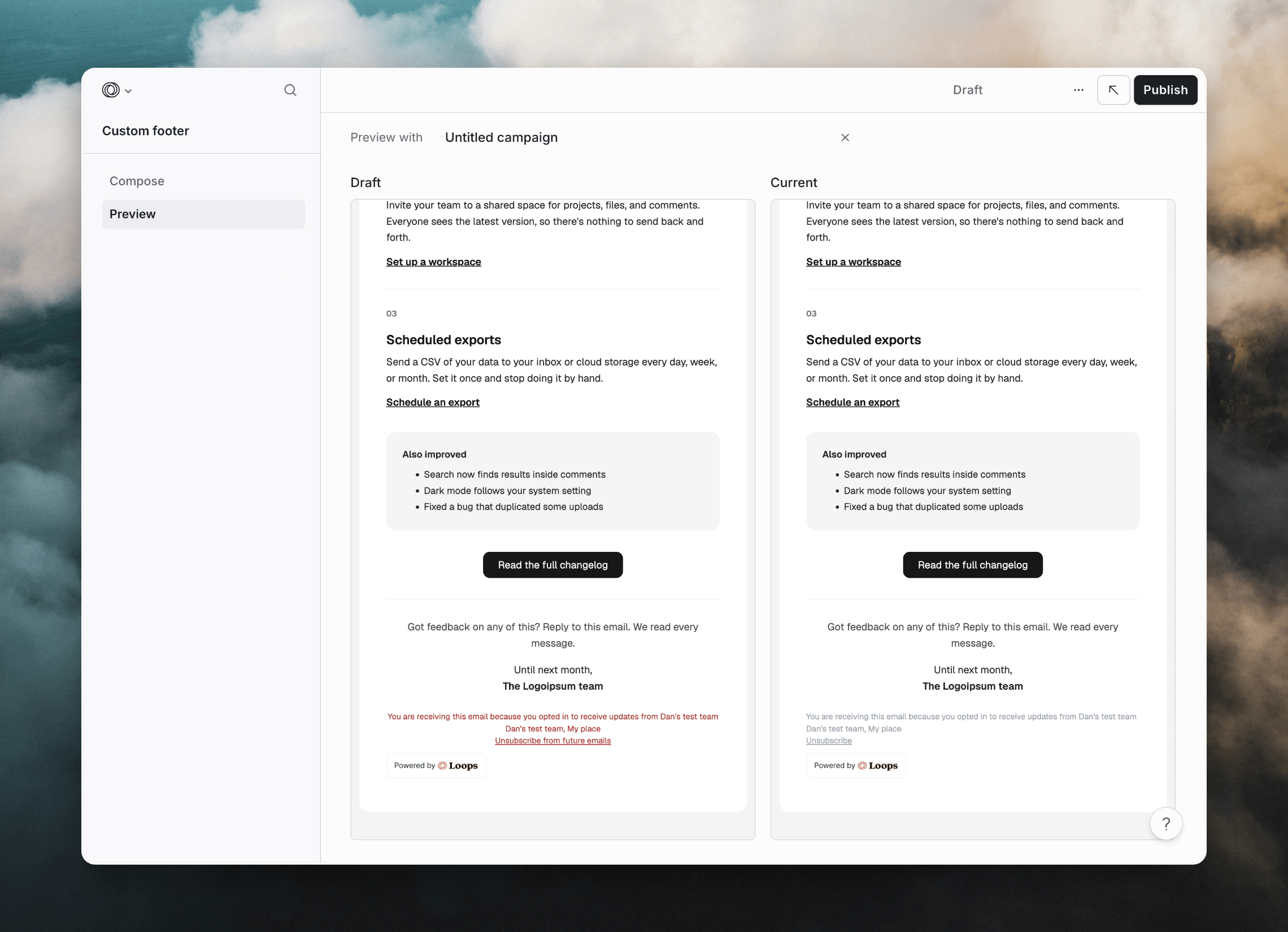
Publishing your footer
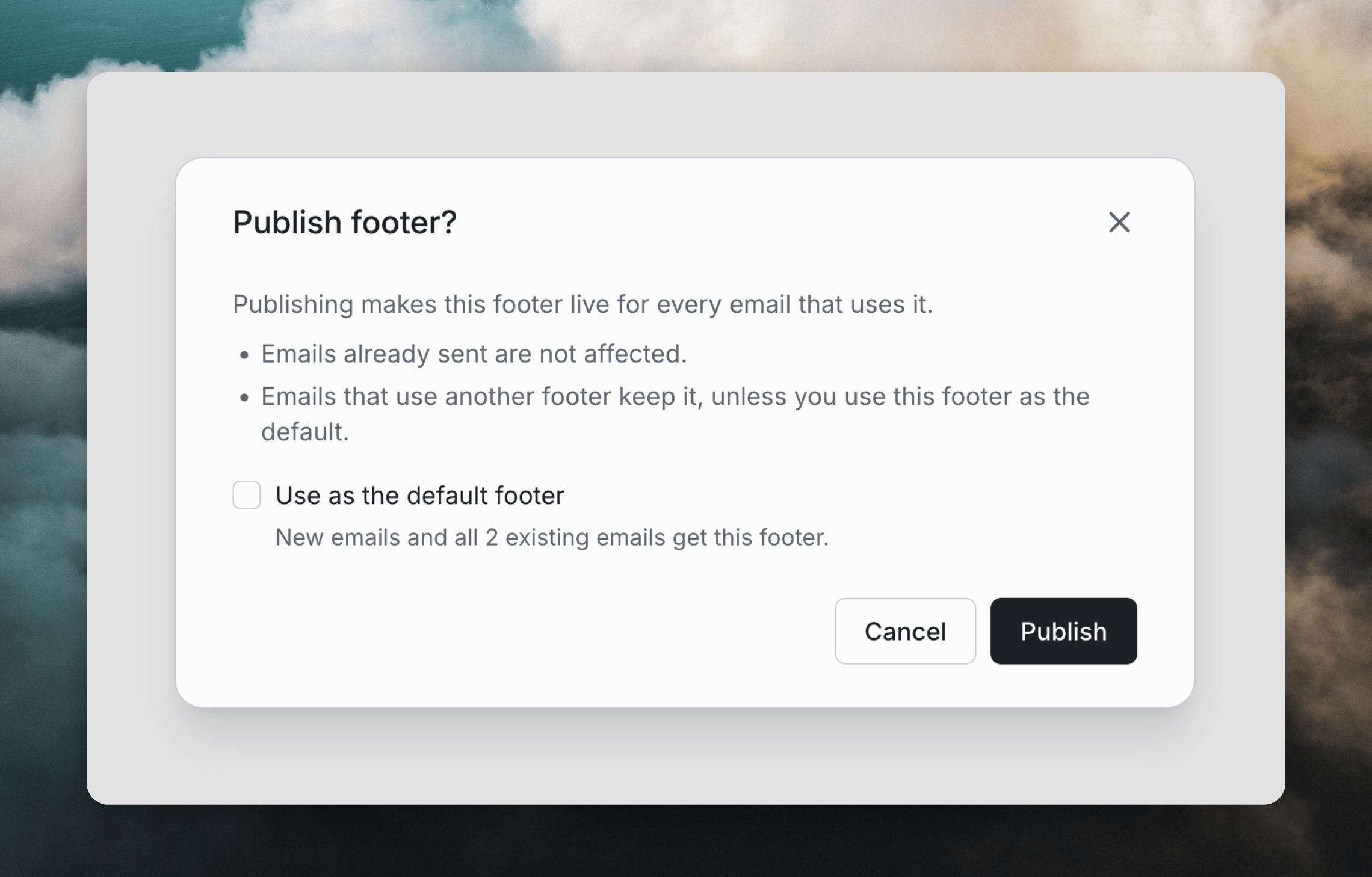
When your footer is ready, hit Publish. You will be able to choose if your footer appears inside or outside of your email content. You can also choose whether this footer becomes your team’s default footer for all existing and future emails.