

- by using the image button in the editor toolbar
- by dragging or pasting images into the editor
- by typing
/in the editor and selecting Image - by hovering over an existing element in your email and clicking the
+plus icon on the left and selecting Image
+ button in the Link editor panel on the right.
Dynamic images
You can also insert images hosted outside of Loops into your emails. First, add a placeholder image to your email (which you can use to specify the location and size of the image) and then click+ in the Dynamic source section in the right-hand panel.
Paste in an image URL or create dynamic URLs by clicking the icon on the right.
For example, you could insert an imageUrl data variable in a transactional email, or use an avatarUrl custom contact property in a campaign.
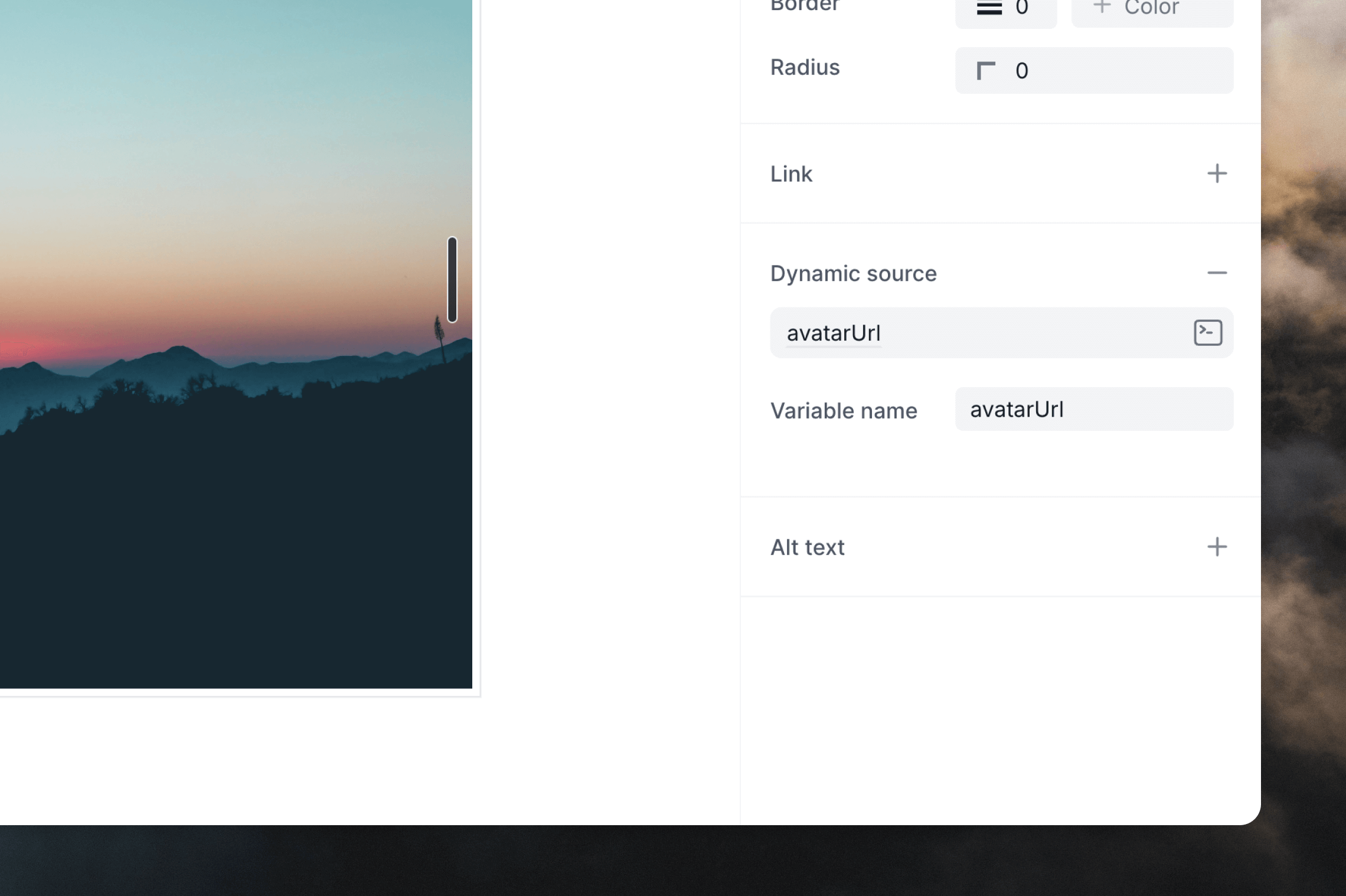
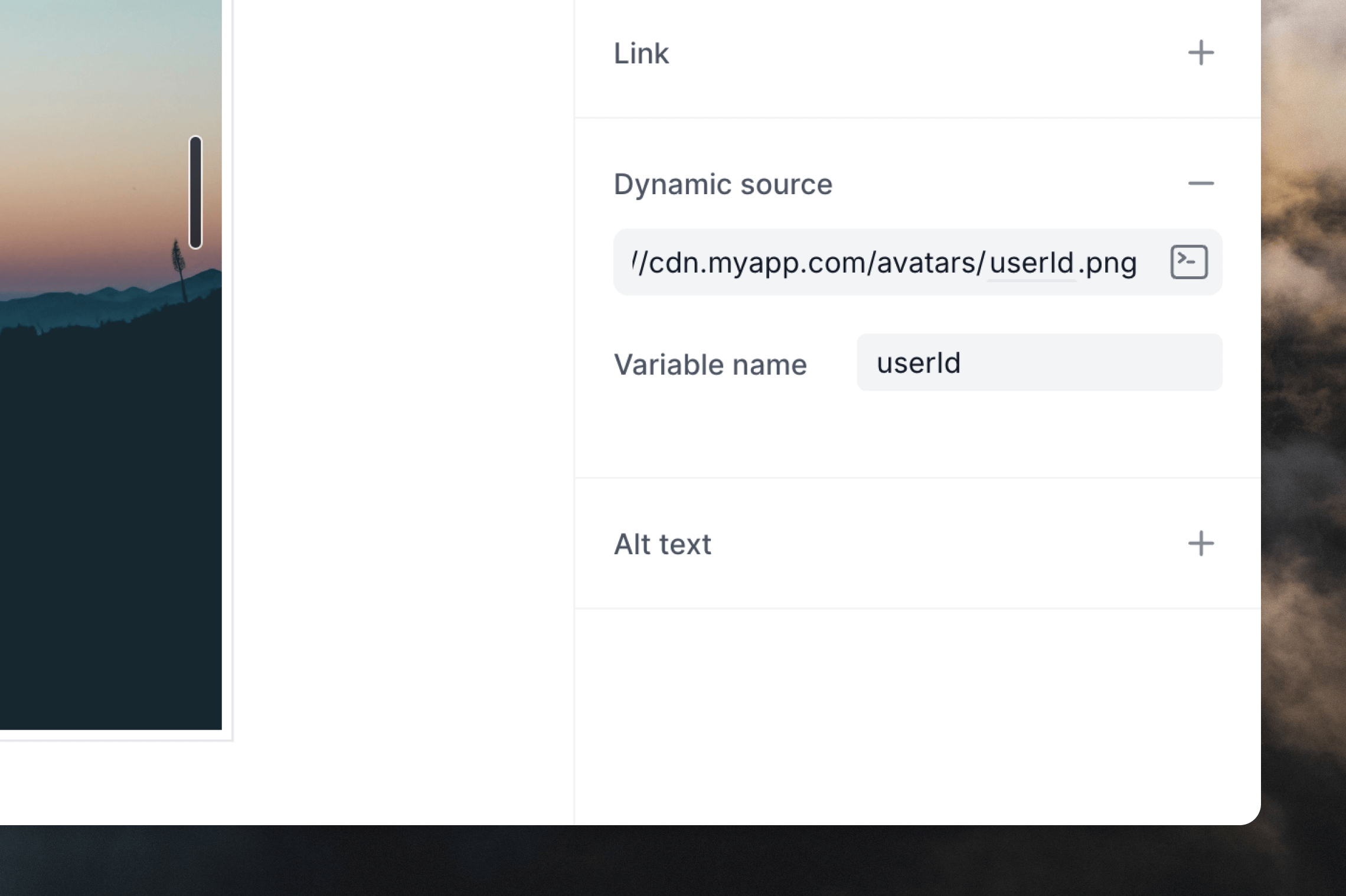
The placeholder image in the editor will not update when you add a dynamic
source. In order to test dynamic images, you can send preview
emails.