
Install the Attio app
- In Attio, go to Workspace settings -> Apps.
- Search for “Loops” and click on the “Loops” app.
- Click Install.
- Follow the instructions to install the app. You will need to provide a Loops API key, which you can find from Loops Settings -> API.
Configure the Attio app
In the Attio app settings, you can configure the fields that will be synced to Loops for each person.- Email (always synced)
- Attio record ID
- First name
- Last name
- Company
- Job title
userId, which is meant for external IDs. Anchoring on userId means that if an email address changes in Attio, it will be reflected in Loops. However, if you already have another ID in this property in Loops, you can sync it to a different property like attioId (but you will lose the ability to track email address changes from Attio).
Sync contacts from Attio to Loops
There are three ways to sync contacts from Attio to Loops.Sync single contact
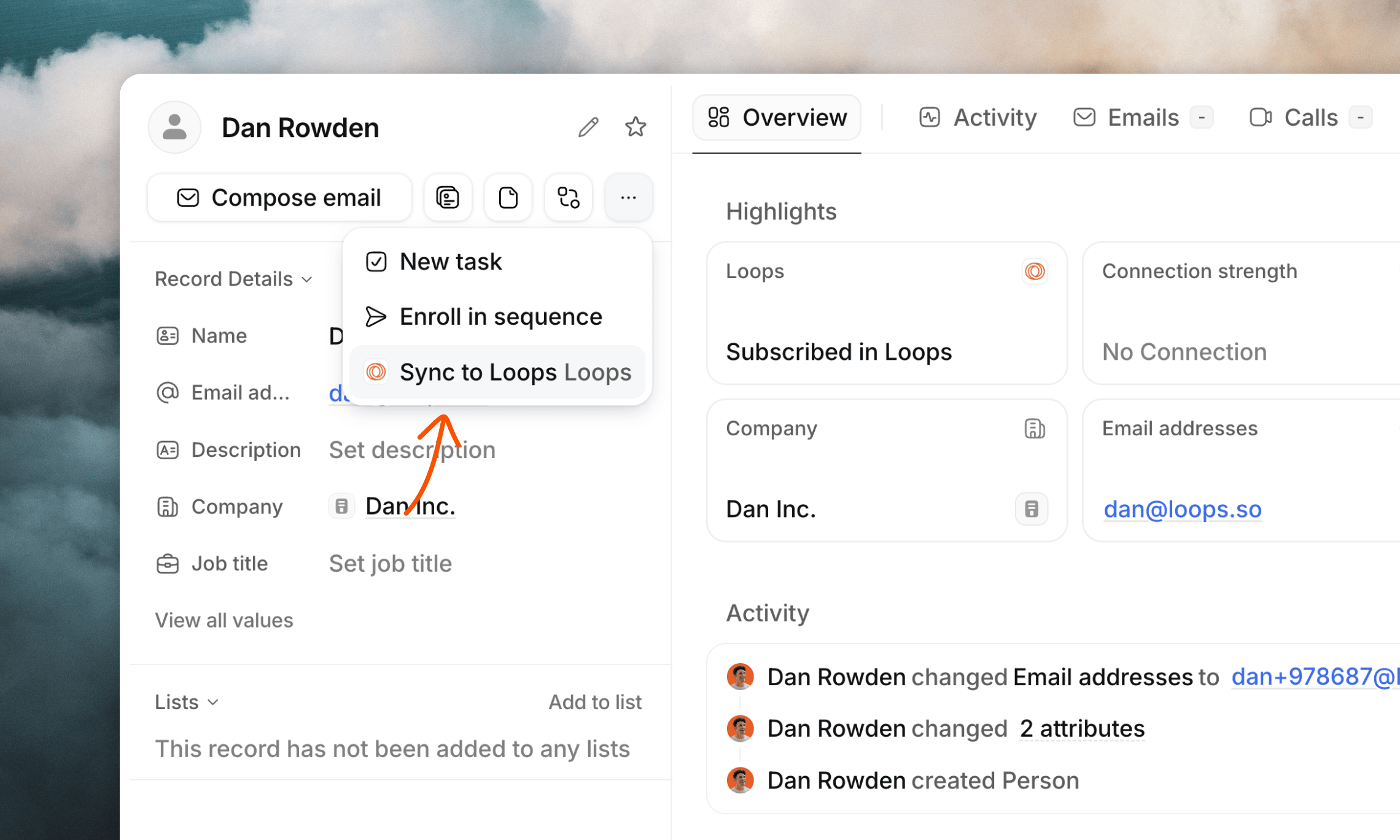
On a contact’s page in Attio, click the••• three dot menu and select Sync to Loops.
Bulk sync contacts
You can sync more than one contact to Loops from the People list page in Attio. Select the contacts you want to sync, then in the bottom action bar, click More and then Sync to Loops.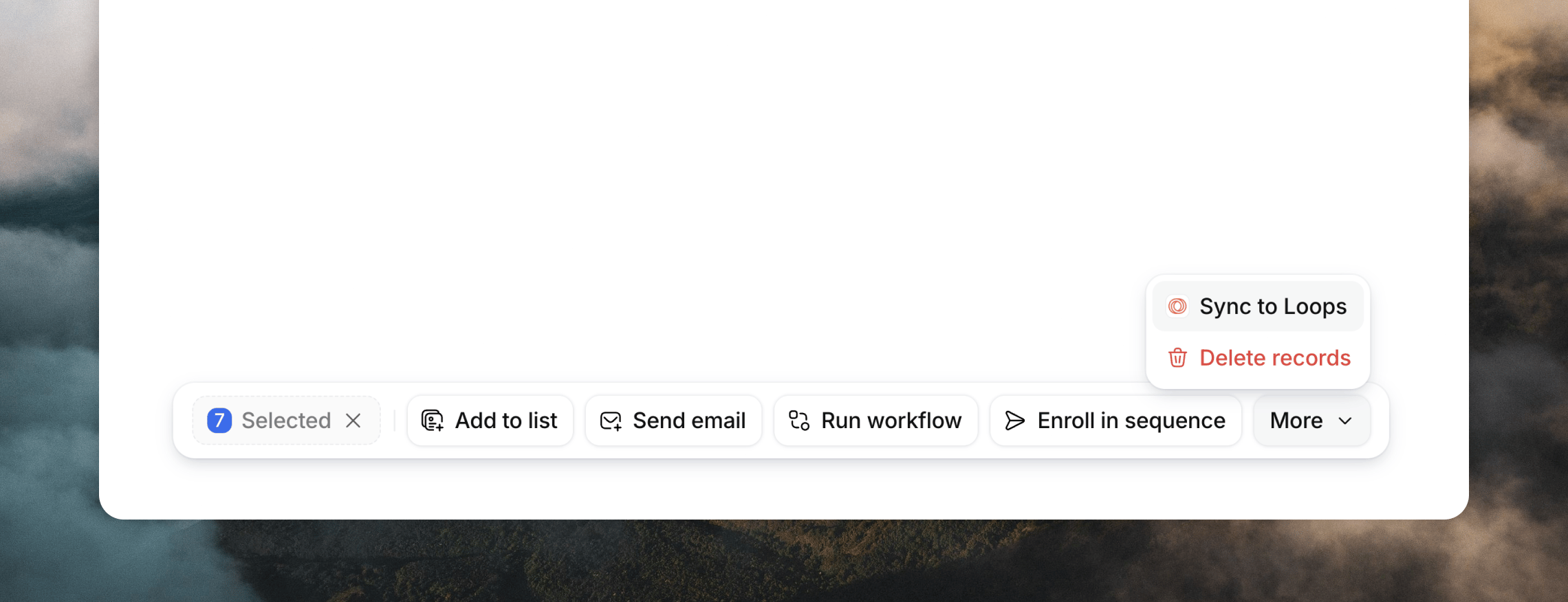
Sync contacts from Attio workflows
You can sync contacts to Loops from within an Attio workflow by using the “Sync to Loops” block. When adding a new block in the workflow editor, search for “Sync to Loops” and select the block.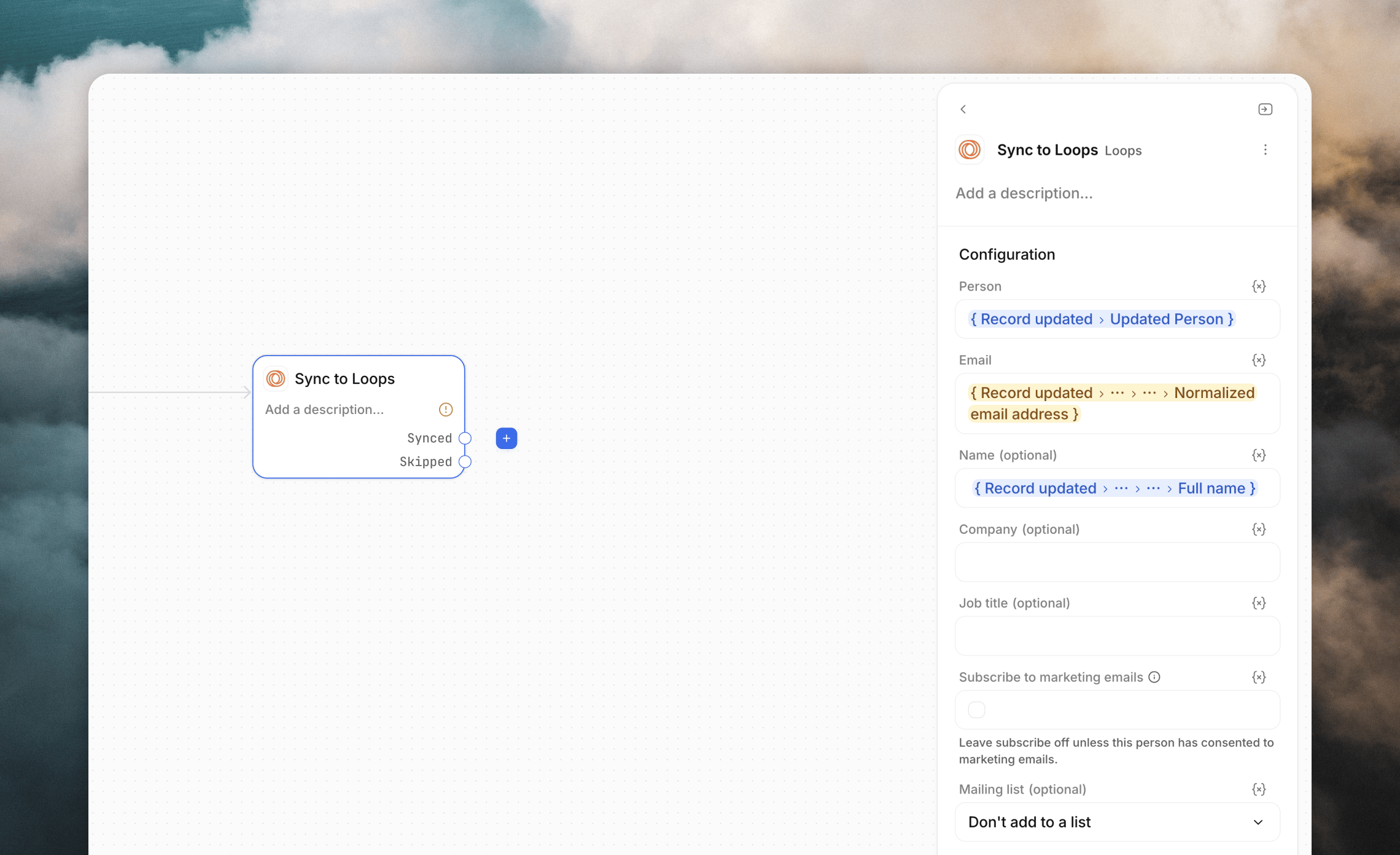
userId, select the Person record. Otherwise, make sure to populate the “Email” field, which will be used to find the contact in Loops.
Contact widget
The app comes with a widget that you can add to the People page in Attio. The widget displays the contact’s current status in Loops; whether the contact exists in Loops, and if so, whether the contact is subscribed to marketing emails. Clicking the widget shows live contact data from Loops and a direct link to the Loops contact page.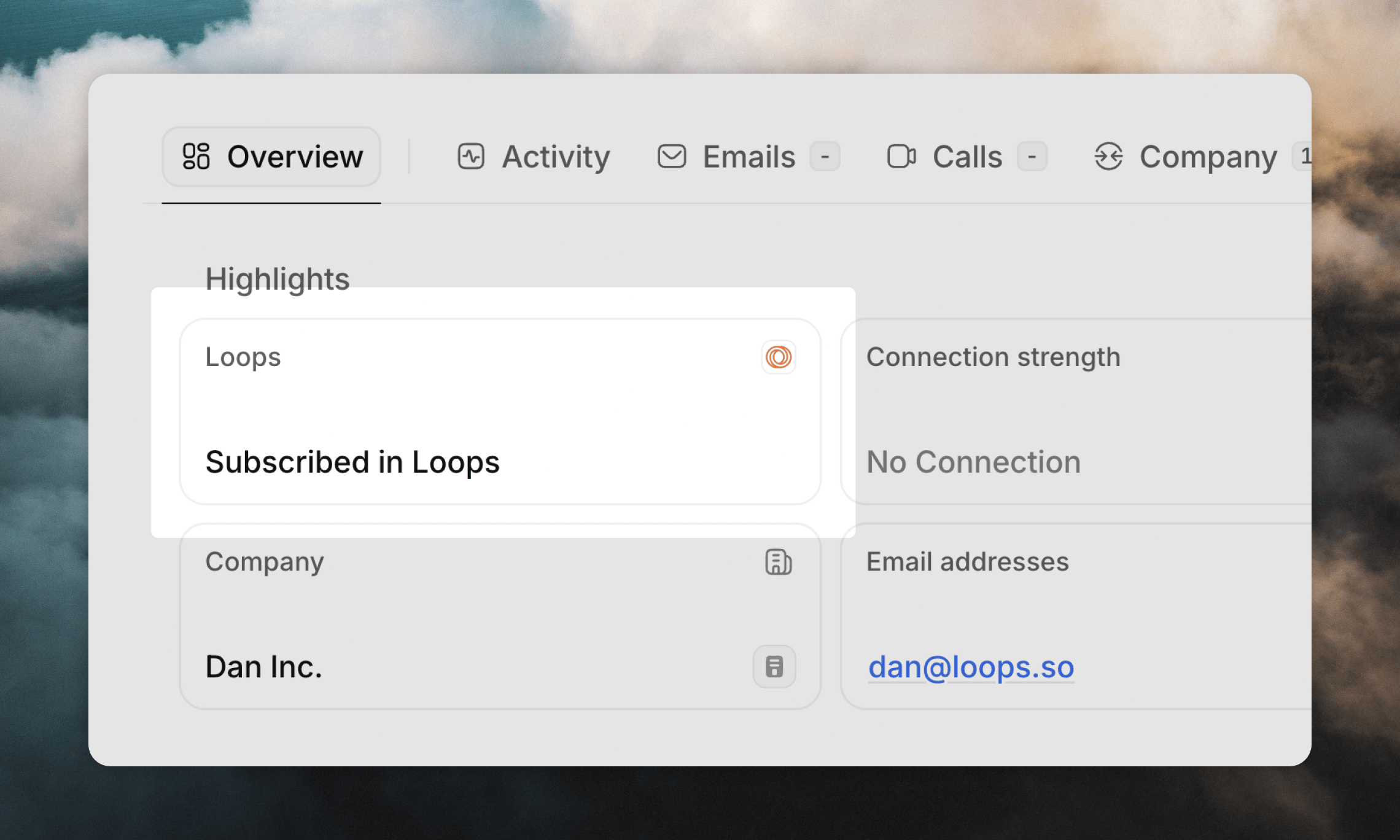
- Click the vertical three dots menu when viewing a contact record in Attio and select Configure page.
- If you already have six widgets, you will have to remove one first.
- Click + Add widget and select Loops. Then click Save changes.
Trigger Attio workflows from Loops
You can trigger Attio workflows from events happening in Loops. When creating a new workflow, select Loops event as the trigger. You can then choose which Loops event should trigger the workflow:- Contact created
- Contact deleted
- Contact unsubscribed
- Subscribed to a mailing list
- Unsubscribed from a mailing list
- Transactional email sent
- Campaign email sent
- Workflow email sent
- Email delivered
- Email opened
- Email clicked
- Email soft bounced
- Email hard bounced
- Unsubscribed from an unsubscribe link
- Resubscribed from an unsubscribe link
- Email reported as spam
Trigger Loops workflows from Attio
You can trigger Loops workflows from Attio by using the Send Loops event block inside an Attio workflow. When adding a new block in the workflow editor, search for “Send Loops event” and select the block. In the side panel, configure the event you want to trigger. We recommend setting up events and their properties in Loops first (Settings -> Events). If you have set the sync to send the Attio ID to LoopsuserId, select the Person record. Otherwise, make sure to populate the “Email” field, which will be used to find the contact in Loops.
Then build out the rest of the workflow as needed.
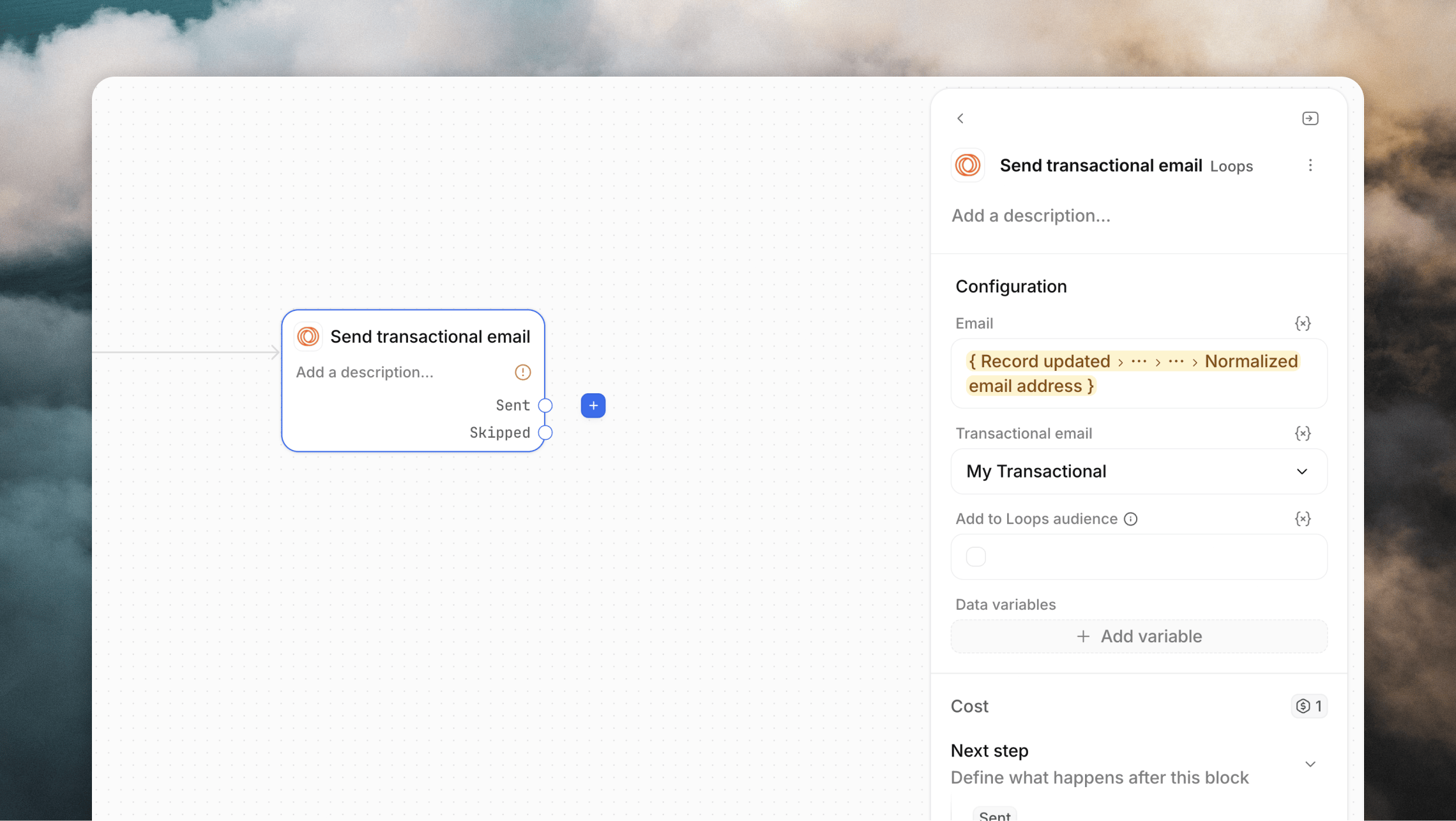
Send transactional email from Attio
You can send a transactional email from Attio by using the Send transactional email block inside an Attio workflow. When adding a new block in the workflow editor, search for “Send transactional email” and select the block.