> ## Documentation Index
> Fetch the complete documentation index at: https://loops.so/docs/llms.txt
> Use this file to discover all available pages before exploring further.
# Branching workflows
> Branching allows you to send different emails based on a contact's properties within a single workflow.
Our automation feature "Loops" has been renamed to "Workflows".
A common use case for crafting a user journey is to send different emails based on whether a contact has completed an action or not.
For example, you may want to send a different email to free users versus paid users.
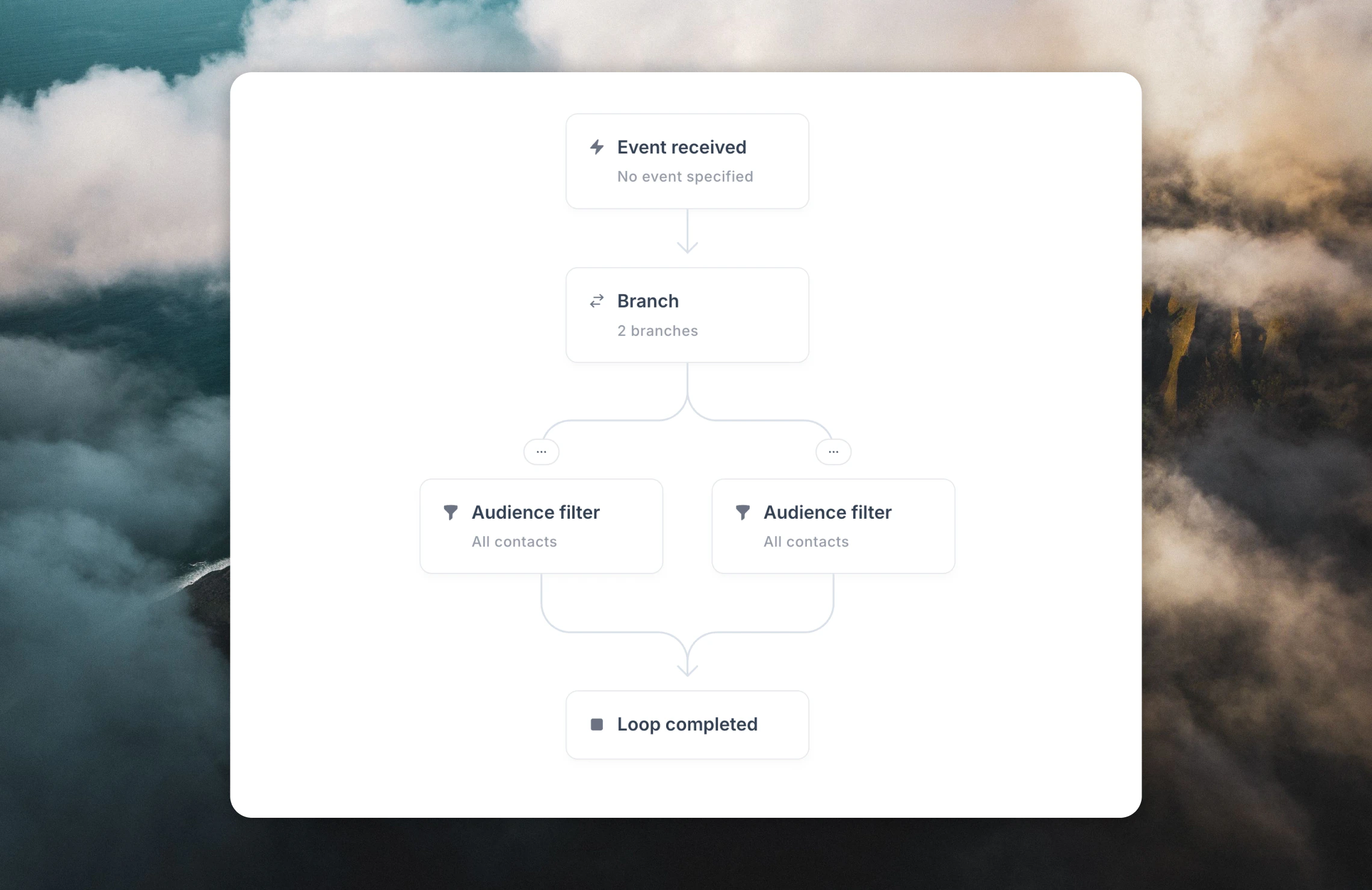
You can do this by adding a **Branch** node to your workflow.
 ## Creating a branching workflow
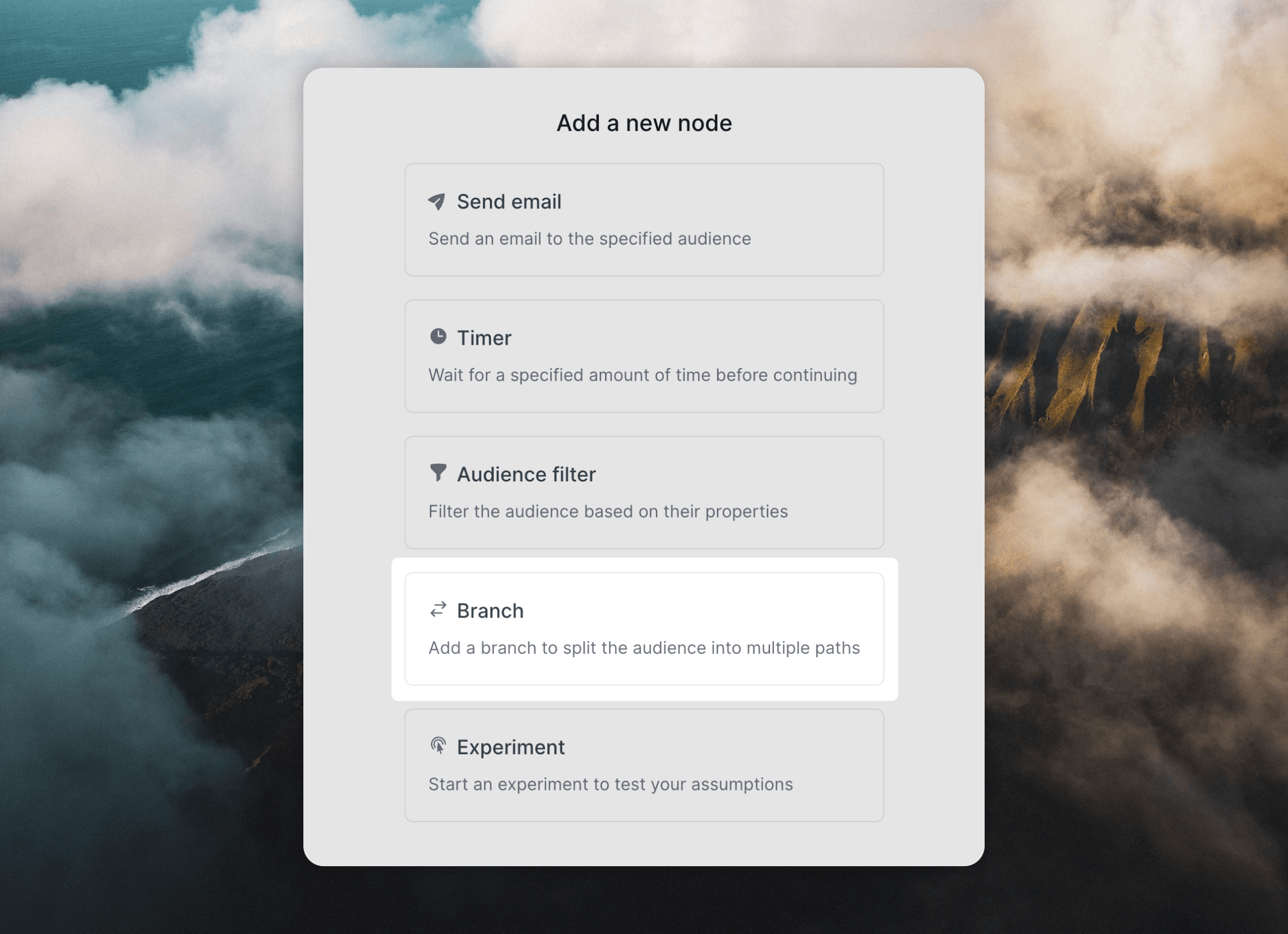 To create a branching workflow, click the `+` icon where you want branching to be added and select the **Branch** node type.
Two audience filter nodes are automatically created for you. Edit the audience filter settings for each to send different contacts down each branch, based on their properties.
You can add as many branches as you like to your workflow. Add more branches by clicking the `+ Branch` option that appears on hover just below the Branch node.
Each branch can contain emails, timers, audience filters, more branches, and experiments.
Learn about the different node types.
Add A/B testing to your workflows.
## Audience filters
Every branch is defined by an audience filter, which is always the first node in a branch. Filters determine which contacts follow each branch.
When a contact reaches a branch node, the audience filter nodes are evaluated left-to-right as defined in the workflow builder. The contact will proceed to the first matching filter and the remaining filters are skipped. If the contact matches none of the filters, they exit the workflow.
You can create the equivalent of a "default path" by making the right-most filter have empty conditions so that it matches any contact.
#### Upgrade notice
Previously, a branch node would send contacts who matched multiple filters down multiple parallel branches.
This behavior has been changed; now, in any new branches added to workflows, contacts will only follow the first branch they match.
Branches with the old behavior are marked in your workflows. They will retain the old logic until you explicitly press the "Upgrade Branch Node" button shown in the Branch head node's options panel. For more information, see the [branch node upgrade documentation](/workflows/branch-node-upgrade).
The audience filter nodes created after a branching node can be toggled between two settings:
* **All following nodes:** The audience filter will apply to *all nodes* downstream of the filter. If a contact stops matching the filter later down the branch, they will be removed from the workflow.
* **Next node only:** The audience filter will only apply when contacts reach the next node in the branch. If a contact stops matching the filter later in the branch, they will remain in the workflow.
Read more about audience filters.
## Converging branches
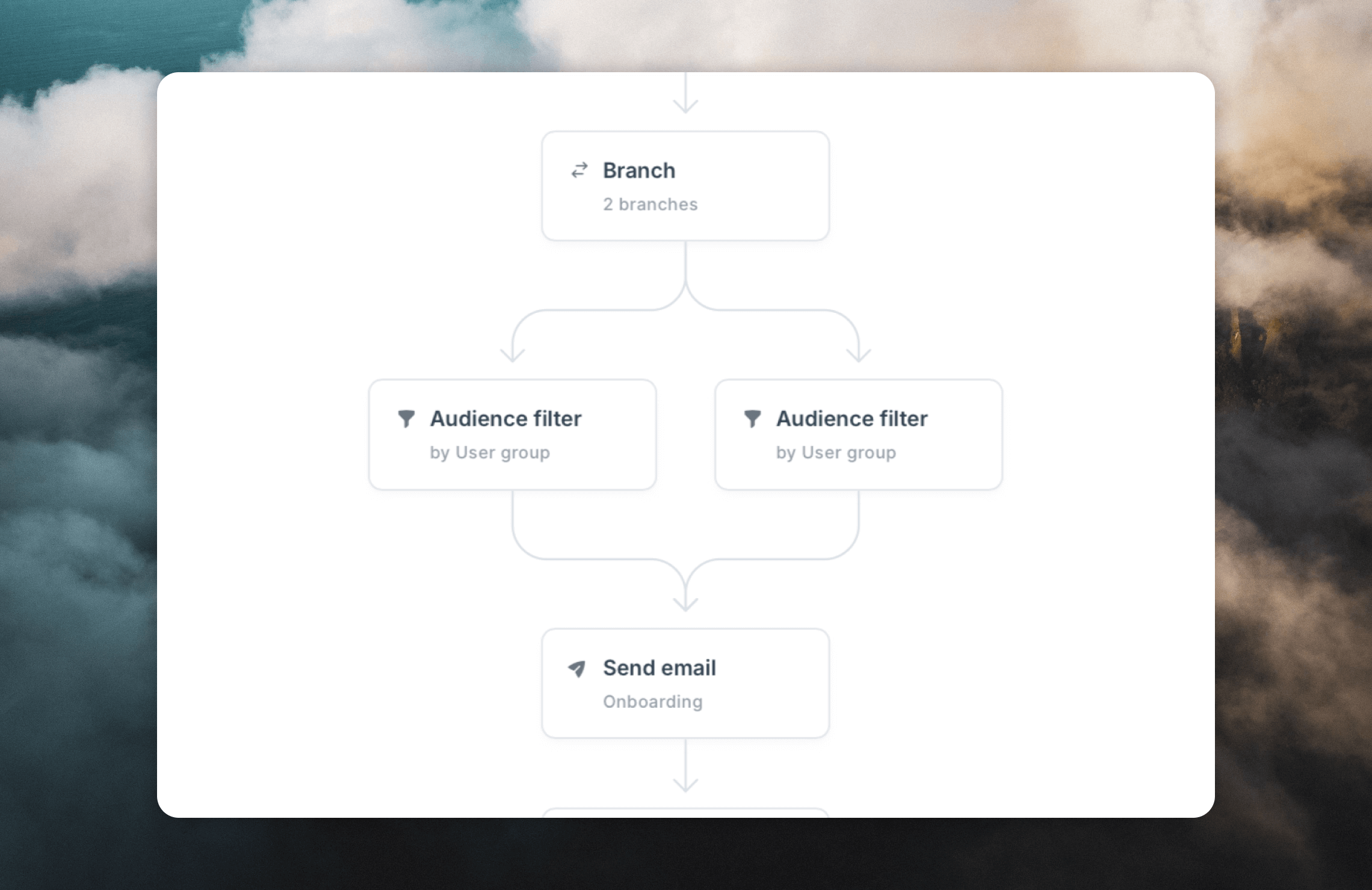
A common use case is to have different branches converge back to the same path. For example, you may want to create branches with different filters that lead to different onboarding emails, but have all branches converge on a single timer that waits a week before sending the same follow-up email.
Here's how you can set up converging paths in a workflow:
Click **Reroute connection** located below a node.
To create a branching workflow, click the `+` icon where you want branching to be added and select the **Branch** node type.
Two audience filter nodes are automatically created for you. Edit the audience filter settings for each to send different contacts down each branch, based on their properties.
You can add as many branches as you like to your workflow. Add more branches by clicking the `+ Branch` option that appears on hover just below the Branch node.
Each branch can contain emails, timers, audience filters, more branches, and experiments.
Learn about the different node types.
Add A/B testing to your workflows.
## Audience filters
Every branch is defined by an audience filter, which is always the first node in a branch. Filters determine which contacts follow each branch.
When a contact reaches a branch node, the audience filter nodes are evaluated left-to-right as defined in the workflow builder. The contact will proceed to the first matching filter and the remaining filters are skipped. If the contact matches none of the filters, they exit the workflow.
You can create the equivalent of a "default path" by making the right-most filter have empty conditions so that it matches any contact.
#### Upgrade notice
Previously, a branch node would send contacts who matched multiple filters down multiple parallel branches.
This behavior has been changed; now, in any new branches added to workflows, contacts will only follow the first branch they match.
Branches with the old behavior are marked in your workflows. They will retain the old logic until you explicitly press the "Upgrade Branch Node" button shown in the Branch head node's options panel. For more information, see the [branch node upgrade documentation](/workflows/branch-node-upgrade).
The audience filter nodes created after a branching node can be toggled between two settings:
* **All following nodes:** The audience filter will apply to *all nodes* downstream of the filter. If a contact stops matching the filter later down the branch, they will be removed from the workflow.
* **Next node only:** The audience filter will only apply when contacts reach the next node in the branch. If a contact stops matching the filter later in the branch, they will remain in the workflow.
Read more about audience filters.
## Converging branches
A common use case is to have different branches converge back to the same path. For example, you may want to create branches with different filters that lead to different onboarding emails, but have all branches converge on a single timer that waits a week before sending the same follow-up email.
Here's how you can set up converging paths in a workflow:
Click **Reroute connection** located below a node.
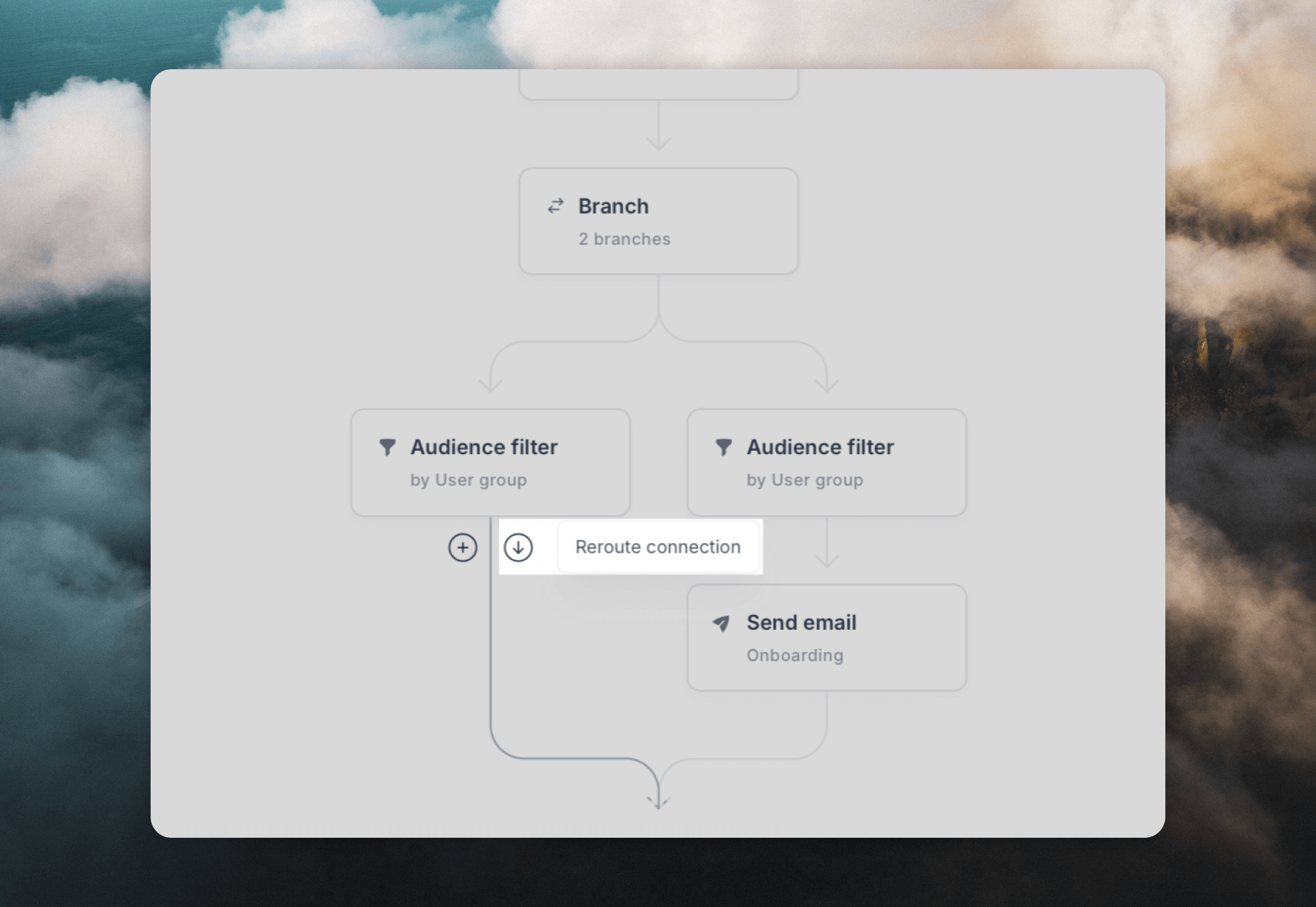 Now select the target node you want to reroute to.
Since workflows do not allow circular paths, only valid target nodes will be visible, and any invalid target nodes will be dimmed.
Now select the target node you want to reroute to.
Since workflows do not allow circular paths, only valid target nodes will be visible, and any invalid target nodes will be dimmed.
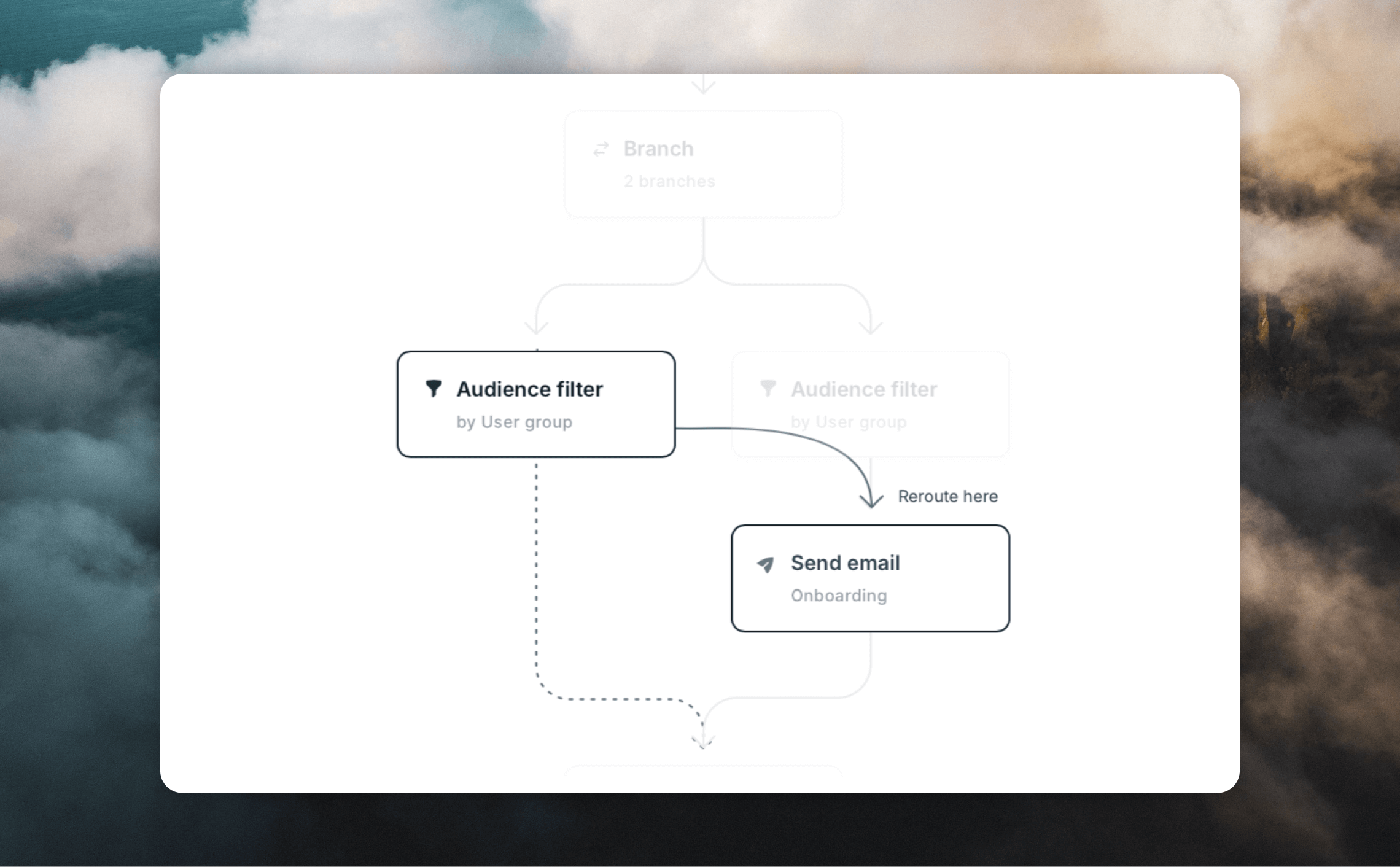 You'll end up with multiple nodes converging on the same target.
 ## Deleting branches
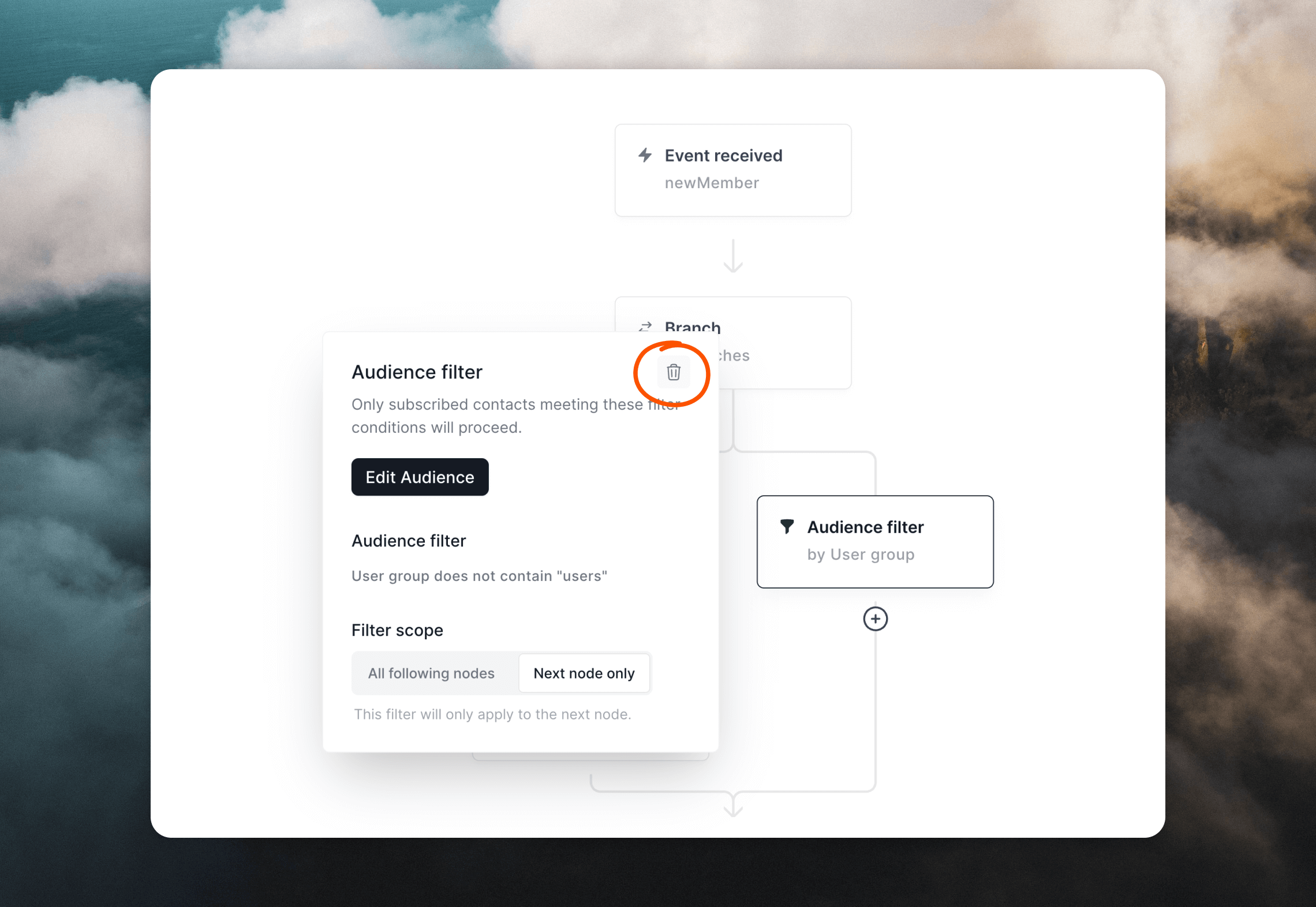
To delete all branches, select the head Branch node and click the trash icon. This will remove all branches—including all nodes—following it.
## Deleting branches
To delete all branches, select the head Branch node and click the trash icon. This will remove all branches—including all nodes—following it.
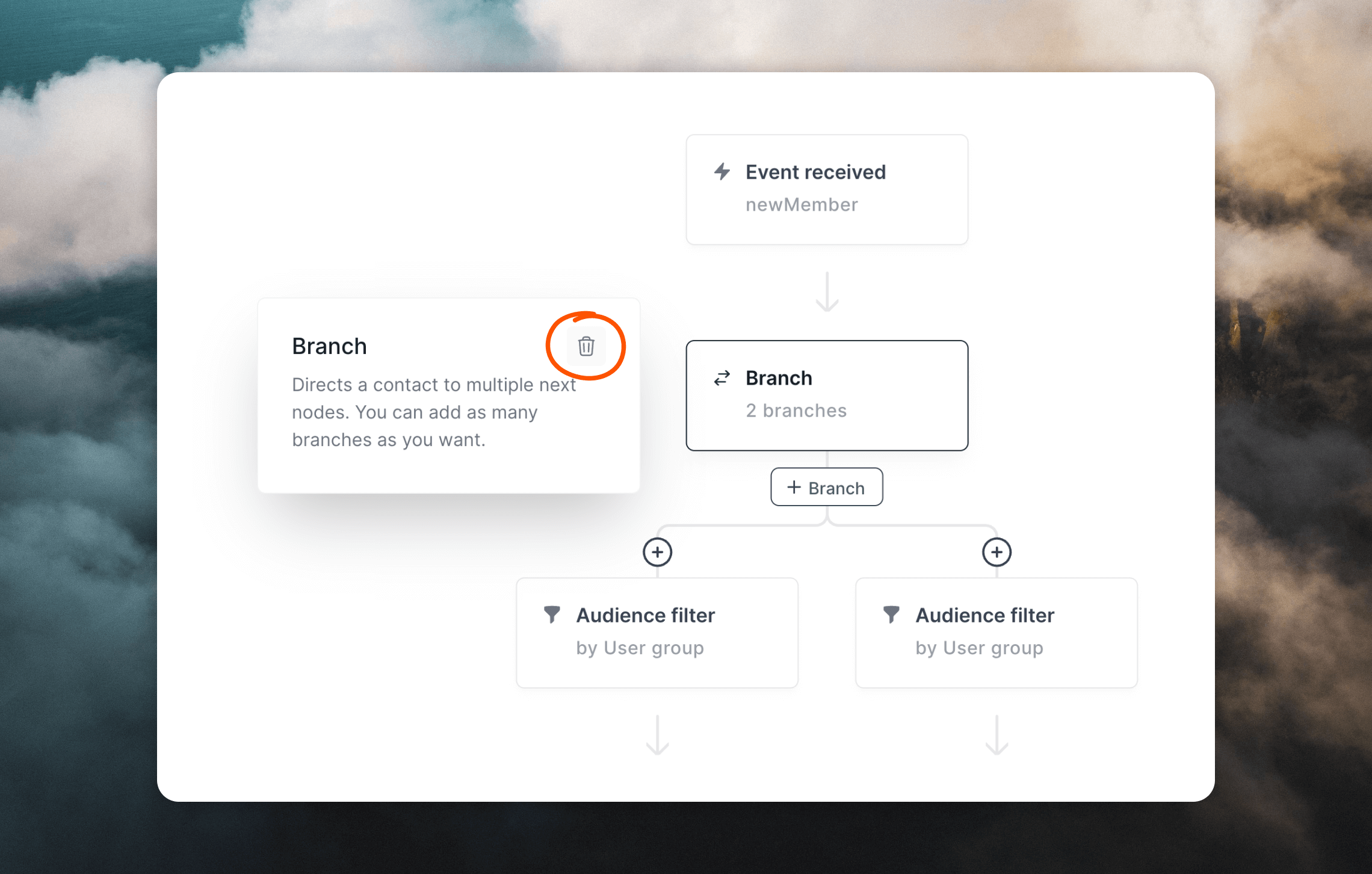 If you want to delete a single branch, you can do so by deleting each node in the branch you want removed. When the final node is deleted, the branch will be removed.