> ## Documentation Index
> Fetch the complete documentation index at: https://loops.so/docs/llms.txt
> Use this file to discover all available pages before exploring further.
# RudderStack
> Connect Loops to hundreds of apps to manage contacts and send emails.
Our RudderStack integration lets you:
* Create and update contacts
* Send events to trigger workflows
## Configuring the destination
In RudderStack, go to [Destinations](https://app.rudderstack.com/destinations) and click **New destination**. Search for "Loops" and select it.
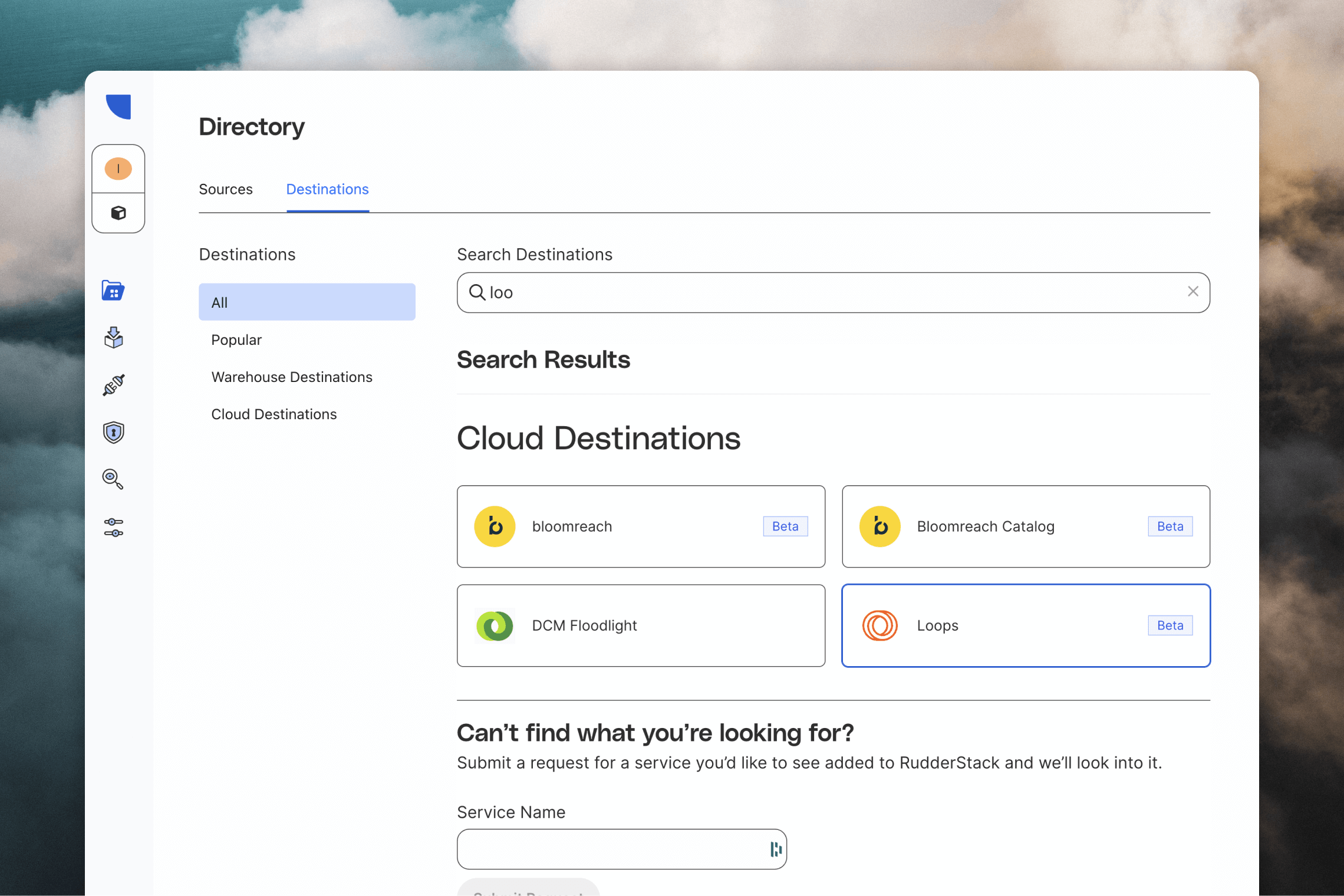 Select the source you want to connect Loops to.
On the next page you need to add a Loops API key. You can generate a new one on the [Loops API Settings page](https://app.loops.so/settings?page=api) and paste it into the **API Key** field.
Select the source you want to connect Loops to.
On the next page you need to add a Loops API key. You can generate a new one on the [Loops API Settings page](https://app.loops.so/settings?page=api) and paste it into the **API Key** field.
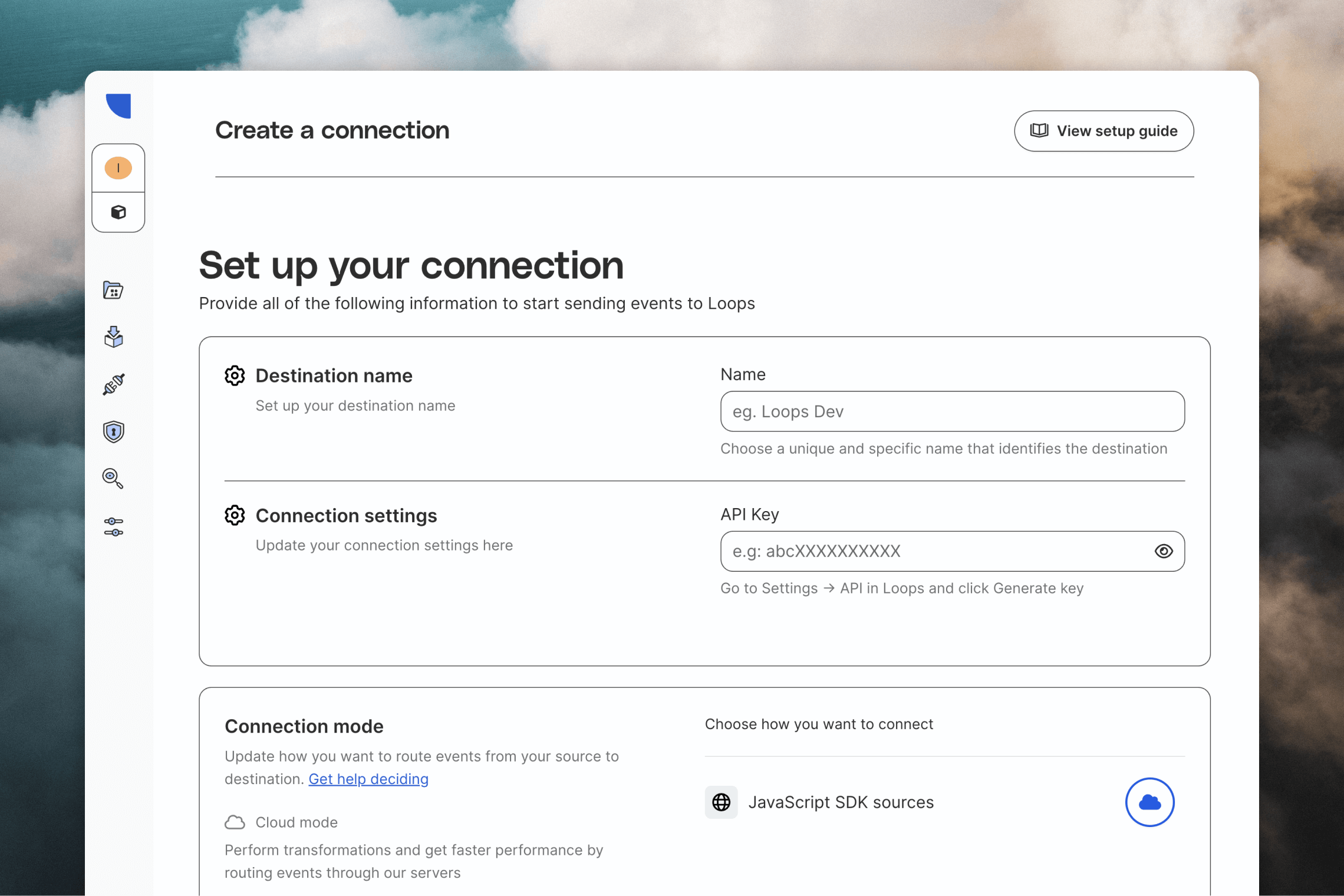 Click **Continue** at the bottom of the page to finish the setup.
## Create or update a contact
To send contact data to Loops, use RudderStack's [`identify` call](https://www.rudderstack.com/docs/event-spec/standard-events/identify/).
Identify users with a unique user ID from your source. You can include contact properties in the traits object, like `firstName` and `lastName` in this example.
For new contacts, make sure to include an email address, otherwise the call will fail. If the contact has already been sent to Loops with its user ID, you can omit the email address unless you want to update that value. In general, we recommend to always include an email address.
```javascript theme={"dark"}
rudderanalytics.identify(userId, {
email: "test@example.com",
firstName: "Adrian",
lastName: "Brown"
});
```
To manage [mailing list](/contacts/mailing-lists) subscriptions, add a `mailingLists` object to the traits object. The key is the ID of the mailing list and the value is a boolean indicating whether the contact should be subscribed or unsubscribed.
```javascript theme={"dark"}
rudderanalytics.identify(userId, {
email: "test@example.com",
firstName: "Adrian",
lastName: "Brown",
mailingLists: {
cly2xnjqn002z0mmn68uog1wk: true,
},
});
```
## Send an event
You can trigger emails from RudderStack by triggering [events](/events) via [`track` calls](https://www.rudderstack.com/docs/event-spec/standard-events/track/).
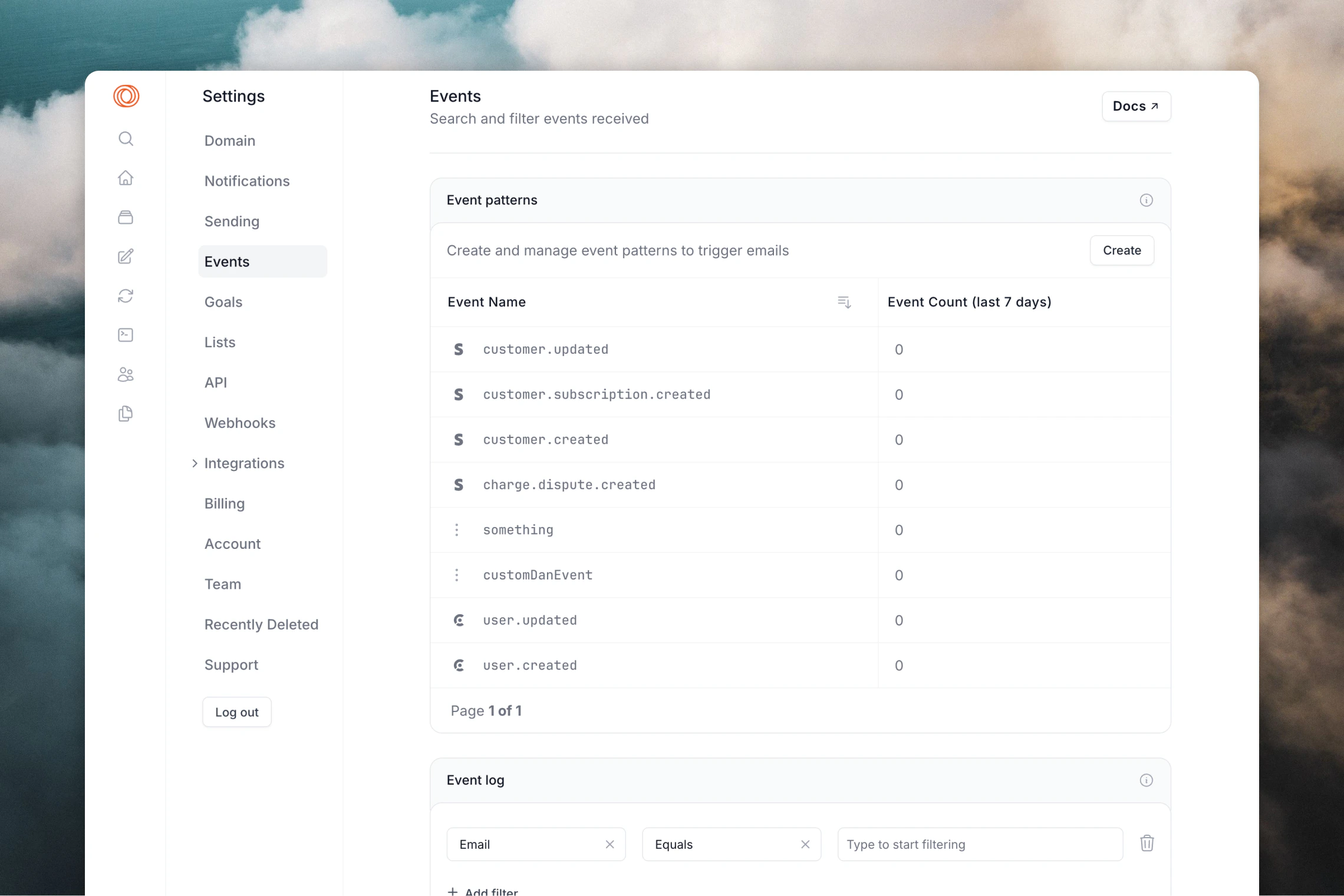
You should add and define your events in [Settings -> Events](https://app.loops.so/settings?page=events) including any expected [event properties](/events/properties).
The event name in your `track` call must match the name of the event in Loops. Data sent in the properties object will be sent as event properties to Loops, for use in your emails.
Make sure to call `identify` before `track` so the event is associated with a specific contact.
```javascript theme={"dark"}
rudderanalytics.track("newUser", {
plan: "Pro Annual",
accountType: "Facebook"
});
```
## Testing
### In RudderStack
RudderStack includes features to help you test your integration.
First of all you can see all `identify` and `track` calls coming in from your sources. Click on a source and select the **Events tab**.
Click **Continue** at the bottom of the page to finish the setup.
## Create or update a contact
To send contact data to Loops, use RudderStack's [`identify` call](https://www.rudderstack.com/docs/event-spec/standard-events/identify/).
Identify users with a unique user ID from your source. You can include contact properties in the traits object, like `firstName` and `lastName` in this example.
For new contacts, make sure to include an email address, otherwise the call will fail. If the contact has already been sent to Loops with its user ID, you can omit the email address unless you want to update that value. In general, we recommend to always include an email address.
```javascript theme={"dark"}
rudderanalytics.identify(userId, {
email: "test@example.com",
firstName: "Adrian",
lastName: "Brown"
});
```
To manage [mailing list](/contacts/mailing-lists) subscriptions, add a `mailingLists` object to the traits object. The key is the ID of the mailing list and the value is a boolean indicating whether the contact should be subscribed or unsubscribed.
```javascript theme={"dark"}
rudderanalytics.identify(userId, {
email: "test@example.com",
firstName: "Adrian",
lastName: "Brown",
mailingLists: {
cly2xnjqn002z0mmn68uog1wk: true,
},
});
```
## Send an event
You can trigger emails from RudderStack by triggering [events](/events) via [`track` calls](https://www.rudderstack.com/docs/event-spec/standard-events/track/).
You should add and define your events in [Settings -> Events](https://app.loops.so/settings?page=events) including any expected [event properties](/events/properties).
The event name in your `track` call must match the name of the event in Loops. Data sent in the properties object will be sent as event properties to Loops, for use in your emails.
Make sure to call `identify` before `track` so the event is associated with a specific contact.
```javascript theme={"dark"}
rudderanalytics.track("newUser", {
plan: "Pro Annual",
accountType: "Facebook"
});
```
## Testing
### In RudderStack
RudderStack includes features to help you test your integration.
First of all you can see all `identify` and `track` calls coming in from your sources. Click on a source and select the **Events tab**.
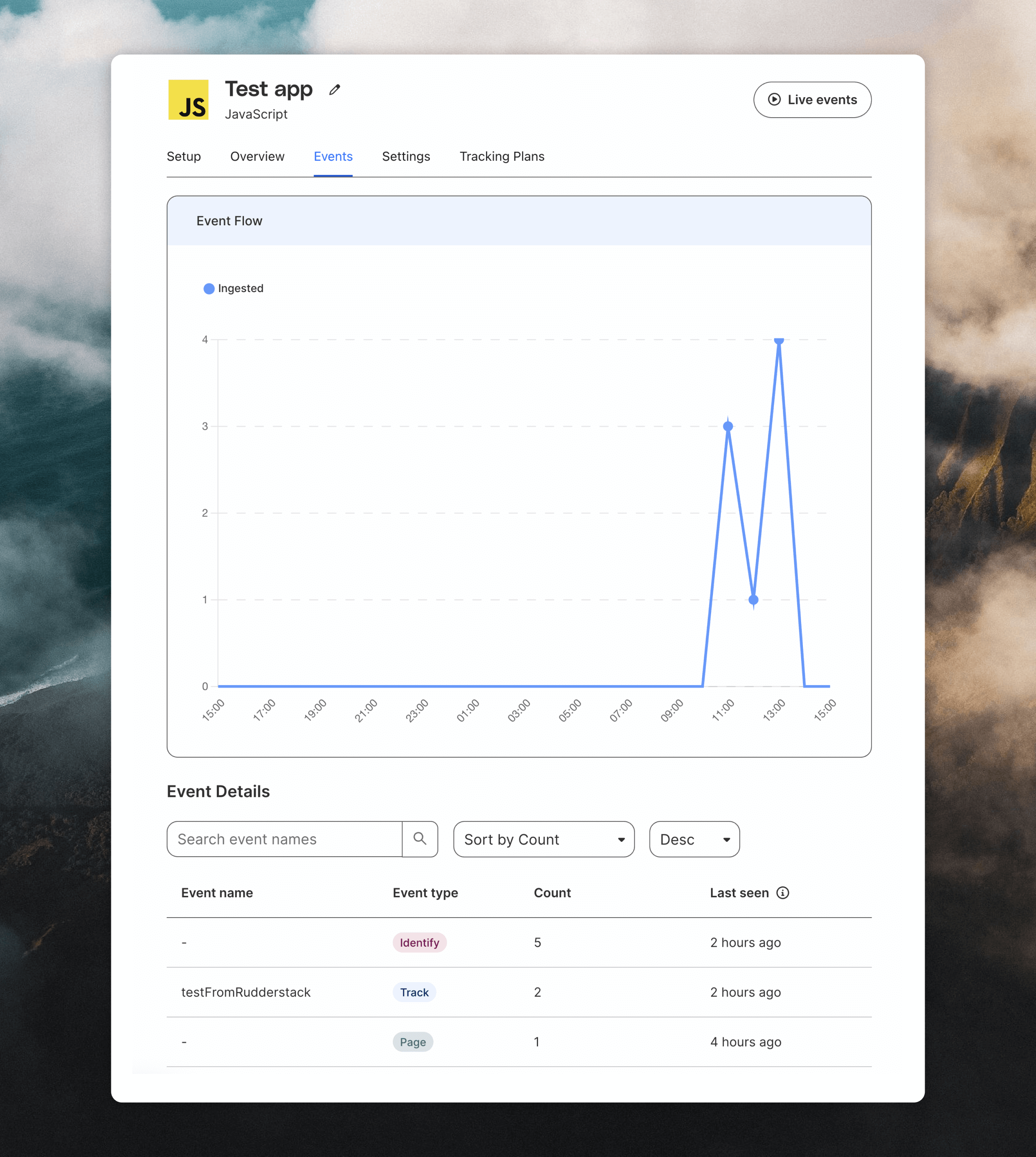 Click on the **Live events** button in the top right to view details of events as they come in.
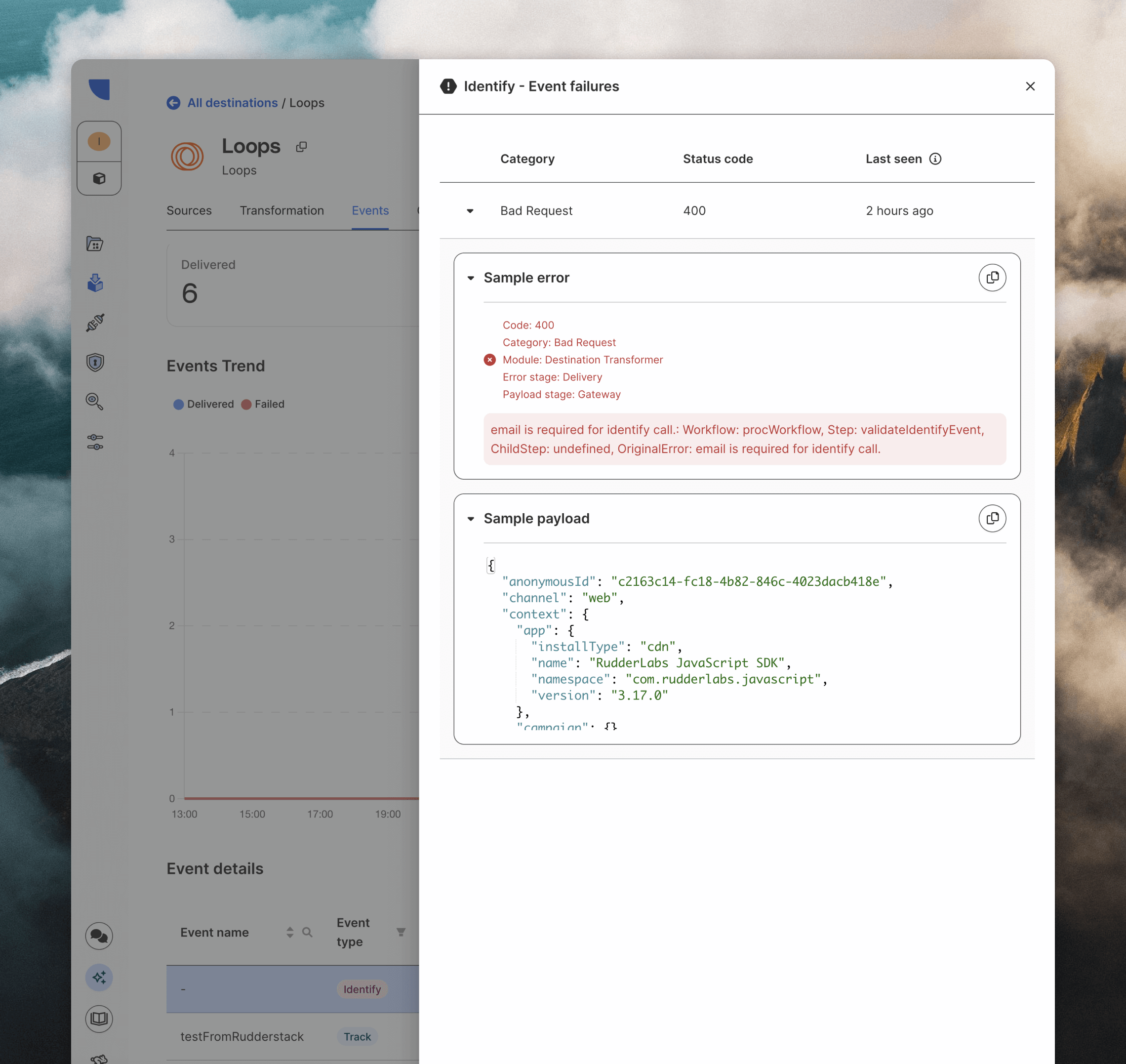
You can also see all of the calls being sent from RudderStack to your destinations. Click on a destination and then the **Events** tab. At the bottom of this page you will see a table showing events. Click on these to see any errors that have occurred when sending data to Loops.
Click on the **Live events** button in the top right to view details of events as they come in.
You can also see all of the calls being sent from RudderStack to your destinations. Click on a destination and then the **Events** tab. At the bottom of this page you will see a table showing events. Click on these to see any errors that have occurred when sending data to Loops.
 ### In Loops
You can verify contact updates have happened in Loops from the [Audience page](https://app.loops.so/audience), and you can see all incoming events from the [Events page](https://app.loops.so/settings?page=events).
Click on individual events in the **Event Log** table to view the payload that Loops processed.
### In Loops
You can verify contact updates have happened in Loops from the [Audience page](https://app.loops.so/audience), and you can see all incoming events from the [Events page](https://app.loops.so/settings?page=events).
Click on individual events in the **Event Log** table to view the payload that Loops processed.