> ## Documentation Index
> Fetch the complete documentation index at: https://loops.so/docs/llms.txt
> Use this file to discover all available pages before exploring further.
# PostHog
> Send events and contacts data to Loops from PostHog.
PostHog's Loops integration lets you send events from your project to Loops, as well as add users to your Loops audience.
PostHog's [data pipelines](https://posthog.com/cdp) add-on or a self-hosted version of PostHog is required for this integration to work.
Here's how to set up a Loops destination in PostHog.
## Create a Loops destination
In your PostHog dashboard go to **Data pipelines**, click **+ New destination** and search for "Loops".
You will see two options:
* Send events to Loops.so (use this to trigger [workflows](/workflows))
* Update contacts in Loops.so (this will *create or update* contacts in your Loops audience)
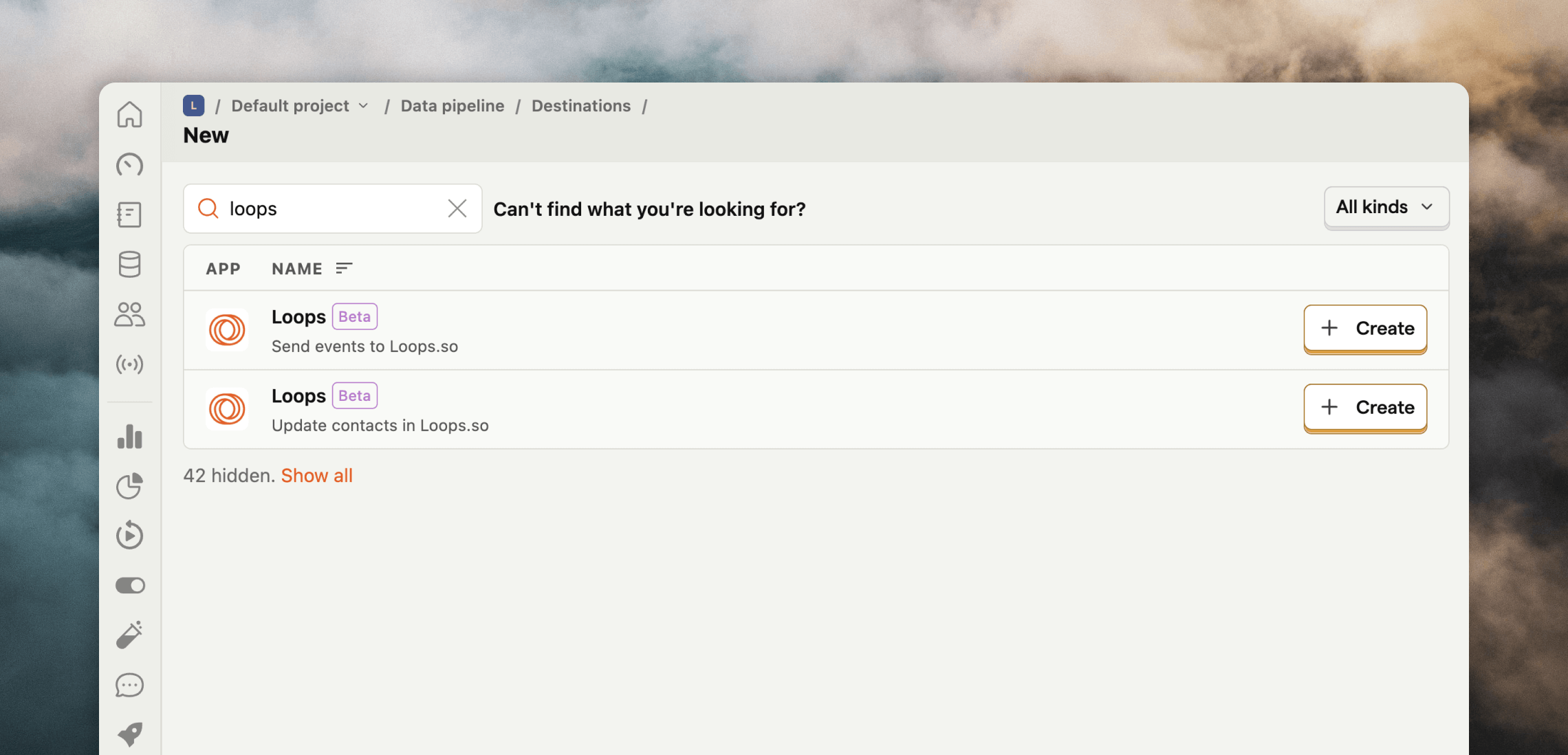 Choose the one you want and click **+ Create**.
## Add your API key
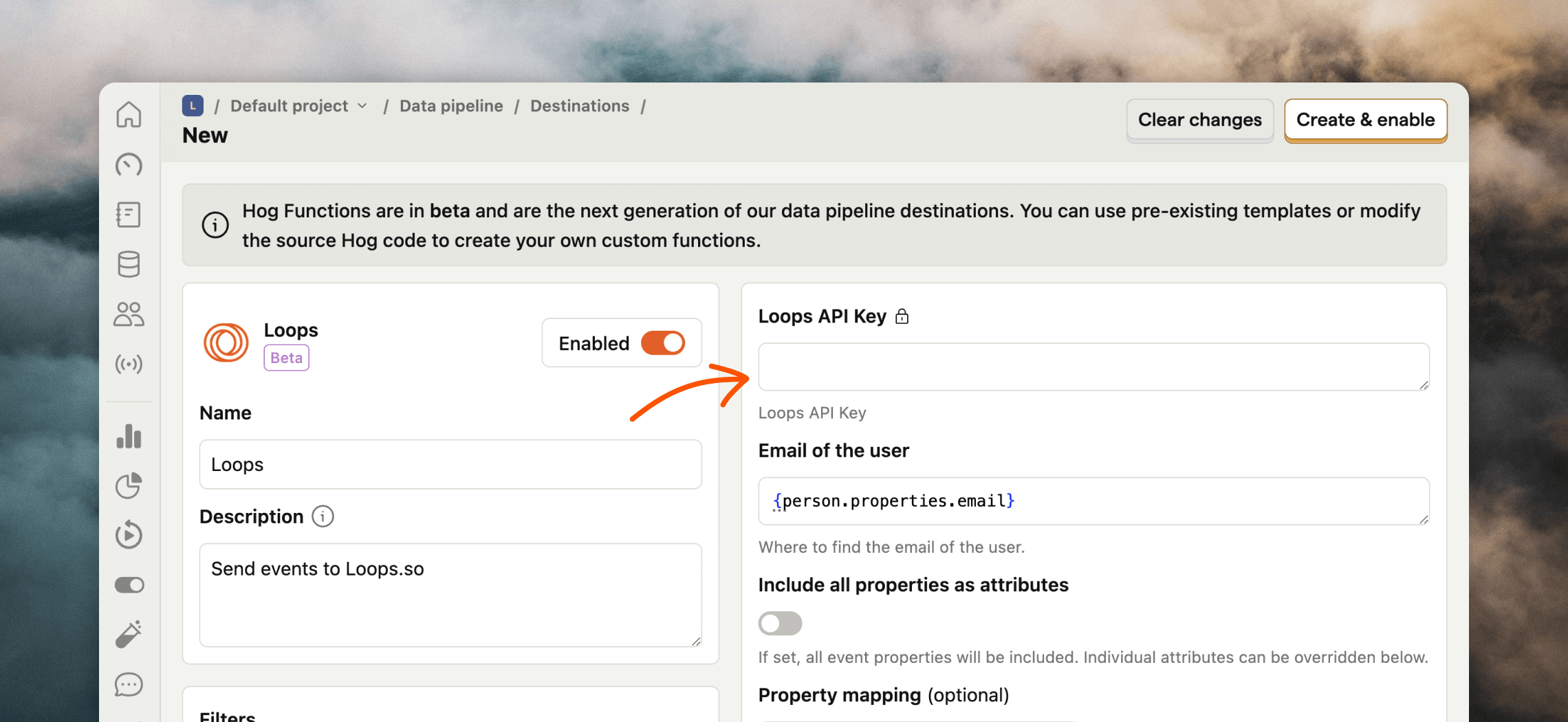
You need to add a Loops API key to each destination so that PostHog can send data to your Loops account.
In Loops, go to [Settings -> API](https://app.loops.so/settings?page=api) and generate or copy an API key.
Back in PostHog, paste the API key in the **Loops API Key** field.
Choose the one you want and click **+ Create**.
## Add your API key
You need to add a Loops API key to each destination so that PostHog can send data to your Loops account.
In Loops, go to [Settings -> API](https://app.loops.so/settings?page=api) and generate or copy an API key.
Back in PostHog, paste the API key in the **Loops API Key** field.
 ## Customize the destination
There are a few options available to customize the data that is sent to Loops for both destination types. This helps make sure that you're sending the correct data for your events and contacts.
### Send events
In the **Send event to Loops.so** destination, you can filter which events are sent to Loops from the **Filters** section. The default is "Pageview" (which is sent with the event name "\$pageview" to Loops).
## Customize the destination
There are a few options available to customize the data that is sent to Loops for both destination types. This helps make sure that you're sending the correct data for your events and contacts.
### Send events
In the **Send event to Loops.so** destination, you can filter which events are sent to Loops from the **Filters** section. The default is "Pageview" (which is sent with the event name "\$pageview" to Loops).
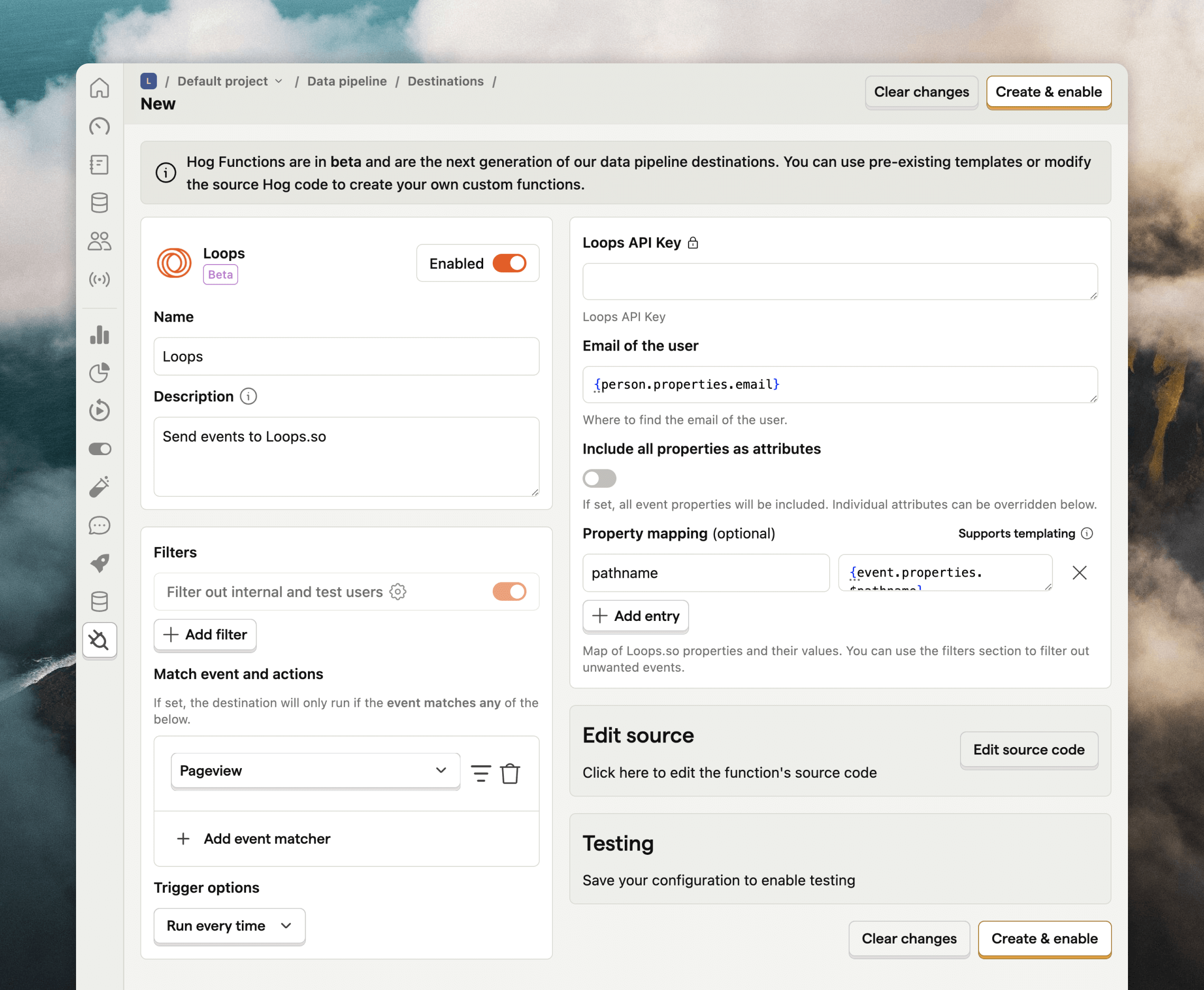 By default `pathname` is sent with the event as an [event property](/events/properties), making it available in all emails triggered by the event.
If you want to add more event properties you can use the **Property mapping** option.
If you check the **Include all properties as attributes** option, all properties from the event will be sent to Loops.
### Update contacts
The **Update contacts in Loops.so** destination lets you sync users to Loops. If a matching contact doesn't already exist in Loops, one will be created.
In this destination you can filter which events are sent to Loops from the **Filters** section. The defaults are "Identify" and "Set person properties".
By default `pathname` is sent with the event as an [event property](/events/properties), making it available in all emails triggered by the event.
If you want to add more event properties you can use the **Property mapping** option.
If you check the **Include all properties as attributes** option, all properties from the event will be sent to Loops.
### Update contacts
The **Update contacts in Loops.so** destination lets you sync users to Loops. If a matching contact doesn't already exist in Loops, one will be created.
In this destination you can filter which events are sent to Loops from the **Filters** section. The defaults are "Identify" and "Set person properties".
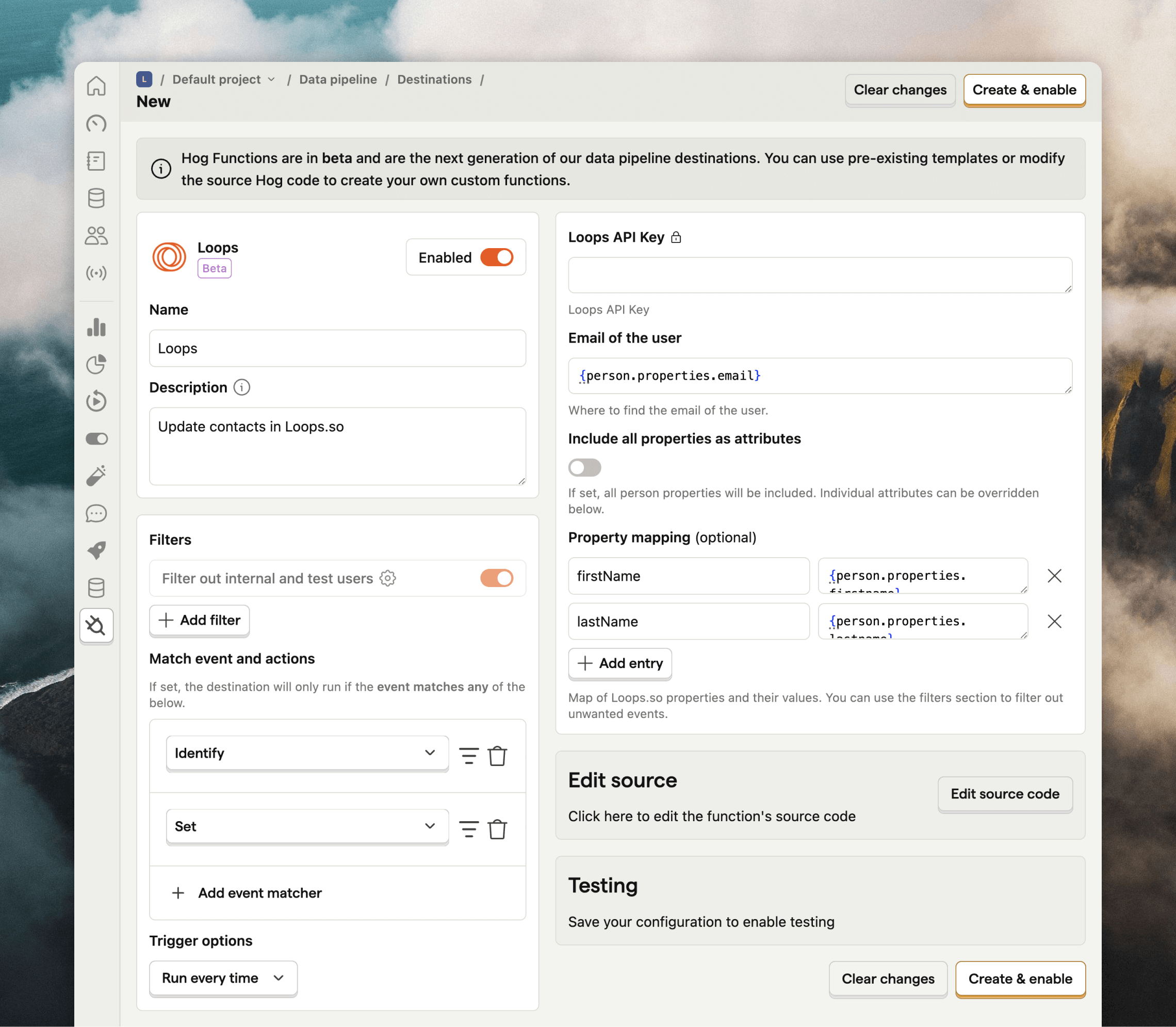 By default `email`, `userId`, `firstName` and `lastName` are synced to Loops. To add more contact properties you can use the **Property mapping** option, which allows you to map specific person data to contact properties in Loops. You can see all available contact properties in your account from [Settings -> API](https://app.loops.so/settings?page=api). Make sure to use the "API name" when mapping values in PostHog.
If you check the **Include all properties as attributes** option, all properties from the person record in PostHog will be added to contacts in Loops. This may create a lot of custom contact properties in Loops, so we suggest running a mock test (see below) first to see which data would be sent.
### Mailing lists
To add contacts to your Loops [mailing lists](/contacts/mailing-lists), you need to make a quick code change to the destination.
Click **Edit source code** on your destination's page.
For the **updating contacts** destination, edit lines 6–9 and add a new `mailingLists` section. Here, add your mailing list ID(s) and `true` (to subscribe the contact) or `false` (to unsubscribe).
```javascript {4-6} theme={"dark"}
let payload := {
'email': inputs.email,
'userId': person.id,
'mailingLists': {
'': true
}
}
```
Read the API documentation for updating contacts in Loops.
For the send events destination, edit lines 6–11 and add a new `mailingLists` section. Here, add your mailing list ID(s) and `true` (to subscribe the contact) or `false` (to unsubscribe).
```javascript {6-8} theme={"dark"}
let payload := {
'email': inputs.email,
'userId': person.id,
'eventName': event.event,
'eventProperties': {},
'mailingLists': {
'': true
}
}
```
Read the API documentation for sending events to Loops.
## Testing
To test if your configuration is working as expected, expand the **Testing** section at the bottom of the page.
By default `email`, `userId`, `firstName` and `lastName` are synced to Loops. To add more contact properties you can use the **Property mapping** option, which allows you to map specific person data to contact properties in Loops. You can see all available contact properties in your account from [Settings -> API](https://app.loops.so/settings?page=api). Make sure to use the "API name" when mapping values in PostHog.
If you check the **Include all properties as attributes** option, all properties from the person record in PostHog will be added to contacts in Loops. This may create a lot of custom contact properties in Loops, so we suggest running a mock test (see below) first to see which data would be sent.
### Mailing lists
To add contacts to your Loops [mailing lists](/contacts/mailing-lists), you need to make a quick code change to the destination.
Click **Edit source code** on your destination's page.
For the **updating contacts** destination, edit lines 6–9 and add a new `mailingLists` section. Here, add your mailing list ID(s) and `true` (to subscribe the contact) or `false` (to unsubscribe).
```javascript {4-6} theme={"dark"}
let payload := {
'email': inputs.email,
'userId': person.id,
'mailingLists': {
'': true
}
}
```
Read the API documentation for updating contacts in Loops.
For the send events destination, edit lines 6–11 and add a new `mailingLists` section. Here, add your mailing list ID(s) and `true` (to subscribe the contact) or `false` (to unsubscribe).
```javascript {6-8} theme={"dark"}
let payload := {
'email': inputs.email,
'userId': person.id,
'eventName': event.event,
'eventProperties': {},
'mailingLists': {
'': true
}
}
```
Read the API documentation for sending events to Loops.
## Testing
To test if your configuration is working as expected, expand the **Testing** section at the bottom of the page.
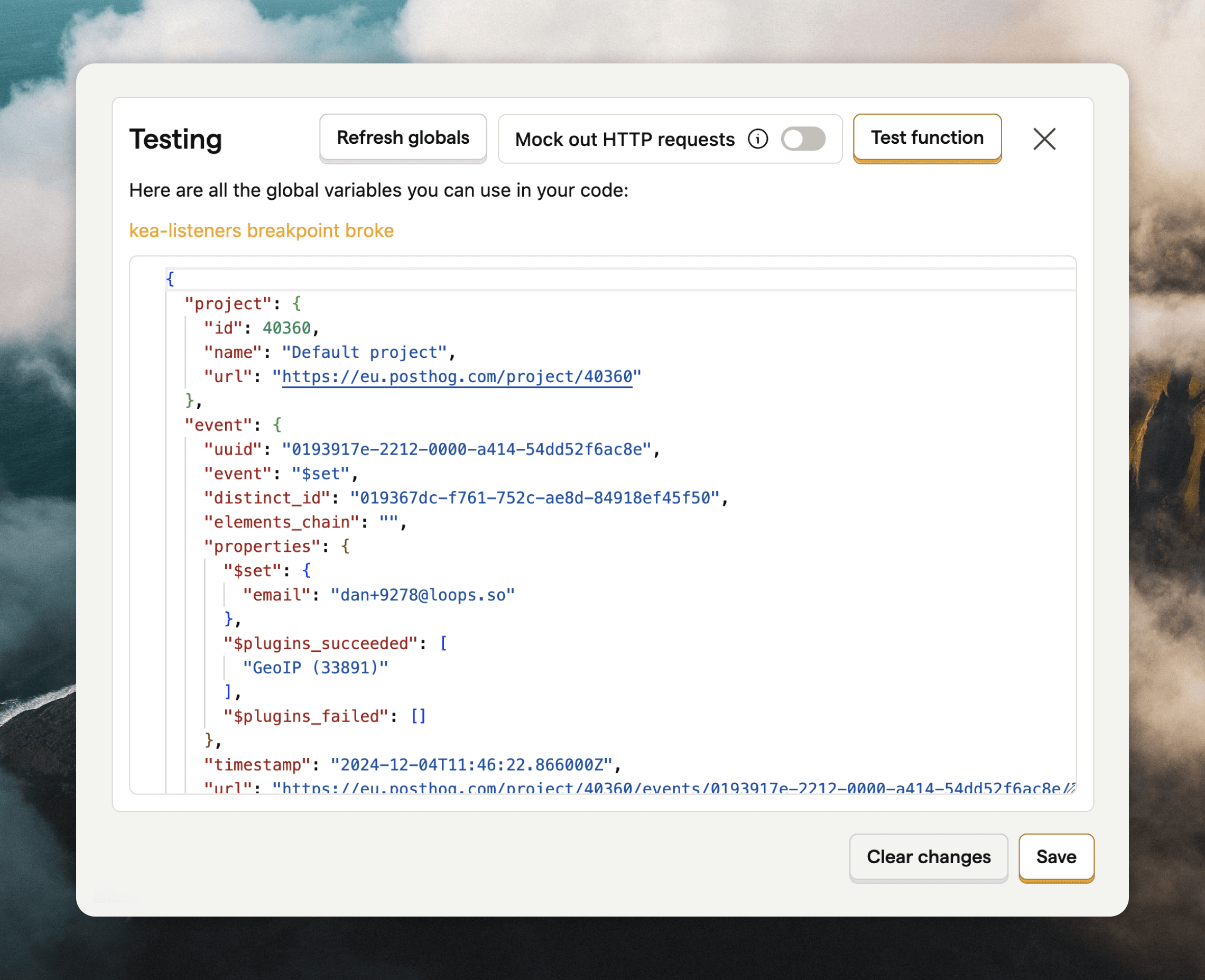 You can send real test events to Loops by clicking **Test function**. Check [Settings -> Events](https://app.loops.so/settings?page=events) and your [Audience](https://app.loops.so/audience) pages in Loops to see if data is coming across as you expect.
If you'd rather not send actual data to Loops during testing, select the **Mock out HTTP requests** option. This will show the expected request data (including all contact and event properties) rather than send a request to Loops.
You can send real test events to Loops by clicking **Test function**. Check [Settings -> Events](https://app.loops.so/settings?page=events) and your [Audience](https://app.loops.so/audience) pages in Loops to see if data is coming across as you expect.
If you'd rather not send actual data to Loops during testing, select the **Mock out HTTP requests** option. This will show the expected request data (including all contact and event properties) rather than send a request to Loops.