> ## Documentation Index
> Fetch the complete documentation index at: https://loops.so/docs/llms.txt
> Use this file to discover all available pages before exploring further.
# Novu integration
> Send Novu email notifications with Loops SMTP.
Set up an SMTP connection to send Novu notification emails with Loops.
## Set up Loops SMTP in Novu
Go to the [Integration Store settings](https://dashboard-v2.novu.co/integrations) in Novu and create a new email provider.
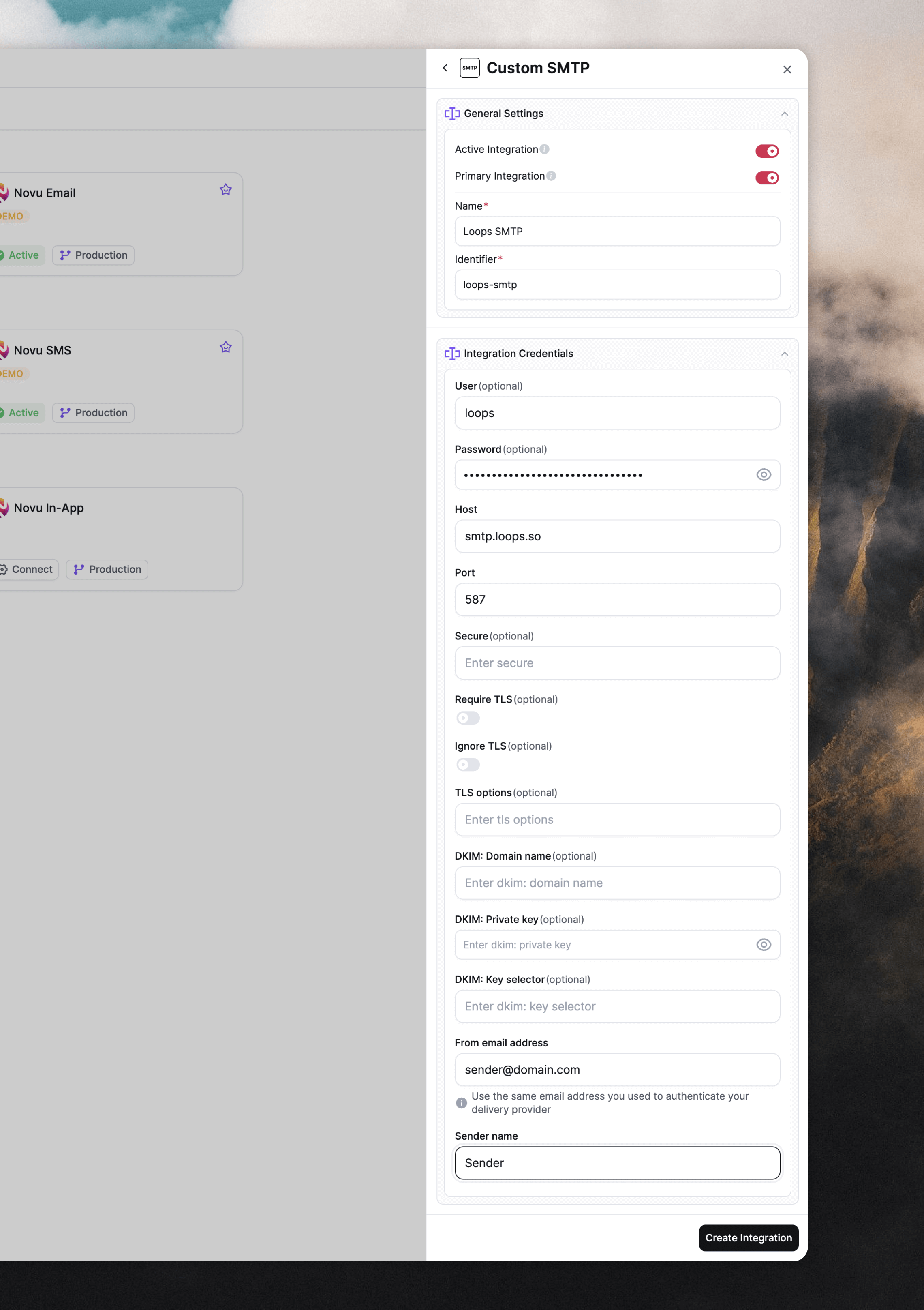
Click **Connect Provider** and then **Custom SMTP**.
Give your provider a name like "Loops SMTP" in the **Name** field.
Then add the following details into each field:
| Field | Value |
| -------- | ------------------------------------------------------------------------------------------- |
| User | `loops` |
| Password | An API key copied from your [API settings](https://app.loops.so/settings?page=api) in Loops |
| Host | `smtp.loops.so` |
| Port | `587` |
You also have to add values to the **From email address** and **Sender name** fields because Novu requires them. You can add any value here because Loops will overwrite these values when sending emails.
Click **Create Integration** to finish setup.
 ## Create Transactional emails in Loops
Next, create new transactional emails for the emails you are sending from Novu.
In Loops, go to the [Transactional page](https://app.loops.so/transactional) and click **New**. Alternatively, you can select one of our many ready-made templates from the [Templates page](https://app.loops.so/templates).
## Create Transactional emails in Loops
Next, create new transactional emails for the emails you are sending from Novu.
In Loops, go to the [Transactional page](https://app.loops.so/transactional) and click **New**. Alternatively, you can select one of our many ready-made templates from the [Templates page](https://app.loops.so/templates).
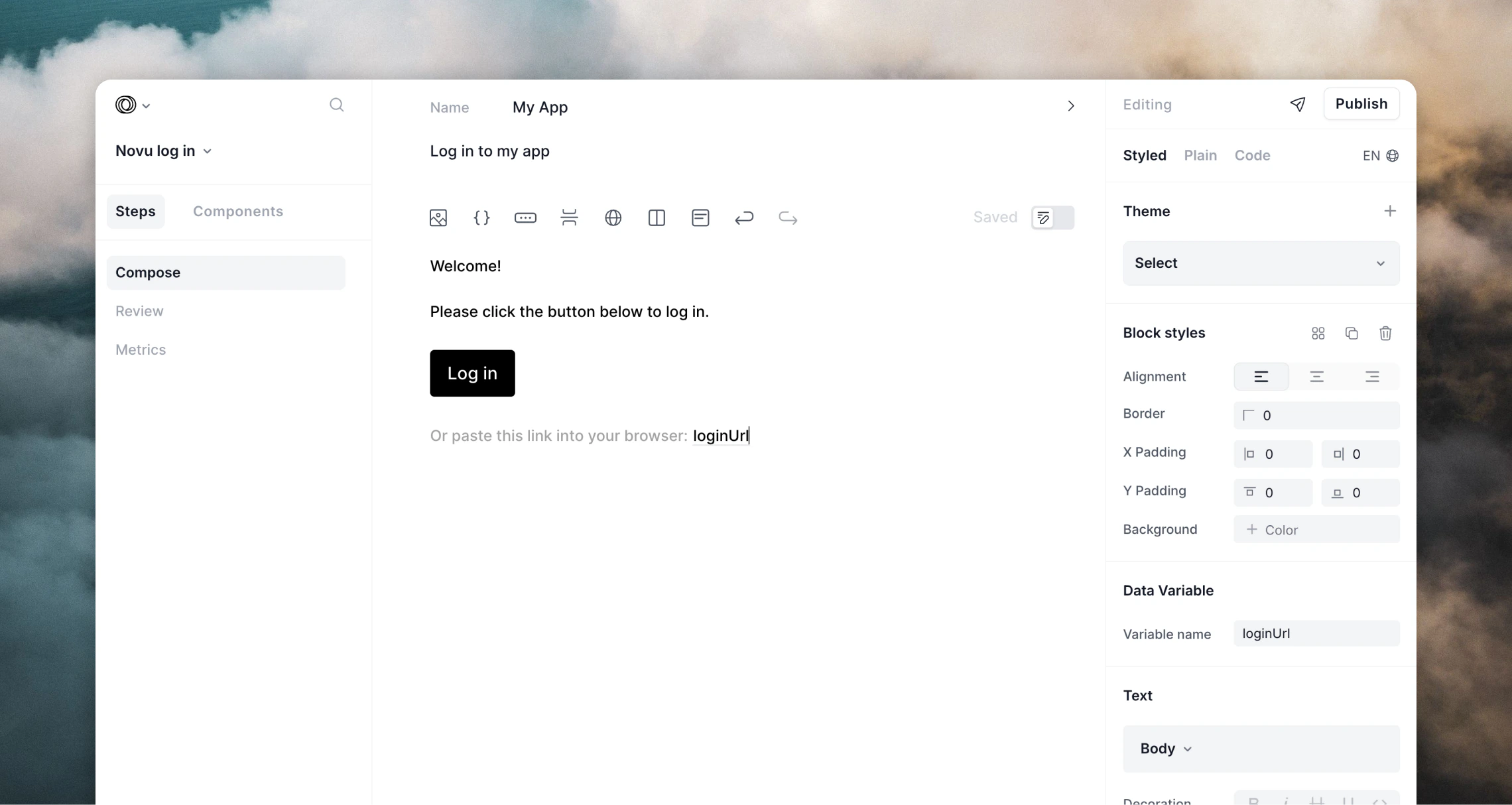 You can then use [the Loops editor](/creating-emails/editor) to create nicely-designed templates or make them as simple as you like.
You can even create [themes](/creating-emails/styles#themes) to apply consistent design and branding to all of your emails.
For each Loops template you create, you can add [add data variables](/creating-emails/personalizing-emails#add-dynamic-content-to-emails), which allow data from Novu to be inserted into each email.
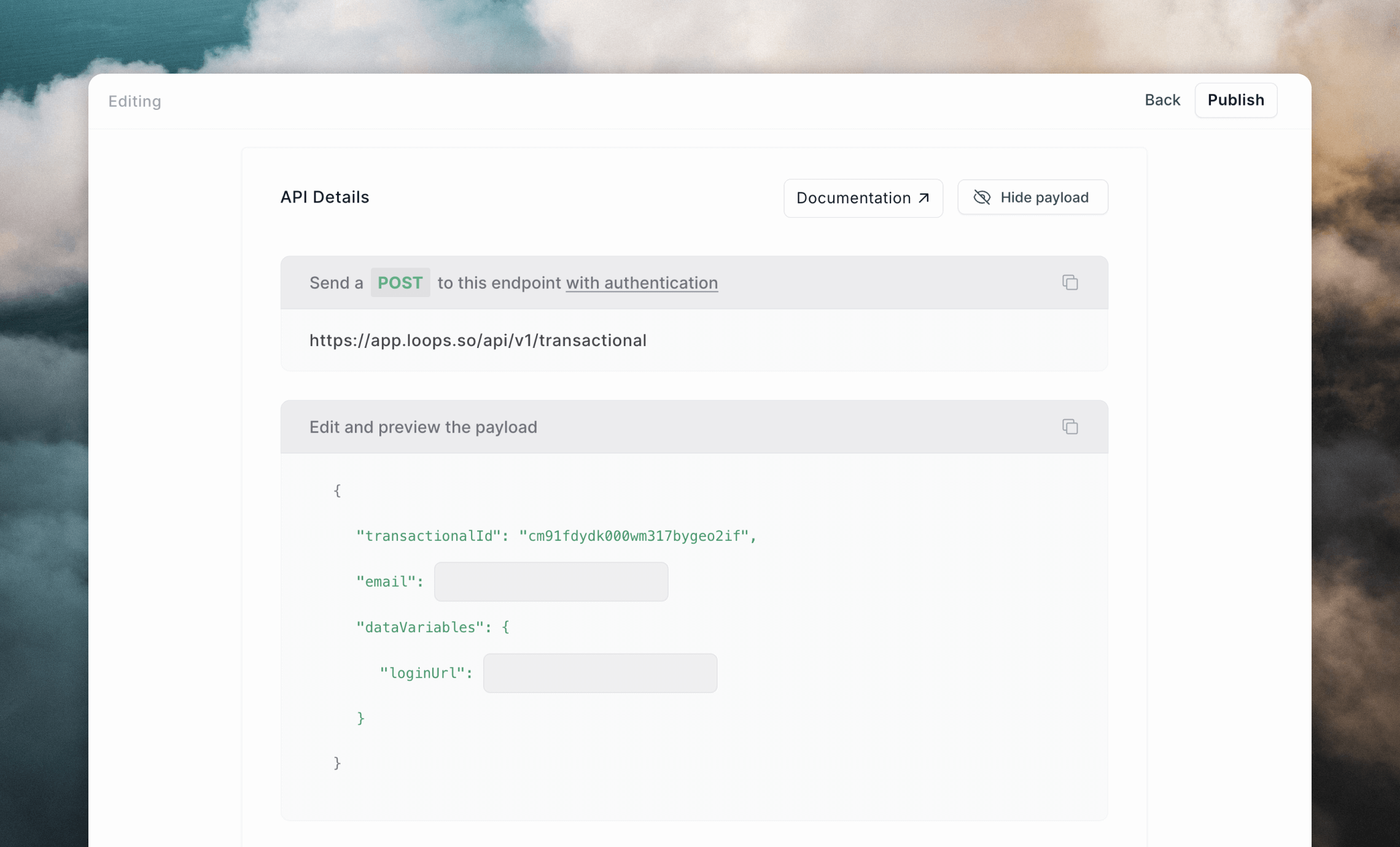
Once you're done creating the email and adding the data variables, click **Next**. On the next page, click the **Show payload** button to view the API payload for your template. You will need this for the next step.
You can then use [the Loops editor](/creating-emails/editor) to create nicely-designed templates or make them as simple as you like.
You can even create [themes](/creating-emails/styles#themes) to apply consistent design and branding to all of your emails.
For each Loops template you create, you can add [add data variables](/creating-emails/personalizing-emails#add-dynamic-content-to-emails), which allow data from Novu to be inserted into each email.
Once you're done creating the email and adding the data variables, click **Next**. On the next page, click the **Show payload** button to view the API payload for your template. You will need this for the next step.
 Make sure to also publish your email! It won't send unless it's published.
Read our detailed guide for sending transactional emails.
## Configure email templates in Novu
The final setup step is to add email templates in Novu.
Loops SMTP integrations work a bit differently than most. Instead of sending a text or HTML email body, you set them up to send API-like data.
In Novu, go to **Workflows** and create a new workflow. Give it a descriptive name and click **Create workflow**.
You will enter the workflow UI. Add an **Email** node. In the email body paste the transactional payload from Loops from the previous step.
Make sure to also publish your email! It won't send unless it's published.
Read our detailed guide for sending transactional emails.
## Configure email templates in Novu
The final setup step is to add email templates in Novu.
Loops SMTP integrations work a bit differently than most. Instead of sending a text or HTML email body, you set them up to send API-like data.
In Novu, go to **Workflows** and create a new workflow. Give it a descriptive name and click **Create workflow**.
You will enter the workflow UI. Add an **Email** node. In the email body paste the transactional payload from Loops from the previous step.
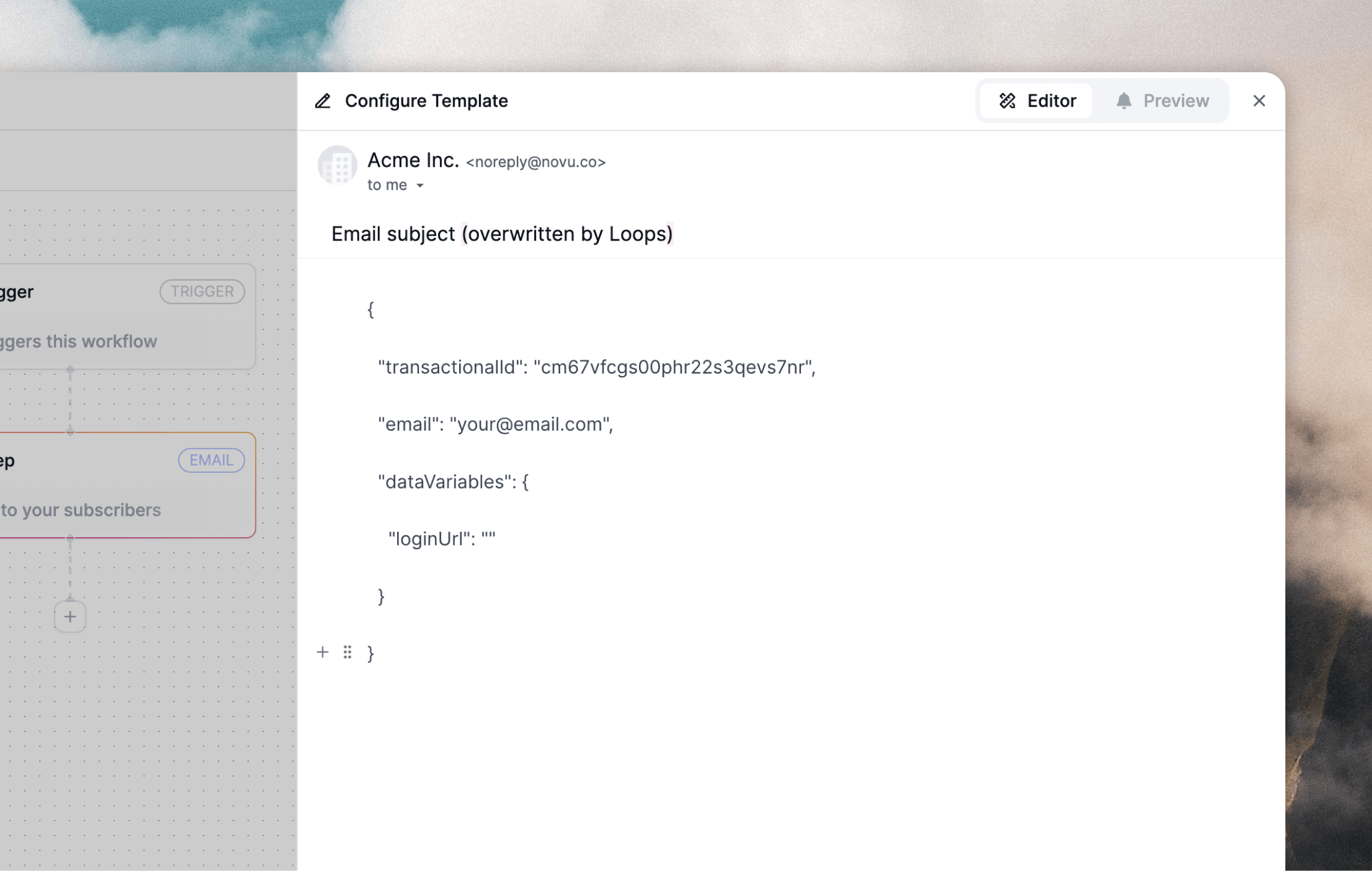 Add a subject, but note that this will be overwritten by the subject you added to your Loops transactional email.
Next you need to add some Novu data into the template, namely the recipient's email and any data variables you added in Loops.
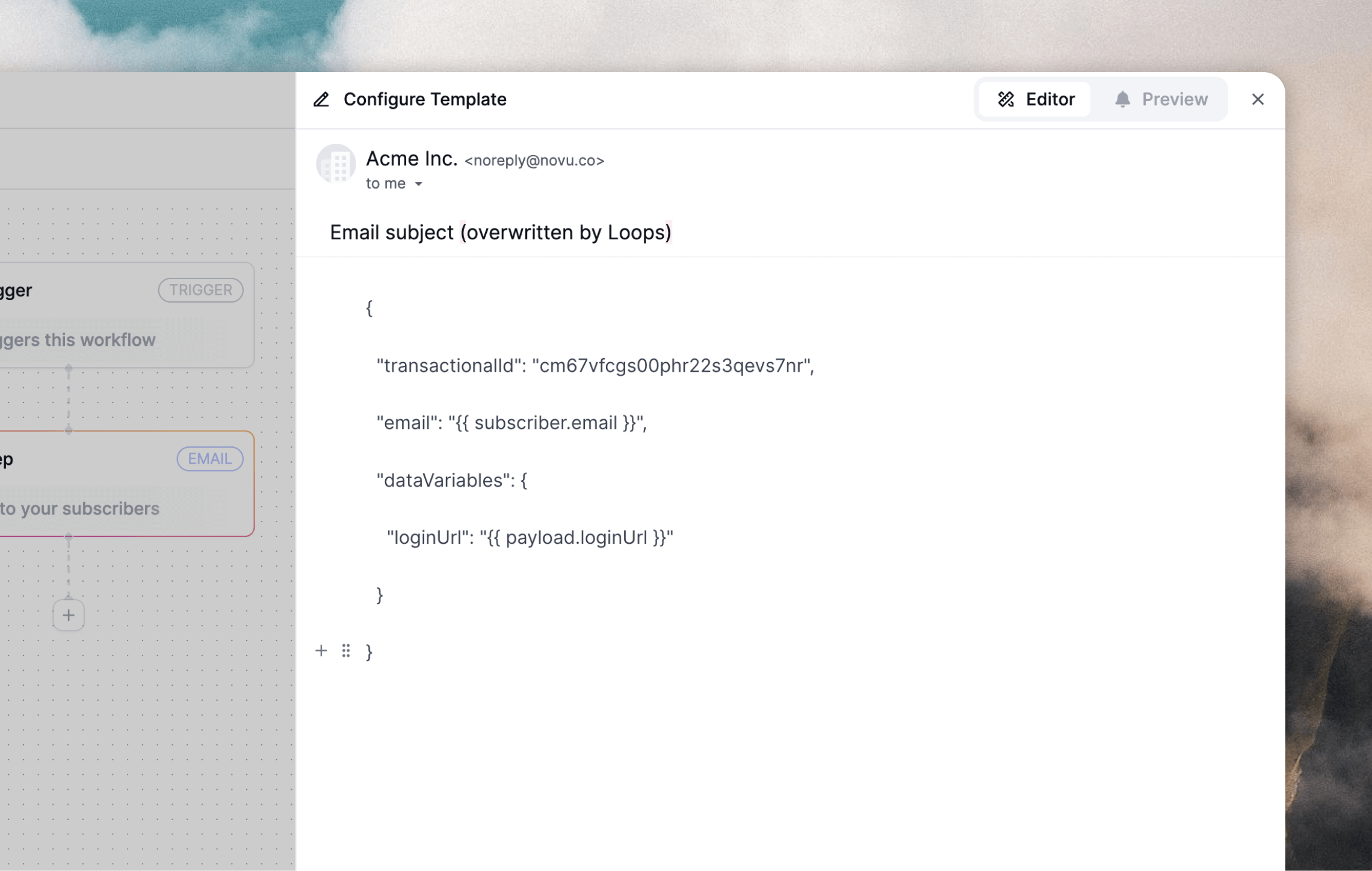
Here is an example **Confirm signup** email template. This payload was copied from the template's Publish page in Loops, then the `{{ subscriber.email }}` and `{{ payload.loginUrl }}` variables from Novu were added.
You can add any custom data to the `payload` object when triggering emails from Novu. We need to pass those same values to your Loops transactional email via the `dataVariables` data.
```json Email template in Novu theme={"dark"}
{
"transactionalId": "cm67vfcgs00pha22s3qevs7nr",
"email": "{{ subscriber.email }}",
"dataVariables": {
"loginUrl": "{{ payload.loginUrl }}"
}
}
```
If you want to add each Novu subscriber to your Loops audience so you can send marketing email to them, add the `addToAudience` flag to your template as below. This will create a contact in Loops using the `{{ subscriber.email }}` value.
```json Email template in Novu {4} theme={"dark"}
{
"transactionalId": "cm67vfcgs00pha22s3qevs7nr",
"email": "{{ subscriber.email }}",
"addToAudience": true,
"dataVariables": {
"loginUrl": "{{ payload.loginUrl }}"
}
}
```
If you want to include [Novu subscriber attributes](https://docs.novu.co/concepts/subscribers#subscriber-attributes) to personalize your Loops email, you can add them into your Novu template just like the following example.
Make sure to add fallbacks for all non-required values and add the corresponding data variables (e.g. `firstName` here) into your Loops transactional email.
```json Email template in Novu {6} theme={"dark"}
{
"transactionalId": "cm67vfcgs00pha22s3qevs7nr",
"email": "{{ subscriber.email }}",
"dataVariables": {
"loginUrl": "{{ payload.loginUrl }}",
"firstName": "{{ subscriber.firstName | default: 'subscriber' }}"
}
}
```
Here's how a template with variables added looks in the Novu editor:
Add a subject, but note that this will be overwritten by the subject you added to your Loops transactional email.
Next you need to add some Novu data into the template, namely the recipient's email and any data variables you added in Loops.
Here is an example **Confirm signup** email template. This payload was copied from the template's Publish page in Loops, then the `{{ subscriber.email }}` and `{{ payload.loginUrl }}` variables from Novu were added.
You can add any custom data to the `payload` object when triggering emails from Novu. We need to pass those same values to your Loops transactional email via the `dataVariables` data.
```json Email template in Novu theme={"dark"}
{
"transactionalId": "cm67vfcgs00pha22s3qevs7nr",
"email": "{{ subscriber.email }}",
"dataVariables": {
"loginUrl": "{{ payload.loginUrl }}"
}
}
```
If you want to add each Novu subscriber to your Loops audience so you can send marketing email to them, add the `addToAudience` flag to your template as below. This will create a contact in Loops using the `{{ subscriber.email }}` value.
```json Email template in Novu {4} theme={"dark"}
{
"transactionalId": "cm67vfcgs00pha22s3qevs7nr",
"email": "{{ subscriber.email }}",
"addToAudience": true,
"dataVariables": {
"loginUrl": "{{ payload.loginUrl }}"
}
}
```
If you want to include [Novu subscriber attributes](https://docs.novu.co/concepts/subscribers#subscriber-attributes) to personalize your Loops email, you can add them into your Novu template just like the following example.
Make sure to add fallbacks for all non-required values and add the corresponding data variables (e.g. `firstName` here) into your Loops transactional email.
```json Email template in Novu {6} theme={"dark"}
{
"transactionalId": "cm67vfcgs00pha22s3qevs7nr",
"email": "{{ subscriber.email }}",
"dataVariables": {
"loginUrl": "{{ payload.loginUrl }}",
"firstName": "{{ subscriber.firstName | default: 'subscriber' }}"
}
}
```
Here's how a template with variables added looks in the Novu editor:
 Now you're all set up to start sending!
## Trigger emails with Novu
When it comes to triggering Novu notifications to subscribers, you can use the Novu [SDKs](https://docs.novu.co/sdks/overview) or [API](https://docs.novu.co/api-reference/events/trigger-event).
In each call, you need to specify your workflow by its ID, add recipient data and also pass in any data variables for your Loops transactional email into the payload.
Using the same example from above, here's the trigger using Novu's Node SDK.
You can add a `to.email` value to send notifications to a specific email
address.
```javascript theme={"dark"}
import { Novu } from "@novu/node";
const novu = new Novu("");
await novu.trigger("", {
to: {
subscriberId: "67867a14722783d44d69fc5a",
},
payload: {
loginUrl: "https://myapp.com/login/",
},
});
```
Here's the same request using the API:
```json theme={"dark"}
POST https://api.novu.co/v1/events/trigger
{
"name": "",
"to": {
"subscriberId": "67867a14722783d44d69fc5a"
},
"payload": {
"loginUrl": "https://myapp.com/login/"
}
}
```
To view all sends of your transactional emails, click through to the email
from the [Transactional](https://app.loops.so/transactional) page in Loops,
where you'll find the Metrics page containing a table showing all sends and
some statistics.
## Testing the integration
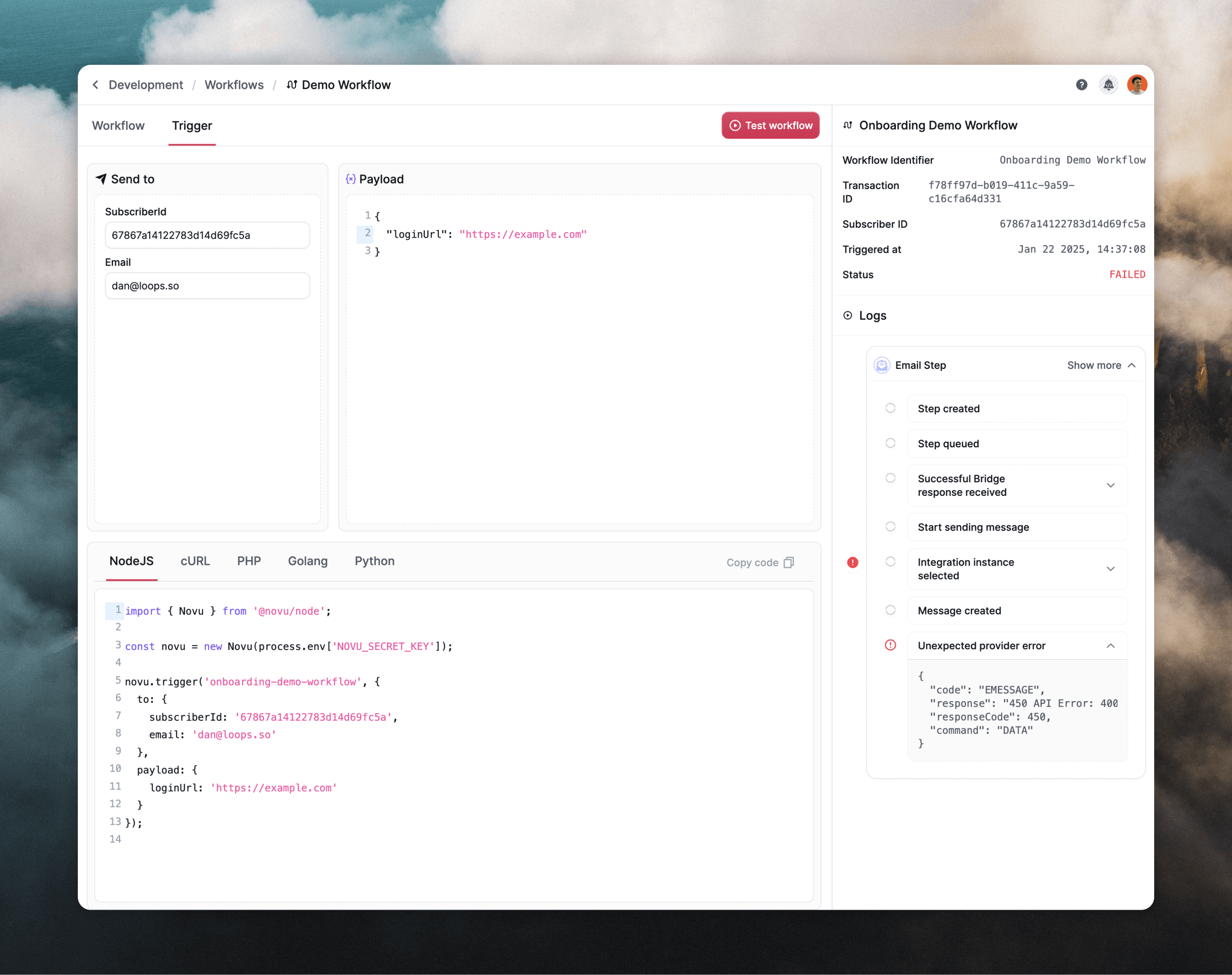
Novu offers a testing UI where you can try out your set up before going live.
Go to the **Workflows** page and click on your workflow, then select the **Trigger** tab.
Here you will be able to set different subscriber and payload data and send test email notifications. The SDK examples below also update, so you can easily create code for your application.
You can also see logs of all emails sent from the [Activity Feed](https://dashboard-v2.novu.co/env/_/activity-feed) page in Novu.
Now you're all set up to start sending!
## Trigger emails with Novu
When it comes to triggering Novu notifications to subscribers, you can use the Novu [SDKs](https://docs.novu.co/sdks/overview) or [API](https://docs.novu.co/api-reference/events/trigger-event).
In each call, you need to specify your workflow by its ID, add recipient data and also pass in any data variables for your Loops transactional email into the payload.
Using the same example from above, here's the trigger using Novu's Node SDK.
You can add a `to.email` value to send notifications to a specific email
address.
```javascript theme={"dark"}
import { Novu } from "@novu/node";
const novu = new Novu("");
await novu.trigger("", {
to: {
subscriberId: "67867a14722783d44d69fc5a",
},
payload: {
loginUrl: "https://myapp.com/login/",
},
});
```
Here's the same request using the API:
```json theme={"dark"}
POST https://api.novu.co/v1/events/trigger
{
"name": "",
"to": {
"subscriberId": "67867a14722783d44d69fc5a"
},
"payload": {
"loginUrl": "https://myapp.com/login/"
}
}
```
To view all sends of your transactional emails, click through to the email
from the [Transactional](https://app.loops.so/transactional) page in Loops,
where you'll find the Metrics page containing a table showing all sends and
some statistics.
## Testing the integration
Novu offers a testing UI where you can try out your set up before going live.
Go to the **Workflows** page and click on your workflow, then select the **Trigger** tab.
Here you will be able to set different subscriber and payload data and send test email notifications. The SDK examples below also update, so you can easily create code for your application.
You can also see logs of all emails sent from the [Activity Feed](https://dashboard-v2.novu.co/env/_/activity-feed) page in Novu.
 ## Important notes
* The subject in Novu templates is always overwritten by the subject added to the corresponding template in Loops.
* The **From email address** and **Sender name** configured in your Novu SMTP settings are always overwritten by the sender details added to your templates in Loops.
## Important notes
* The subject in Novu templates is always overwritten by the subject added to the corresponding template in Loops.
* The **From email address** and **Sender name** configured in your Novu SMTP settings are always overwritten by the sender details added to your templates in Loops.