> ## Documentation Index
> Fetch the complete documentation index at: https://loops.so/docs/llms.txt
> Use this file to discover all available pages before exploring further.
# Make integration
> Utilize our official Make integration to manage contacts and send email.
Our Make integration lets you:
* Create, find, update and delete contacts
* Send events to trigger workflows
* Send transactional email
## Create a connection
Before you get started, head over to the API page and [create a new API key](https://app.loops.so/settings?page=api) in Loops. You'll need to copy the API key and paste it into Make.
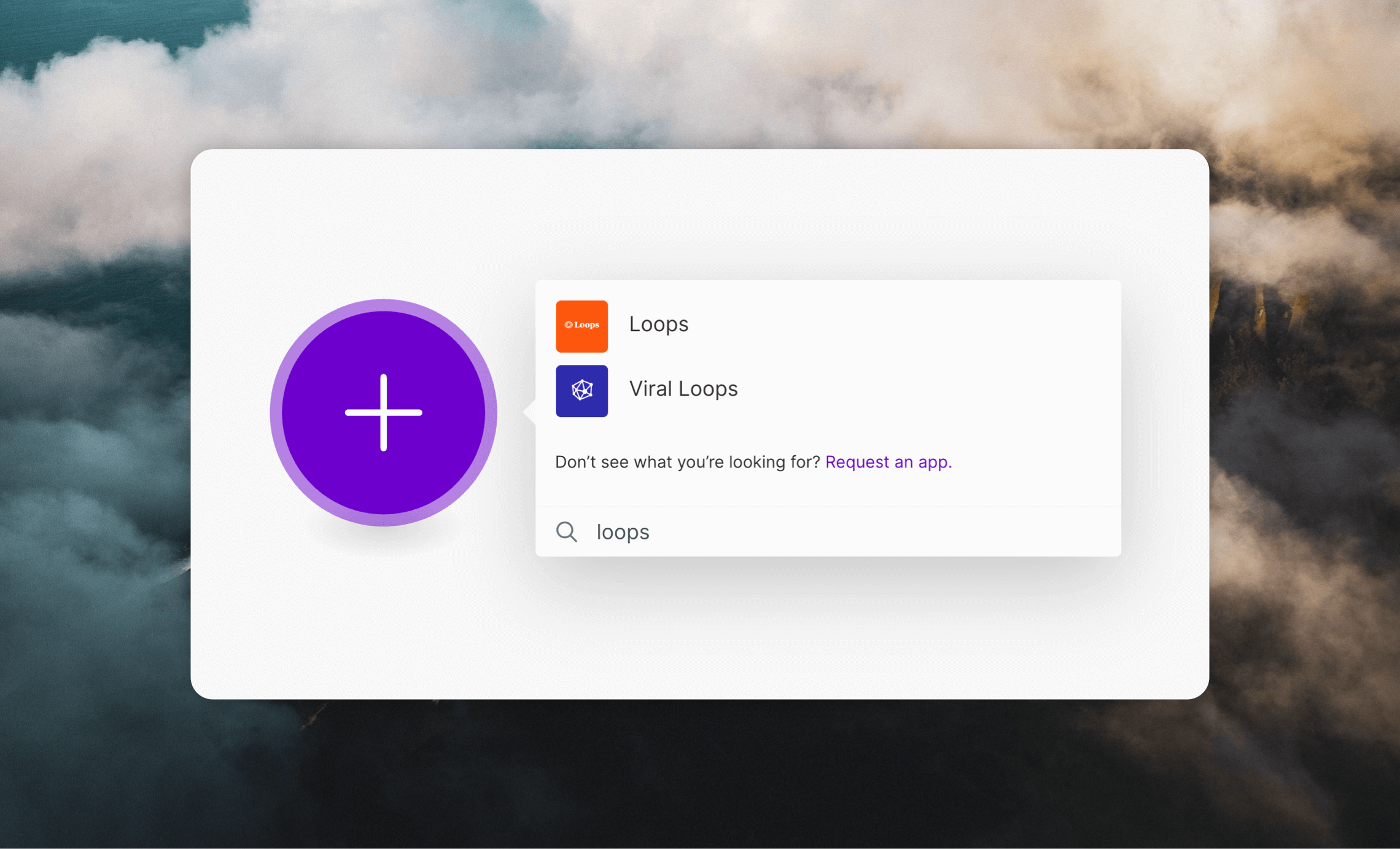
To get started create a new scenario and select the "Loops" module.
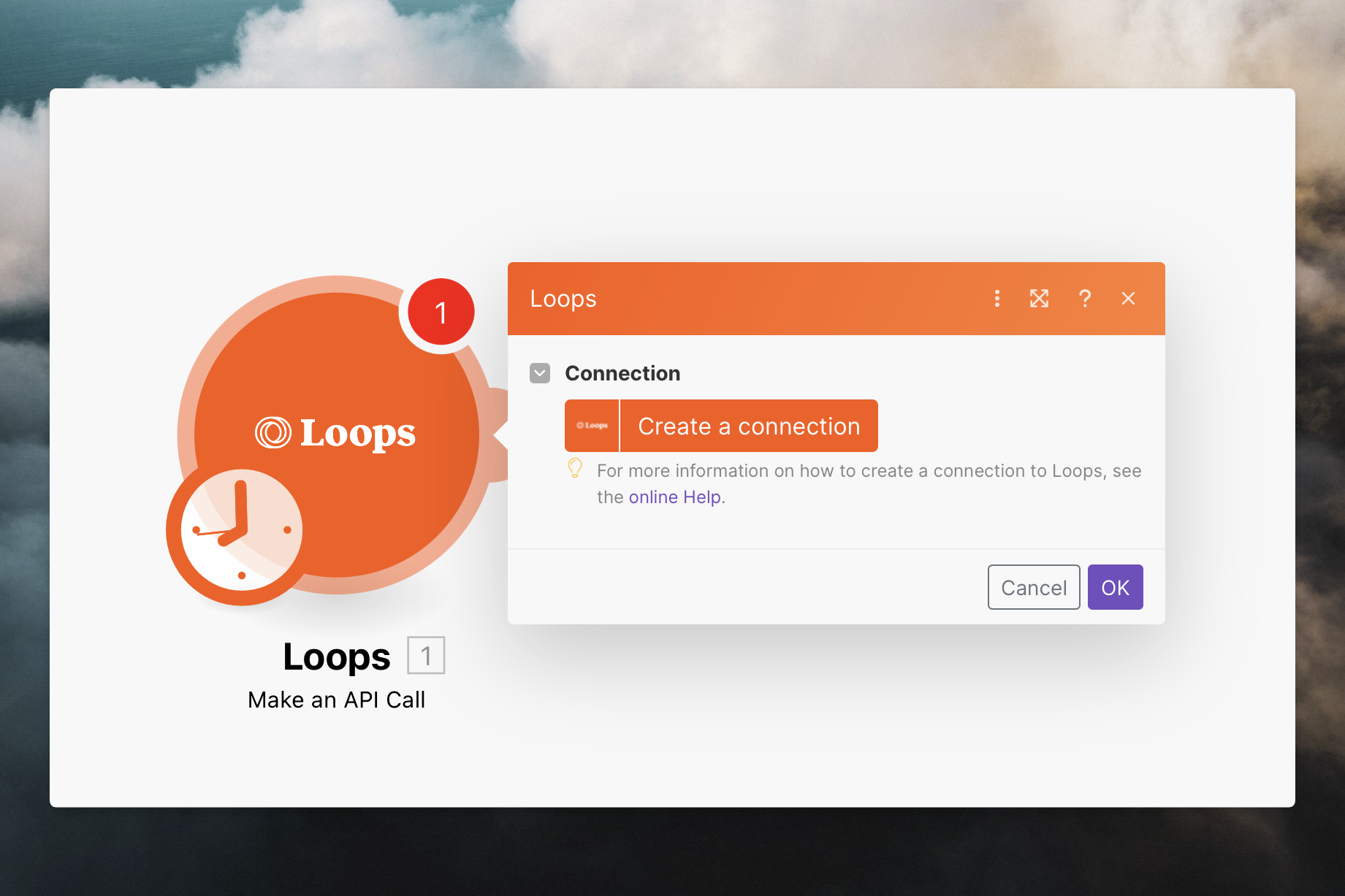
 Then select the "Create Connection" button and paste in your API key in the following screen.
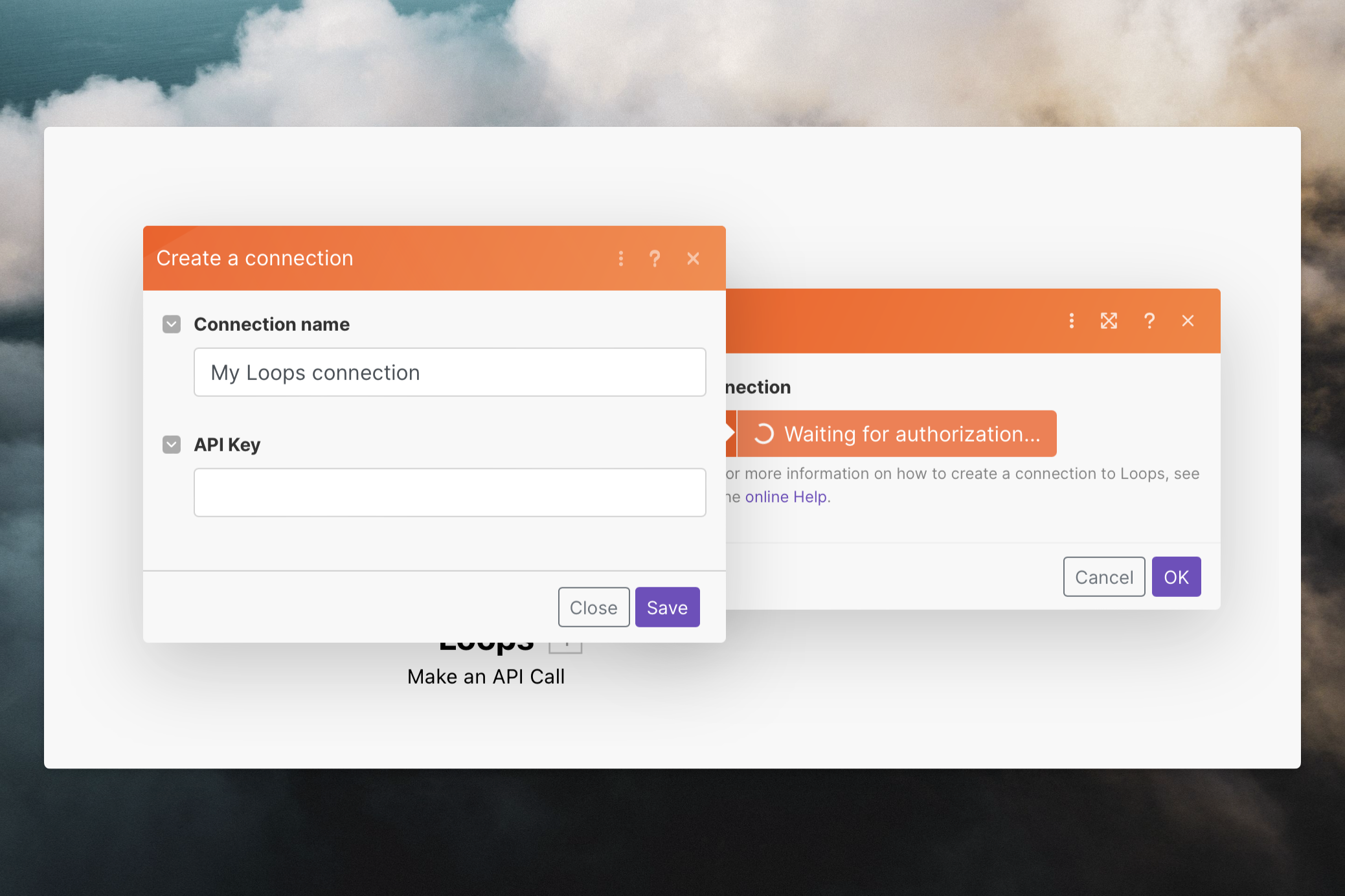
 After pasting your API key, click the "Save" button.
 ## Manage contacts and trigger workflows
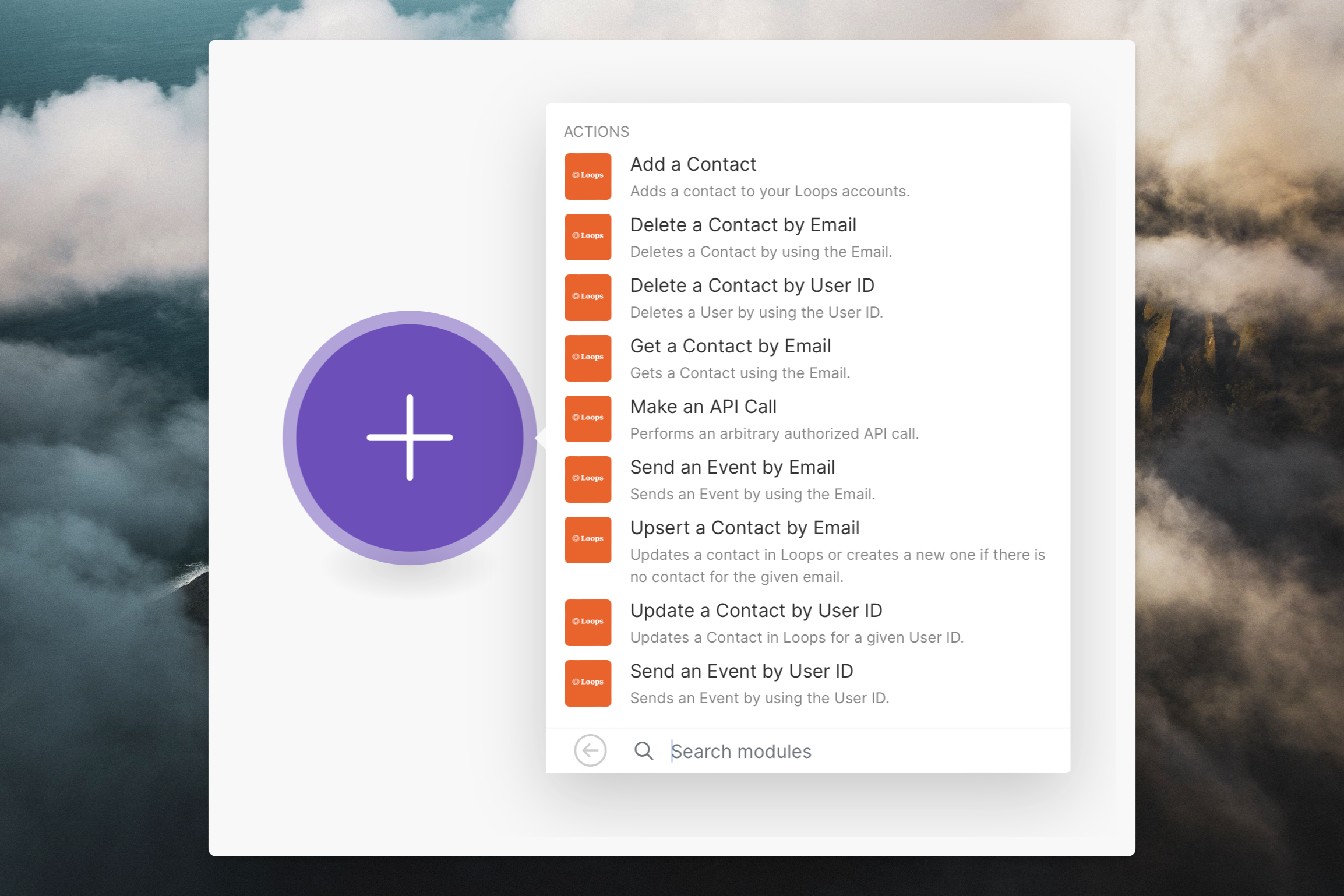
There are a number of actions available to manage contacts and send emails.
## Manage contacts and trigger workflows
There are a number of actions available to manage contacts and send emails.
 ## Send transactional email
There is a "Send transactional email" action you can use to send transactional emails. When setting up this action you can select an email from your Loops account, which will then display the required data variables in the form.
Alternatively you can use the "Make an API call" action.
## Send transactional email
There is a "Send transactional email" action you can use to send transactional emails. When setting up this action you can select an email from your Loops account, which will then display the required data variables in the form.
Alternatively you can use the "Make an API call" action.
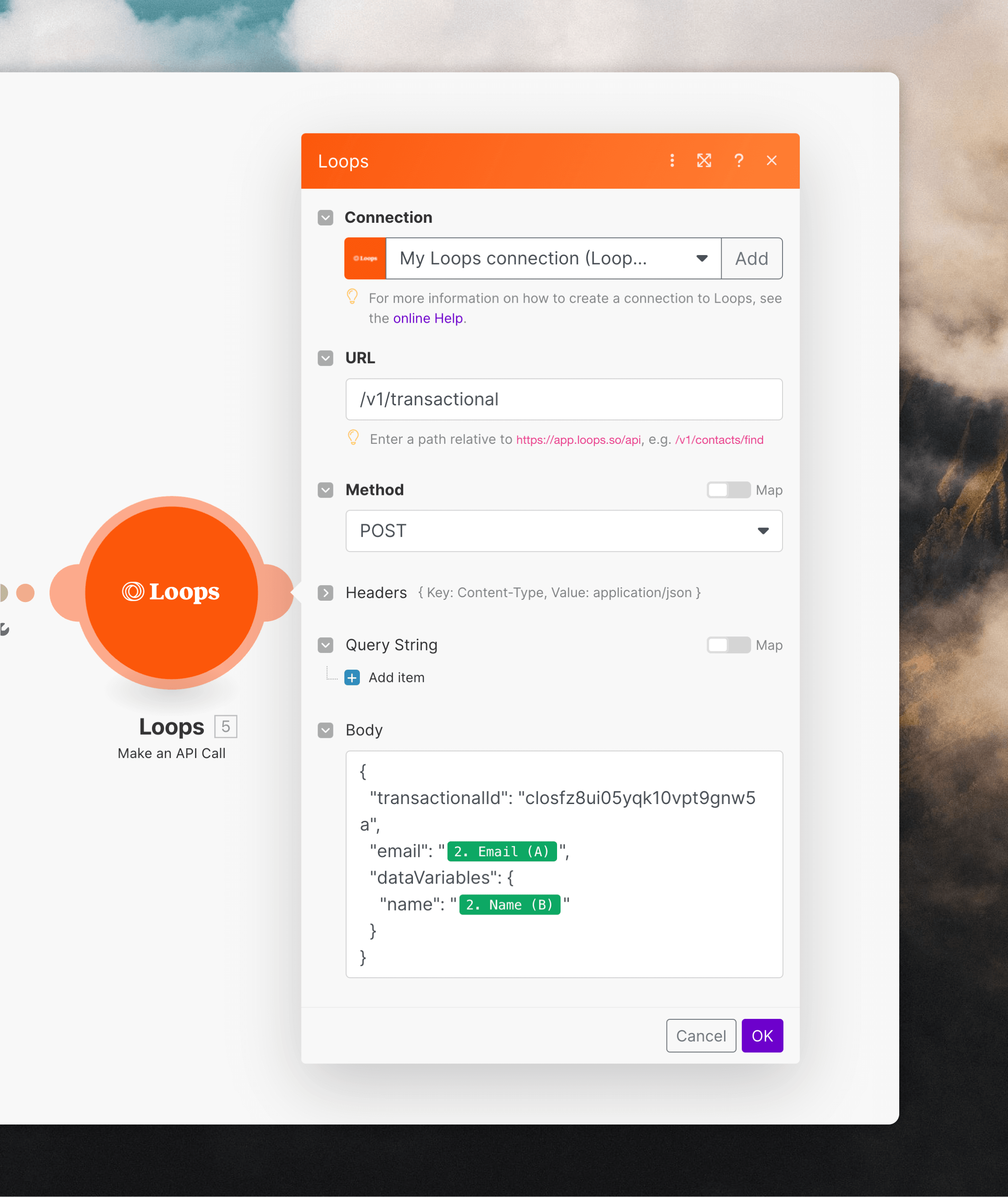 Make sure that the URL is `/v1/transactional` rather than the full endpoint URL.
You can copy an email's example payload from its Publish page in Loops by clicking the **Show payload** button. Paste it into the "Body" field in Make and select the data you want to send to Loops.
View the API reference for sending transactional email.
## Triggers
The Make integration contains a trigger that lets you to listen for [Loops webhooks](/webhooks), allowing you to do things in Make based on activity in your Loops account.
All of Loops' webhook events are available as triggers in Make.
Loops were renamed to Workflows on May 6, 2026. Make trigger bodies still use
webhook `loop` names for compatibility, including `loop.email.sent`, `loopId`,
`loopName`, and `sourceType: "loop"`.
Add the **Watch Events** trigger to your Make scenario and use an existing or new Loops connection ([see above](#create-a-connection)).
Make sure that the URL is `/v1/transactional` rather than the full endpoint URL.
You can copy an email's example payload from its Publish page in Loops by clicking the **Show payload** button. Paste it into the "Body" field in Make and select the data you want to send to Loops.
View the API reference for sending transactional email.
## Triggers
The Make integration contains a trigger that lets you to listen for [Loops webhooks](/webhooks), allowing you to do things in Make based on activity in your Loops account.
All of Loops' webhook events are available as triggers in Make.
Loops were renamed to Workflows on May 6, 2026. Make trigger bodies still use
webhook `loop` names for compatibility, including `loop.email.sent`, `loopId`,
`loopName`, and `sourceType: "loop"`.
Add the **Watch Events** trigger to your Make scenario and use an existing or new Loops connection ([see above](#create-a-connection)).
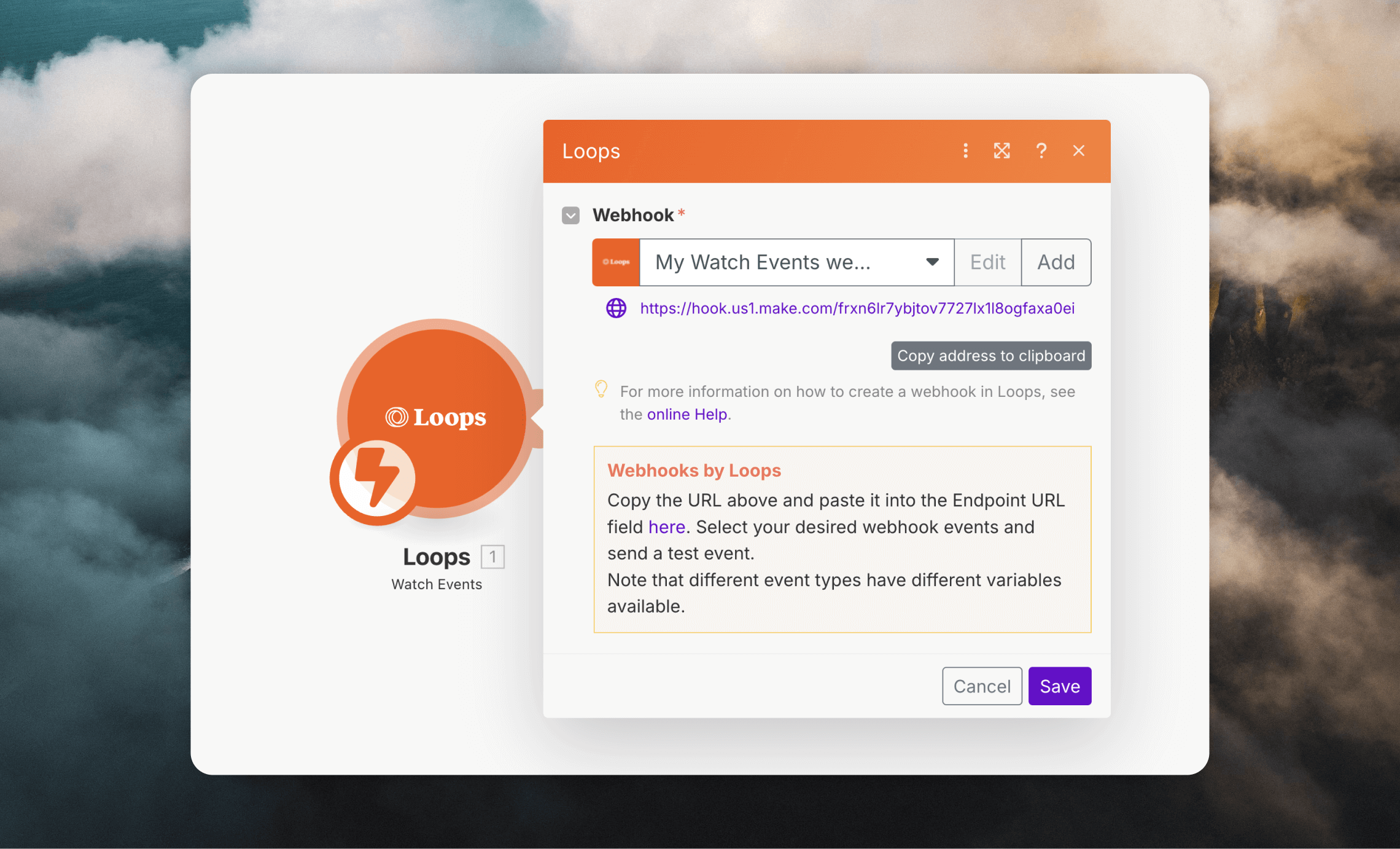 You will be prompted to copy the webhook URL provided by Make and [paste it into your Loops webhook settings](/webhooks#set-up-webhooks).
Make sure to toggle on the **Immediately as data arrives** option in your scenario's bottom toolbar in Make so that the trigger fires every time a webhook event arrives.
You will be prompted to copy the webhook URL provided by Make and [paste it into your Loops webhook settings](/webhooks#set-up-webhooks).
Make sure to toggle on the **Immediately as data arrives** option in your scenario's bottom toolbar in Make so that the trigger fires every time a webhook event arrives.