> ## Documentation Index
> Fetch the complete documentation index at: https://loops.so/docs/llms.txt
> Use this file to discover all available pages before exploring further.
# Framer integration
> Enable signups from your Framer site using an in-built or custom Loops component.
Collect new subscribers from your Framer site. There are a few ways to set this up.
1. [Framer Form component](#framer-form-component)\
This uses the native Form component in Framer and gives good flexibility for extra form fields.
2. [Framer Loops component](#framer-loops-component)\
This simplest method. A simple drop-in form with an email address input.
3. [Custom component with code](#advanced-integration)\
The most flexible but complex option, using custom code.
Our form submission endpoint has rate limiting, so you will see an error in
testing if you submit more than once per minute or submit the same email
twice.
## Framer Form component
Use [Framer Forms](https://www.framer.com/features/forms/) to easily create a form on your site.
### Insert the Form Component
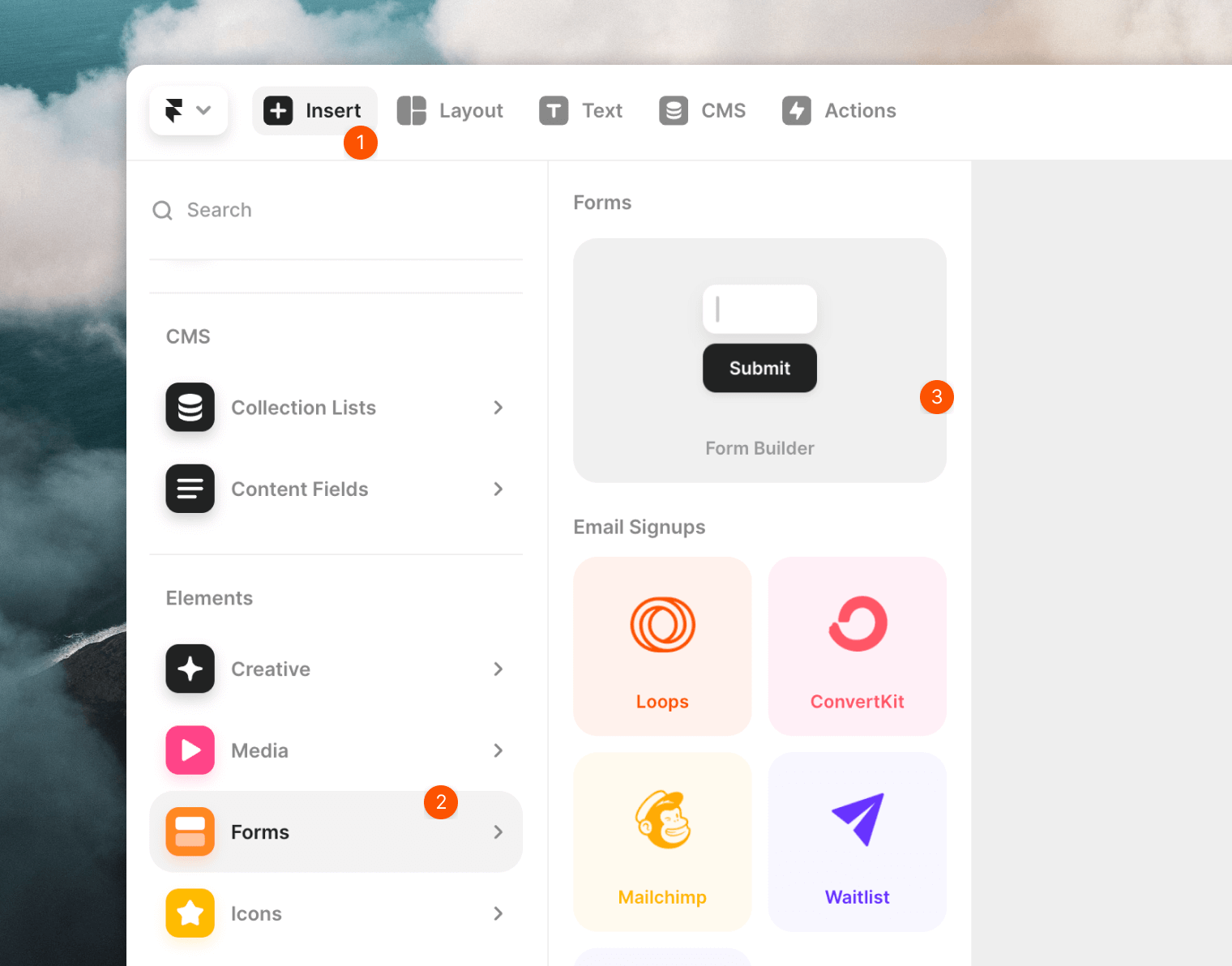
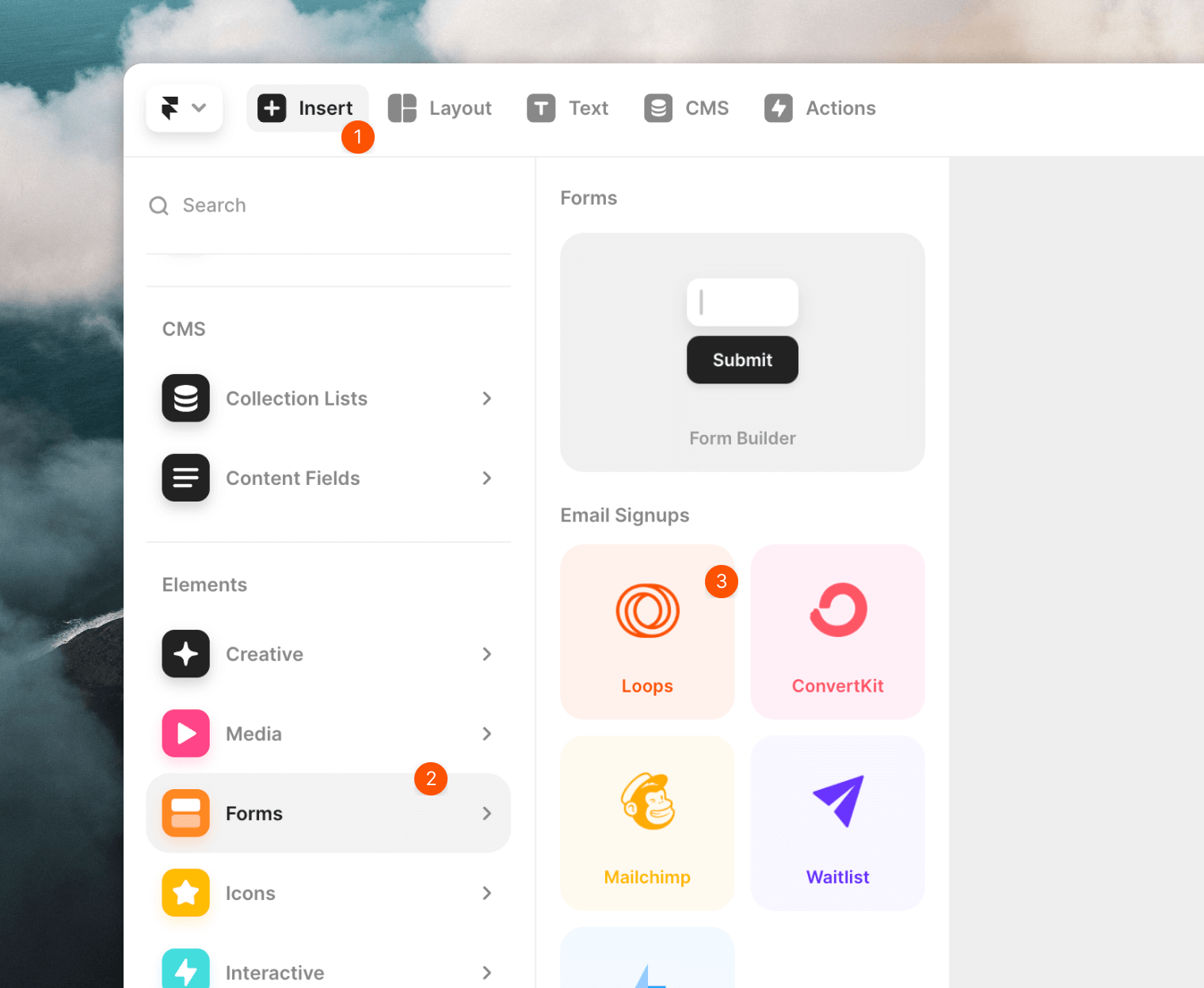
From **Insert -> Forms** drag the **Form builder** component into your page. This will add an example form.
 ### Edit the form fields
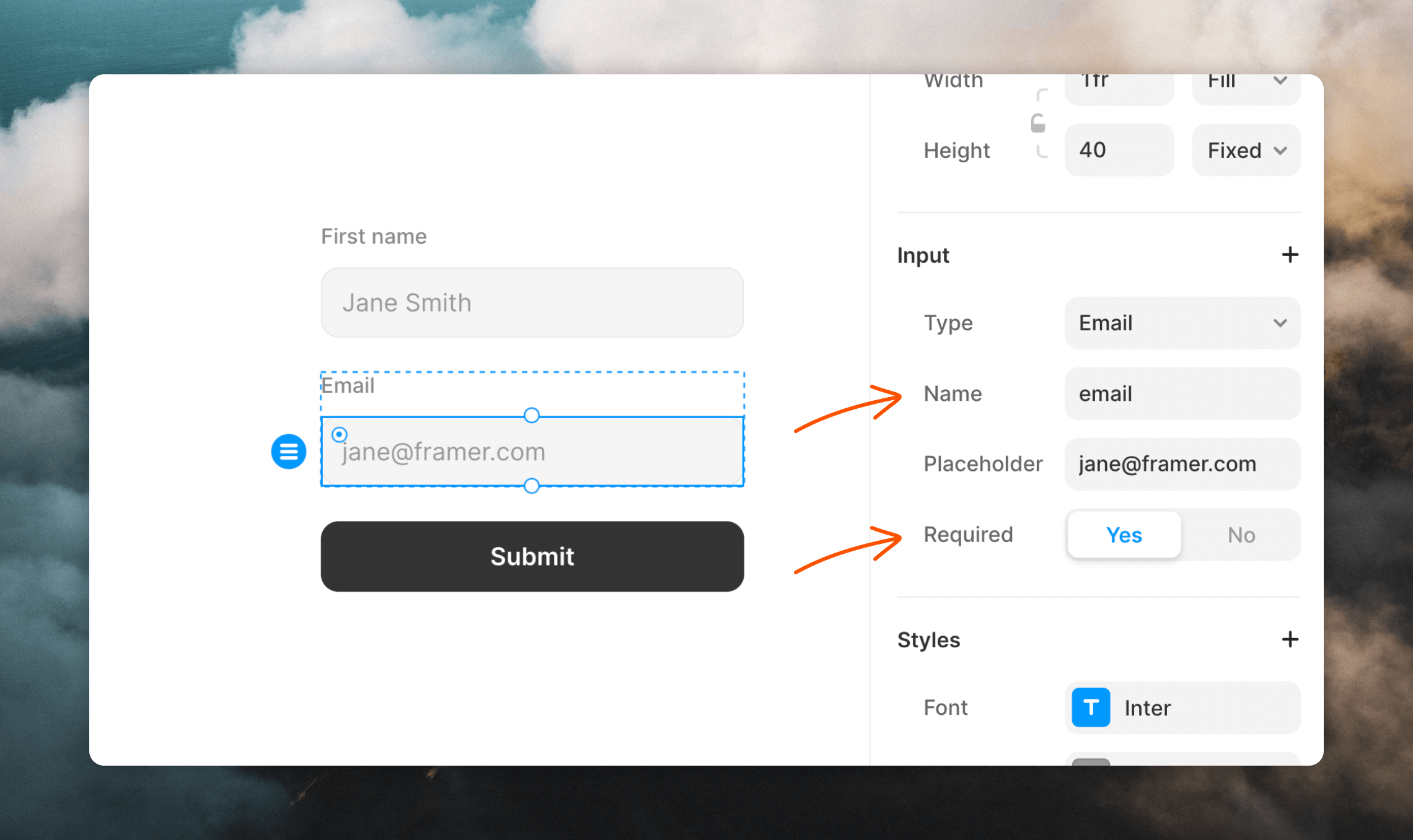
Edit the fields in the form to match the data you want to collect from new subscribers.
An email field is required. Make sure to toggle the **Required** option to **Yes** for your email field.
You need to edit the **Name** value of each field to match the [contact properties' "API name"](/contacts/properties) in Loops.
For example, the **Name** value must be "email" for the email address field.
### Edit the form fields
Edit the fields in the form to match the data you want to collect from new subscribers.
An email field is required. Make sure to toggle the **Required** option to **Yes** for your email field.
You need to edit the **Name** value of each field to match the [contact properties' "API name"](/contacts/properties) in Loops.
For example, the **Name** value must be "email" for the email address field.
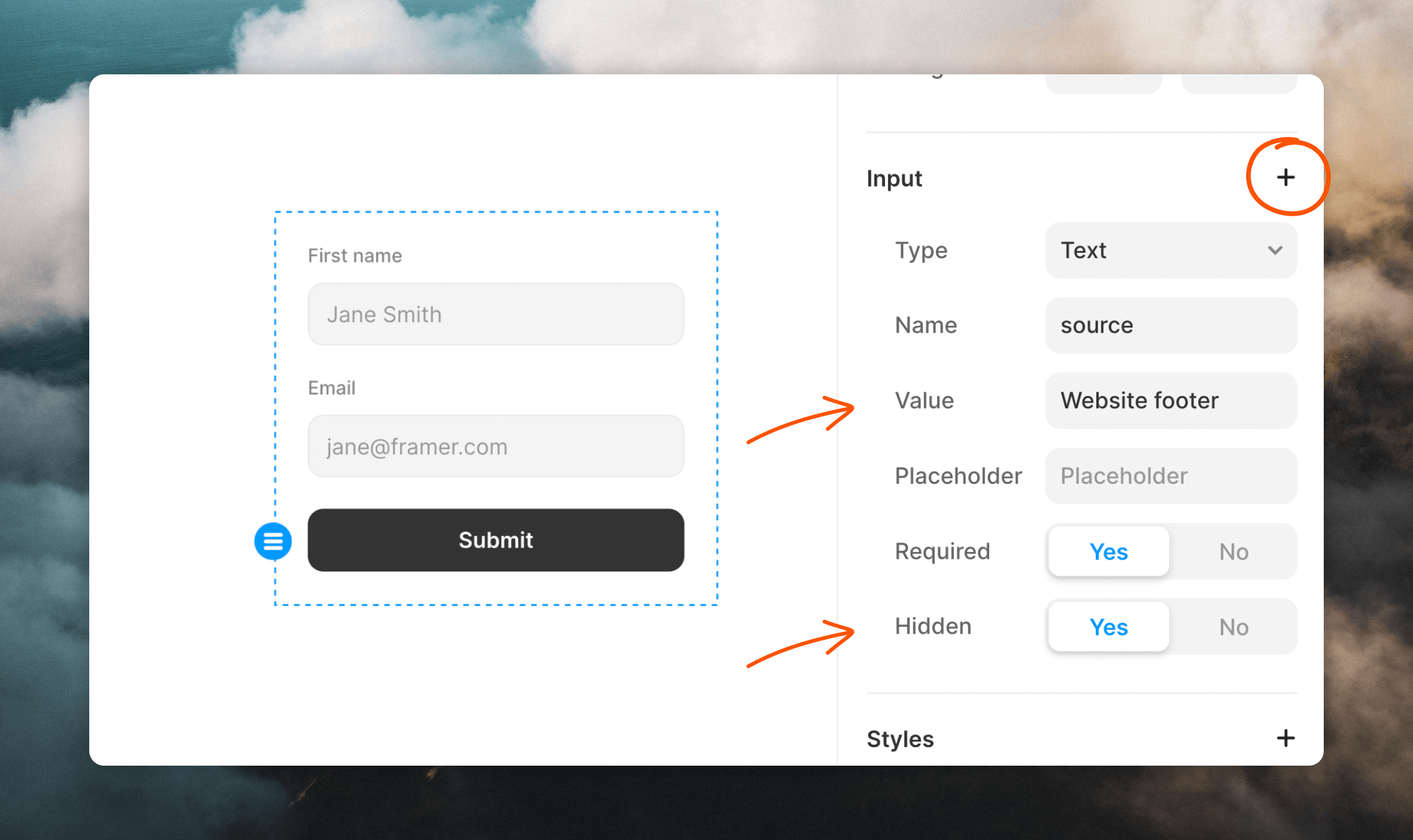
 You can add hidden fields to populate data like `mailingLists`, `userGroup` and `source` in Loops yet ensure they don't show up in the form.
You may have to click the `+` button to show the **Value** and **Hidden** options.
To add subscribers to specific [mailing lists](/contacts/mailing-lists), add a
field with **Name** `mailingLists`. The **Value** can be a single mailing list
ID or a comma-separated list of IDs.
Mailing lists need to be marked **Public** in your [Lists
settings](https://app.loops.so/settings?page=lists) in order for them to work
in forms.
You can add hidden fields to populate data like `mailingLists`, `userGroup` and `source` in Loops yet ensure they don't show up in the form.
You may have to click the `+` button to show the **Value** and **Hidden** options.
To add subscribers to specific [mailing lists](/contacts/mailing-lists), add a
field with **Name** `mailingLists`. The **Value** can be a single mailing list
ID or a comma-separated list of IDs.
Mailing lists need to be marked **Public** in your [Lists
settings](https://app.loops.so/settings?page=lists) in order for them to work
in forms.
 ### Configure the form
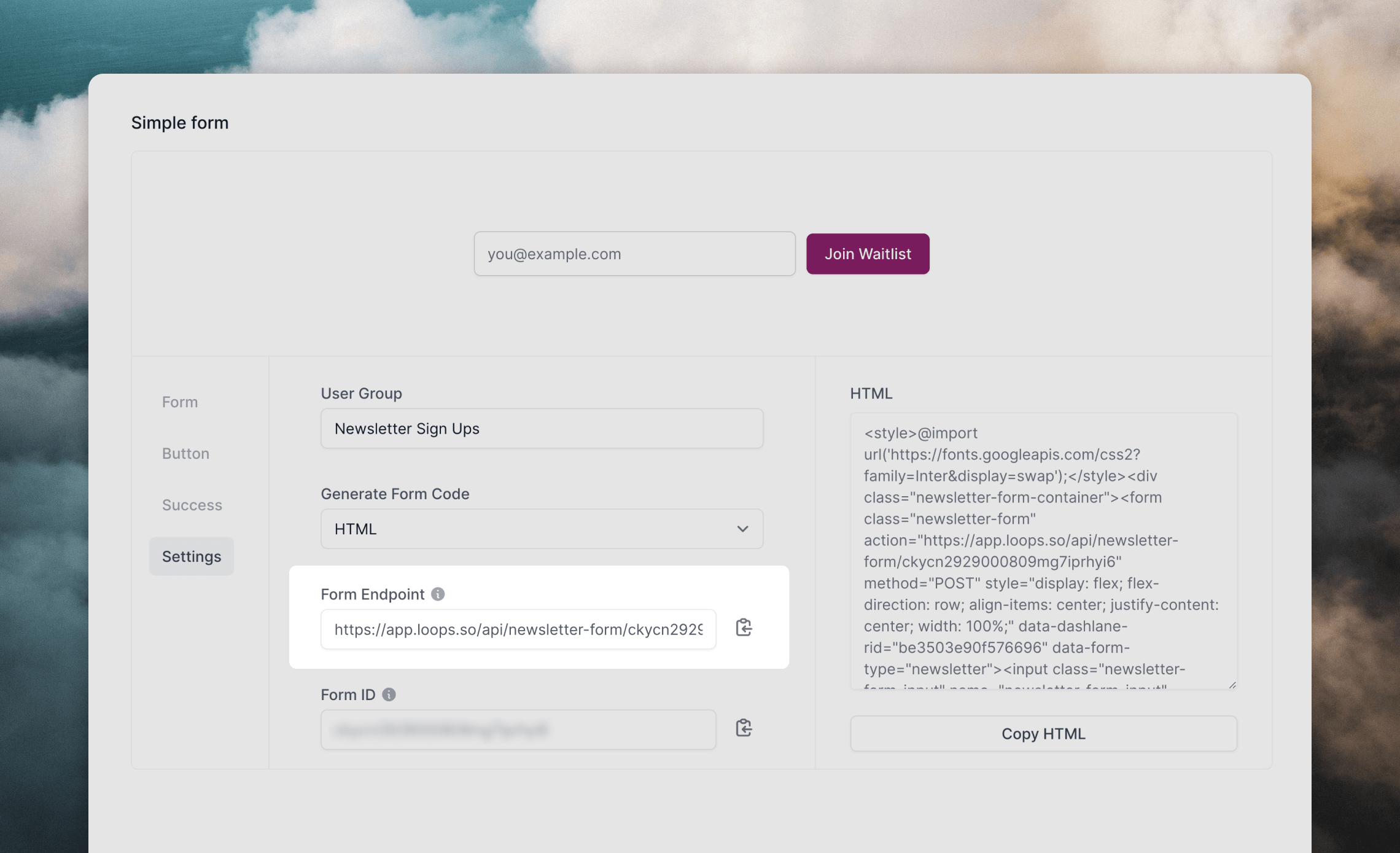
The final step is to set the endpoint to your Loops form URL.
1. Go to the [Forms page](https://app.loops.so/forms) in your Loops account.
2. Click on the **Settings** tab.
3. Copy the **Form Endpoint**.
### Configure the form
The final step is to set the endpoint to your Loops form URL.
1. Go to the [Forms page](https://app.loops.so/forms) in your Loops account.
2. Click on the **Settings** tab.
3. Copy the **Form Endpoint**.
 4. Back in Framer, select your form. In the **Send To** option, select "Webhook". Then paste the URL from Loops into the **API** field.
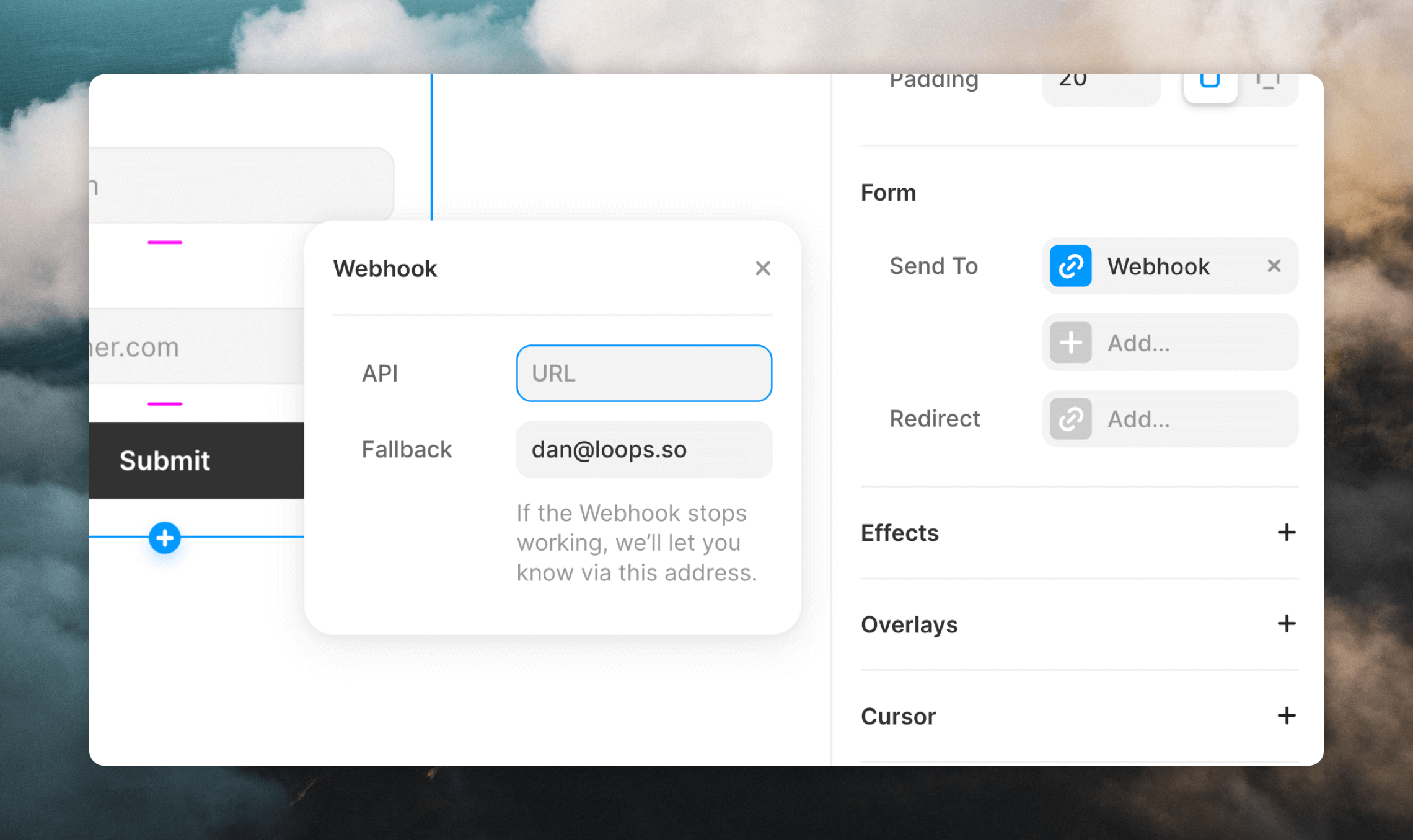 Now your form is all set up and can start receiving new subscribers.
### Set up a confirmation message
By default a "Thank you" message is shown inside the form button when the form is submitted successfully.
You can opt to use a redirect instead. You can add a confirmation message on another web page and use the **Redirect** option in the form settings.
## Framer Loops component
Framer has a built-in Loops option for creating simple signup forms with an email address field.
### Insert the Loops Component
From **Insert -> Forms** drag the **Loops** component into your page. This will add an example form.
Now your form is all set up and can start receiving new subscribers.
### Set up a confirmation message
By default a "Thank you" message is shown inside the form button when the form is submitted successfully.
You can opt to use a redirect instead. You can add a confirmation message on another web page and use the **Redirect** option in the form settings.
## Framer Loops component
Framer has a built-in Loops option for creating simple signup forms with an email address field.
### Insert the Loops Component
From **Insert -> Forms** drag the **Loops** component into your page. This will add an example form.
 ### Configure the form
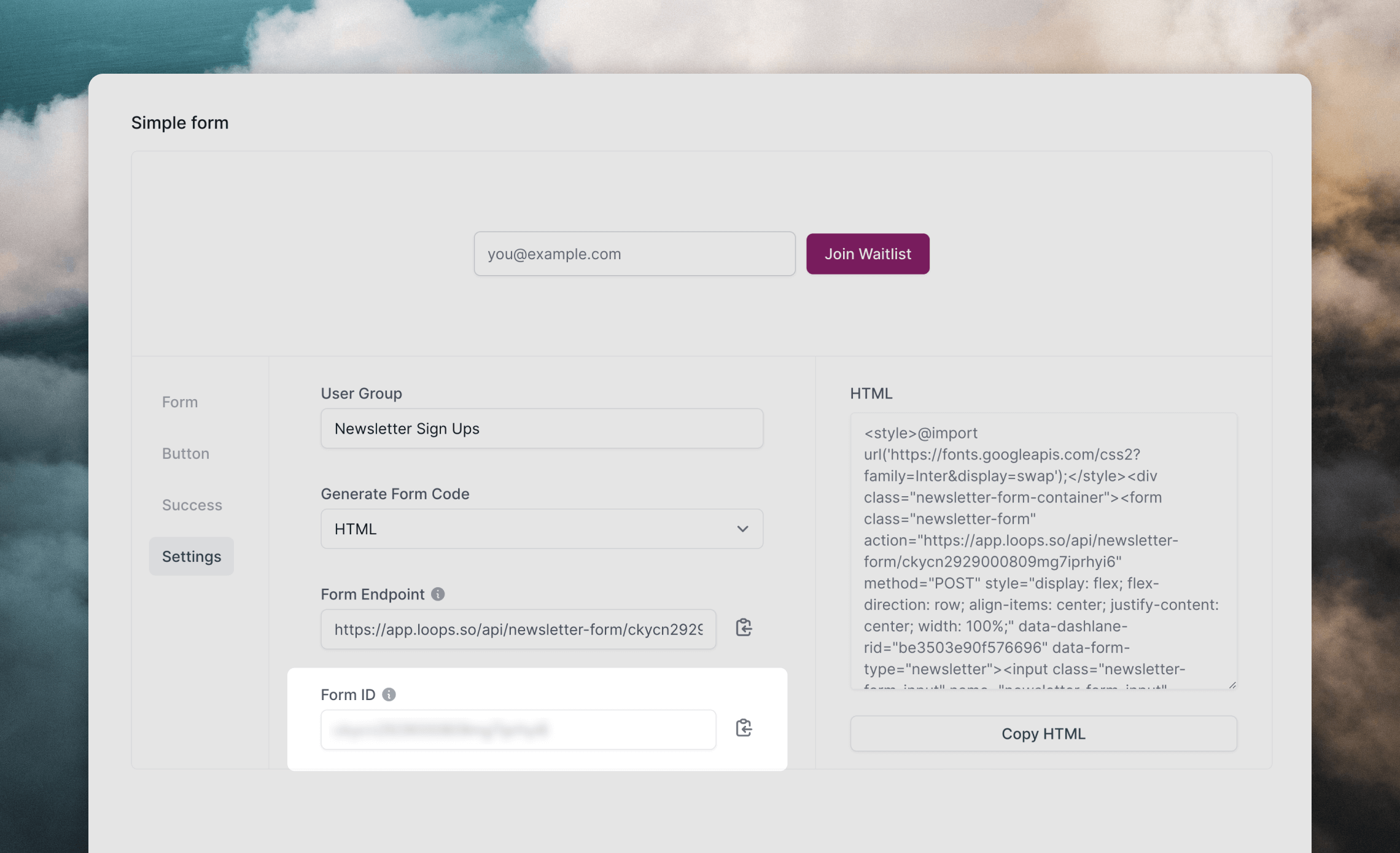
Next, you need to add your Loops form ID to the **ID** field.
1. Go to the [Forms page](https://app.loops.so/forms) in your Loops account.
2. Click on the **Settings** tab.
3. Copy the **Form ID**.
### Configure the form
Next, you need to add your Loops form ID to the **ID** field.
1. Go to the [Forms page](https://app.loops.so/forms) in your Loops account.
2. Click on the **Settings** tab.
3. Copy the **Form ID**.
 4. Paste this ID into the **ID** field in the Framer component.
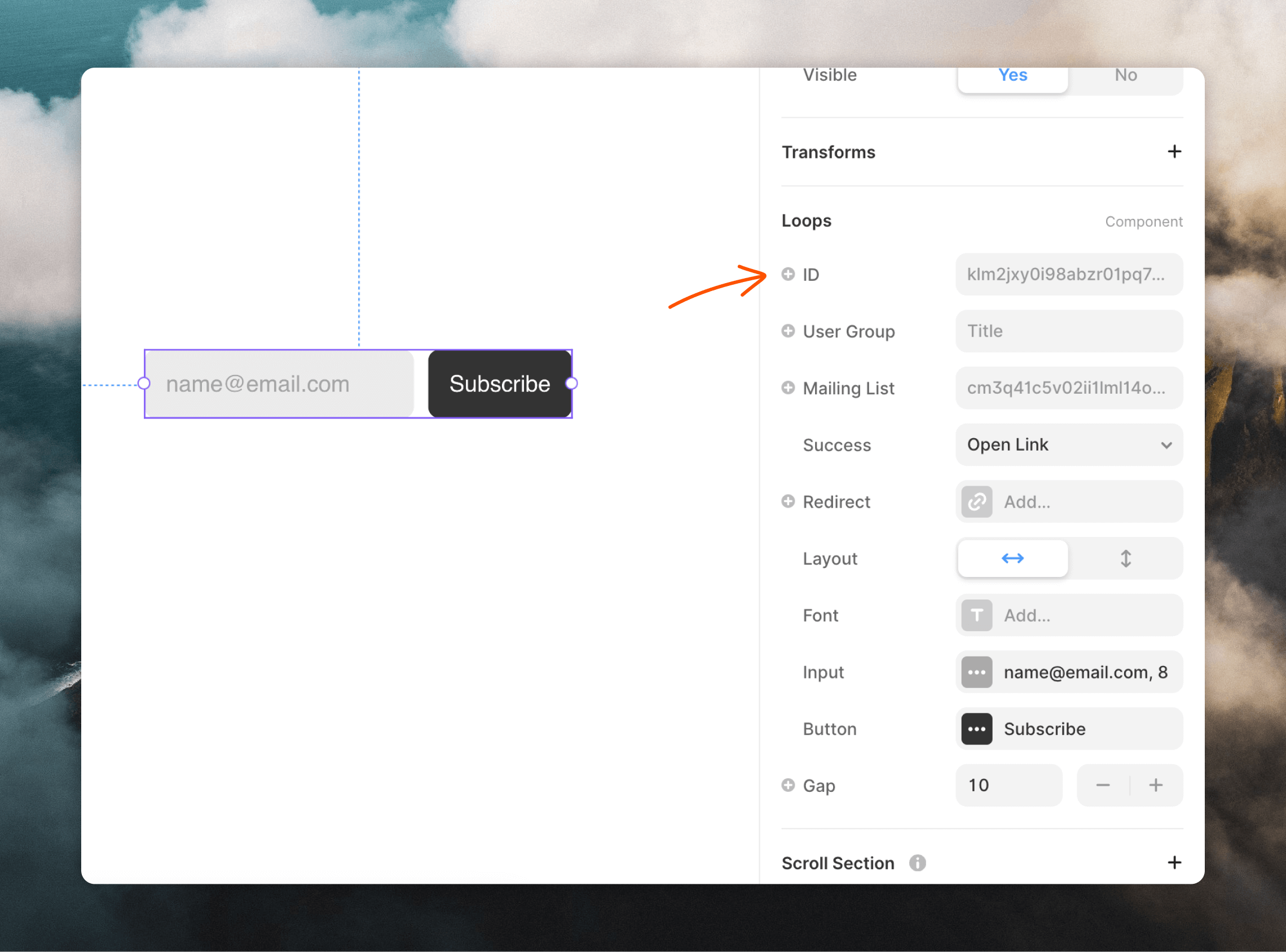 5. Framer offers two extra fields in the component:
* **User Group** populates the contact's `userGroup` value in Loops.
* **Mailing list** can be used to subscribe contacts to your [mailing lists](/contacts/mailing-lists). Add here one or more mailing list IDs separated by commas.
Mailing lists need to be marked **Public** in your [Lists
settings](https://app.loops.so/settings?page=lists) in order for them to
work in forms.
### Set up a confirmation message
Make sure to also set up a confirmation message by clicking on the **Success** dropdown.
You can choose to show a message in an overlay with the "Show Overlay" option or redirect the user to another web page with the "Open Link" option.
To add an overlay message, click on the **Overlays** section header in the right-hand panel, choose between "Relative" and "Fixed" and make sure the **Show On** selection is "Submit".
## Advanced integration
This option adds a custom component into your Framer site [using form code](/forms/custom-form) generated by Loops
### Generate the form code
1. Go to the [Forms page](https://app.loops.so/forms) in your Loops account.
2. Click on the **Settings** tab.
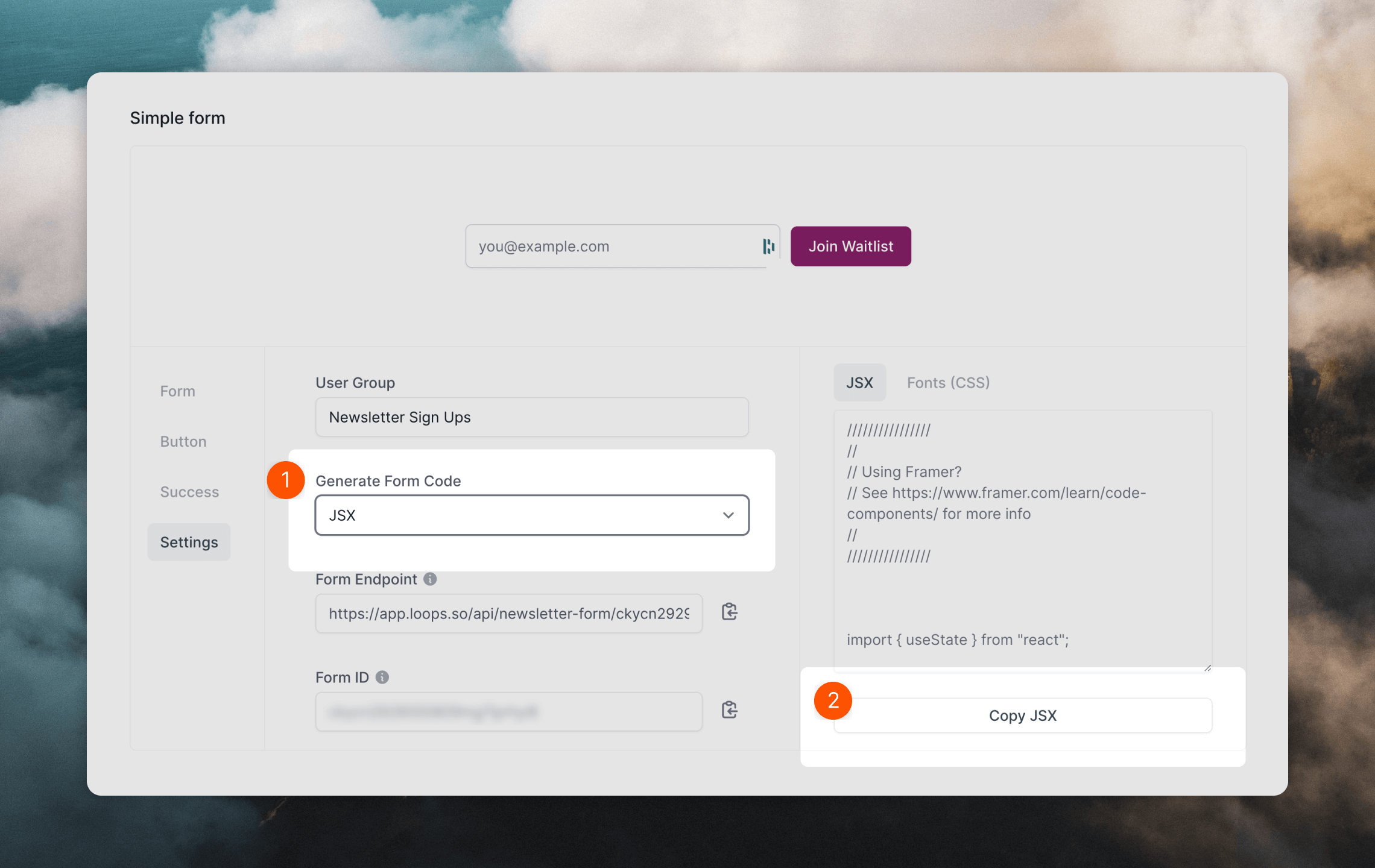
3. Select “JSX” from the **Generate Form Code** dropdown (1), then copy the code snippet (2).
5. Framer offers two extra fields in the component:
* **User Group** populates the contact's `userGroup` value in Loops.
* **Mailing list** can be used to subscribe contacts to your [mailing lists](/contacts/mailing-lists). Add here one or more mailing list IDs separated by commas.
Mailing lists need to be marked **Public** in your [Lists
settings](https://app.loops.so/settings?page=lists) in order for them to
work in forms.
### Set up a confirmation message
Make sure to also set up a confirmation message by clicking on the **Success** dropdown.
You can choose to show a message in an overlay with the "Show Overlay" option or redirect the user to another web page with the "Open Link" option.
To add an overlay message, click on the **Overlays** section header in the right-hand panel, choose between "Relative" and "Fixed" and make sure the **Show On** selection is "Submit".
## Advanced integration
This option adds a custom component into your Framer site [using form code](/forms/custom-form) generated by Loops
### Generate the form code
1. Go to the [Forms page](https://app.loops.so/forms) in your Loops account.
2. Click on the **Settings** tab.
3. Select “JSX” from the **Generate Form Code** dropdown (1), then copy the code snippet (2).
 ### Embed the component in Framer
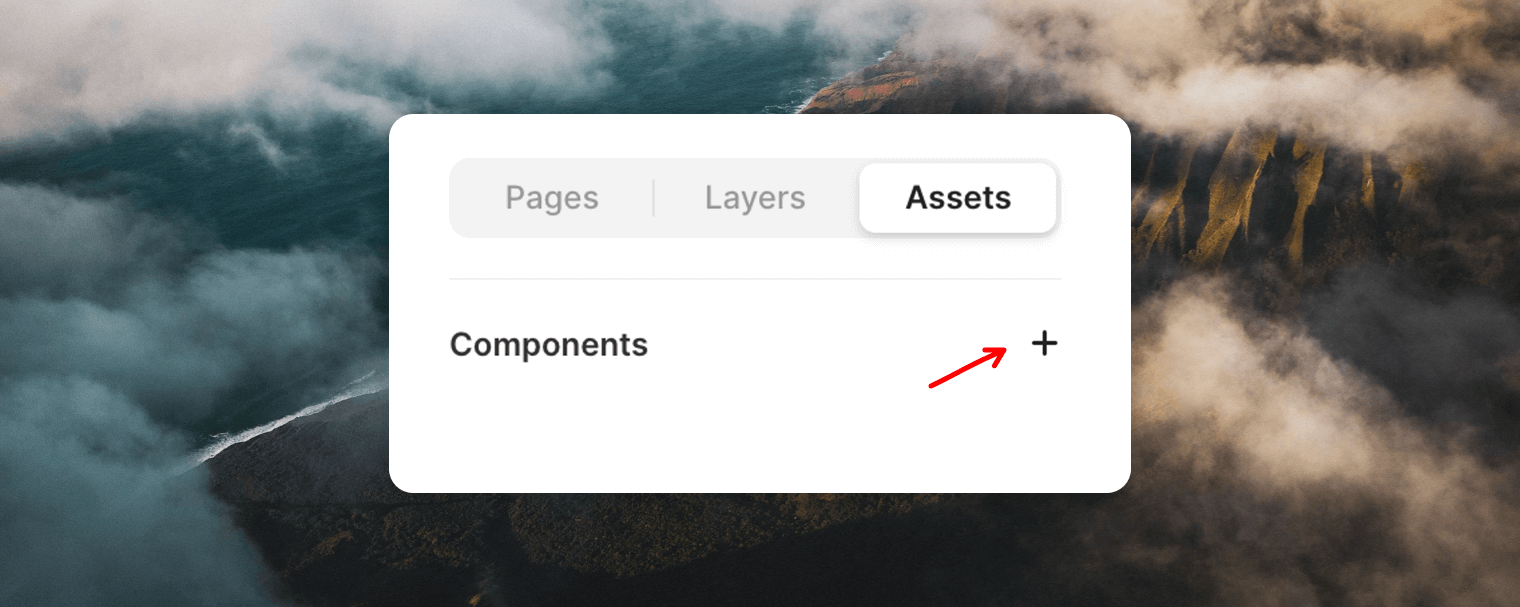
1. Create a new component. Toggle over to **Assets** in the Framer side panel then click the `+` button.
### Embed the component in Framer
1. Create a new component. Toggle over to **Assets** in the Framer side panel then click the `+` button.
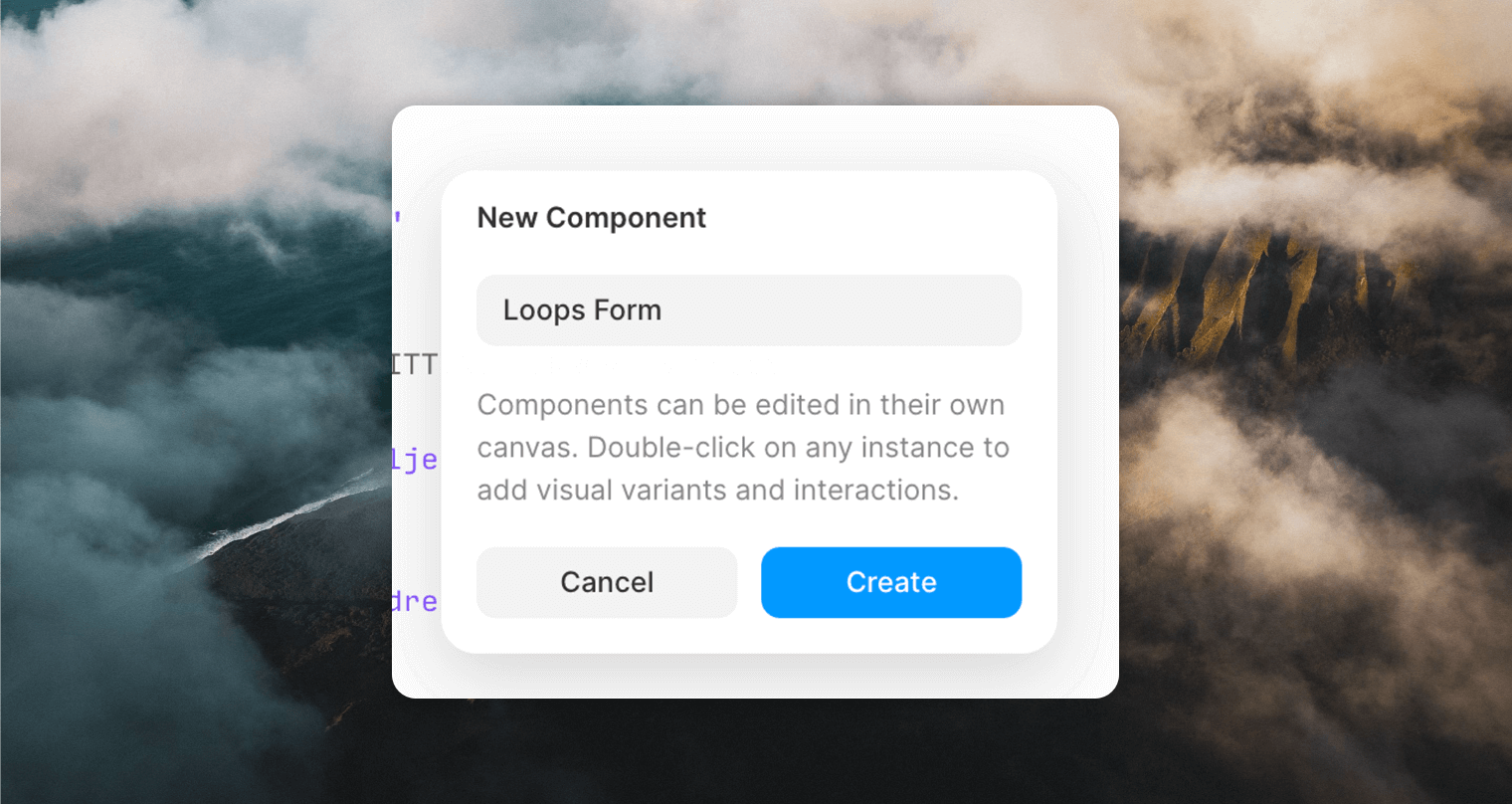
 2. Give your New Component a title.
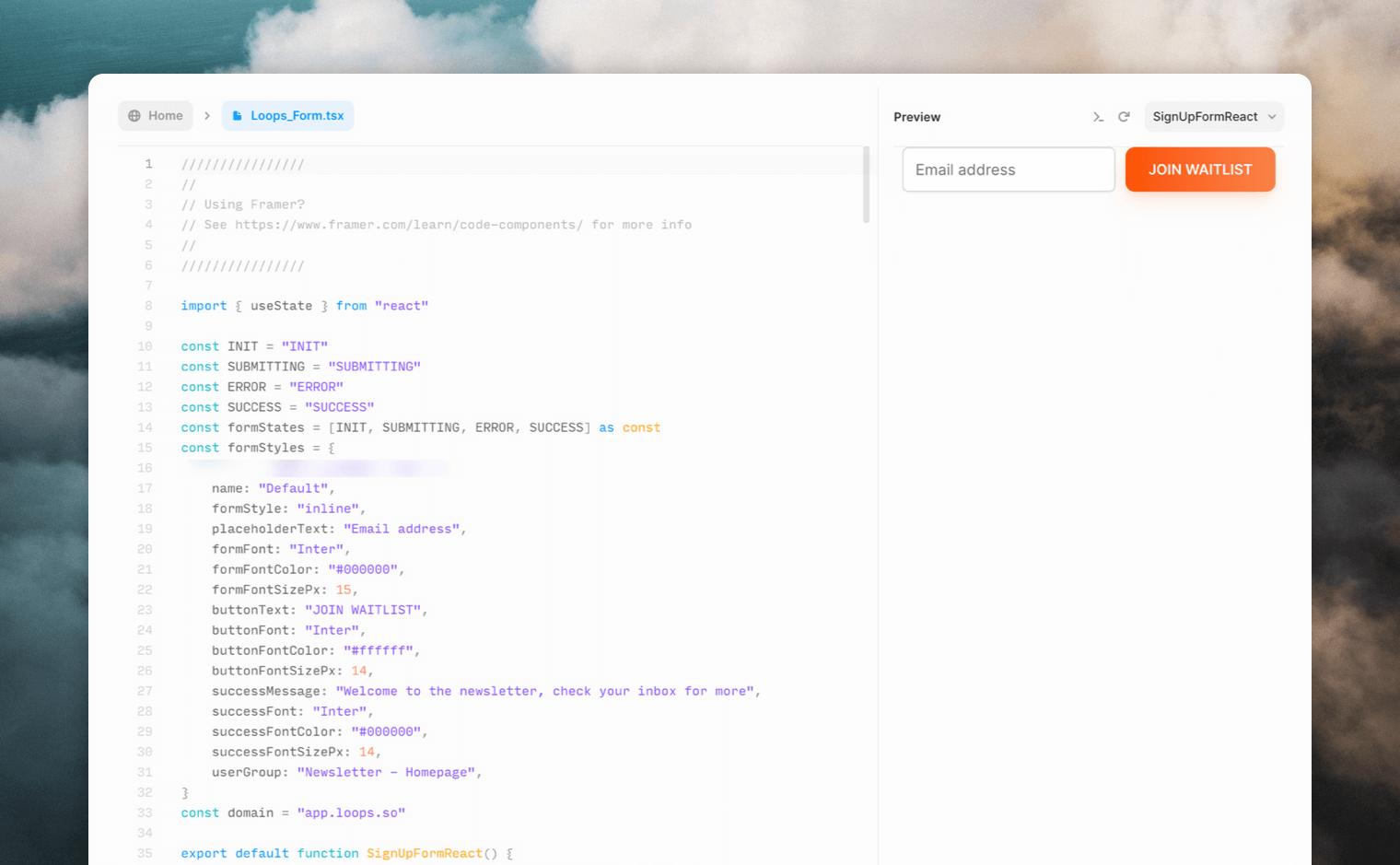
 3. Finally, paste the code copied in from Loops into the code editor. You should see the Preview on the right fill in with a preview of your component.
 4. Drag and drop your new asset anywhere on your page to use it :)