> ## Documentation Index
> Fetch the complete documentation index at: https://loops.so/docs/llms.txt
> Use this file to discover all available pages before exploring further.
# Clerk integration
> Sync contacts and send emails triggered by events in Clerk.
Our Clerk integration lets you:
* Create and update contacts
* Send events to trigger workflows
Our Clerk integration is built on top of our [Incoming webhooks](/integrations/incoming-webhooks) feature. This system lets you send webhooks from supported platforms directly to Loops so you can easily sync users and customers as well as send automated emails.
[Please read our guide about incoming webhooks](/integrations/incoming-webhooks)
With Clerk, you can keep your user data synced to Loops so you can send emails to your userbase.
## Supported events
We accept the following Clerk events:
* `user.created`
* `user.deleted`
* `user.updated`
* `waitlistEntry.created`
* `waitlistEntry.updated`
[Clerk webhook docs](https://clerk.com/docs/webhooks/overview)
If you send other events, they will be ignored.
If you would like to see more events supported, please let us know by sending
a message to [our support team](https://app.loops.so/settings?page=support). Please keep in mind only
events that contain an email address are able to be processed.
## Synced data
For `user.created` or `user.updated` events, we sync the following Clerk data to your Loops contacts:
* User ID
* Email address
* First name (optional)
* Last name (optional)
We use the IDs of Clerk users to match contacts in your Loops audience. If the user ID is not found in Loops, we will create a new contact.
The `user.deleted` event can be used to delete or unsubscribe your Clerk users from your Loops audience.
For `waitlistEntry.*` events, we sync:
* Email address
There is no user ID available for waitlist events. When a user graduates from your waitlist to being a user (i.e. you accept them and they complete their account), their user ID will be added to your contact in Loops.
## Create a webhook endpoint in Loops
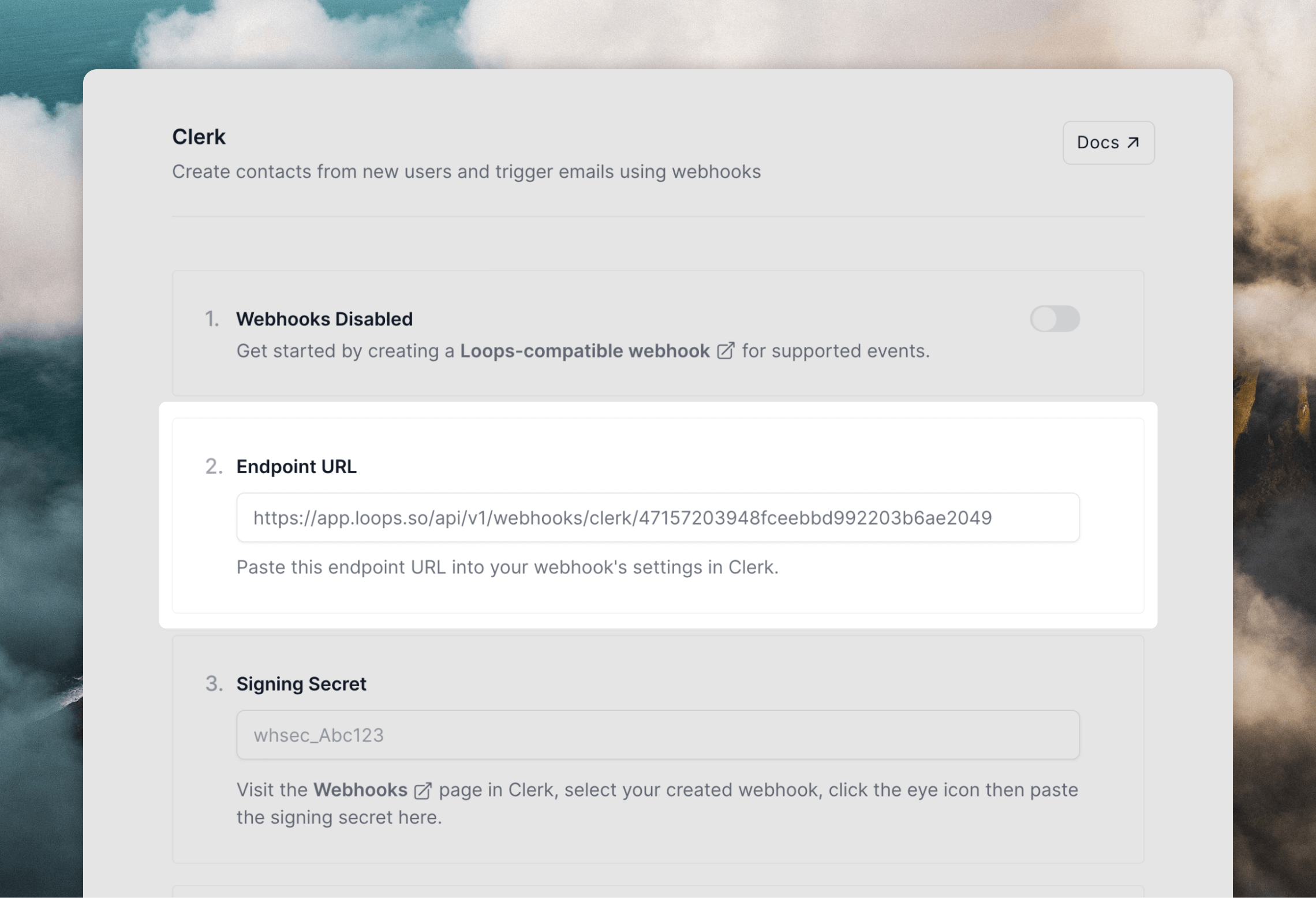
[Follow the instructions here](/integrations/incoming-webhooks#create-webhook-endpoints-in-loops) to create a new webhook endpoint, which will allow you to send webhook events directly to Loops.
 ## Create a webhook in Clerk
Next, you need to set up webhooks in Clerk.
Inside a project in Clerk, go to **Configure -> Webhooks** and click **+ Add Endpoint**. Paste in the endpoint URL from Loops, then select the event(s) you want to send (see our [supported events](#supported-events) above).
## Create a webhook in Clerk
Next, you need to set up webhooks in Clerk.
Inside a project in Clerk, go to **Configure -> Webhooks** and click **+ Add Endpoint**. Paste in the endpoint URL from Loops, then select the event(s) you want to send (see our [supported events](#supported-events) above).
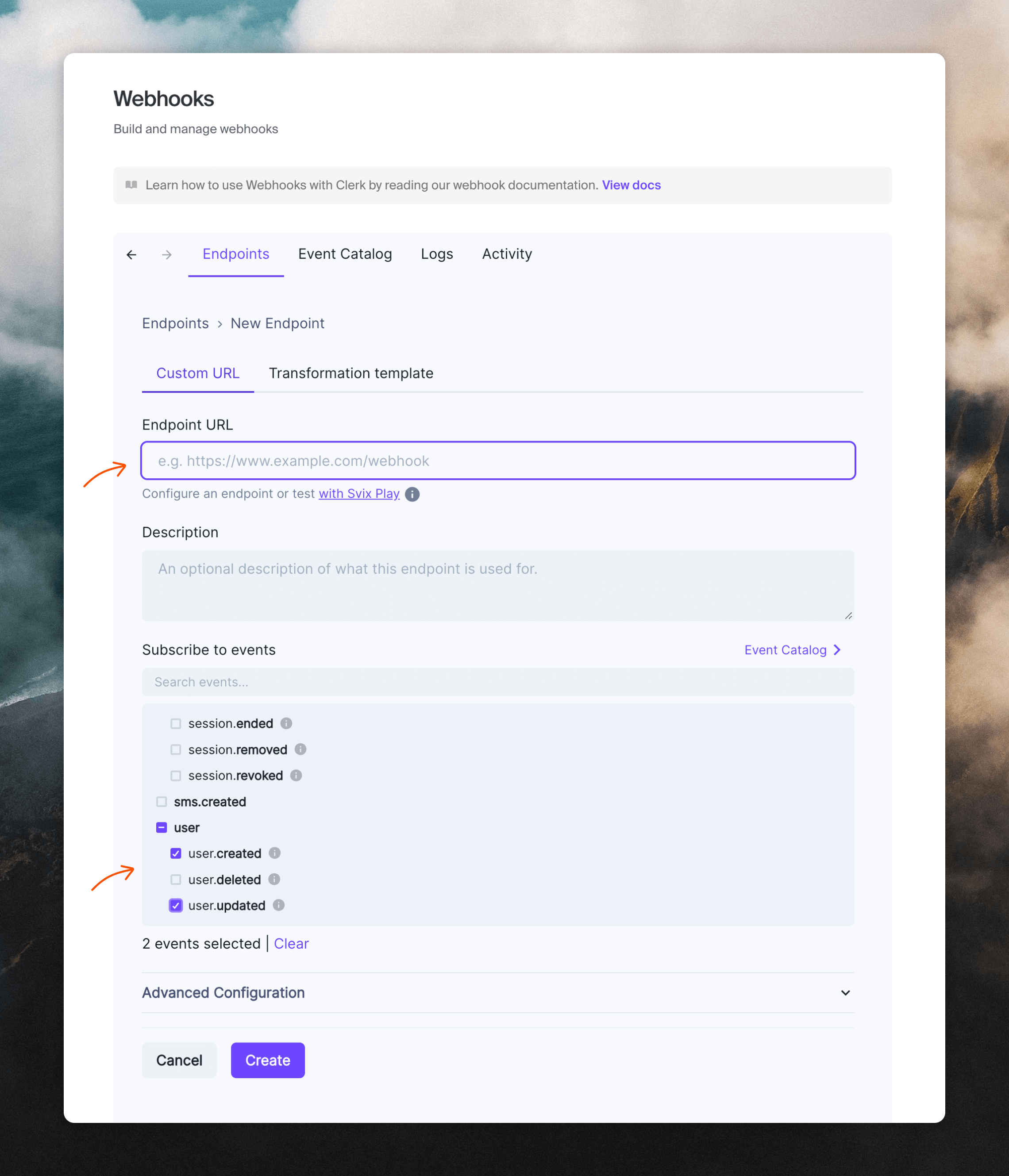 Click **Create** to finish.
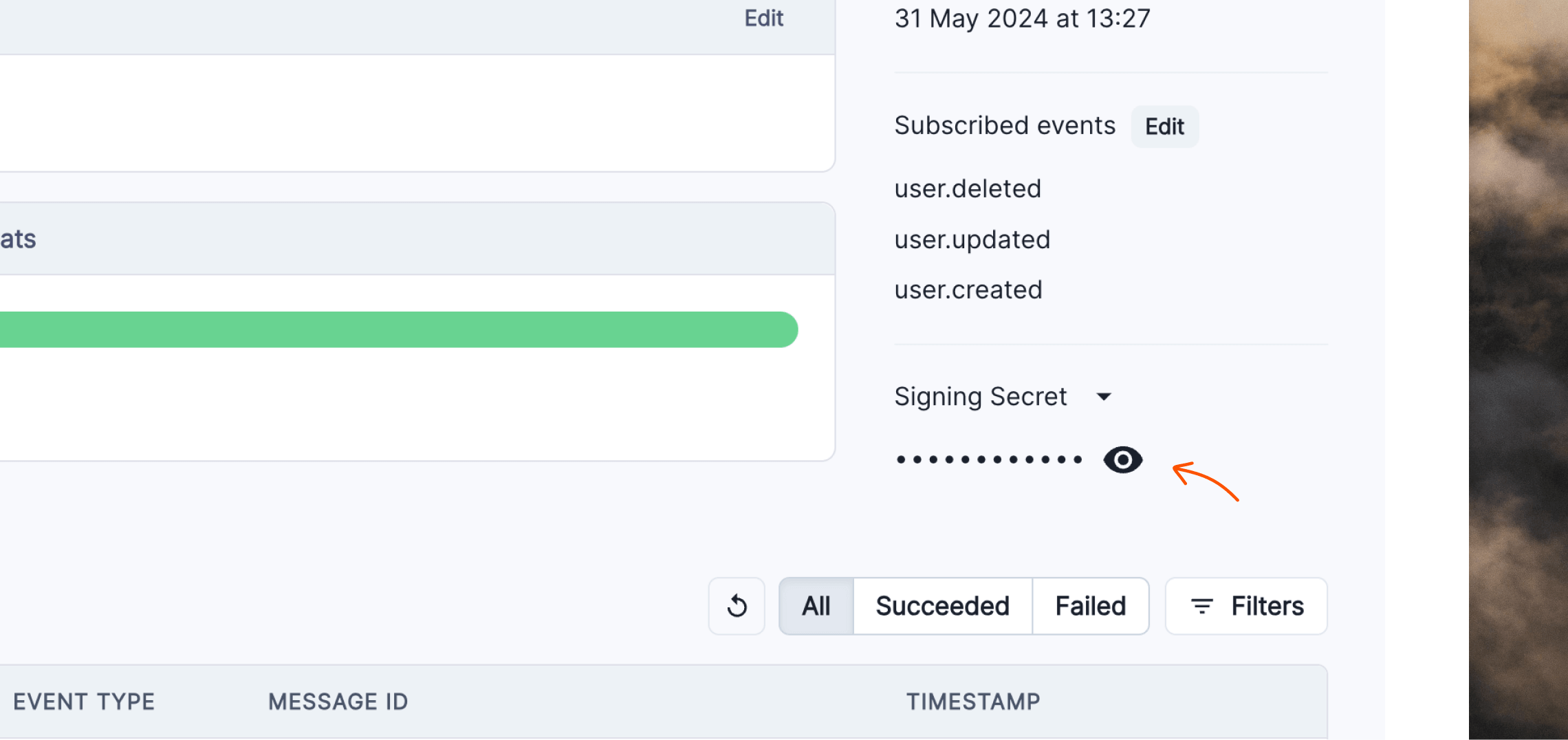
The last step is to copy the signing secret into Loops. On the webhook page in Clerk, click the eye icon on the right to show the secret in the page. Copy the secret and paste it into the **Signing Secret** field in Loops.
Click **Create** to finish.
The last step is to copy the signing secret into Loops. On the webhook page in Clerk, click the eye icon on the right to show the secret in the page. Copy the secret and paste it into the **Signing Secret** field in Loops.
 Now you're all set up.
## Testing Clerk webhooks
Clerk offers a nice way to test webhooks. Click through to the webhook you created and then the **Testing** tab.
Select `user.created` or `user.updated` from the **Send event** dropdown, tweak the example data that's shown, then click **Send Example**.
This will send real data to your Loops account.
You can also test your webhook by creating and editing users in the **Users** page in Clerk, or by signing up in your application.
You can see all sent webhooks by going to **Webhooks**, clicking on the webhook and scrolling down to the **Message Attempts** section.
On Loops' end, you will see new contacts appear in your [Audience](https://app.loops.so/audience) page, and triggered events in the [Events](https://app.loops.so/settings?page=events) page.
## Examples
Here are some examples of how you can send data from Clerk to Loops to sync contacts and trigger useful emails to your customers.
### Syncing users to Loops
Create or update contacts in your Loops audience when a user is created or updated in Clerk.
1. Create a new Clerk webhook endpoint in Loops ([instructions](/integrations/incoming-webhooks#create-webhook-endpoints-in-loops)).
2. In Clerk, create a new webhook ([instructions above](#create-a-webhook-in-clerk)) for the `user.created` and `user.updated` events and paste in your endpoint's URL.
3. In Loops, make sure `user.created` and `user.updated` are toggled on on the Clerk settings page.
### Syncing waitlist signups to Loops
Create or update contacts in your Loops audience when someone joins your waitlist in Clerk.
1. Create a new Clerk webhook endpoint in Loops ([instructions](/integrations/incoming-webhooks#create-webhook-endpoints-in-loops)).
2. In Clerk, create a new webhook ([instructions above](#create-a-webhook-in-clerk)) for the `waitlistEntry.created` event and paste in your endpoint's URL.
3. In Loops, make sure `waitlistEntry.created` is toggled on on the Clerk settings page.
4. To keep track of waitlist users you can use the **Assign a user group** option. Enter something like "Waitlist" into field.
### Send an email to all new Clerk users
Send an email from Loops when a new user is created in Clerk.
1. Set up your Clerk webhook endpoint in Loops ([instructions](/integrations/incoming-webhooks#create-webhook-endpoints-in-loops)).
2. In Clerk, create a new webhook ([instructions above](#create-a-webhook-in-clerk)) for the `user.created` event and paste in your endpoint's URL.
3. In Loops, make sure `user.created` is toggled on on the Clerk settings page.
4. Create a new workflow in Loops using our **Onboarding drip** template.
5. For the workflow trigger, select **Event received** and then select **Clerk** from the first dropdown and **user.created** from the second dropdown.
### Enter all new Clerk users into an onboarding email sequence
Send an email from Loops when a new customer is created in Clerk.
1. Complete Steps 1–5 from "Send an email to all new Clerk users" above.
2. Add more emails and timers into the workflow to complete your email sequence.
### Send an email to a deleted Clerk user
Send an email from Loops when a user is deleted in Clerk.
1. Set up your Clerk webhook endpoint in Loops ([instructions](/integrations/incoming-webhooks#create-webhook-endpoints-in-loops)).
2. In Clerk, create a new webhook ([instructions above](#create-a-webhook-in-clerk)) for the `user.deleted` event and paste in your endpoint's URL.
3. In Loops, make sure `user.deleted` is toggled on on the Clerk settings page.
4. Create a new workflow in Loops.
5. For the workflow trigger, select **Event received** and then select **Clerk** from the first dropdown and **user.deleted** from the second dropdown.
6. Add an email to the workflow.
7. You can optionally delete or unsubscribe the user from your audience from the Clerk settings in Loops. Note that both options will stop that contact from receiving future emails from Loops.
Now you're all set up.
## Testing Clerk webhooks
Clerk offers a nice way to test webhooks. Click through to the webhook you created and then the **Testing** tab.
Select `user.created` or `user.updated` from the **Send event** dropdown, tweak the example data that's shown, then click **Send Example**.
This will send real data to your Loops account.
You can also test your webhook by creating and editing users in the **Users** page in Clerk, or by signing up in your application.
You can see all sent webhooks by going to **Webhooks**, clicking on the webhook and scrolling down to the **Message Attempts** section.
On Loops' end, you will see new contacts appear in your [Audience](https://app.loops.so/audience) page, and triggered events in the [Events](https://app.loops.so/settings?page=events) page.
## Examples
Here are some examples of how you can send data from Clerk to Loops to sync contacts and trigger useful emails to your customers.
### Syncing users to Loops
Create or update contacts in your Loops audience when a user is created or updated in Clerk.
1. Create a new Clerk webhook endpoint in Loops ([instructions](/integrations/incoming-webhooks#create-webhook-endpoints-in-loops)).
2. In Clerk, create a new webhook ([instructions above](#create-a-webhook-in-clerk)) for the `user.created` and `user.updated` events and paste in your endpoint's URL.
3. In Loops, make sure `user.created` and `user.updated` are toggled on on the Clerk settings page.
### Syncing waitlist signups to Loops
Create or update contacts in your Loops audience when someone joins your waitlist in Clerk.
1. Create a new Clerk webhook endpoint in Loops ([instructions](/integrations/incoming-webhooks#create-webhook-endpoints-in-loops)).
2. In Clerk, create a new webhook ([instructions above](#create-a-webhook-in-clerk)) for the `waitlistEntry.created` event and paste in your endpoint's URL.
3. In Loops, make sure `waitlistEntry.created` is toggled on on the Clerk settings page.
4. To keep track of waitlist users you can use the **Assign a user group** option. Enter something like "Waitlist" into field.
### Send an email to all new Clerk users
Send an email from Loops when a new user is created in Clerk.
1. Set up your Clerk webhook endpoint in Loops ([instructions](/integrations/incoming-webhooks#create-webhook-endpoints-in-loops)).
2. In Clerk, create a new webhook ([instructions above](#create-a-webhook-in-clerk)) for the `user.created` event and paste in your endpoint's URL.
3. In Loops, make sure `user.created` is toggled on on the Clerk settings page.
4. Create a new workflow in Loops using our **Onboarding drip** template.
5. For the workflow trigger, select **Event received** and then select **Clerk** from the first dropdown and **user.created** from the second dropdown.
### Enter all new Clerk users into an onboarding email sequence
Send an email from Loops when a new customer is created in Clerk.
1. Complete Steps 1–5 from "Send an email to all new Clerk users" above.
2. Add more emails and timers into the workflow to complete your email sequence.
### Send an email to a deleted Clerk user
Send an email from Loops when a user is deleted in Clerk.
1. Set up your Clerk webhook endpoint in Loops ([instructions](/integrations/incoming-webhooks#create-webhook-endpoints-in-loops)).
2. In Clerk, create a new webhook ([instructions above](#create-a-webhook-in-clerk)) for the `user.deleted` event and paste in your endpoint's URL.
3. In Loops, make sure `user.deleted` is toggled on on the Clerk settings page.
4. Create a new workflow in Loops.
5. For the workflow trigger, select **Event received** and then select **Clerk** from the first dropdown and **user.deleted** from the second dropdown.
6. Add an email to the workflow.
7. You can optionally delete or unsubscribe the user from your audience from the Clerk settings in Loops. Note that both options will stop that contact from receiving future emails from Loops.