> ## Documentation Index
> Fetch the complete documentation index at: https://loops.so/docs/llms.txt
> Use this file to discover all available pages before exploring further.
# Clay integration
> Learn how to sync data between Clay and Loops.
Clay is a platform for managing and enriching your customer and user data. You can sync contact data between Clay and Loops using webhooks and API requests, as well as trigger emails from Clay.
## Send Loops contacts to Clay
You can send Loops contact data to Clay using Loops [webhooks](/webhooks).
### Create a webhook in Clay
In Clay, add a Webhook source by clicking **More sources...** in the sidebar and selecting **Webhook**.
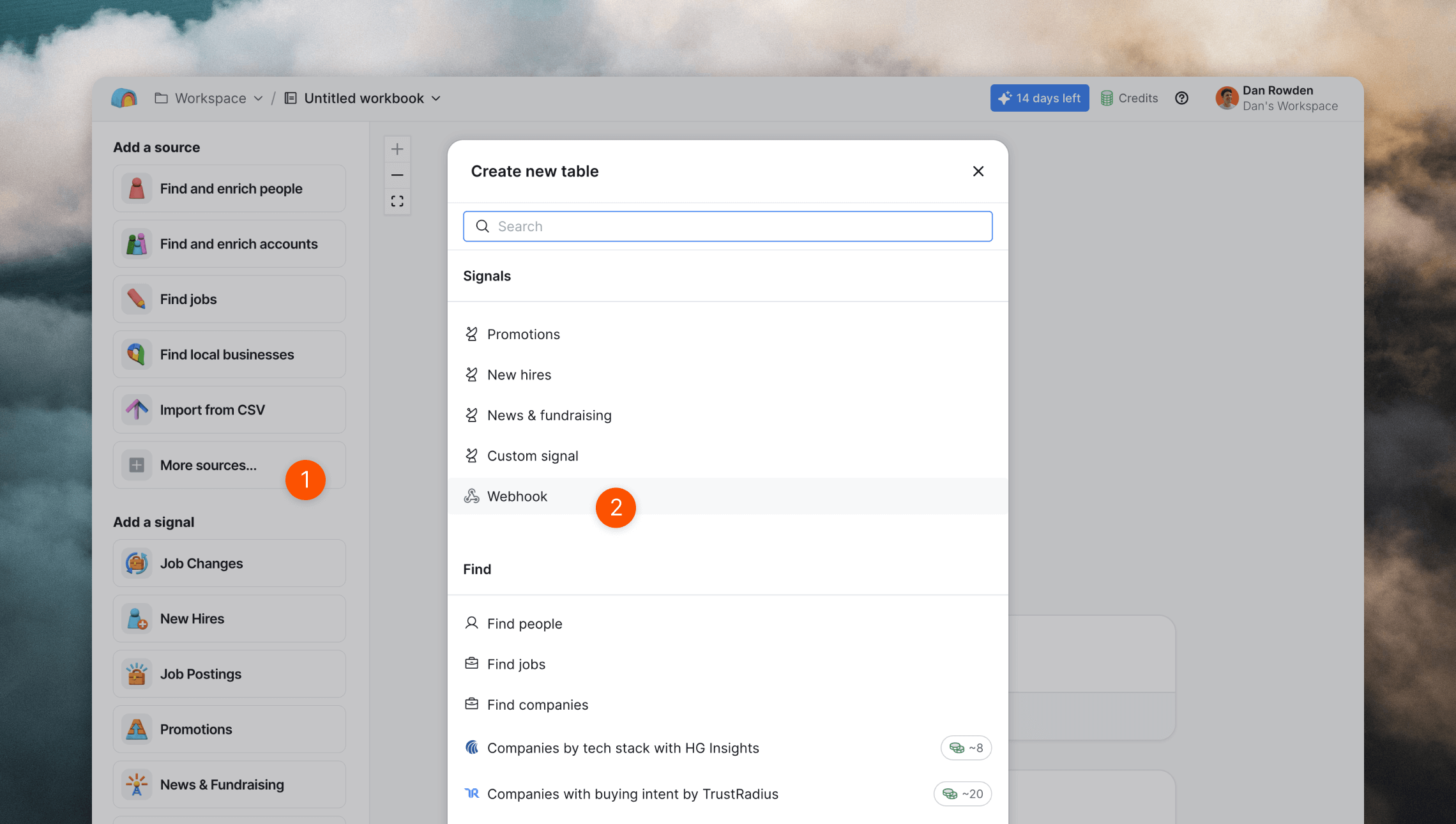 This generates a new webhook URL.
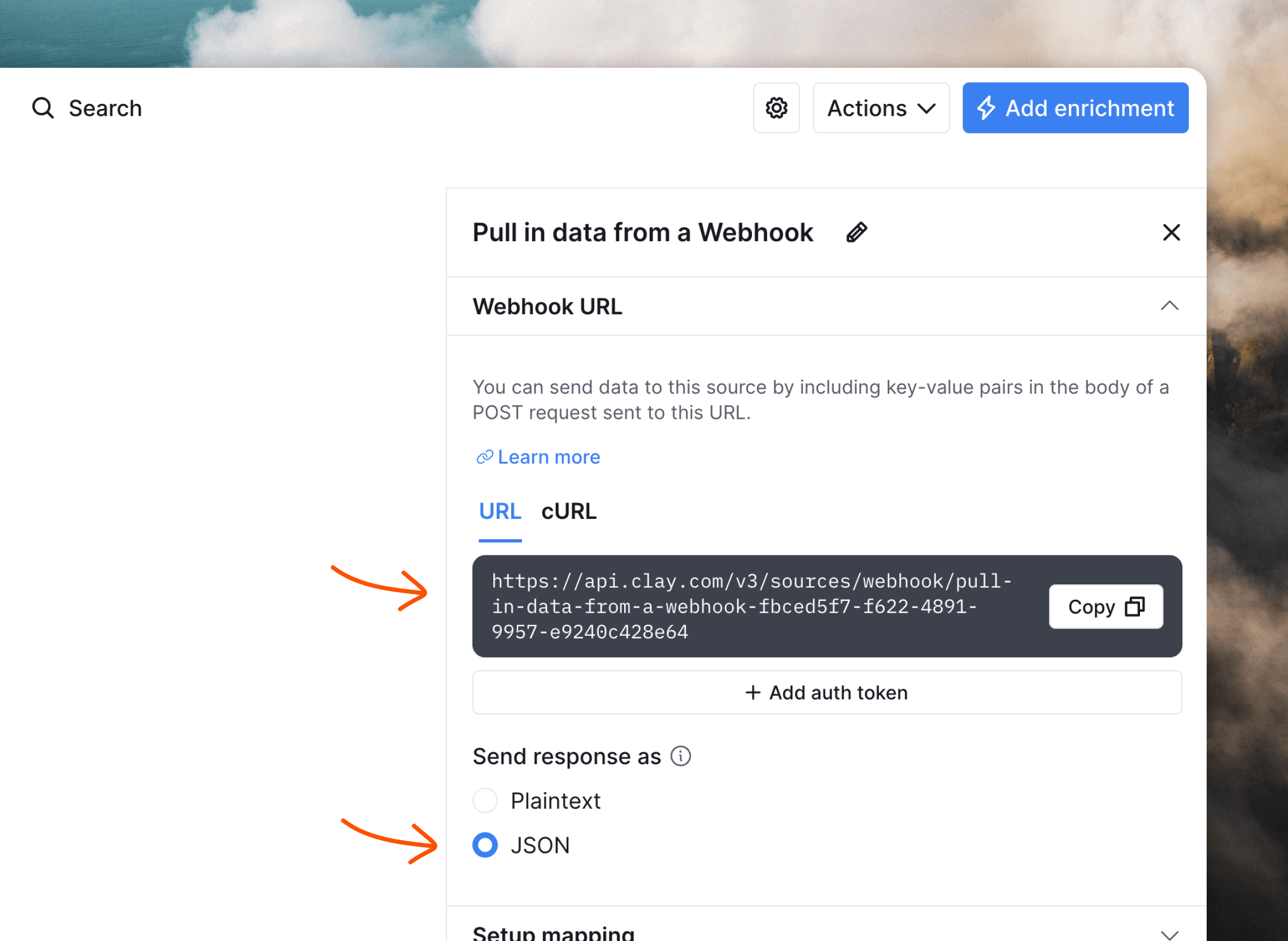
Make sure to change the **Send response as** option just below the URL to "JSON" to match the data format sent by Loops.
This generates a new webhook URL.
Make sure to change the **Send response as** option just below the URL to "JSON" to match the data format sent by Loops.
 ### Set up the webhook in Loops
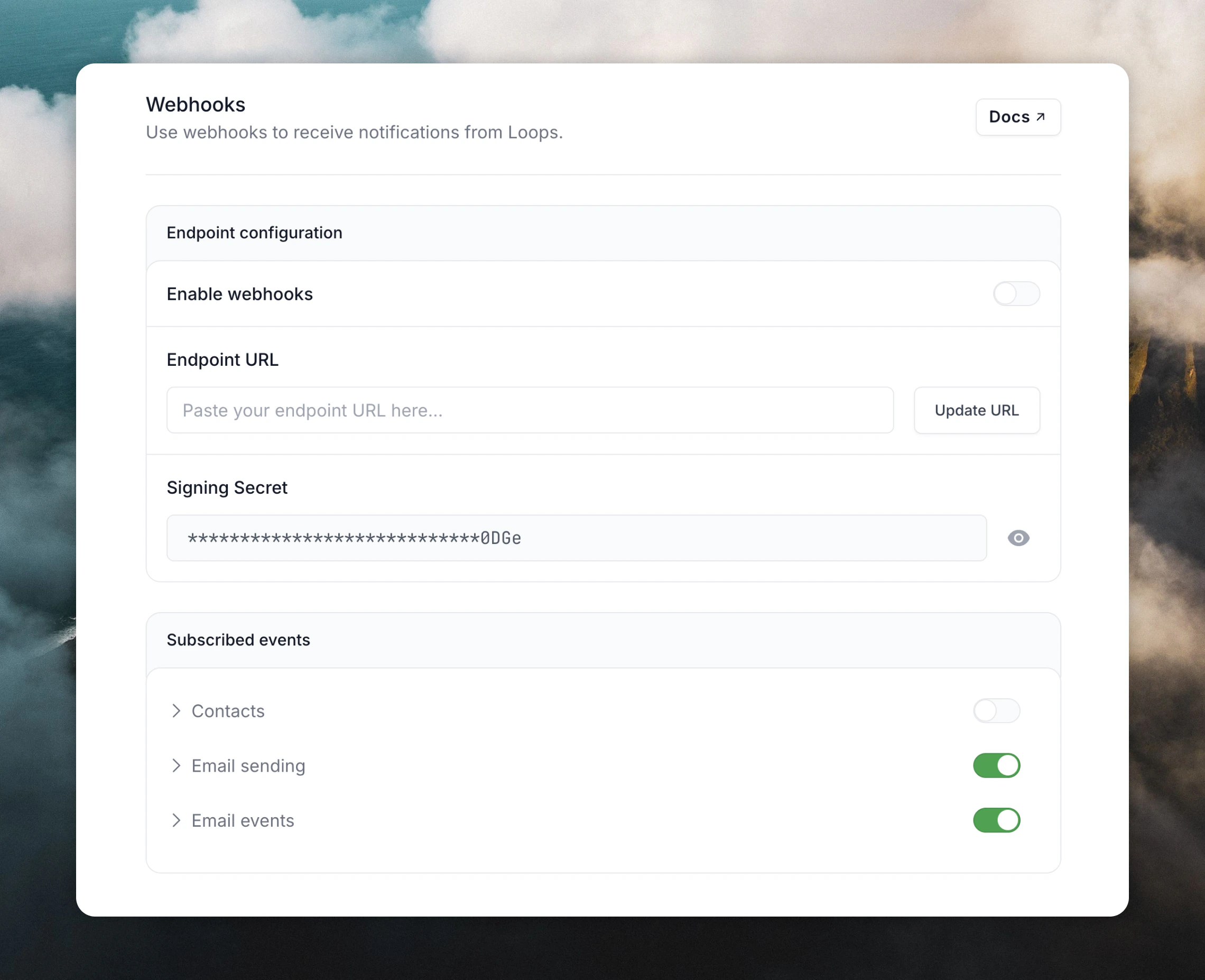
Copy the URL and paste it into the **Endpoint URL** field on the [Webhooks](https://app.loops.so/settings?page=webhooks) settings page in Loops.
Activate `contact.created` events. This is the only event that makes sense to sync to Clay because it's only [event type](/webhooks#event-types) that contains a full contact record.
### Set up the webhook in Loops
Copy the URL and paste it into the **Endpoint URL** field on the [Webhooks](https://app.loops.so/settings?page=webhooks) settings page in Loops.
Activate `contact.created` events. This is the only event that makes sense to sync to Clay because it's only [event type](/webhooks#event-types) that contains a full contact record.
 ### Create a data mapping in Clay
Now, in order to create data mappings in Clay, you need to send some data from Loops. To do this we need to create a contact, which will trigger a webhook to be sent to Clay.
In your Loops [Audience page](https://app.loops.so/audience) you can create a new contact from the `+` button in the top right, or use the [API](/api-reference/create-contact) or an [integration](/integrations).
Once the contact is created, go back to Clay. You should see a webhook record in your table, and there should now be data shown in the **Setup mapping** section on the right.
### Create a data mapping in Clay
Now, in order to create data mappings in Clay, you need to send some data from Loops. To do this we need to create a contact, which will trigger a webhook to be sent to Clay.
In your Loops [Audience page](https://app.loops.so/audience) you can create a new contact from the `+` button in the top right, or use the [API](/api-reference/create-contact) or an [integration](/integrations).
Once the contact is created, go back to Clay. You should see a webhook record in your table, and there should now be data shown in the **Setup mapping** section on the right.
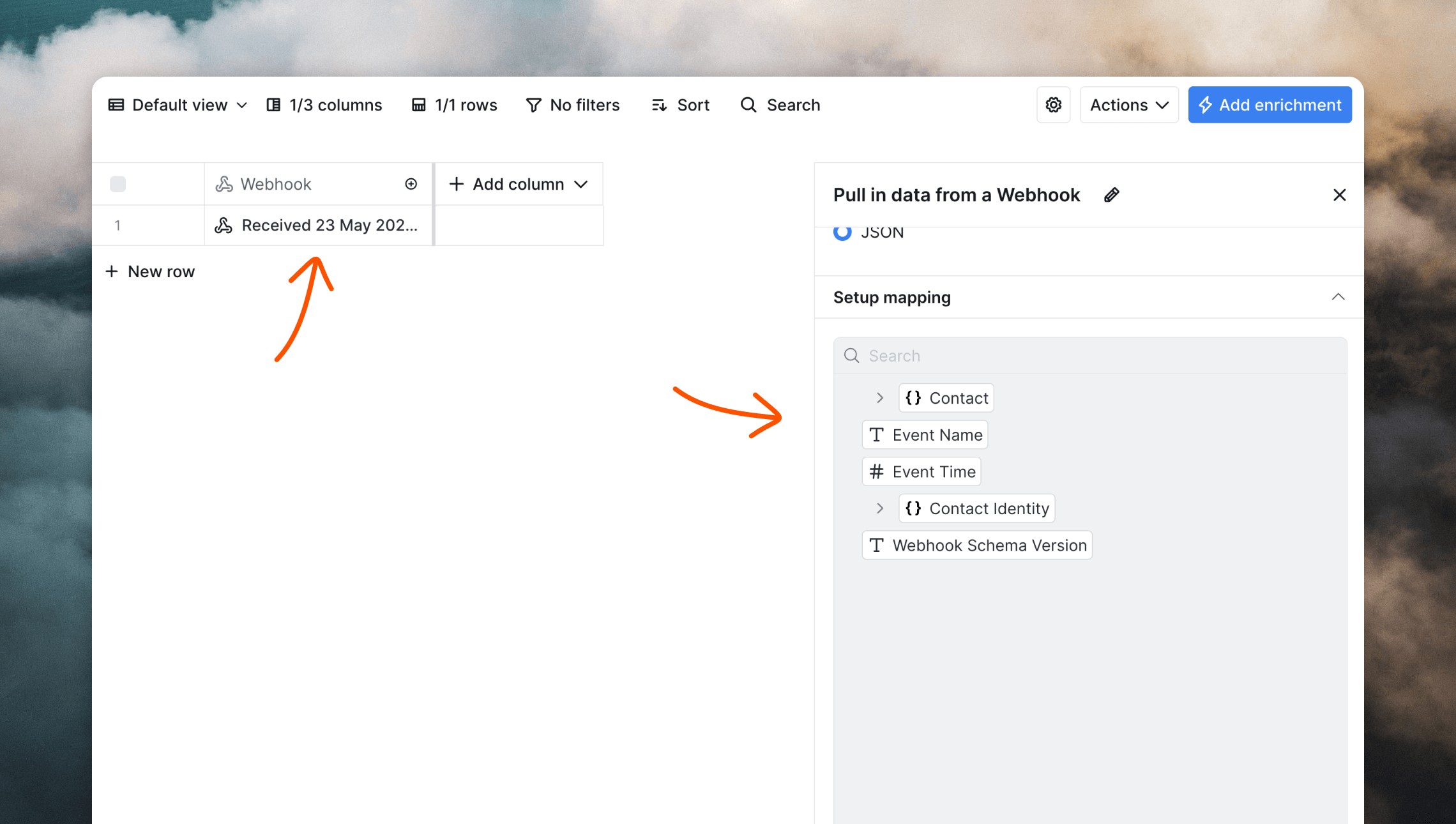 Now you can map data from Loops to columns in Clay. Click on the cell in the **Webhook** column. On the right you can click on attributes and map them to columns. Expand the **Contact** object to view the full record from Loops.
Click on an attribute you want to sync and then **Add as column**. You have the option to map the data to a new or existing column.
Now you can map data from Loops to columns in Clay. Click on the cell in the **Webhook** column. On the right you can click on attributes and map them to columns. Expand the **Contact** object to view the full record from Loops.
Click on an attribute you want to sync and then **Add as column**. You have the option to map the data to a new or existing column.
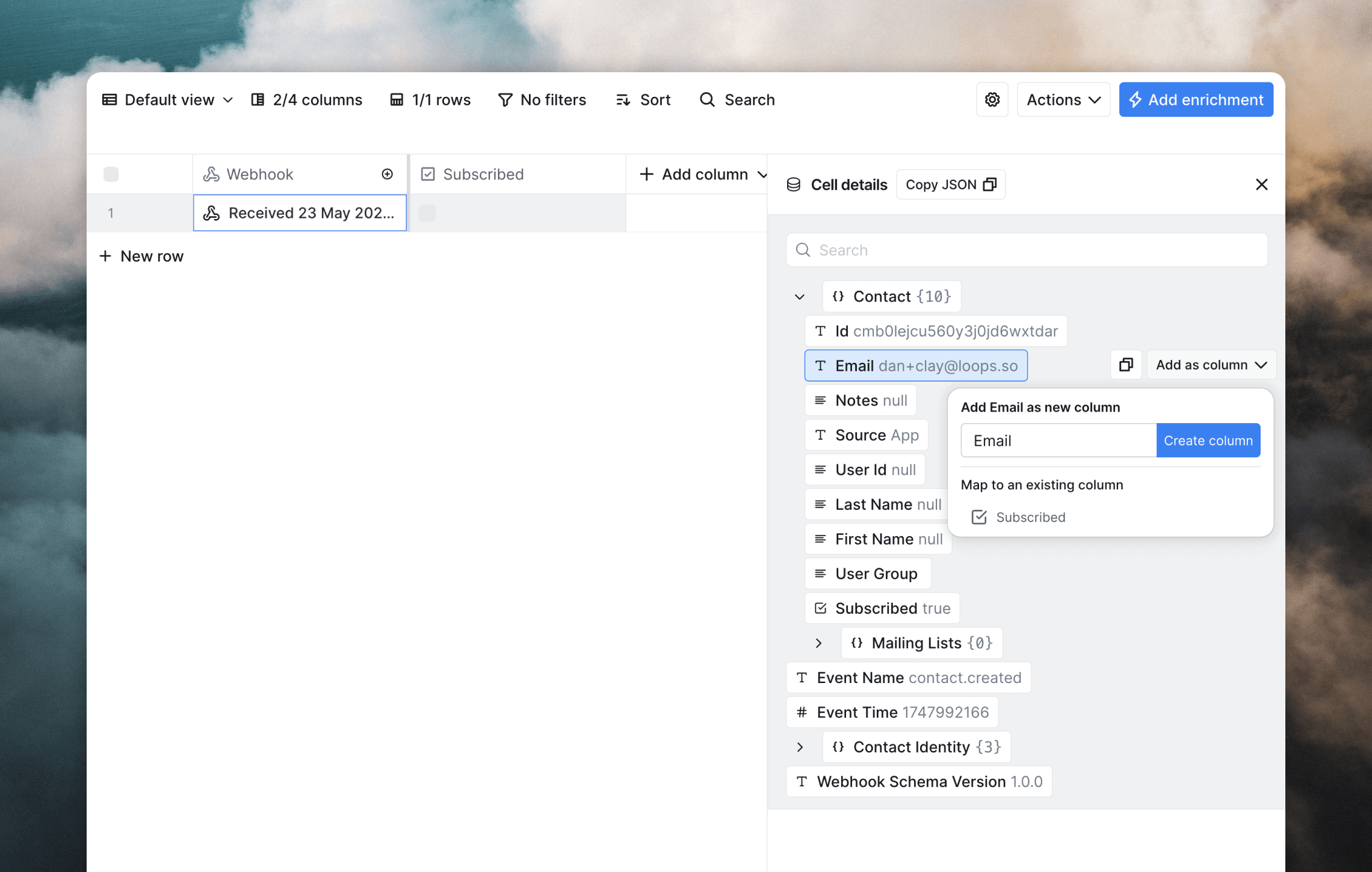 Once you've mapped your desired data to Clay, future webhooks will automatically sync the same Loops data to your Clay table. You can test this by adding another contact to your Loops audience.
If you ever want to check or view the data coming into Clay, clicking on cells in the **Webhook** column will show the full request body for each request.
## Send Clay contacts to Loops
You can sync data to your Loops audience from Clay using a custom enrichment in your tables. This sends contact data to Loops whenever a row is created or updated (or on a manual schedule).
### Create a connection to the Loops API
Add an API connection to your table in Clay by selecting **Add enrichment** and searching for **HTTP API** as the data source.
In the **Account** section of the sidebar, click **+ Add account** or select an existing connection.
Once you've mapped your desired data to Clay, future webhooks will automatically sync the same Loops data to your Clay table. You can test this by adding another contact to your Loops audience.
If you ever want to check or view the data coming into Clay, clicking on cells in the **Webhook** column will show the full request body for each request.
## Send Clay contacts to Loops
You can sync data to your Loops audience from Clay using a custom enrichment in your tables. This sends contact data to Loops whenever a row is created or updated (or on a manual schedule).
### Create a connection to the Loops API
Add an API connection to your table in Clay by selecting **Add enrichment** and searching for **HTTP API** as the data source.
In the **Account** section of the sidebar, click **+ Add account** or select an existing connection.
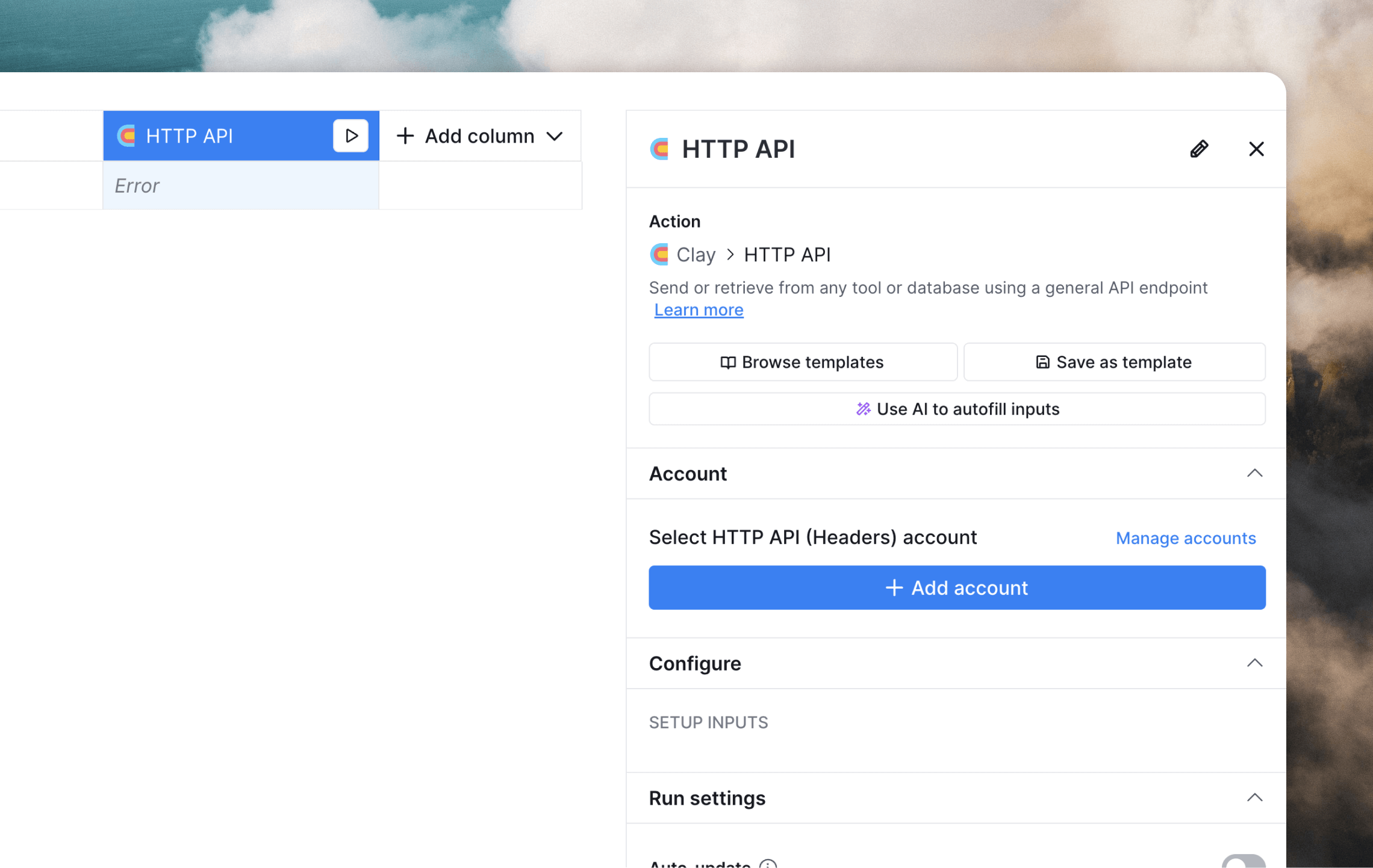 If you're adding a new connection, give the connection a name (e.g. "Loops") and then add the two API Request Headers listed below.
You'll need to generate or copy an API key from [Settings -> API](https://app.loops.so/settings?page=api) in Loops and replace `` with the key.
| Key | Value |
| :------------ | :----------------- |
| Authorization | `Bearer ` |
| Content-Type | `application/json` |
Click **Save** to create the connection.
If you're adding a new connection, give the connection a name (e.g. "Loops") and then add the two API Request Headers listed below.
You'll need to generate or copy an API key from [Settings -> API](https://app.loops.so/settings?page=api) in Loops and replace `` with the key.
| Key | Value |
| :------------ | :----------------- |
| Authorization | `Bearer ` |
| Content-Type | `application/json` |
Click **Save** to create the connection.
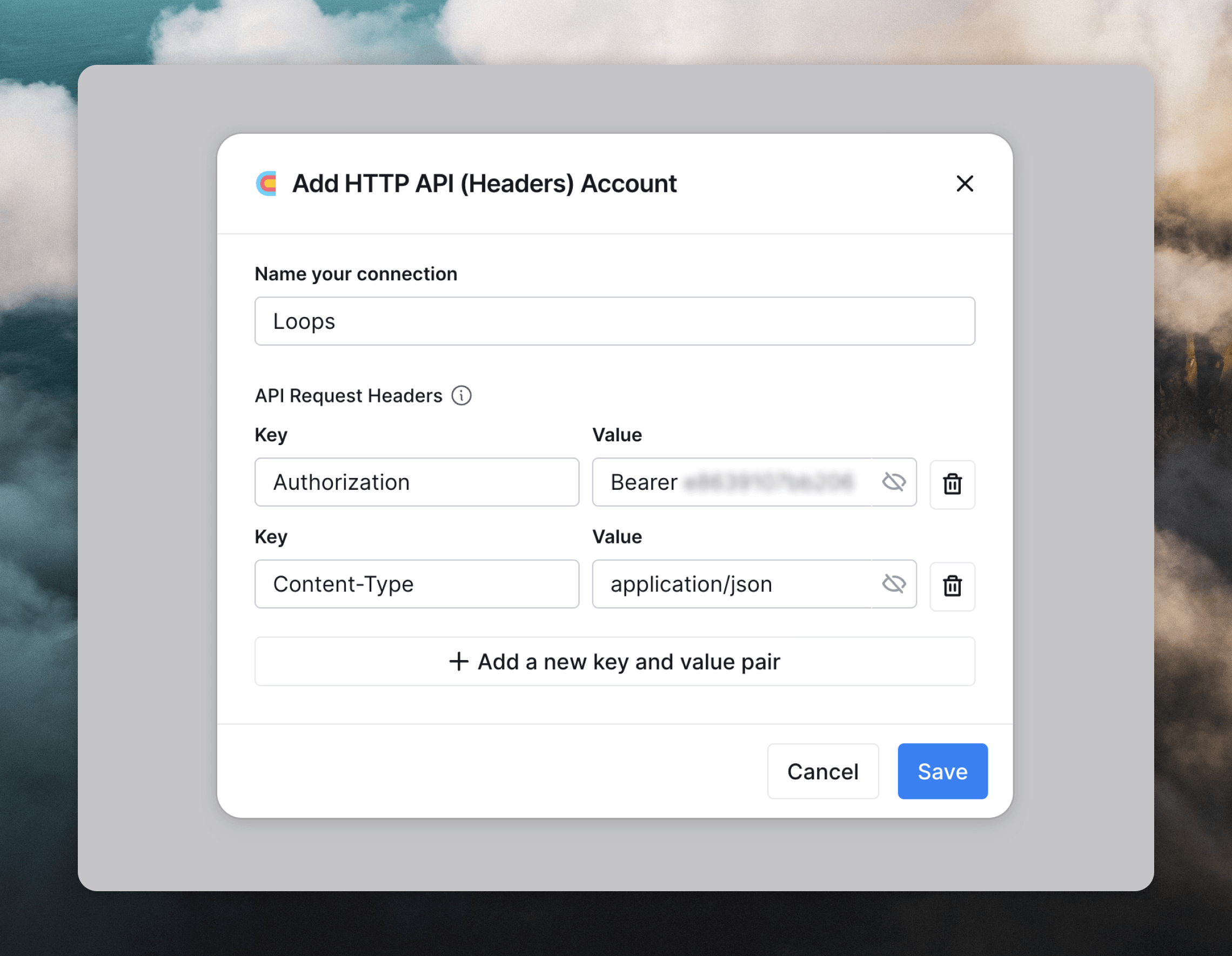 If you want to edit the connection in the future, you can do so from **Settings -> Connections** in Clay.
### Create an API request
We're going to set up an "update contact" API request, which will *create or update* contacts in Loops.
In the **Configure** section, select "PUT" from **Method** dropdown and enter the following URL into the **Endpoint** field:
```
https://app.loops.so/api/v1/contacts/update
```
In the **Body** field, you can build up the request, using data from your table. Type `/` to add columns, and make sure to wrap values in quotes to create valid JSON data for the API.
You must include an `email` in the request body.
If you want to edit the connection in the future, you can do so from **Settings -> Connections** in Clay.
### Create an API request
We're going to set up an "update contact" API request, which will *create or update* contacts in Loops.
In the **Configure** section, select "PUT" from **Method** dropdown and enter the following URL into the **Endpoint** field:
```
https://app.loops.so/api/v1/contacts/update
```
In the **Body** field, you can build up the request, using data from your table. Type `/` to add columns, and make sure to wrap values in quotes to create valid JSON data for the API.
You must include an `email` in the request body.
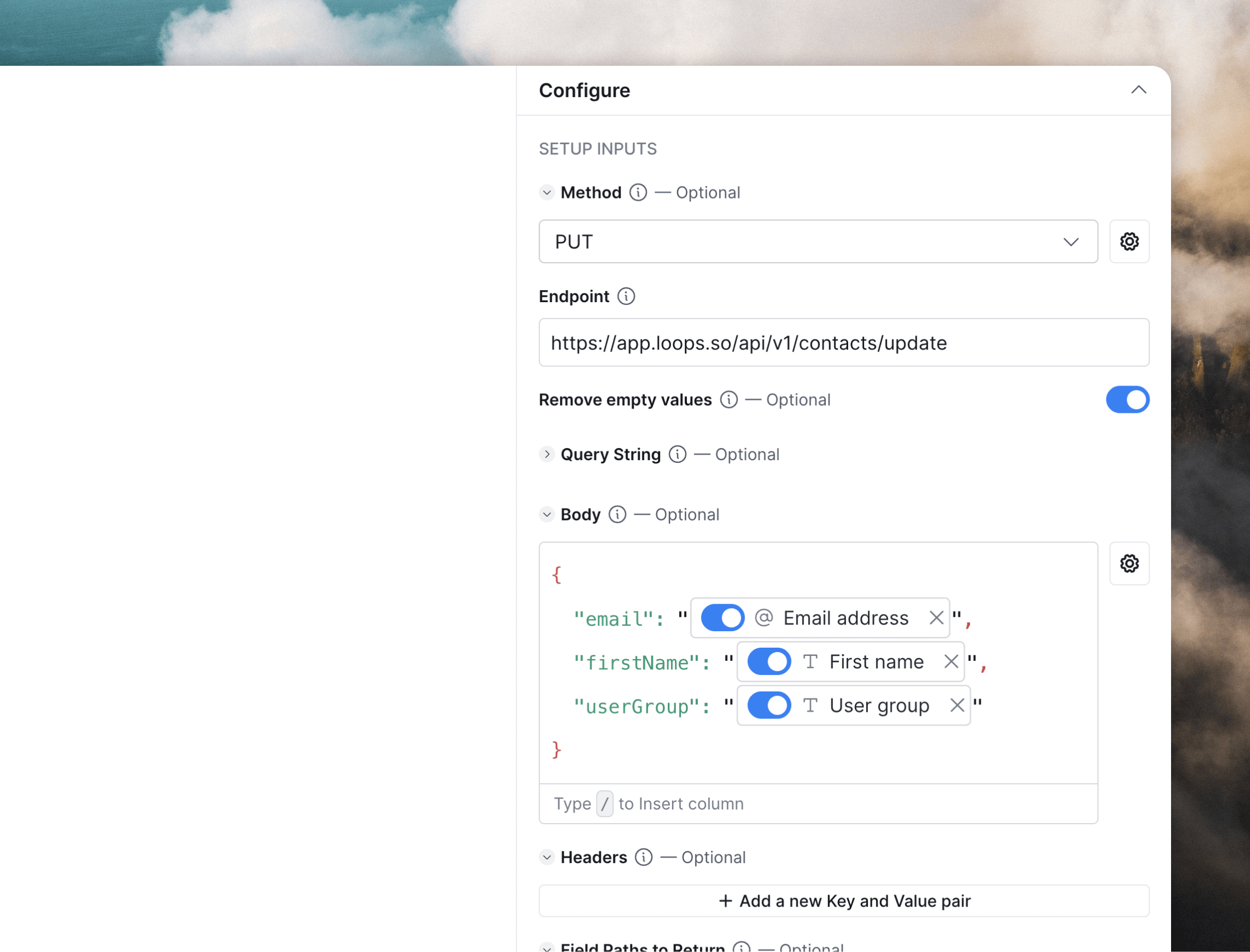 Data will be sent to Loops automatically when a row is created or updated when the **Auto-update** option is enabled. Toggle this off to only sync data manually.
To edit the request in the future, click on the **HTTP API** column header and select **Edit column**.
Read the API documentation for updating contacts
### Test the setup
To test the connection and request you created, click **Save** and then **Save and run (x) rows in this view**.
If the sync succeeds, you'll see the cell populate with "200", which means a successful API request was made.
Data will be sent to Loops automatically when a row is created or updated when the **Auto-update** option is enabled. Toggle this off to only sync data manually.
To edit the request in the future, click on the **HTTP API** column header and select **Edit column**.
Read the API documentation for updating contacts
### Test the setup
To test the connection and request you created, click **Save** and then **Save and run (x) rows in this view**.
If the sync succeeds, you'll see the cell populate with "200", which means a successful API request was made.
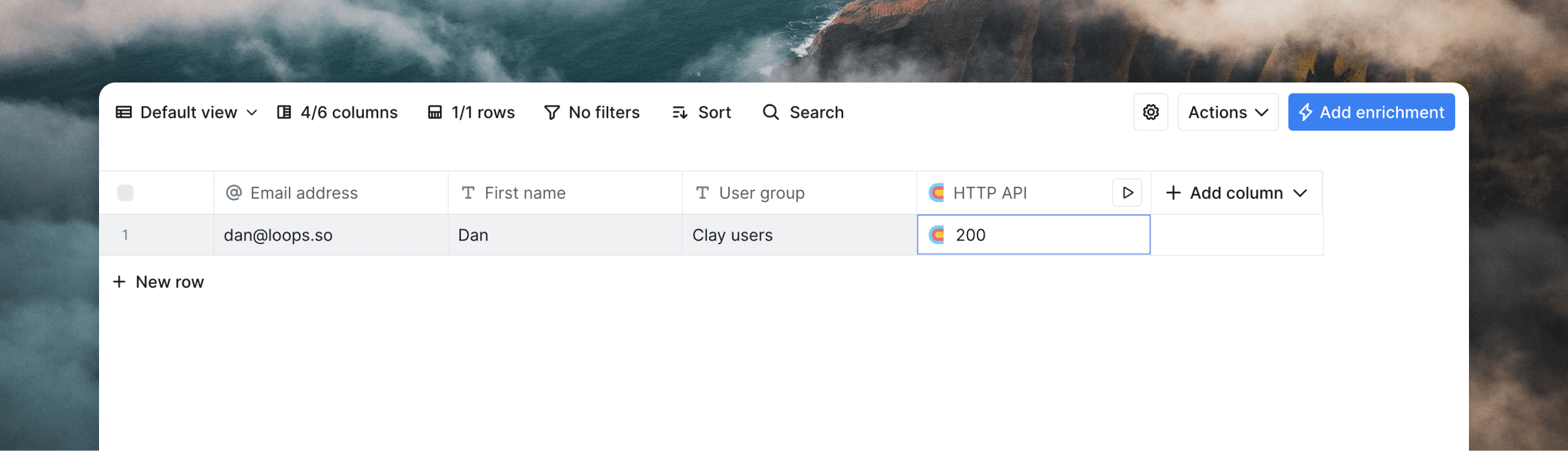 If there is an error sending data to Loops, you can click on the cell in the **HTTP API** column to see the error message returned by the API, including the reason for the failure.
## Send events from Clay
You can trigger [workflows](/workflows) from inside Clay by [sending events](/events) with the Loops API.
### Create an event and a workflow
An [event](/events) allows you to start a workflow when something happens in an external platform (like Clay). Workflows can contain emails, timers, and filters.
Learn more about events
Learn more about workflows
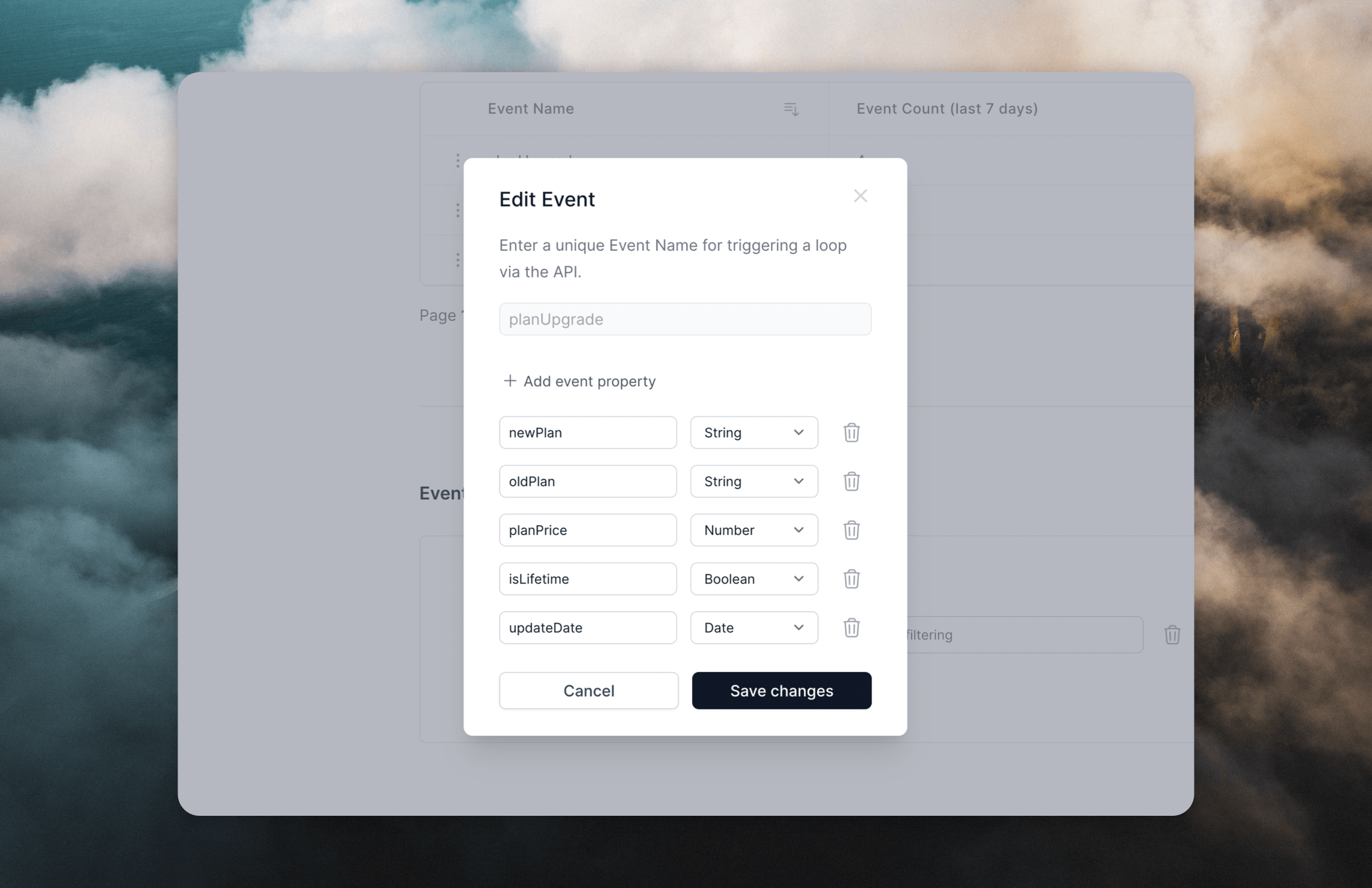
To define your event, go to [Settings -> Events](https://app.loops.so/settings?page=events) and click **Create**. You can specify [event properties](/events/properties) for the event, which are data about specific events that you can add into your emails to personalize them for each recipient.
If there is an error sending data to Loops, you can click on the cell in the **HTTP API** column to see the error message returned by the API, including the reason for the failure.
## Send events from Clay
You can trigger [workflows](/workflows) from inside Clay by [sending events](/events) with the Loops API.
### Create an event and a workflow
An [event](/events) allows you to start a workflow when something happens in an external platform (like Clay). Workflows can contain emails, timers, and filters.
Learn more about events
Learn more about workflows
To define your event, go to [Settings -> Events](https://app.loops.so/settings?page=events) and click **Create**. You can specify [event properties](/events/properties) for the event, which are data about specific events that you can add into your emails to personalize them for each recipient.
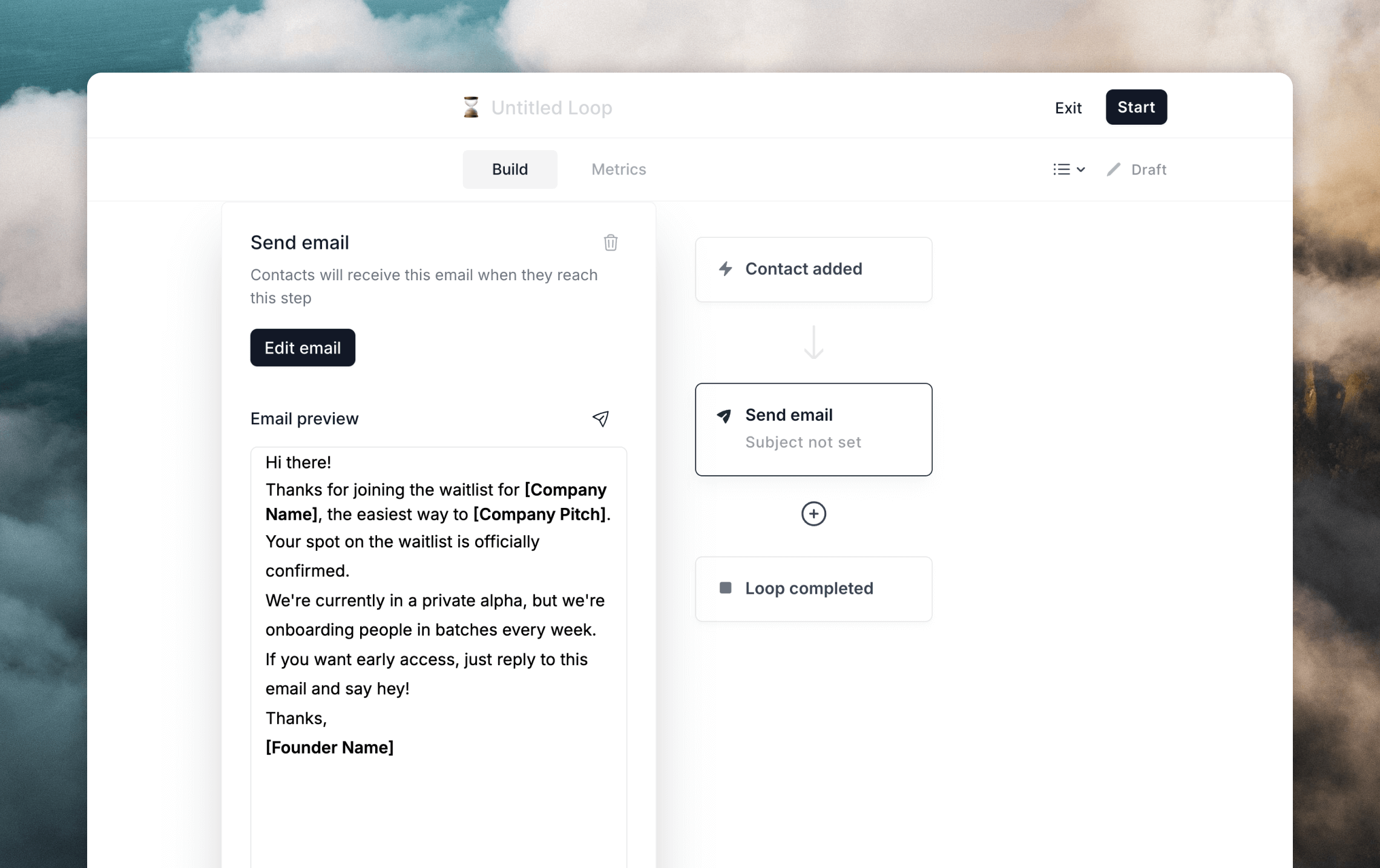
 When you're done, go to the [Workflows page](https://app.loops.so/loops) to create a new workflow. Use the "Event received" trigger and select your event from the previous step.
In this workflow, add as many emails as you want plus timers to space them out. You can personalize emails by [adding event properties](/events/properties#using-event-properties-in-emails) into your emails body, subject and other sending settings fields.
When you're done, go to the [Workflows page](https://app.loops.so/loops) to create a new workflow. Use the "Event received" trigger and select your event from the previous step.
In this workflow, add as many emails as you want plus timers to space them out. You can personalize emails by [adding event properties](/events/properties#using-event-properties-in-emails) into your emails body, subject and other sending settings fields.
 ### Create an API request
To send an event with the API from Clay, we need to make a request containing our event data. If you've added event properties to your emails, we need to include those in the request.
Add a new enrichment to your table in Clay by selecting **Add enrichment** and searching for **HTTP API** as the data source. Then create or select an existing connection to the Loops API. Follow the [steps outlined above](#create-a-connection-to-the-loops-api).
In the **Configure** section of your HTTP API enrichment, select "POST" from **Method** dropdown and enter the following URL into the **Endpoint** field:
```
https://app.loops.so/api/v1/events/send
```
In the **Body** field, you can build up the request, using data from your table. Type `/` to add columns, and make sure to wrap values in quotes to create valid JSON data for the API.
You must include an `eventName` and an `email`/`userId` in the request body. [Read more](/api-reference/send-event#body)
### Create an API request
To send an event with the API from Clay, we need to make a request containing our event data. If you've added event properties to your emails, we need to include those in the request.
Add a new enrichment to your table in Clay by selecting **Add enrichment** and searching for **HTTP API** as the data source. Then create or select an existing connection to the Loops API. Follow the [steps outlined above](#create-a-connection-to-the-loops-api).
In the **Configure** section of your HTTP API enrichment, select "POST" from **Method** dropdown and enter the following URL into the **Endpoint** field:
```
https://app.loops.so/api/v1/events/send
```
In the **Body** field, you can build up the request, using data from your table. Type `/` to add columns, and make sure to wrap values in quotes to create valid JSON data for the API.
You must include an `eventName` and an `email`/`userId` in the request body. [Read more](/api-reference/send-event#body)
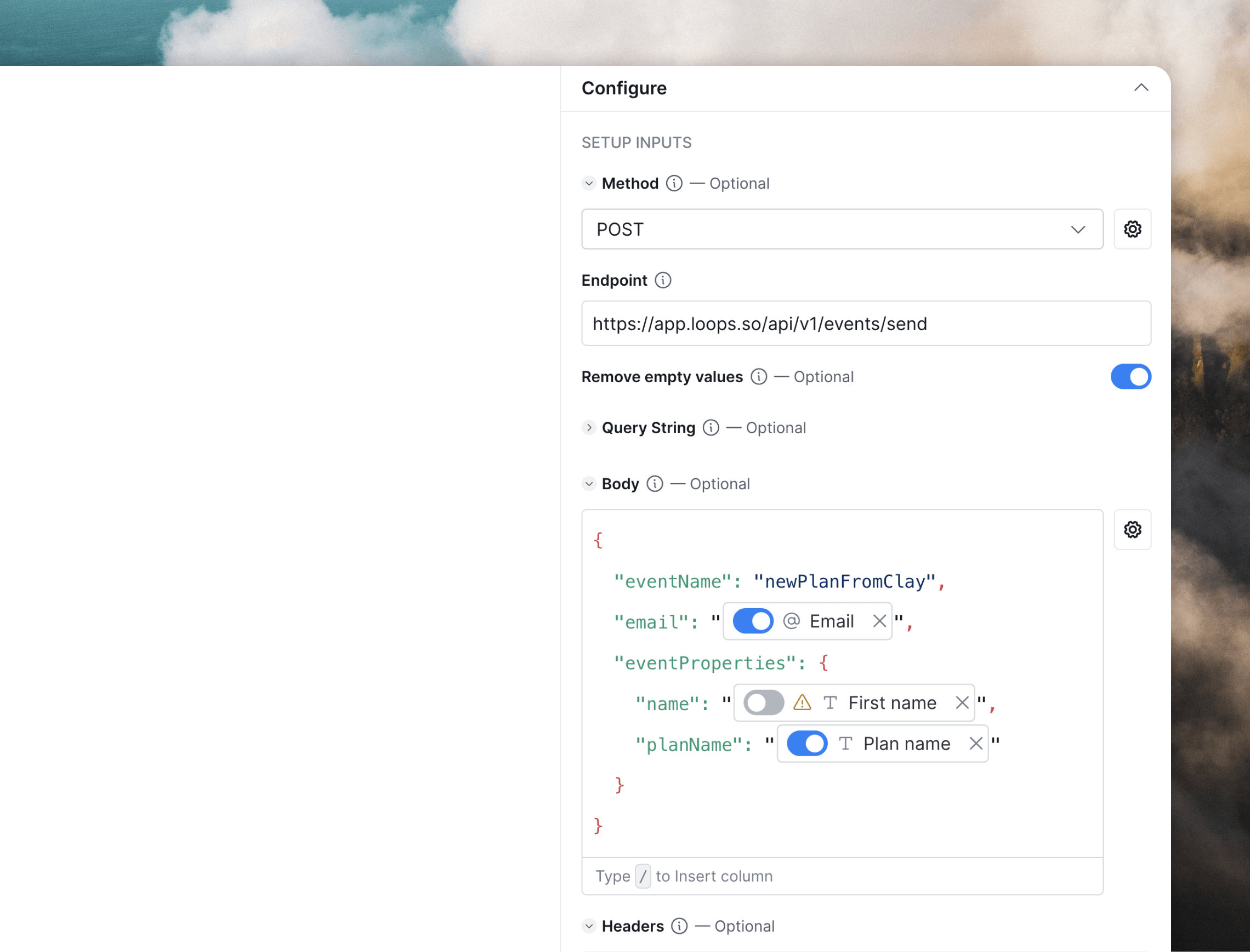 You can also update contact information in Loops in the same request by including contact properties alongside `email` in the root of the request body. [More info](/api-reference/send-event#contact-properties)
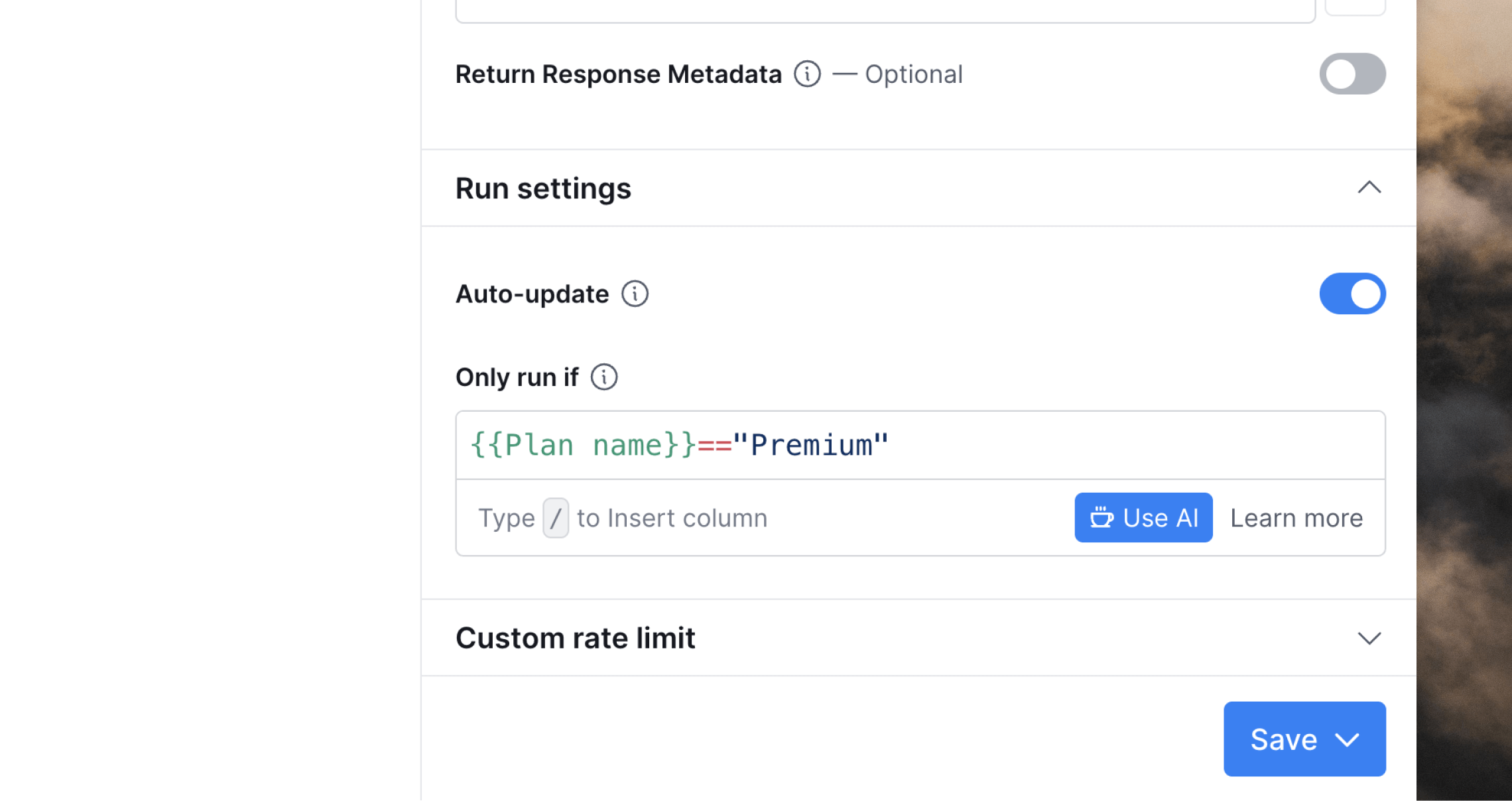
Events will be sent to Loops automatically when a row is created or updated with the **Auto-update** option enabled. Toggle this off to only sync data manually.
You can use the **Only run if** option to only send events when a certain condition is met.
You can also update contact information in Loops in the same request by including contact properties alongside `email` in the root of the request body. [More info](/api-reference/send-event#contact-properties)
Events will be sent to Loops automatically when a row is created or updated with the **Auto-update** option enabled. Toggle this off to only sync data manually.
You can use the **Only run if** option to only send events when a certain condition is met.
 To edit the request in the future, click on the **HTTP API** column header and select **Edit column**.
Read the API documentation for sending events
### Test the setup
Review the [information in the previous section](#test-the-setup) to see how to test your setup
To edit the request in the future, click on the **HTTP API** column header and select **Edit column**.
Read the API documentation for sending events
### Test the setup
Review the [information in the previous section](#test-the-setup) to see how to test your setup