> ## Documentation Index
> Fetch the complete documentation index at: https://loops.so/docs/llms.txt
> Use this file to discover all available pages before exploring further.
# Auto BCC
> Import emails and contacts to your CRM by adding a BCC address to your marketing emails.
Our Auto BCC feature works with campaigns and workflows, but is not offered on
transactional emails.
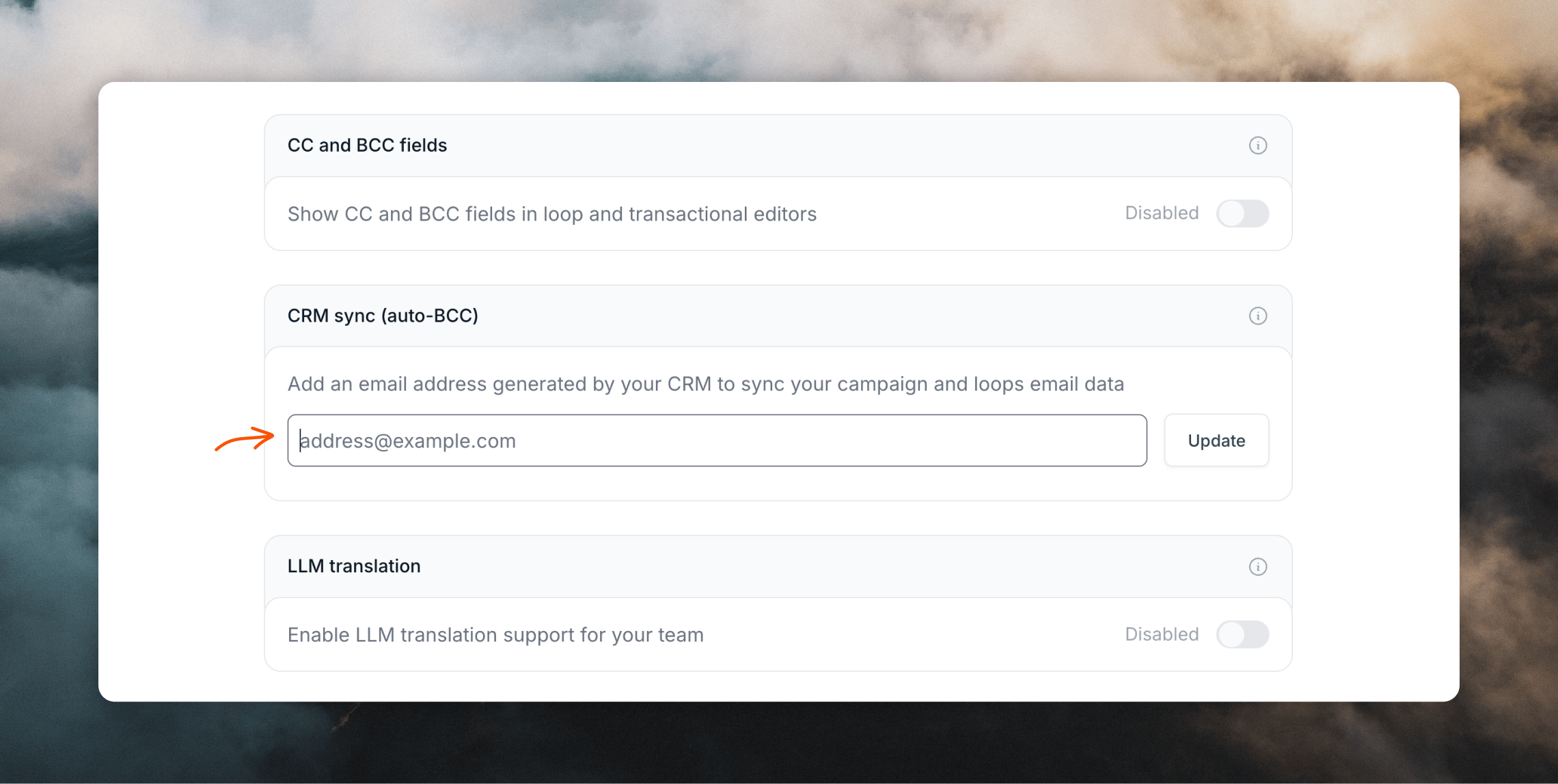
By adding a BCC email address in your settings, your emails will be BCCd to
this address. Do not use a personal email address, only one generated by your
CRM.
## Overview
Auto BCC is a feature that imports emails and contacts into your CRM platform. This works by adding a BCC email address to all outgoing campaign and workflow emails sent from Loops.
You can add a BCC email address in your [Sending settings page](https://app.loops.so/settings?page=sending).
Be aware that BCCing might not be enough by itself. Some platforms may require you to add the sender email address to an allowlist or for the sender to be a user on your account.
 ## Syncing with Salesforce
You can record all outgoing email and add contacts into Salesforce using a pre-generated Email to Salesforce address.
[Find your BCC email address](https://support.cloudhq.net/where-do-i-find-my-bcc-address-in-salesforce/) and paste it into the **BCC email address** field in Loops.
[Read how Email to Salesforce works](https://help.salesforce.com/s/articleView?id=sf.email_my_email_2_sfdc.htm\&type=5)
## Syncing with HubSpot
You can log all outgoing emails and add new contacts to HubSpot using your pre-generated BCC address.
[Find your BCC email address](https://knowledge.hubspot.com/connected-email/log-email-in-your-crm-with-the-bcc-or-forwarding-address#use-the-bcc-address) and paste it into the **BCC email address** field in Loops.
Make sure to read the "Requirements to log emails to the CRM using the BCC
address" section on the page above to make sure the sync works correctly.
## Syncing with Attio
Using Attio's [Email forwarding](https://attio.com/help/reference/email-calendar/email-forwarding) feature, you can sync outgoing emails to your Attio account.
[Find your forwarding email address](https://attio.com/help/reference/email-calendar/email-forwarding#finding-your-inbound-email-address) and paste it into the **BCC email address** field in Loops.
Your Attio log in email has to match the sending email in Loops. For example,
if your sending domain is `mail.mydomain.com` and the ["From"
address](/sending-first-email#sending-settings) for your email is
`test@example.com`, your Attio account email has to be
`test@example.com` for this integration to work.
## Syncing with other CRMs
Most CRMs have a feature that lets you import email and contacts. Look for a BCC email address and add it to your Loops settings.
## Syncing with Salesforce
You can record all outgoing email and add contacts into Salesforce using a pre-generated Email to Salesforce address.
[Find your BCC email address](https://support.cloudhq.net/where-do-i-find-my-bcc-address-in-salesforce/) and paste it into the **BCC email address** field in Loops.
[Read how Email to Salesforce works](https://help.salesforce.com/s/articleView?id=sf.email_my_email_2_sfdc.htm\&type=5)
## Syncing with HubSpot
You can log all outgoing emails and add new contacts to HubSpot using your pre-generated BCC address.
[Find your BCC email address](https://knowledge.hubspot.com/connected-email/log-email-in-your-crm-with-the-bcc-or-forwarding-address#use-the-bcc-address) and paste it into the **BCC email address** field in Loops.
Make sure to read the "Requirements to log emails to the CRM using the BCC
address" section on the page above to make sure the sync works correctly.
## Syncing with Attio
Using Attio's [Email forwarding](https://attio.com/help/reference/email-calendar/email-forwarding) feature, you can sync outgoing emails to your Attio account.
[Find your forwarding email address](https://attio.com/help/reference/email-calendar/email-forwarding#finding-your-inbound-email-address) and paste it into the **BCC email address** field in Loops.
Your Attio log in email has to match the sending email in Loops. For example,
if your sending domain is `mail.mydomain.com` and the ["From"
address](/sending-first-email#sending-settings) for your email is
`test@example.com`, your Attio account email has to be
`test@example.com` for this integration to work.
## Syncing with other CRMs
Most CRMs have a feature that lets you import email and contacts. Look for a BCC email address and add it to your Loops settings.