> ## Documentation Index
> Fetch the complete documentation index at: https://loops.so/docs/llms.txt
> Use this file to discover all available pages before exploring further.
# Recipe: Product updates
> Our updated, definitive guide for sending product updates.
## Introduction
A product update should be sent once a month with updates about what you shipped recently. This typically includes new features, improvements, and bug fixes.
Things to keep in mind:
* Brevity is key. Users don't want to read a novel.
* If you send valuable content, users will come to expect (and open) it.
* It's okay to send multiple emails in a month if that's your shipping cadence.
Learn more tips for crafting effective emails and improving open rates.
## How to craft a product update email:
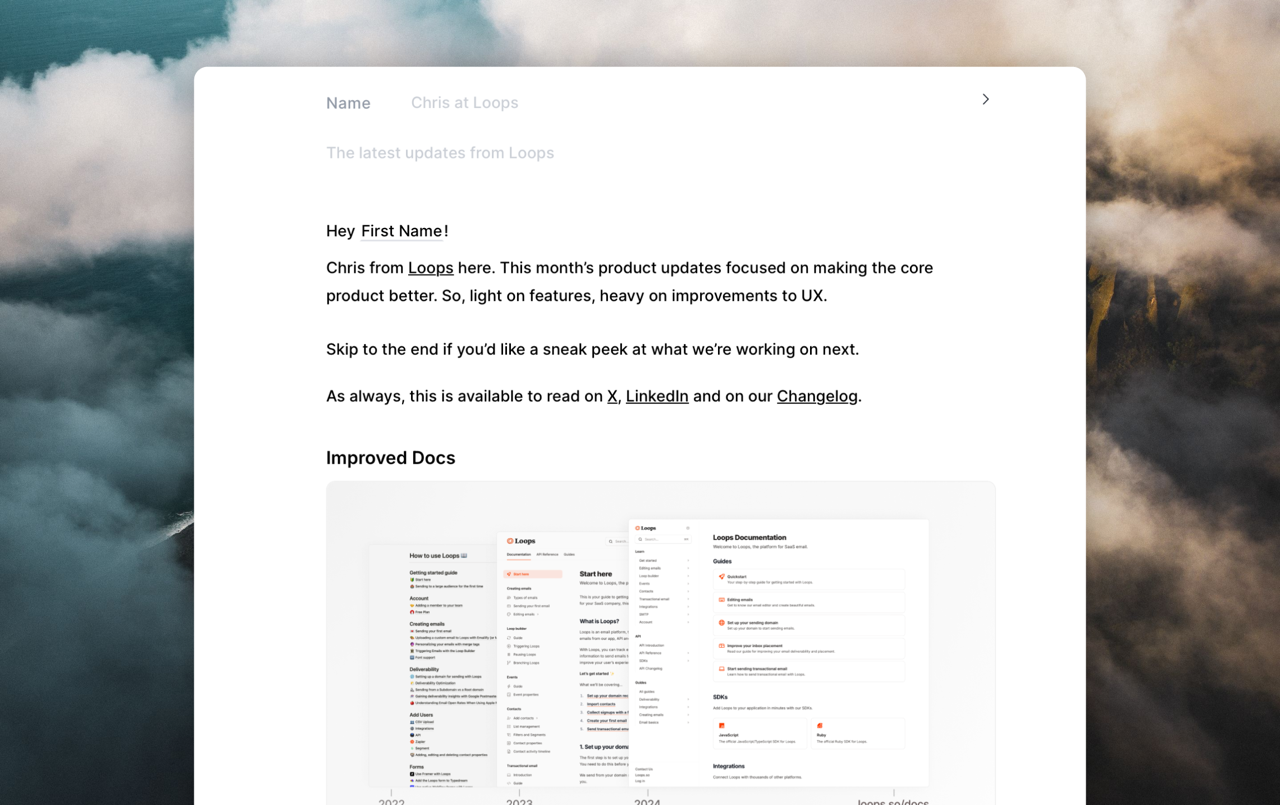 1. [Create a new email Campaign](/creating-emails/editor)
2. Add your logo at the top of the email, [save it as a component](/creating-emails/components) if you haven't already.
3. Add a simple subject line, like "The latest updates from Loops"
4. Add a simple intro paragraph, with a link to the full changelog, potentially socials and a highlight of the most important changes along with a call to action to read the full email.
5. Try to limit the number of updates to 2-3, and make sure they are relevant to the content. It's better to have a single or a couple impactful, relevant updates than a long list of updates that are not relevant to the user.
6. In the footer, add a link to the full changelog, socials, and a link to unsubscribe.
7. [Send the email!](/sending-first-email)
Be careful not to overwhelm your users with too many updates. Focus on the
most impactful changes.
## Choosing your audience
### For new senders
If you're just starting out, send to all users and maintain a steady cadence over time.
### For established senders
If you have an existing list but haven't sent product updates before:
* Send to active users who have engaged with your product in the last 30 days
* Include users who have created an account in the last 30 days
* If the audience size is less than 5,000 users, send to all users
Learn how to create targeted segments for your product updates.
Learn how to create and send your first email in Loops.
Add dynamic content to make your product updates more relevant.
Create reusable elements for consistent product update emails.
Explore different types of emails you can send with Loops.
1. [Create a new email Campaign](/creating-emails/editor)
2. Add your logo at the top of the email, [save it as a component](/creating-emails/components) if you haven't already.
3. Add a simple subject line, like "The latest updates from Loops"
4. Add a simple intro paragraph, with a link to the full changelog, potentially socials and a highlight of the most important changes along with a call to action to read the full email.
5. Try to limit the number of updates to 2-3, and make sure they are relevant to the content. It's better to have a single or a couple impactful, relevant updates than a long list of updates that are not relevant to the user.
6. In the footer, add a link to the full changelog, socials, and a link to unsubscribe.
7. [Send the email!](/sending-first-email)
Be careful not to overwhelm your users with too many updates. Focus on the
most impactful changes.
## Choosing your audience
### For new senders
If you're just starting out, send to all users and maintain a steady cadence over time.
### For established senders
If you have an existing list but haven't sent product updates before:
* Send to active users who have engaged with your product in the last 30 days
* Include users who have created an account in the last 30 days
* If the audience size is less than 5,000 users, send to all users
Learn how to create targeted segments for your product updates.
Learn how to create and send your first email in Loops.
Add dynamic content to make your product updates more relevant.
Create reusable elements for consistent product update emails.
Explore different types of emails you can send with Loops.