> ## Documentation Index
> Fetch the complete documentation index at: https://loops.so/docs/llms.txt
> Use this file to discover all available pages before exploring further.
# Set up Loops in Next.js
> How to send email from your Next.js project with Loops.
This guide shows how to add Loops to your Next.js project, so you can send transactional emails, manage contacts and trigger automated emails.
## Install the SDK
The first step is to install the [Loops SDK](/sdks/javascript). This is written in TypeScript so you can benefit from strict types when coding.
```bash theme={"dark"}
npm i loops
```
You can install [Loops skills](/skills) to help your coding agents use the Loops CLI, API and SDKs to create campaigns, manage contacts, send events, and send transactional emails.
You'll need an API key to use the SDK. Go to your [API Settings page](https://app.loops.so/settings?page=api) in Loops to generate and copy a key.
Save this value in your environment variables as something like `LOOPS_API_KEY`.
Then you can import the Loops SDK client like this:
```javascript theme={"dark"}
import { LoopsClient } from "loops";
const loops = new LoopsClient(process.env.LOOPS_API_KEY);
```
You can also use the [Loops API](/api-reference/intro) directly in your app, without
the SDK. [Read more](#using-the-api-instead)
Explore our official JS/TS SDK.
Read the Loops API reference.
## Server-side only
It is important that you only use the Loops API and SDK from server-side code. If you make calls directly in the browser, you risk exposing your API key, which would give other people read and write access to your Loops account data. Additionally, the Loops API does not support cross-origin requests made from client-side JavaScript.
If you want to make calls from the browser—for example, to collect newsletter subscriptions from a form—create proxy endpoints. To add a new contact, create an internal API endpoint and use the Loops API/SDK within it.
```typescript app/api/contacts/route.ts theme={"dark"}
import { NextRequest, NextResponse } from "next/server";
import { LoopsClient } from "loops";
const loops = new LoopsClient(process.env.LOOPS_API_KEY as string);
export async function POST(request: NextRequest) {
const res = await request.json();
const email = res["email"];
// Note: updateContact() will create or update a contact
const resp: {
success: boolean;
id?: string;
message?: string;
} = await loops.updateContact(email);
return NextResponse.json({ success: resp.success });
}
```
## Send transactional email
A big use case for using Loops in a Next.js project is to send transactional email to users. These emails are one-off emails, which help users with your product, for example password reset emails notification emails.
To create a transactional email, go to the Transactional page in Loops. Click **Create** or select a template.
Create the email in [the editor](/creating-emails/editor), which gives you rich formatting options and components.
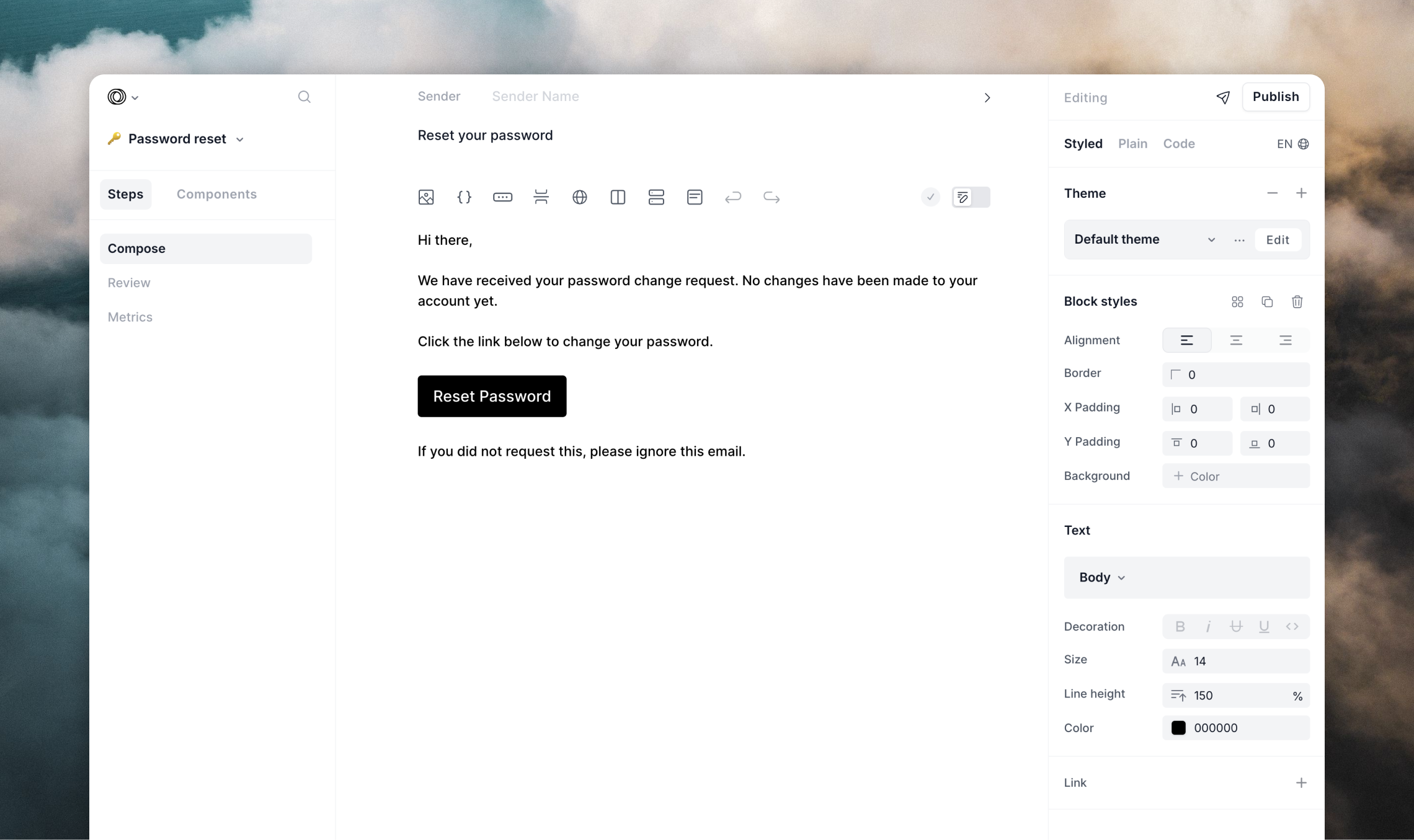 To add dynamic content (like rest password URLs or user data) you can add [data variables](/transactional#add-data-variables) into the email from the toolbar.
Give each data variable a unique name. You can populate these variables from your code when sending the email via the SDK in the next step.
Make sure to Publish your transactional email when you're done.
Now your email is created you can start sending emails.
In your code, call `sendTransactionalEmail()` and include values for each of the data variables you added to your email.
```javascript JavaScript theme={"dark"}
const dataVariables = {
loginUrl: "https://myapp.com/login/",
};
const resp = await loops.sendTransactionalEmail({
transactionalId: "transaction_email_id",
email: "test@example.com",
dataVariables
});
if (!resp.success) {
// The sending failed
} else {
// The email was sent successfully
}
```
```typescript TypeScript theme={"dark"}
const dataVariables: { loginUrl: string } = {
loginUrl: "https://myapp.com/login/",
};
const resp: {
success: boolean,
path?: string,
message?: string
} | {
success: false;
error: {
path: string;
message: string;
};
transactionalId?: string;
} = await loops.sendTransactionalEmail({
transactionalId: "transaction_email_id",
email: "test@example.com",
dataVariables
});
if (!resp.success) {
// The sending failed
} else {
// The email was sent successfully
}
```
The response will contain a `success` boolean telling you if the email was sent successfully. If it was not, you'll also receive an error message.
Read more in the SDK docs.
## Sync users to Loops
Another main use case for teams using Loops is to keep their Loops audience updated when user data changes in their application.
To do this you can use the `updateContact()` method.
`updateContact()` can be used as a shortcut "update or create" function. It
will create new contacts if the provided email address and/or user ID are not
found.
For example, you may store custom data in Loops like subscription plan level or user usage information that you include in emails. You can update contacts in Loops like this:
```javascript JavaScript theme={"dark"}
const contactProperties = {
userId: 826,
planName: "Pro" /* Custom property */,
usage: 172629 /* Custom property */,
};
const resp = await loops.updateContact("test@example.com", contactProperties);
if (!resp.success) {
// The call failed
} else {
// The contact was updated OK
}
```
```typescript TypeScript theme={"dark"}
const contactProperties: Record = {
userId: 826,
planName: "Pro" /* Custom property */,
usage: 172629 /* Custom property */,
};
const resp: {
success: boolean,
id?: string,
message?: string
} = await loops.updateContact("test@example.com", contactProperties);
if (!resp.success) {
// The call failed
} else {
// The contact was updated OK
}
```
The TypeScript example above shows how to properly type your `contactProperties` object and the expected response from the `updateContact` method.
We recommend always populating the `userId` value for users, which should be
their unique value in your platform. This allows you to change a contact's
email address in the future, because they have a separate unique identifier in
the system.
Read more in the SDK docs.
## Trigger workflows with events
A third example of using the Loops SDK is to trigger [workflows](/workflows). Workflows are automated email sequences, which can send multiple emails to contacts.
You can trigger these emails using [events](/events), and you can send events to Loops using the SDK.
For example, you may have a workflow that you send to new users after they have completed an onboarding flow in your app.
First, [create a new workflow](https://app.loops.so/loops) using the "Event received" trigger. Add emails, timers and audience filters to your workflow as you wish.
Then to trigger this email sequence, send an event to Loops. If your event name is `completedOnboarding`, your call would look like this...
```javascript JavaScript theme={"dark"}
const resp = await loops.sendEvent({
email: "test@example.com",
eventName: "completedOnboarding",
});
if (!resp.success) {
// The event was not sent
} else {
// The event was sent OK
}
```
```typescript TypeScript theme={"dark"}
const resp: {
success: boolean,
message?: string,
} = await loops.sendEvent({
email: "test@example.com",
eventName: "completedOnboarding",
});
if (!resp.success) {
// The event was not sent
} else {
// The event was sent OK
}
```
Read more in the SDK docs.
## Using the API instead
If you prefer, you can use the [Loops API](/api-reference/intro) directly instead of using the SDK.
You should never call the API from your front-end code as this will expose
your API key.
For example, you can send a transactional email like this:
```javascript theme={"dark"}
const data = {
email: "test@example.com",
transactionalId: "abcdefg",
dataVariables: {
loginUrl: "https://myapp.com/login/?code=1234",
},
};
return fetch("https://app.loops.so/api/v1/transactional", {
method: "POST",
headers: {
"Content-Type": "application/json",
Authorization: `Bearer ${process.env.LOOPS_API_KEY}`,
},
body: JSON.stringify(data),
})
.then((response) => response.json())
.then((response) => {
if (!response.success) {
// The sending failed
} else {
// The email was sent successfully
}
})
.catch((err) => console.error(err));
```
On Vercel, each backend function gets its own lambda. Make sure you use
`return` otherwise the lambda might be terminated before the promise is
evaluated.
Read through our API documentation.
To add dynamic content (like rest password URLs or user data) you can add [data variables](/transactional#add-data-variables) into the email from the toolbar.
Give each data variable a unique name. You can populate these variables from your code when sending the email via the SDK in the next step.
Make sure to Publish your transactional email when you're done.
Now your email is created you can start sending emails.
In your code, call `sendTransactionalEmail()` and include values for each of the data variables you added to your email.
```javascript JavaScript theme={"dark"}
const dataVariables = {
loginUrl: "https://myapp.com/login/",
};
const resp = await loops.sendTransactionalEmail({
transactionalId: "transaction_email_id",
email: "test@example.com",
dataVariables
});
if (!resp.success) {
// The sending failed
} else {
// The email was sent successfully
}
```
```typescript TypeScript theme={"dark"}
const dataVariables: { loginUrl: string } = {
loginUrl: "https://myapp.com/login/",
};
const resp: {
success: boolean,
path?: string,
message?: string
} | {
success: false;
error: {
path: string;
message: string;
};
transactionalId?: string;
} = await loops.sendTransactionalEmail({
transactionalId: "transaction_email_id",
email: "test@example.com",
dataVariables
});
if (!resp.success) {
// The sending failed
} else {
// The email was sent successfully
}
```
The response will contain a `success` boolean telling you if the email was sent successfully. If it was not, you'll also receive an error message.
Read more in the SDK docs.
## Sync users to Loops
Another main use case for teams using Loops is to keep their Loops audience updated when user data changes in their application.
To do this you can use the `updateContact()` method.
`updateContact()` can be used as a shortcut "update or create" function. It
will create new contacts if the provided email address and/or user ID are not
found.
For example, you may store custom data in Loops like subscription plan level or user usage information that you include in emails. You can update contacts in Loops like this:
```javascript JavaScript theme={"dark"}
const contactProperties = {
userId: 826,
planName: "Pro" /* Custom property */,
usage: 172629 /* Custom property */,
};
const resp = await loops.updateContact("test@example.com", contactProperties);
if (!resp.success) {
// The call failed
} else {
// The contact was updated OK
}
```
```typescript TypeScript theme={"dark"}
const contactProperties: Record = {
userId: 826,
planName: "Pro" /* Custom property */,
usage: 172629 /* Custom property */,
};
const resp: {
success: boolean,
id?: string,
message?: string
} = await loops.updateContact("test@example.com", contactProperties);
if (!resp.success) {
// The call failed
} else {
// The contact was updated OK
}
```
The TypeScript example above shows how to properly type your `contactProperties` object and the expected response from the `updateContact` method.
We recommend always populating the `userId` value for users, which should be
their unique value in your platform. This allows you to change a contact's
email address in the future, because they have a separate unique identifier in
the system.
Read more in the SDK docs.
## Trigger workflows with events
A third example of using the Loops SDK is to trigger [workflows](/workflows). Workflows are automated email sequences, which can send multiple emails to contacts.
You can trigger these emails using [events](/events), and you can send events to Loops using the SDK.
For example, you may have a workflow that you send to new users after they have completed an onboarding flow in your app.
First, [create a new workflow](https://app.loops.so/loops) using the "Event received" trigger. Add emails, timers and audience filters to your workflow as you wish.
Then to trigger this email sequence, send an event to Loops. If your event name is `completedOnboarding`, your call would look like this...
```javascript JavaScript theme={"dark"}
const resp = await loops.sendEvent({
email: "test@example.com",
eventName: "completedOnboarding",
});
if (!resp.success) {
// The event was not sent
} else {
// The event was sent OK
}
```
```typescript TypeScript theme={"dark"}
const resp: {
success: boolean,
message?: string,
} = await loops.sendEvent({
email: "test@example.com",
eventName: "completedOnboarding",
});
if (!resp.success) {
// The event was not sent
} else {
// The event was sent OK
}
```
Read more in the SDK docs.
## Using the API instead
If you prefer, you can use the [Loops API](/api-reference/intro) directly instead of using the SDK.
You should never call the API from your front-end code as this will expose
your API key.
For example, you can send a transactional email like this:
```javascript theme={"dark"}
const data = {
email: "test@example.com",
transactionalId: "abcdefg",
dataVariables: {
loginUrl: "https://myapp.com/login/?code=1234",
},
};
return fetch("https://app.loops.so/api/v1/transactional", {
method: "POST",
headers: {
"Content-Type": "application/json",
Authorization: `Bearer ${process.env.LOOPS_API_KEY}`,
},
body: JSON.stringify(data),
})
.then((response) => response.json())
.then((response) => {
if (!response.success) {
// The sending failed
} else {
// The email was sent successfully
}
})
.catch((err) => console.error(err));
```
On Vercel, each backend function gets its own lambda. Make sure you use
`return` otherwise the lambda might be terminated before the promise is
evaluated.
Read through our API documentation.