> ## Documentation Index
> Fetch the complete documentation index at: https://loops.so/docs/llms.txt
> Use this file to discover all available pages before exploring further.
# Send emails from Bolt.new
> How to integrate Loops transactional emails into a Bolt application.
This guide is for Bolt but this kind of approach will work with many AI web
builders, and also for different kinds of Loops integrations, like adding
newsletter signup forms or sending events with the API instead of
transactional emails.
[Bolt](https://bolt.new) is an in-browser AI web development tool. This guide shows how you can integrate Loops into your Bolt project.
In this guide we will build a simple to-do application in Bolt, with a daily email digest sent with Loops. It uses Supabase for authentication and database.
Adding Loops sending to Bolt can be boiled down to four steps:
1. Prompt Bolt to add a Loops integration
2. Set up emails in Loops
3. Add your Loops credentials and IDs
4. Check the code for mistakes
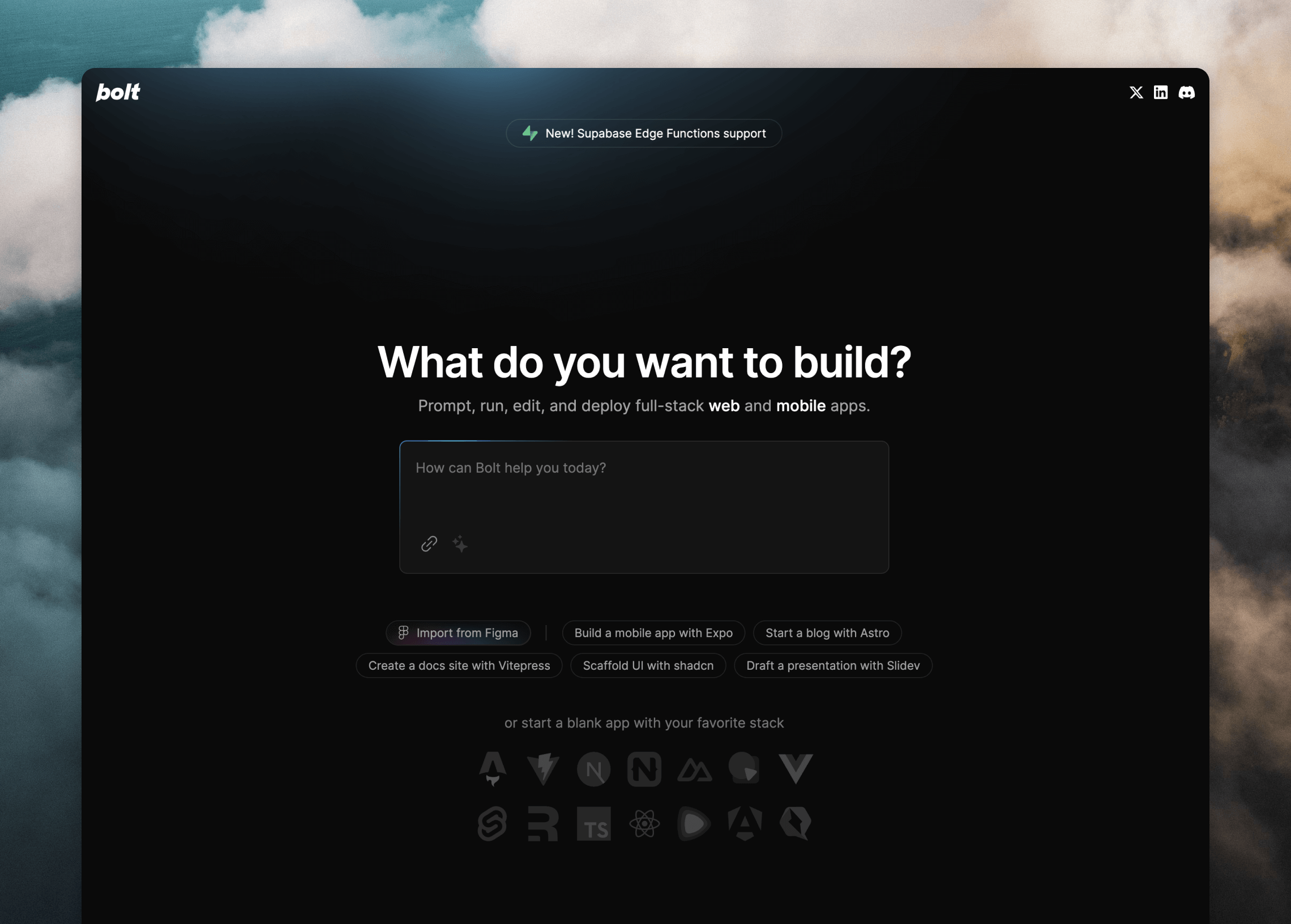 ## 1. Create the app with a prompt
I wrote a prompt to create the app. In this prompt I included information about using the Loops API.
In Bolt you can choose to add Loops to your original prompt or ask it to add Loops in a later prompt.
For example:
> I want to add daily reminder emails that should be sent at 6am every morning showing the new day's list of tasks. I will send these emails as transactional emails using the Loops API (loops.so)
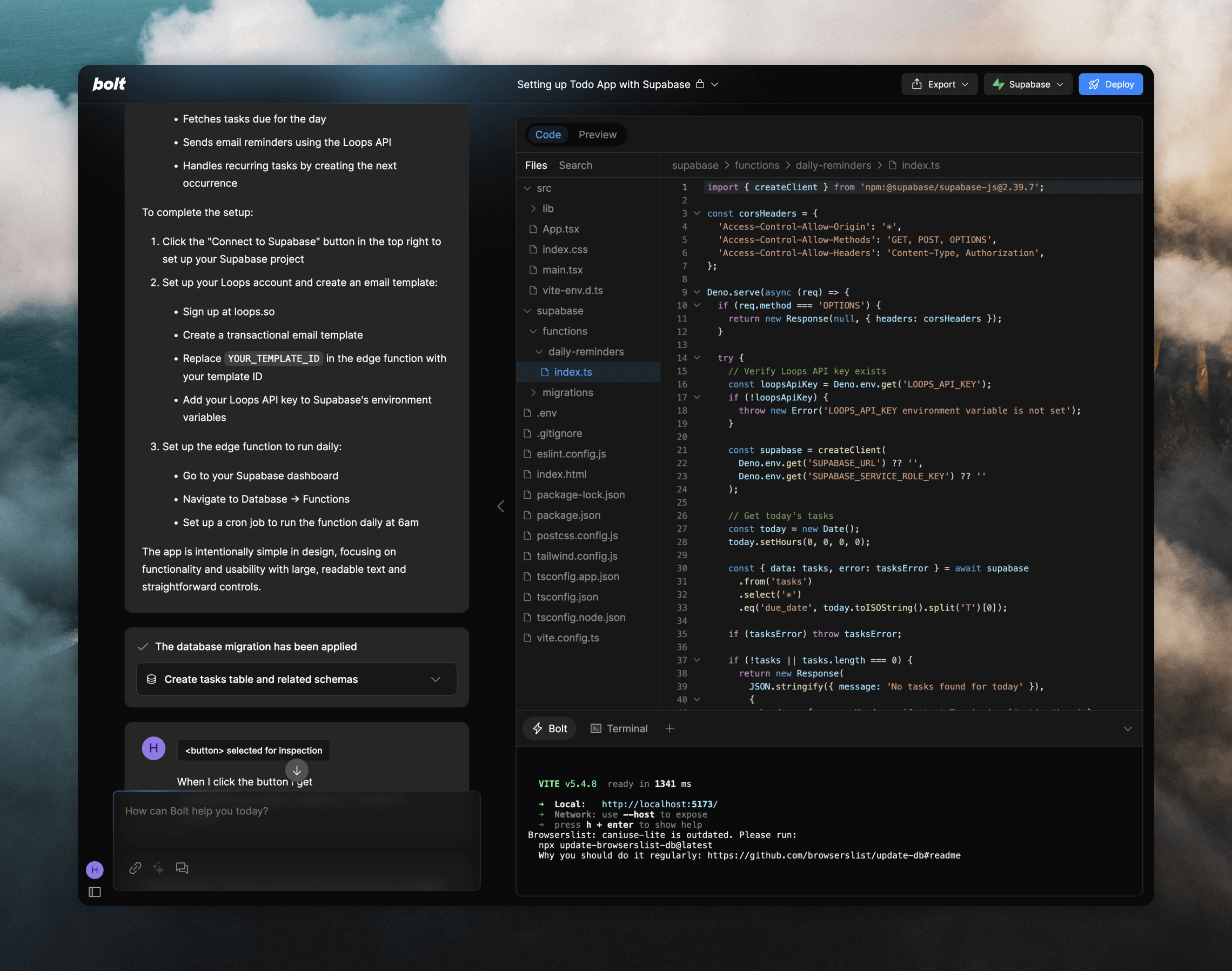
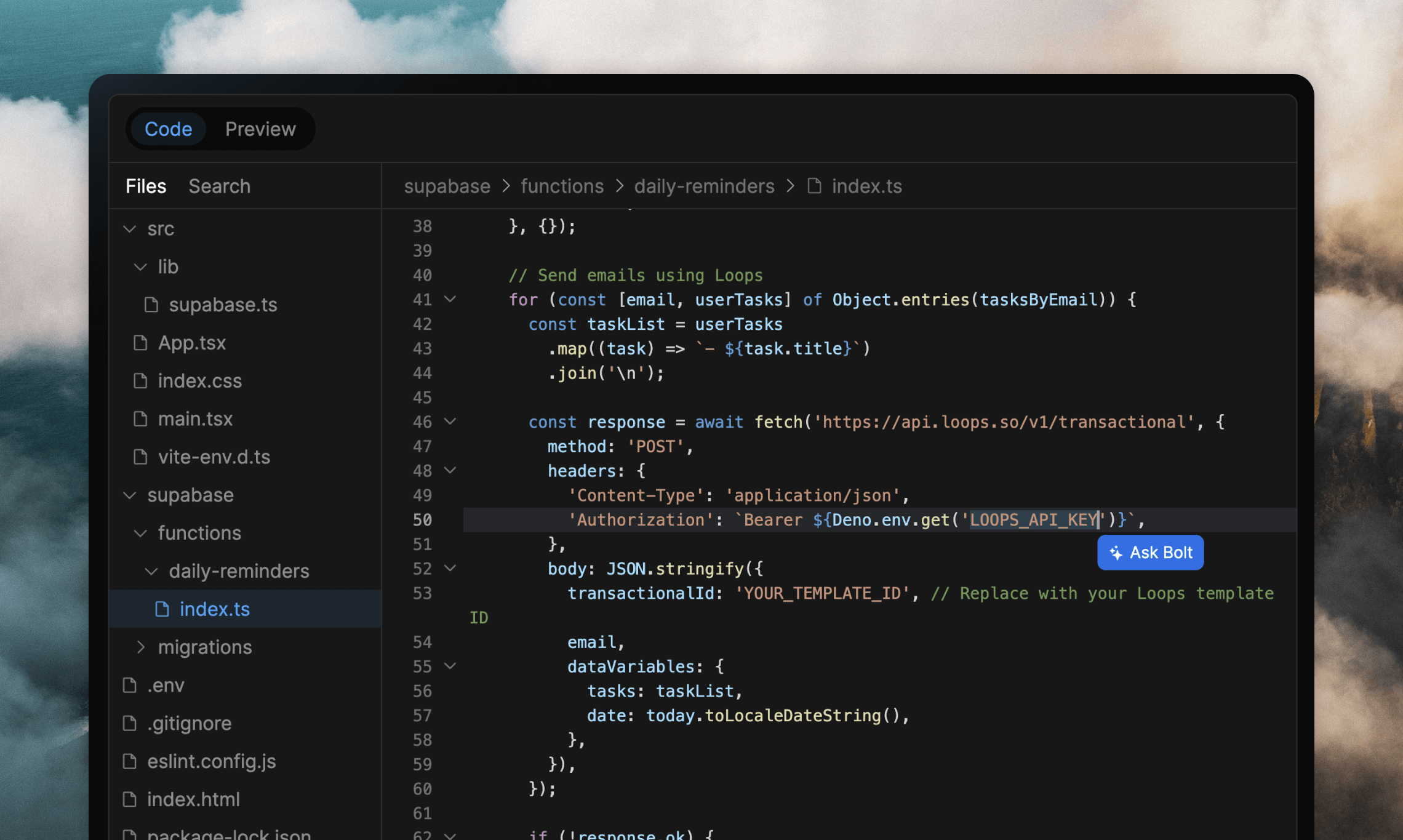
Using this prompt, Bolt added code to my app that spoke to Loops and had everything ready for me to add my Loops credentials, including a Supabase [Edge Function](https://supabase.com/docs/guides/functions) that could be run on a cron job.
## 1. Create the app with a prompt
I wrote a prompt to create the app. In this prompt I included information about using the Loops API.
In Bolt you can choose to add Loops to your original prompt or ask it to add Loops in a later prompt.
For example:
> I want to add daily reminder emails that should be sent at 6am every morning showing the new day's list of tasks. I will send these emails as transactional emails using the Loops API (loops.so)
Using this prompt, Bolt added code to my app that spoke to Loops and had everything ready for me to add my Loops credentials, including a Supabase [Edge Function](https://supabase.com/docs/guides/functions) that could be run on a cron job.
 To improve the code that Bolt produces, you can upload our full LLM text
[available here](https://loops.so/docs/llms-full.txt) and append it to the
message.
## 2. Create transactional email in Loops
Once you have the basics of the app working, you can move over to Loops to set up the digest email.
This will be a [transactional email](/transactional) (a 1:1 email for a single recipient), sent to each user every morning.
With Loops' transactional sending, you create the email body in the Loops editor and any dynamic content is added using [data variables](/creating-emails/personalizing-emails). Then, when it comes to sending the email via the API, you include the dynamic content in the API payload.
To improve the code that Bolt produces, you can upload our full LLM text
[available here](https://loops.so/docs/llms-full.txt) and append it to the
message.
## 2. Create transactional email in Loops
Once you have the basics of the app working, you can move over to Loops to set up the digest email.
This will be a [transactional email](/transactional) (a 1:1 email for a single recipient), sent to each user every morning.
With Loops' transactional sending, you create the email body in the Loops editor and any dynamic content is added using [data variables](/creating-emails/personalizing-emails). Then, when it comes to sending the email via the API, you include the dynamic content in the API payload.
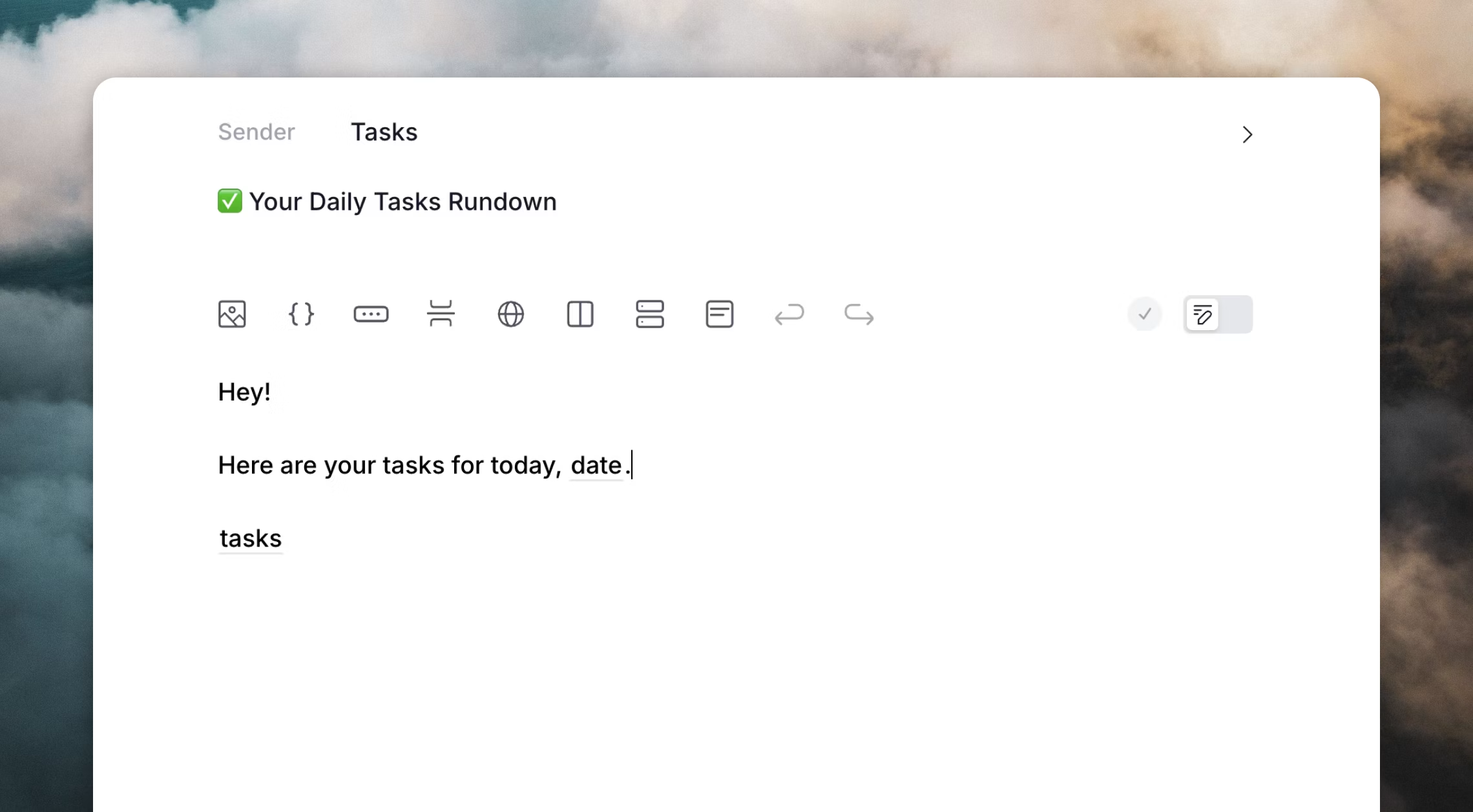
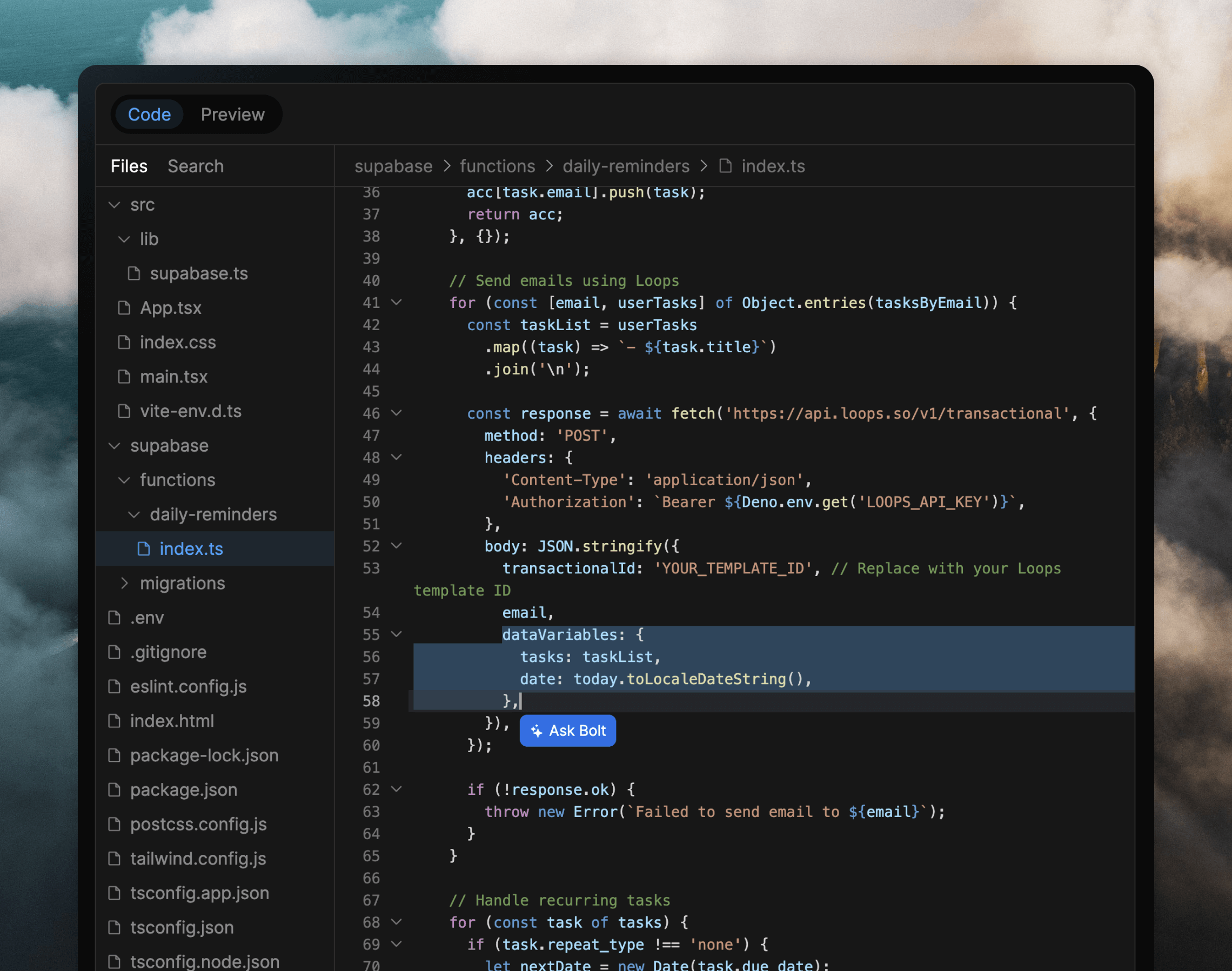 In Loops, you'll need to create a new transactional email and write your content. Bolt added two data variables `tasks` and `date` to the code, so in my example I added those data variables to the email.
 ## 3. Add Loops credentials
As part of the integration with Loops, you will need to add a Loops API key to your code. This tells Loops which account is sending data as well as making sure the correct apps have access to the correct data.
To do this, get an API key from your Loops [API Settings](https://app.loops.so/settings?page=api) page.
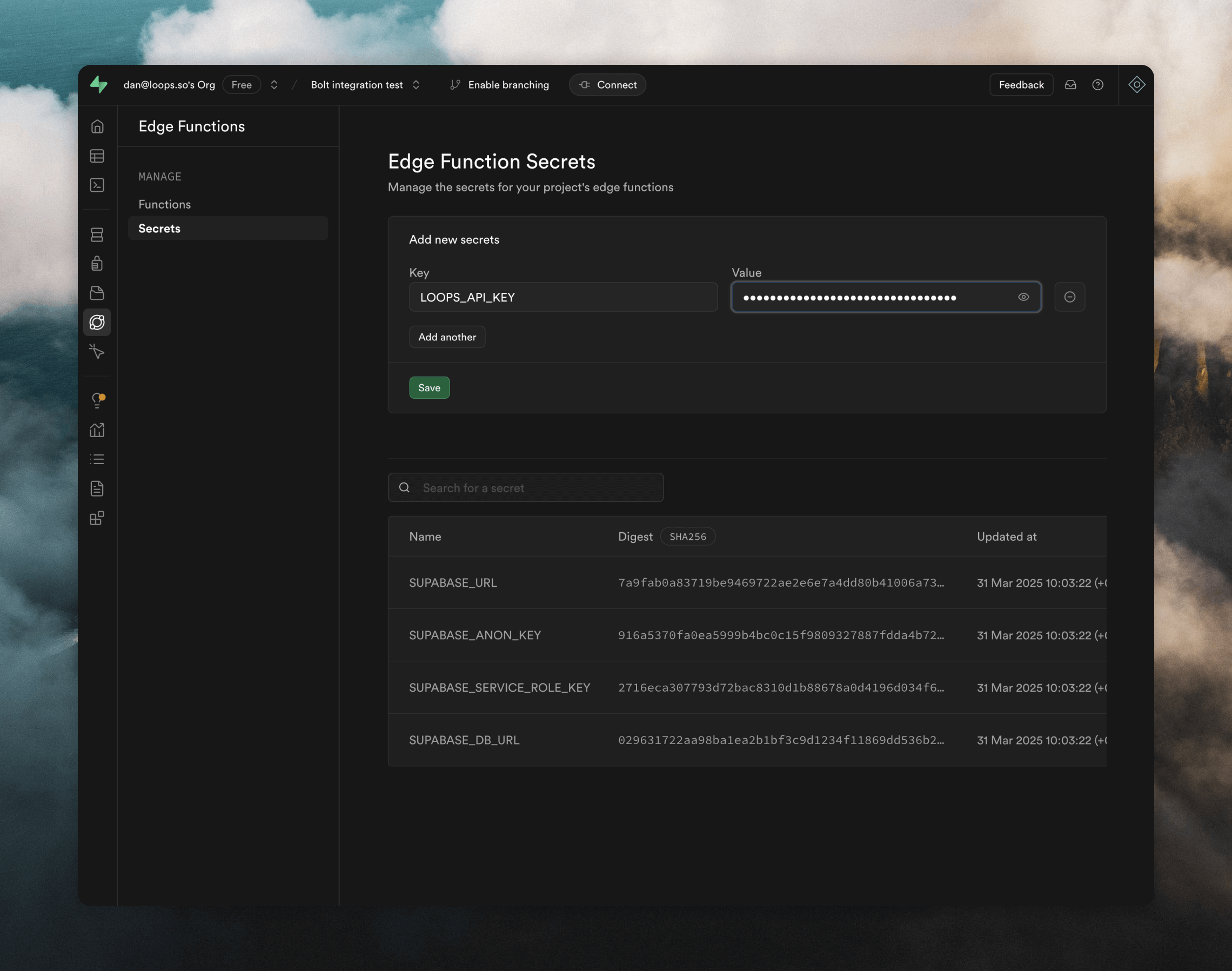
For my example app I needed to add my Loops API key into the Edge Function's secrets in Supabase (**Edge functions -> Secrets**). I called mine `LOOPS_API_KEY` to match the name Bolt used in the code.
## 3. Add Loops credentials
As part of the integration with Loops, you will need to add a Loops API key to your code. This tells Loops which account is sending data as well as making sure the correct apps have access to the correct data.
To do this, get an API key from your Loops [API Settings](https://app.loops.so/settings?page=api) page.
For my example app I needed to add my Loops API key into the Edge Function's secrets in Supabase (**Edge functions -> Secrets**). I called mine `LOOPS_API_KEY` to match the name Bolt used in the code.
 You will also need the ID of the transactional email so that the correct email is sent from your application.
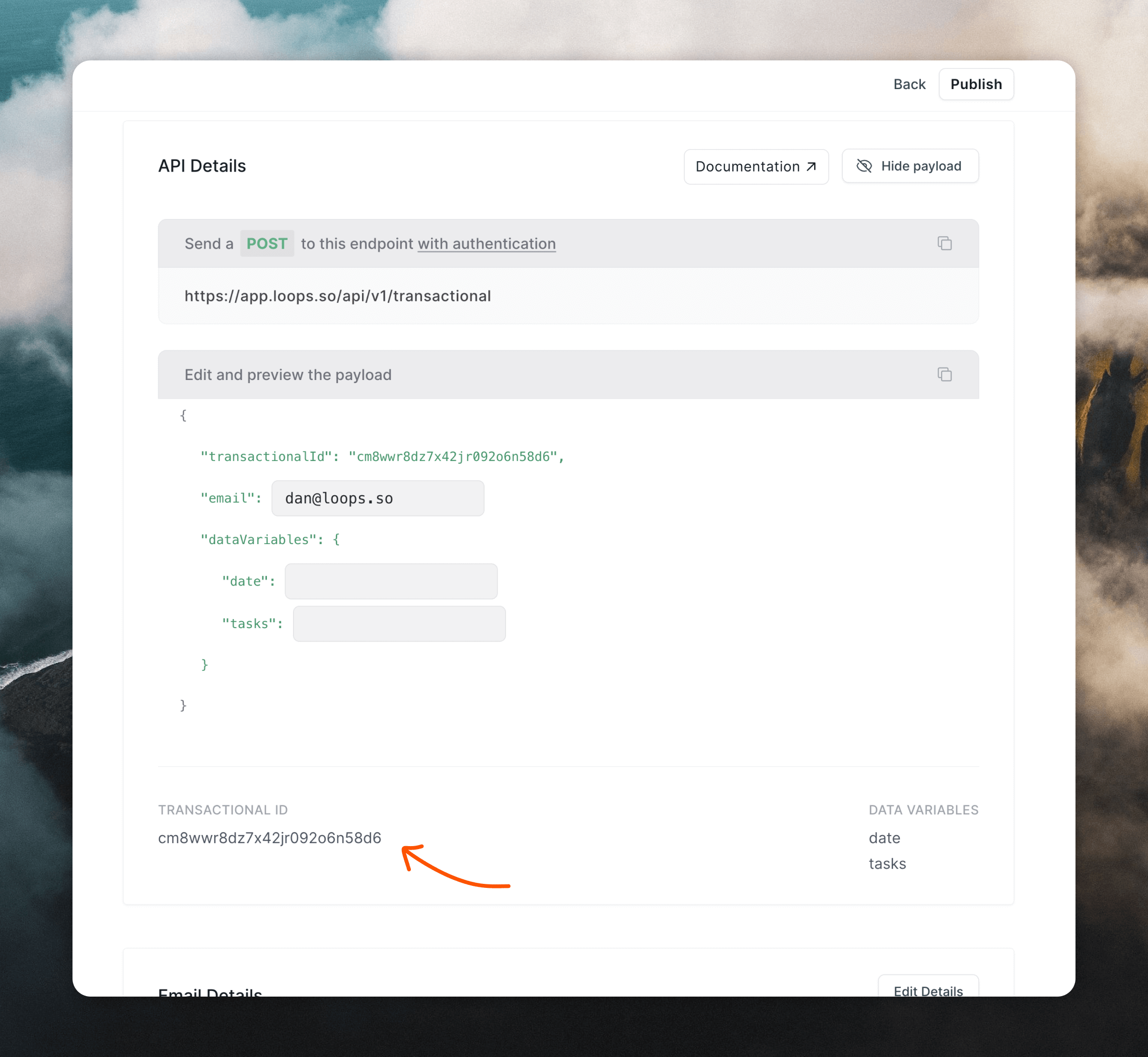
In Loops, from the **Preview** page if your transactional email, copy the transactional ID and paste it into your app's code. This completes the Loops integration in the app.
You will also need the ID of the transactional email so that the correct email is sent from your application.
In Loops, from the **Preview** page if your transactional email, copy the transactional ID and paste it into your app's code. This completes the Loops integration in the app.
 ## 4. Fix bugs
Now that the app is set up, it's time to see if things are working correctly.
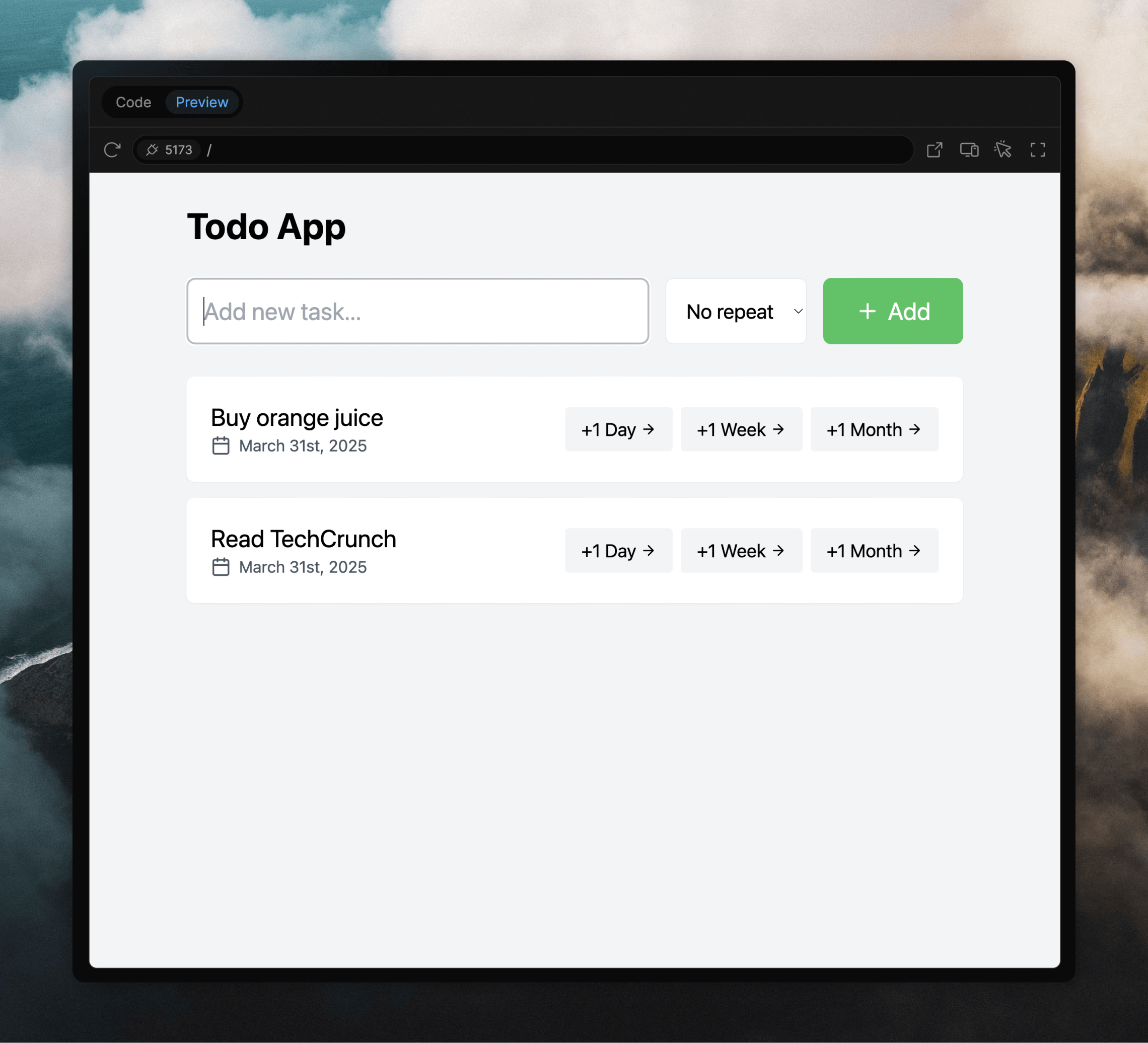
For me, I discovered a few bugs. For example, the original Google sign in that Bolt had added didn't work so I asked Bolt to change to email and password authentication. Overall the app worked as I had prompted. I could sign up and create tasks and the delay feature worked great.
## 4. Fix bugs
Now that the app is set up, it's time to see if things are working correctly.
For me, I discovered a few bugs. For example, the original Google sign in that Bolt had added didn't work so I asked Bolt to change to email and password authentication. Overall the app worked as I had prompted. I could sign up and create tasks and the delay feature worked great.
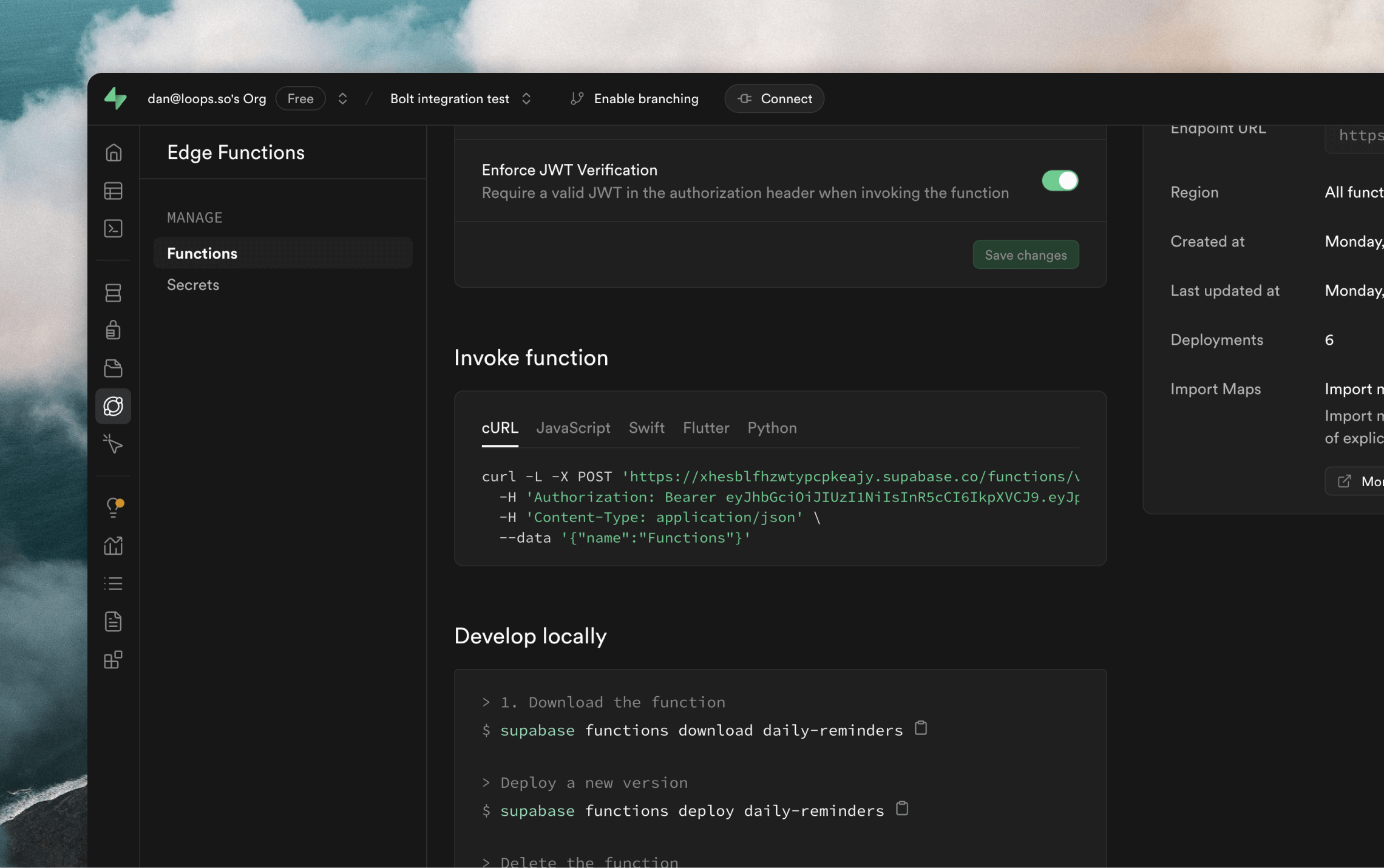
 Next I wanted to make sure the email sending was working. Because this was tied up in an edge function that is to be called with a scheduled cron job, I needed to find a way to test it on demand. Luckily, Supabase offers a simple API call to trigger functions. This can be run in the **Terminal** tab in Bolt.
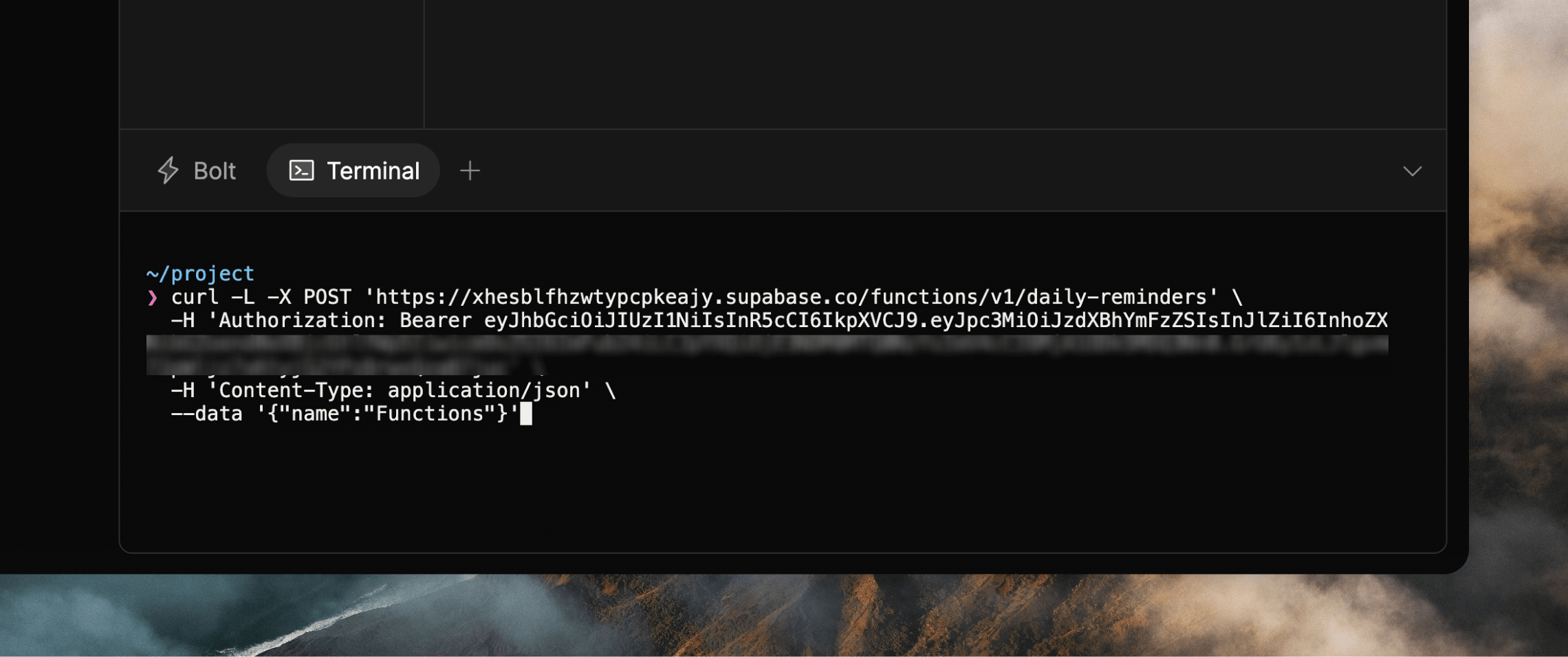 Initially, I was seeing errors in the terminal.
```
{"success":true,"sent":0,"failed":1}
```
I realized that Bolt had incorrectly guessed the Loops API endpoint URL. This is a good example of AI-generated code needing sanity checking. I changed the URL to the [correct one](/api-reference/send-transactional-email).
To help with this kind of AI hallucination you can upload or link to our
[LLM-friendly docs file](https://loops.so/docs/llms-full.txt) within your
prompts or chats.
Initially, I was seeing errors in the terminal.
```
{"success":true,"sent":0,"failed":1}
```
I realized that Bolt had incorrectly guessed the Loops API endpoint URL. This is a good example of AI-generated code needing sanity checking. I changed the URL to the [correct one](/api-reference/send-transactional-email).
To help with this kind of AI hallucination you can upload or link to our
[LLM-friendly docs file](https://loops.so/docs/llms-full.txt) within your
prompts or chats.
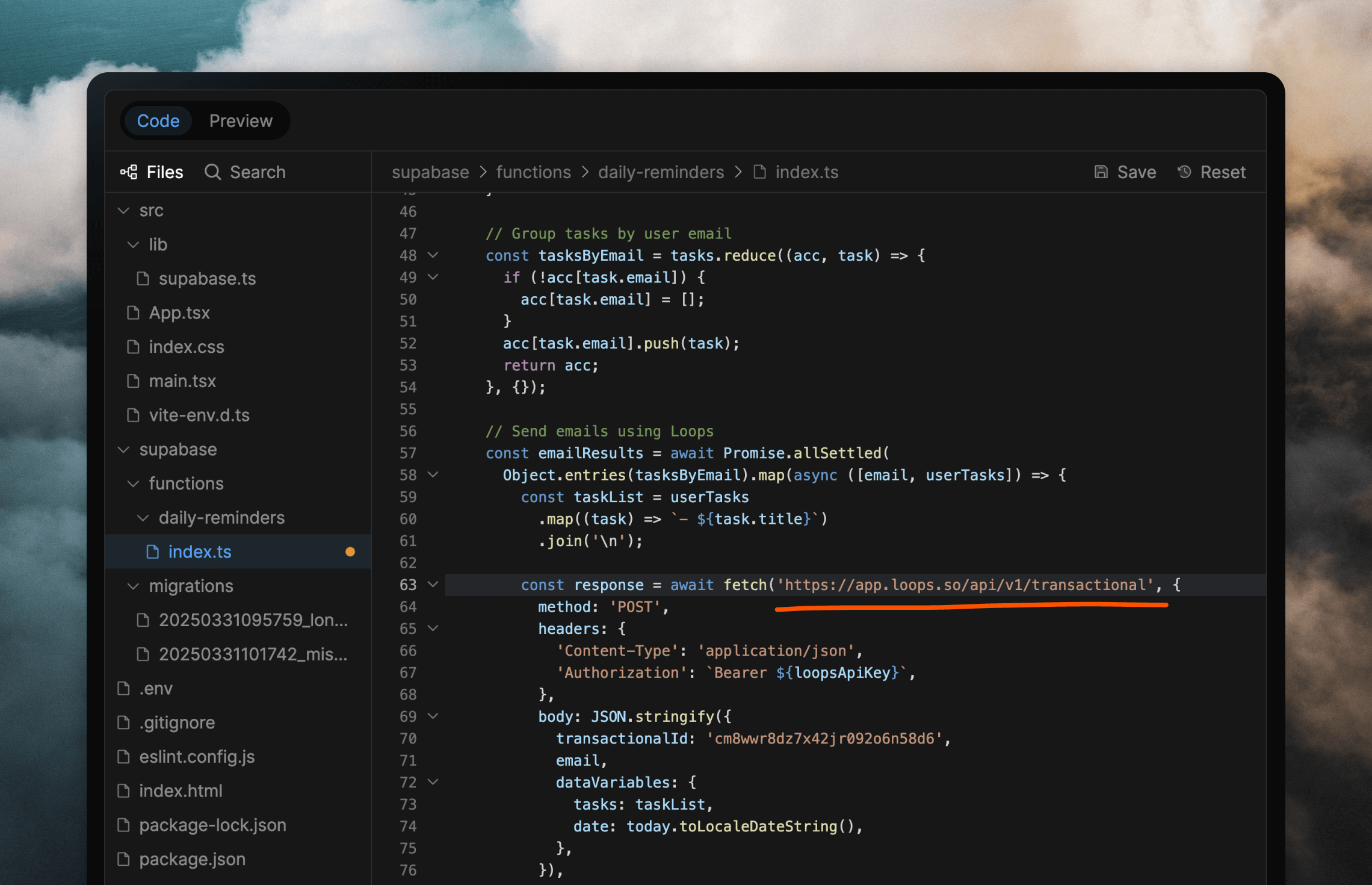 Supabase has great visibility of edge function invocations and error messages, which can help figure out when there's a problem.
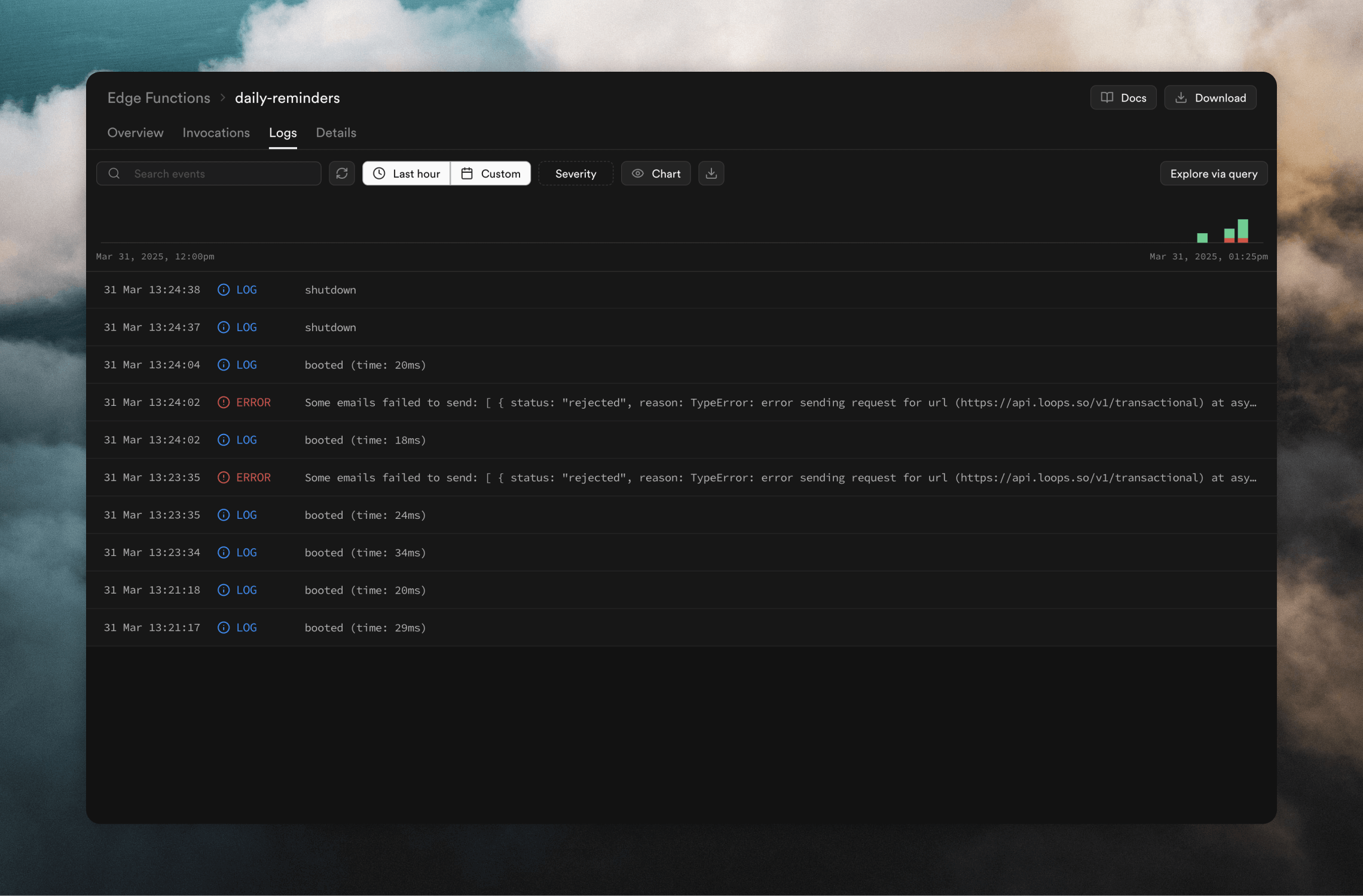 After a few tries, I started seeing successful invocations of the edge function, and email digests in my inbox!
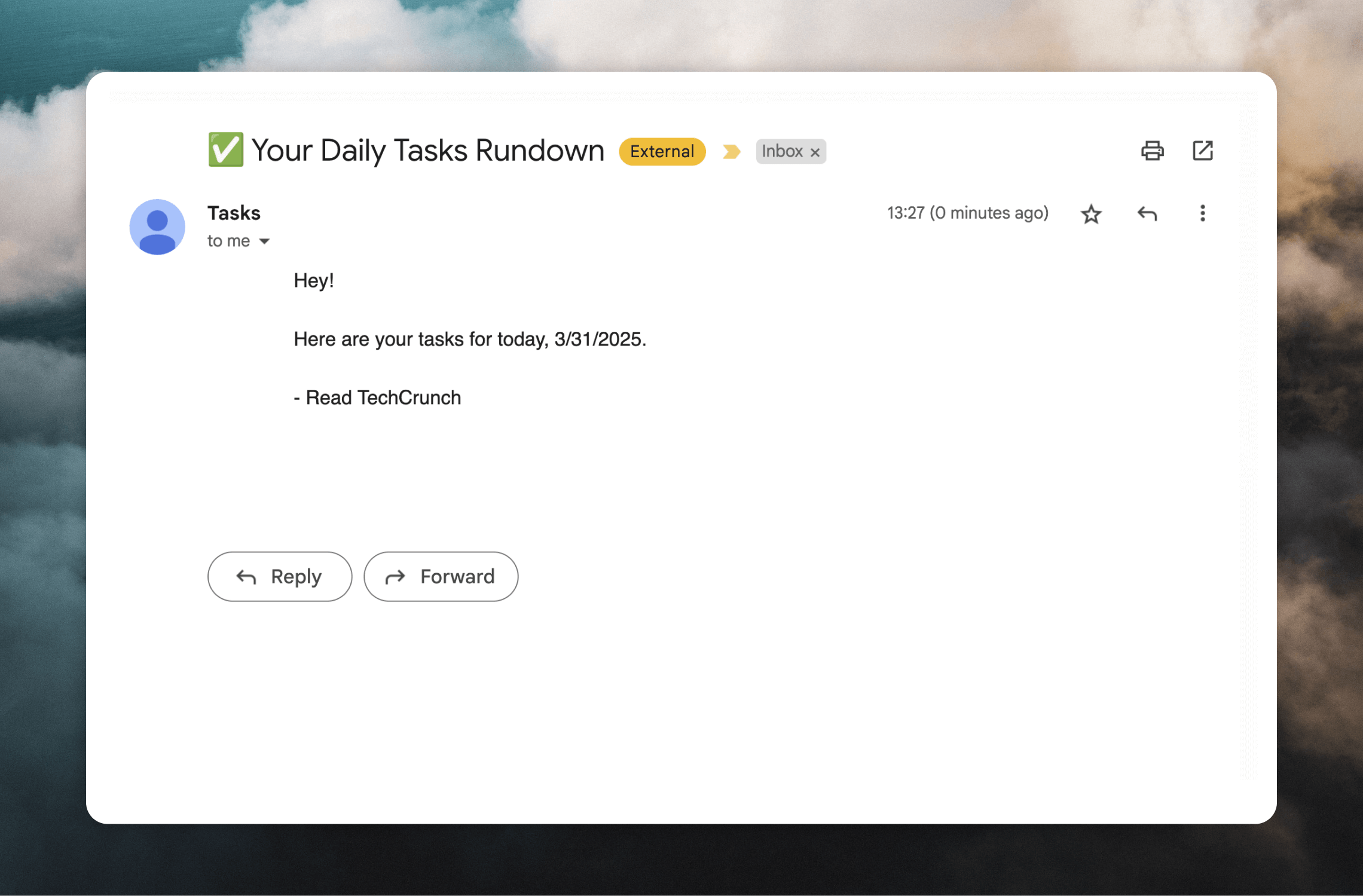 Here you can see that the current date and the task I had scheduled for the same day have been passed into the email body, which was handled by the data variables in the API call to Loops.
That's the end of this guide. Make sure to check out the rest of the Loops API to see what is possible when integrating to a Bolt-powered application.
View all of our API endpoints.
Learn how to create stylized emails and add personalization.
Read our detailed guide for sending transactional emails.
Here you can see that the current date and the task I had scheduled for the same day have been passed into the email body, which was handled by the data variables in the API call to Loops.
That's the end of this guide. Make sure to check out the rest of the Loops API to see what is possible when integrating to a Bolt-powered application.
View all of our API endpoints.
Learn how to create stylized emails and add personalization.
Read our detailed guide for sending transactional emails.