> ## Documentation Index
> Fetch the complete documentation index at: https://loops.so/docs/llms.txt
> Use this file to discover all available pages before exploring further.
# Events: trigger automated emails with Loops
> Events let you trigger workflows and emails when something happens in an external platform.
## About events
Events represent a payload of data that can be used to trigger emails via [workflows](/workflows) and can contain [personalized data](/events/properties) for each email.
Events can be sent to Loops with [the API](/api-reference/send-event) or via [an integration](/integrations).
There are two types of events:
* **Custom events** are events that you create yourself.
* **Platform events** are events that are triggered by [incoming webhook](/integrations/incoming-webhooks) integrations from Stripe, Clerk, and Supabase. You cannot edit or create platform events.
## Creating events
Events can be created automatically or manually in several ways. As well as specifying a name, you can also create [event properties](/events/properties) with each of these methods.
Custom event names can not contain colon characters (`:`).
### Automatically by sending an event
You can create an event by sending an event with a new event name.
For example, `creditWarning` here is a new event. This request will create a new event in your account.
```json theme={"dark"}
{
"email": "test@example.com",
"eventName": "creditWarning",
"eventProperties": {
"creditsPurchased": 1000,
"creditsUsed": 903,
"accountName": "Loops"
}
}
```
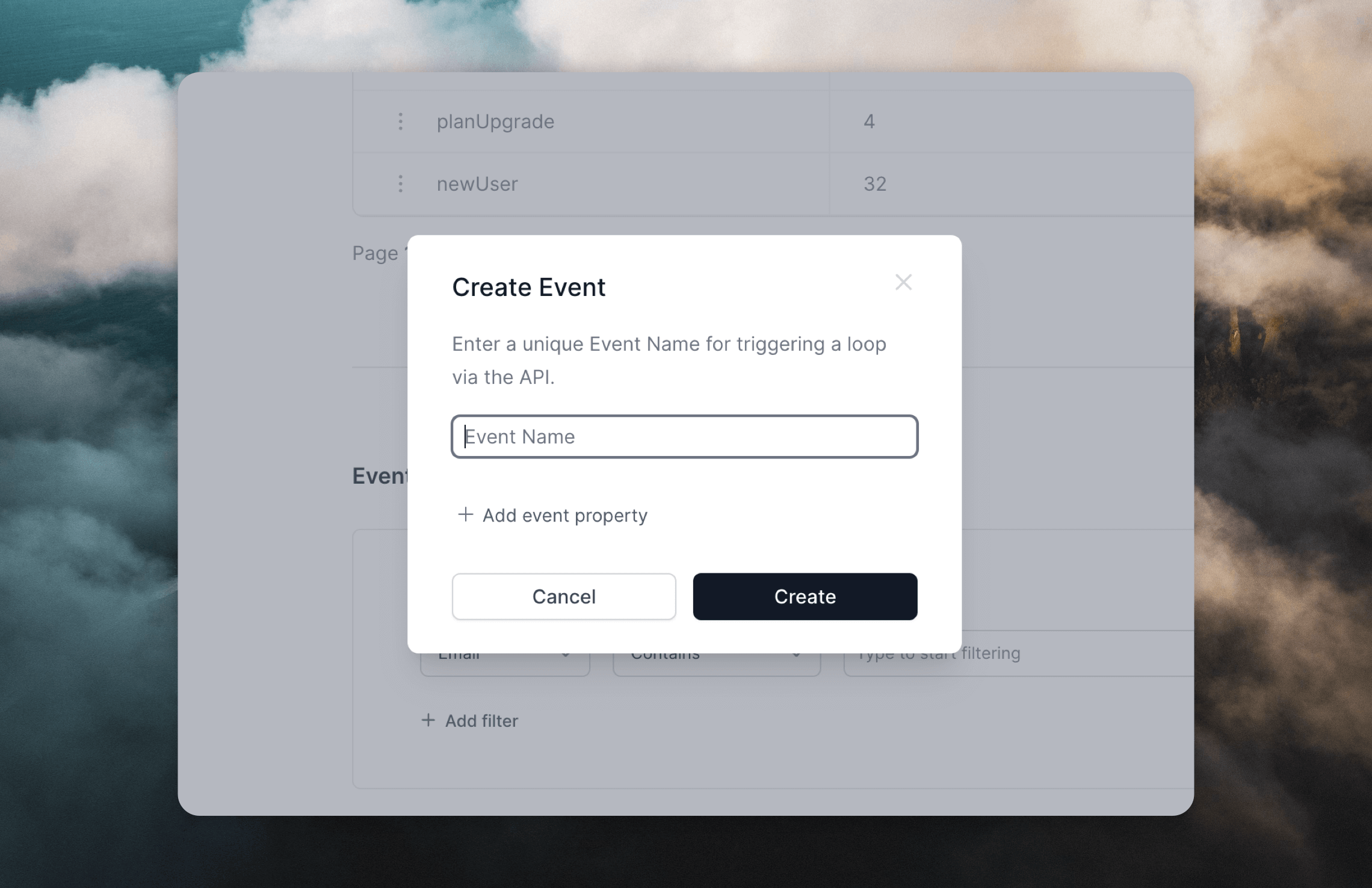
### Manually from the Events page
Navigate to the [Events page](https://app.loops.so/settings?page=events) to create an event manually.
 ### Manually from an Event trigger node
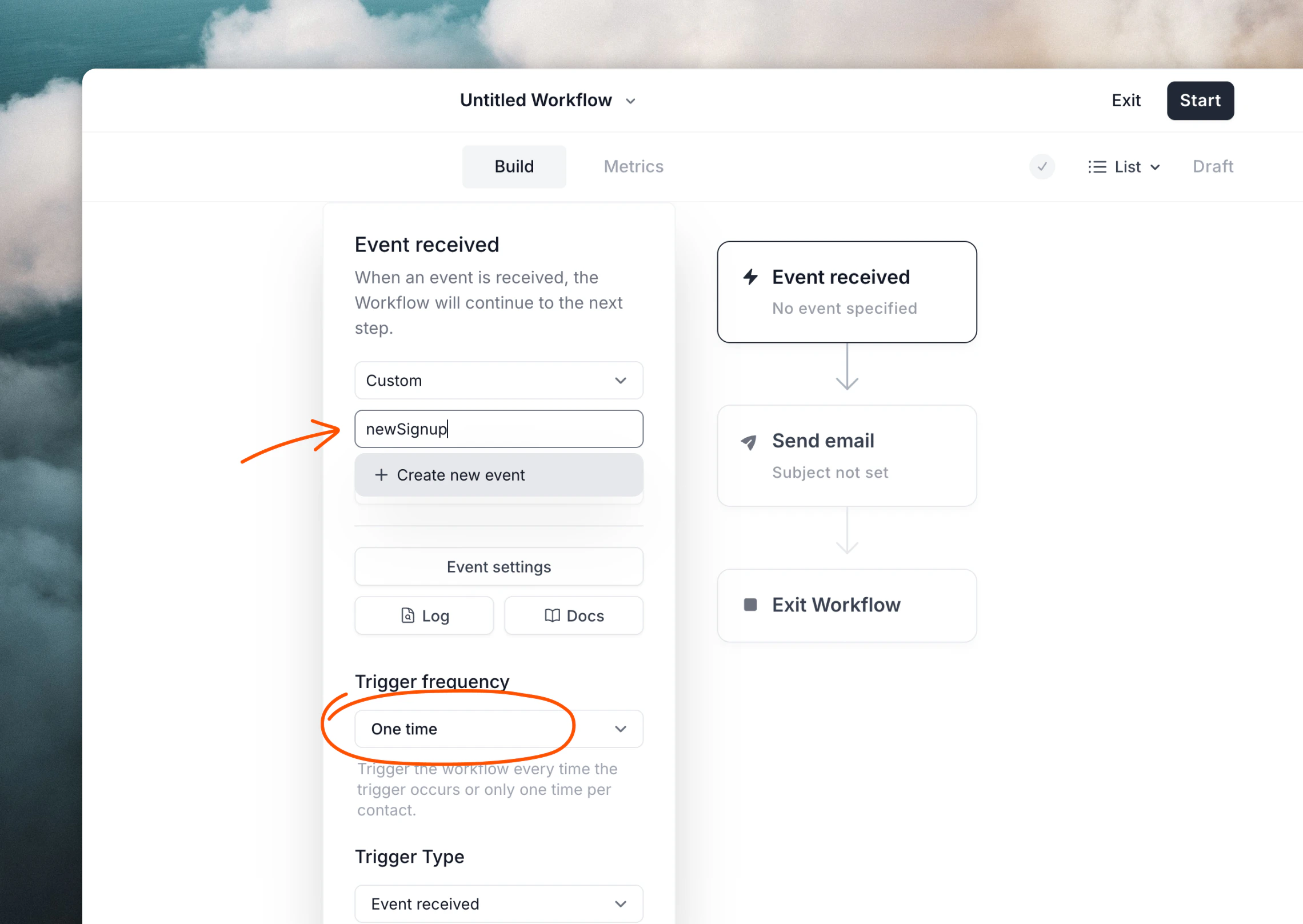
When [building a workflow](/workflows), use the **Event received** trigger node to create an event (see below).
## Specifying an event for a workflow
You can use events to trigger email sending within workflows.
When creating or editing a workflow, select **Event received** in the "Trigger Type" dropdown.
Type in the name of a new event or start typing the name of an existing event, then select from the dropdown.
### Manually from an Event trigger node
When [building a workflow](/workflows), use the **Event received** trigger node to create an event (see below).
## Specifying an event for a workflow
You can use events to trigger email sending within workflows.
When creating or editing a workflow, select **Event received** in the "Trigger Type" dropdown.
Type in the name of a new event or start typing the name of an existing event, then select from the dropdown.
 ## Sending events
Now you have events set up in your Loops account, you can start sending custom events using the API or integrations.
### Sending events with the API
Using the API, send events to the [Send event endpoint](/api-reference/send-event):
```
POST https://app.loops.so/api/v1/events/send
```
All that's required is an `email` or `userId` to identify the contact, plus the `eventName`.
```json theme={"dark"}
{
"email": "test@example.com",
"eventName": "planUpgrade"
}
```
The `eventName` can either be an existing custom event in your account or a new event name.
If a contact is not found with the provided `email` or `userId`, a new contact will be created.
You can include [contact properties](/contacts/properties) in the request, which will be saved onto the contact. These contact properties can be used in emails to your contacts or for [filtering and segmenting your audience](/contacts/filters-segments).
```json theme={"dark"}
{
"email": "test@example.com",
"eventName": "planUpgrade",
"firstName": "Sam",
"favoriteColor": "red"
}
```
To provide your emails with event-specific data, include event properties in the request. [Read more about event properties](/events/properties)
```json theme={"dark"}
{
"email": "test@example.com",
"eventName": "planUpgrade",
"firstName": "Sam",
"favoriteColor": "red",
"eventProperties": {
"newPlan": "Pro",
"oldPlan": "Basic",
"planPrice": 29,
"isLifetime": false,
"updateDate": "2024-03-07T10:09:23Z"
}
}
```
### Sending events via an integration
Many of [our integrations](/integrations#send-email) also support sending events, giving you options to send events without building with our API.
## Viewing and editing events
### Event patterns
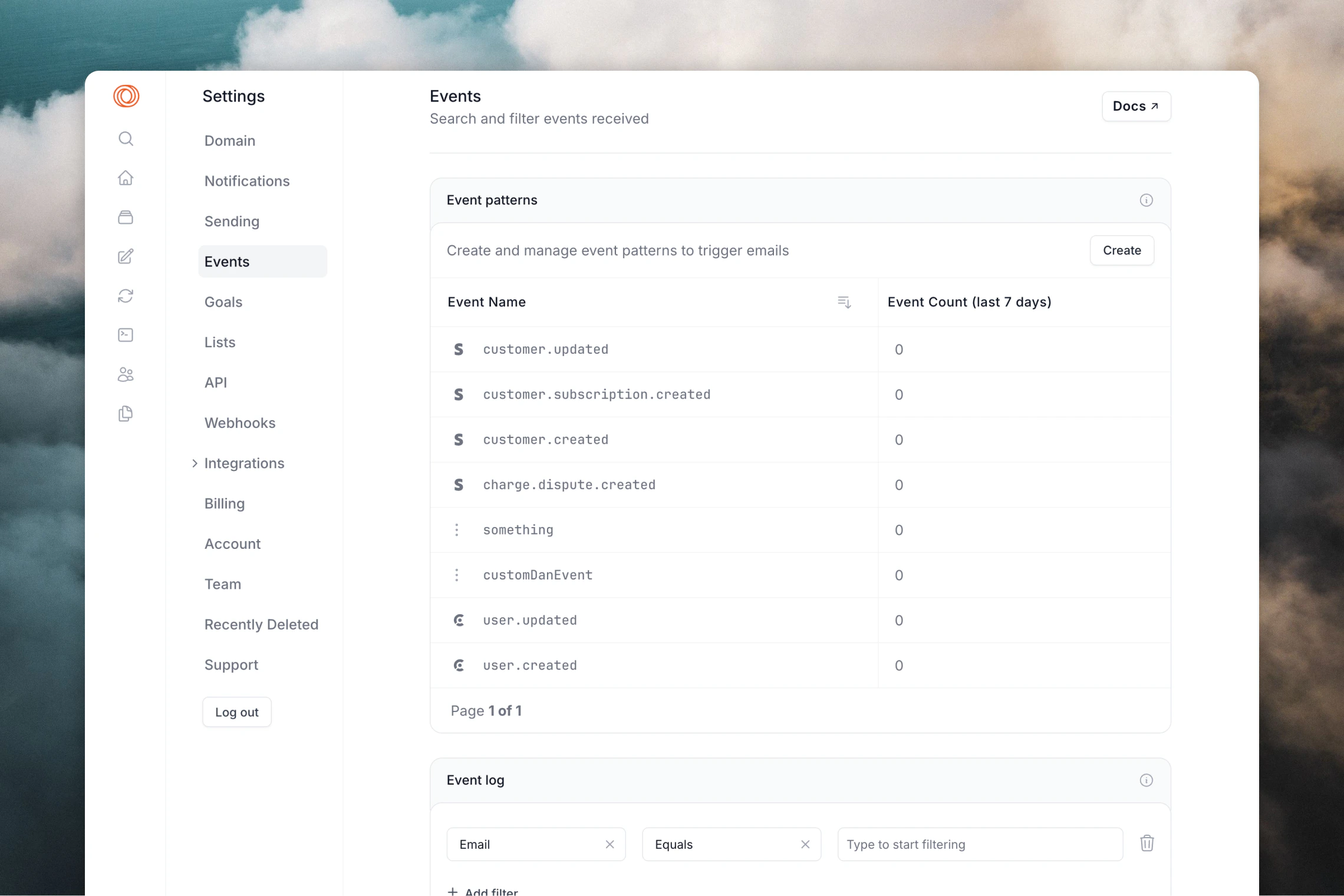
In your Loops Settings the [Events page](https://app.loops.so/settings?page=events) shows the list of your different events, including how many times they've been sent. Counts are updated hourly.
## Sending events
Now you have events set up in your Loops account, you can start sending custom events using the API or integrations.
### Sending events with the API
Using the API, send events to the [Send event endpoint](/api-reference/send-event):
```
POST https://app.loops.so/api/v1/events/send
```
All that's required is an `email` or `userId` to identify the contact, plus the `eventName`.
```json theme={"dark"}
{
"email": "test@example.com",
"eventName": "planUpgrade"
}
```
The `eventName` can either be an existing custom event in your account or a new event name.
If a contact is not found with the provided `email` or `userId`, a new contact will be created.
You can include [contact properties](/contacts/properties) in the request, which will be saved onto the contact. These contact properties can be used in emails to your contacts or for [filtering and segmenting your audience](/contacts/filters-segments).
```json theme={"dark"}
{
"email": "test@example.com",
"eventName": "planUpgrade",
"firstName": "Sam",
"favoriteColor": "red"
}
```
To provide your emails with event-specific data, include event properties in the request. [Read more about event properties](/events/properties)
```json theme={"dark"}
{
"email": "test@example.com",
"eventName": "planUpgrade",
"firstName": "Sam",
"favoriteColor": "red",
"eventProperties": {
"newPlan": "Pro",
"oldPlan": "Basic",
"planPrice": 29,
"isLifetime": false,
"updateDate": "2024-03-07T10:09:23Z"
}
}
```
### Sending events via an integration
Many of [our integrations](/integrations#send-email) also support sending events, giving you options to send events without building with our API.
## Viewing and editing events
### Event patterns
In your Loops Settings the [Events page](https://app.loops.so/settings?page=events) shows the list of your different events, including how many times they've been sent. Counts are updated hourly.
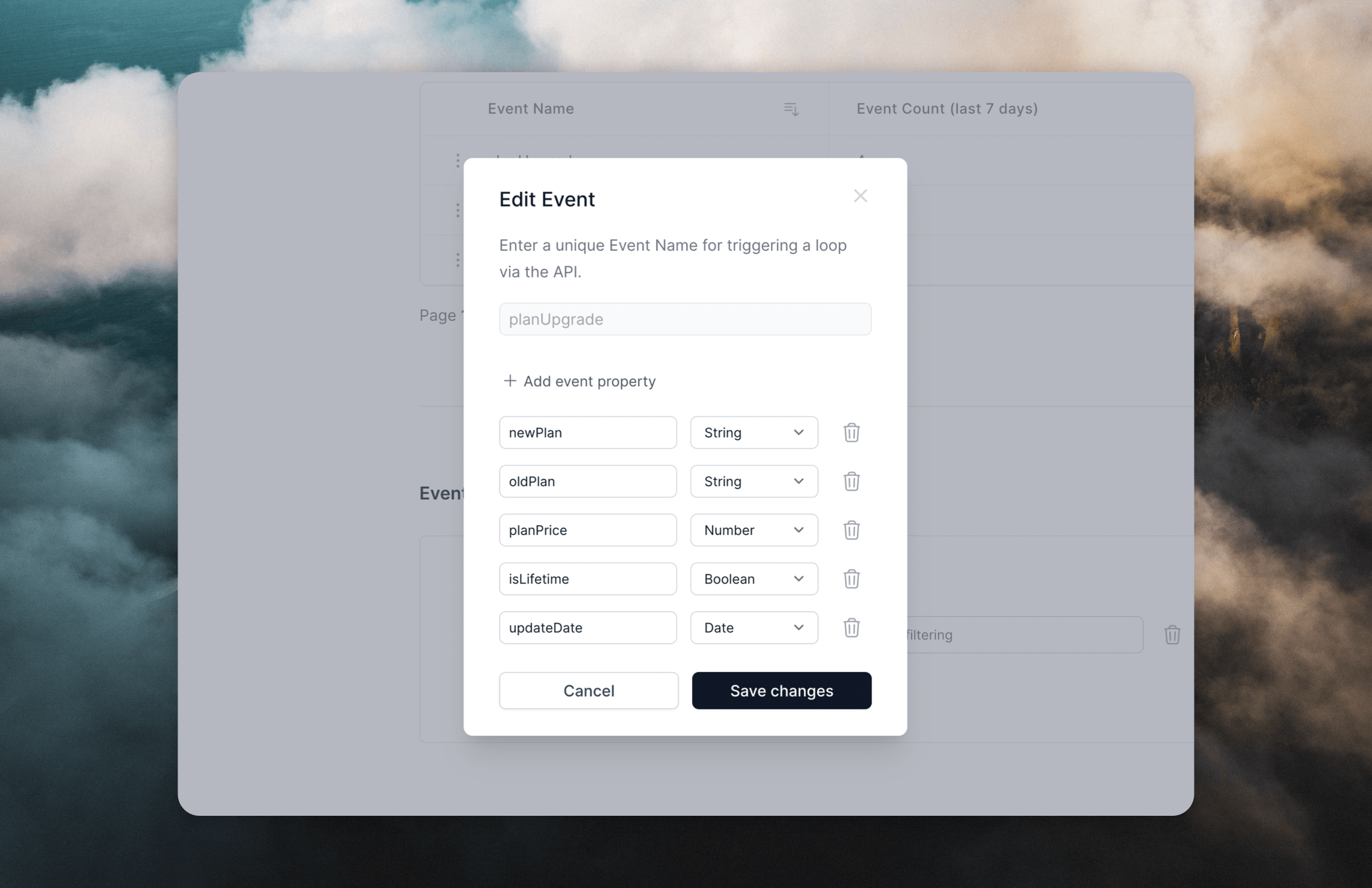
 To edit event properties, click on an event type. (You can also edit events by selecting "Edit properties" in the workflow builder's event trigger popup.)
 Events cannot be deleted.
### Event logs
Below the list of events, you can see the event logs for your account. This includes events sent to us [via the API](/api-reference/send-event) and any of [our integrations](/integrations).
Events cannot be deleted.
### Event logs
Below the list of events, you can see the event logs for your account. This includes events sent to us [via the API](/api-reference/send-event) and any of [our integrations](/integrations).
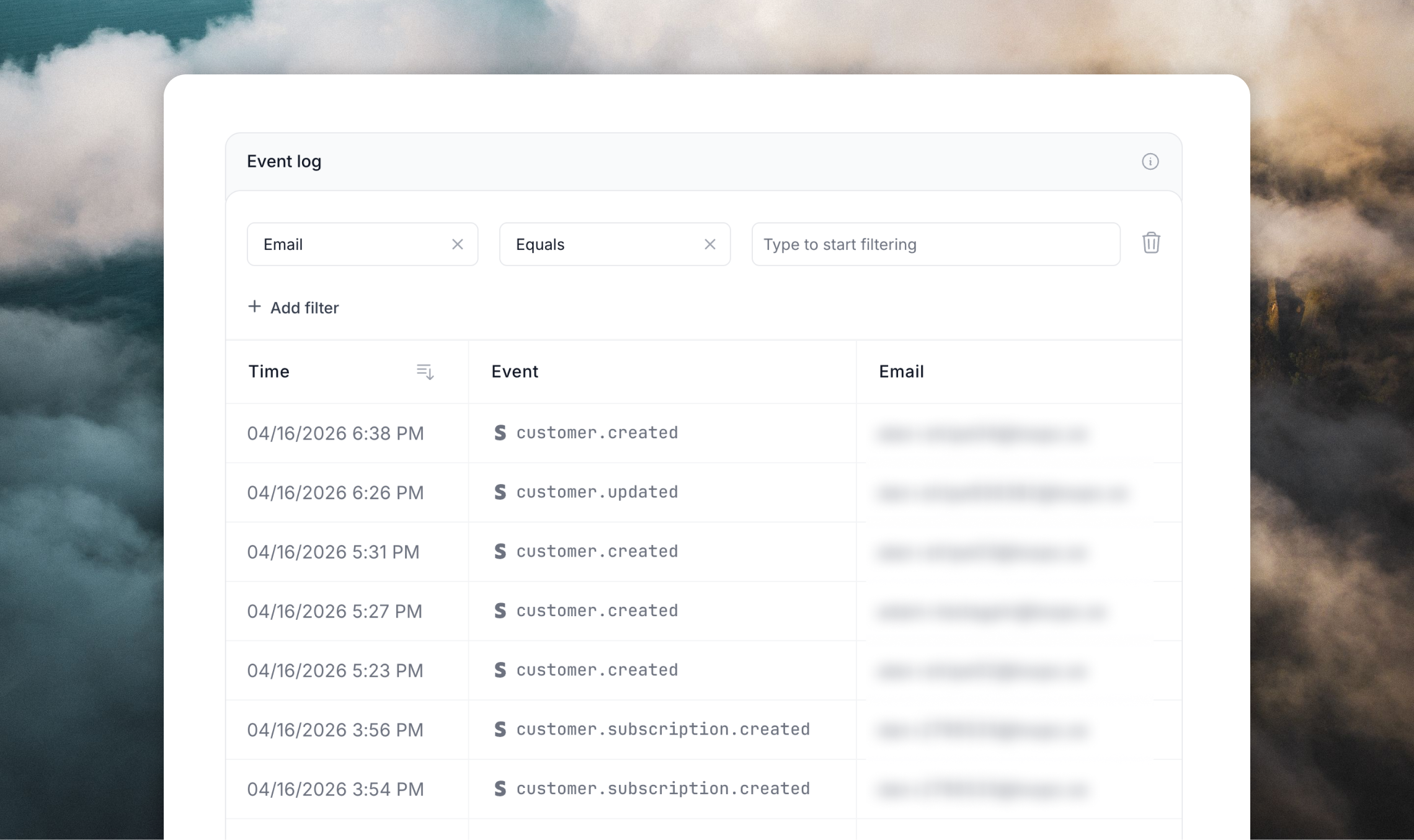 You can sort your events either by email, period of time or event name. You can even also drill down to specific events using the filters.
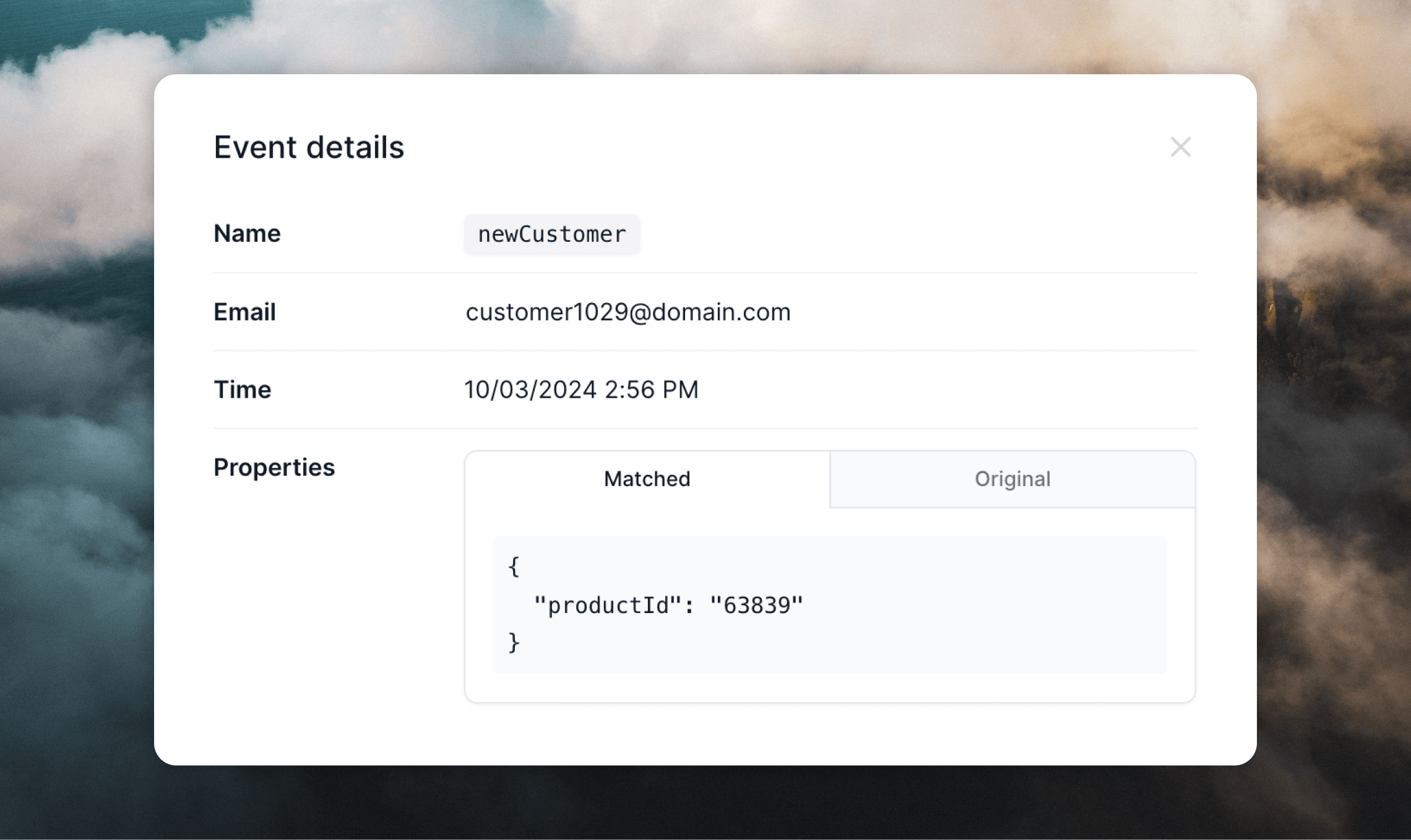
To view a specific event's payload, click on the table row. Here you'll see the incoming event's information, including the original sent event properties and the properties that Loops accepted (based on your event configuration).
You can sort your events either by email, period of time or event name. You can even also drill down to specific events using the filters.
To view a specific event's payload, click on the table row. Here you'll see the incoming event's information, including the original sent event properties and the properties that Loops accepted (based on your event configuration).
 ## Testing events
You can test events by sending to email addresses with `@example.com` and `@test.com` domains (for example `user@example.com` and `user@test.com`).
Events will fire as normal but emails will not be sent to `@example.com` or `@test.com` email addresses, making this a good way to test how events are working in your account without affecting your sending domain’s reputation.
## Testing events
You can test events by sending to email addresses with `@example.com` and `@test.com` domains (for example `user@example.com` and `user@test.com`).
Events will fire as normal but emails will not be sent to `@example.com` or `@test.com` email addresses, making this a good way to test how events are working in your account without affecting your sending domain’s reputation.