> ## Documentation Index
> Fetch the complete documentation index at: https://loops.so/docs/llms.txt
> Use this file to discover all available pages before exploring further.
# Sending transactional emails to group inboxes
> Learn how to ensure transactional emails can be delivered to your group inbox.
When sending [transactional emails](/transactional) to a group address, you may occasionally encounter issues with email delivery due to settings within your Google Workspace Admin. This guide explains how to handle these situations and prevent them in the future.
Group inboxes are intended as a catch-all email address that receives email and relays it on to many recipients. Transactional email however is intended as a one-to-one communication method and is generally not appropriate for group inboxes. As a result, group inboxes may have additional filtering in place, often by default, which impedes your ability to receive emails like 2FA, click to login and others.
These emails include transactional emails sent to your customers and users from Loops and other services, but also the emails sent by us when you log in.
Here are some steps to help you troubleshoot and prevent these issues.
## Google Workspace
### Checking for blocked emails
If you're not receiving expected emails to a group inbox, check these locations:
#### Google Groups Pending Conversations
* Go to [groups.google.com](https://groups.google.com)
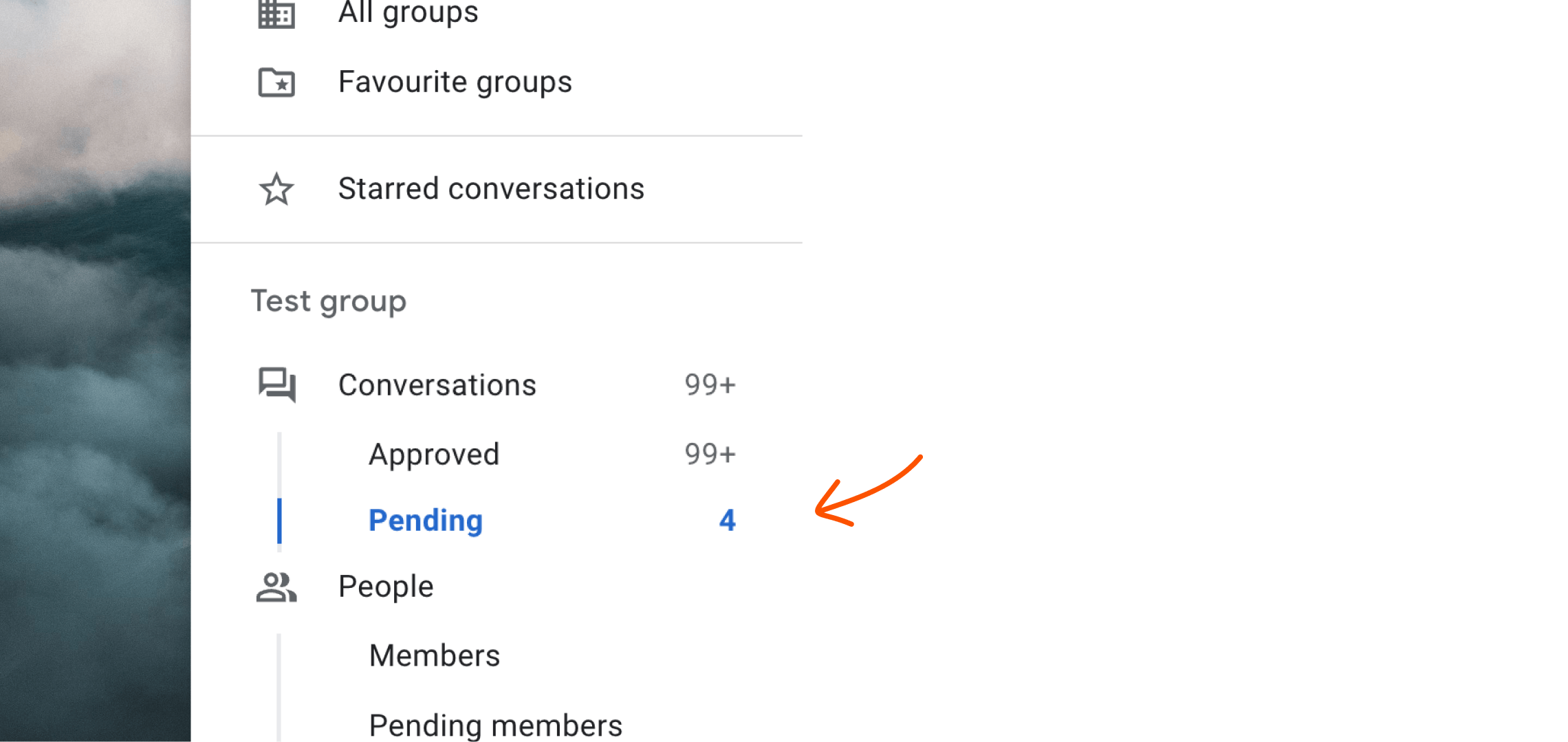
* Go to **Pending** conversations in the left sidebar.
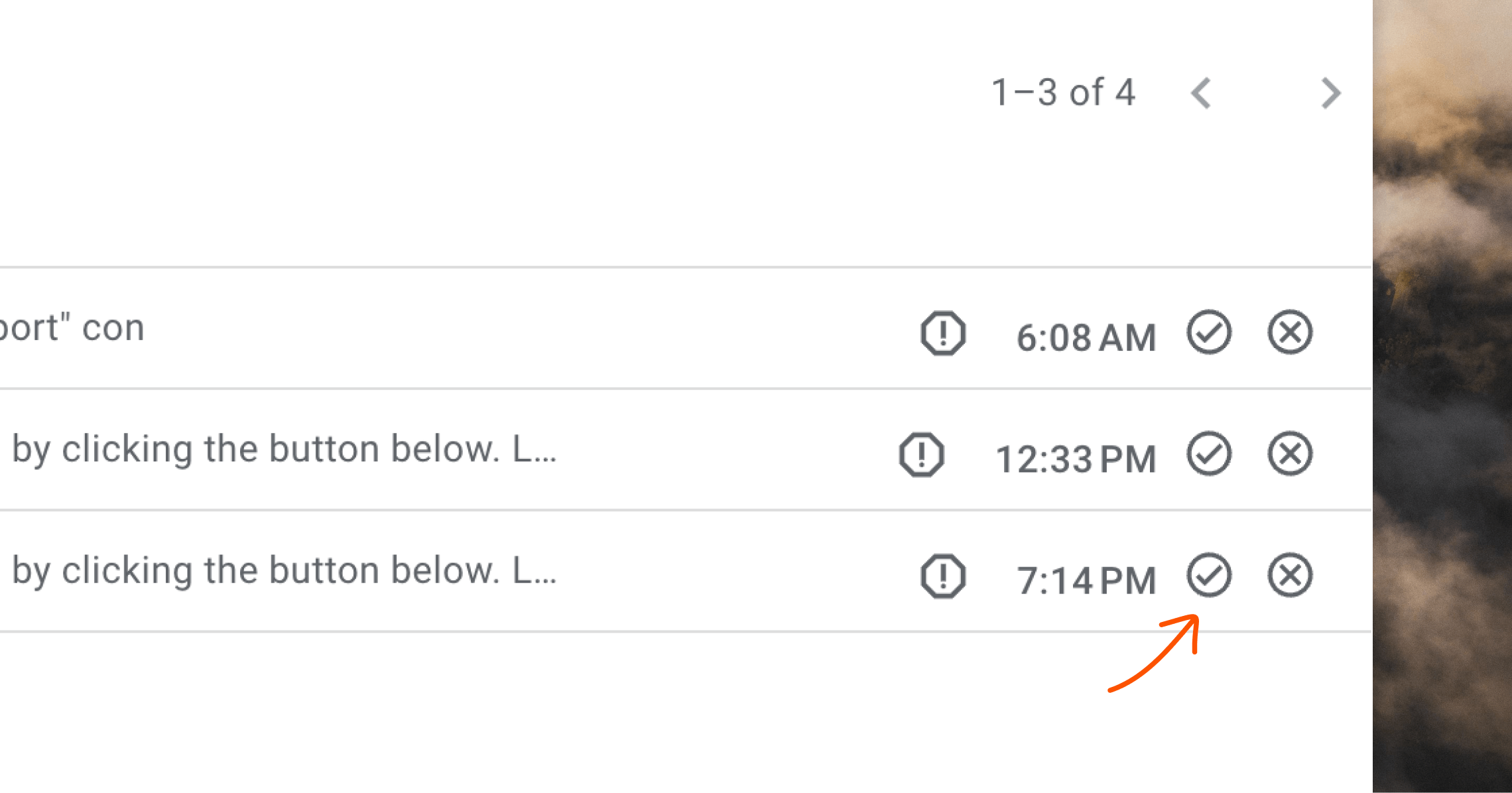
 * Click the checkmark icon on the right to approve individual messages.
 #### Email logs
* Check the email logs at [admin.google.com/ac/emaillogsearch](https://admin.google.com/ac/emaillogsearch)
* Search for specific emails to see their status. Look for emails labeled with "Sent for moderation".
#### Google Admin Moderation queue
* Go to [admin.google.com/moderation](https://admin.google.com/moderation) to view all quarantined email messages.
* Check the queue for emails to group inboxes.
### Preventing future issues
To prevent important emails from being blocked, you can change a setting in Google Groups.
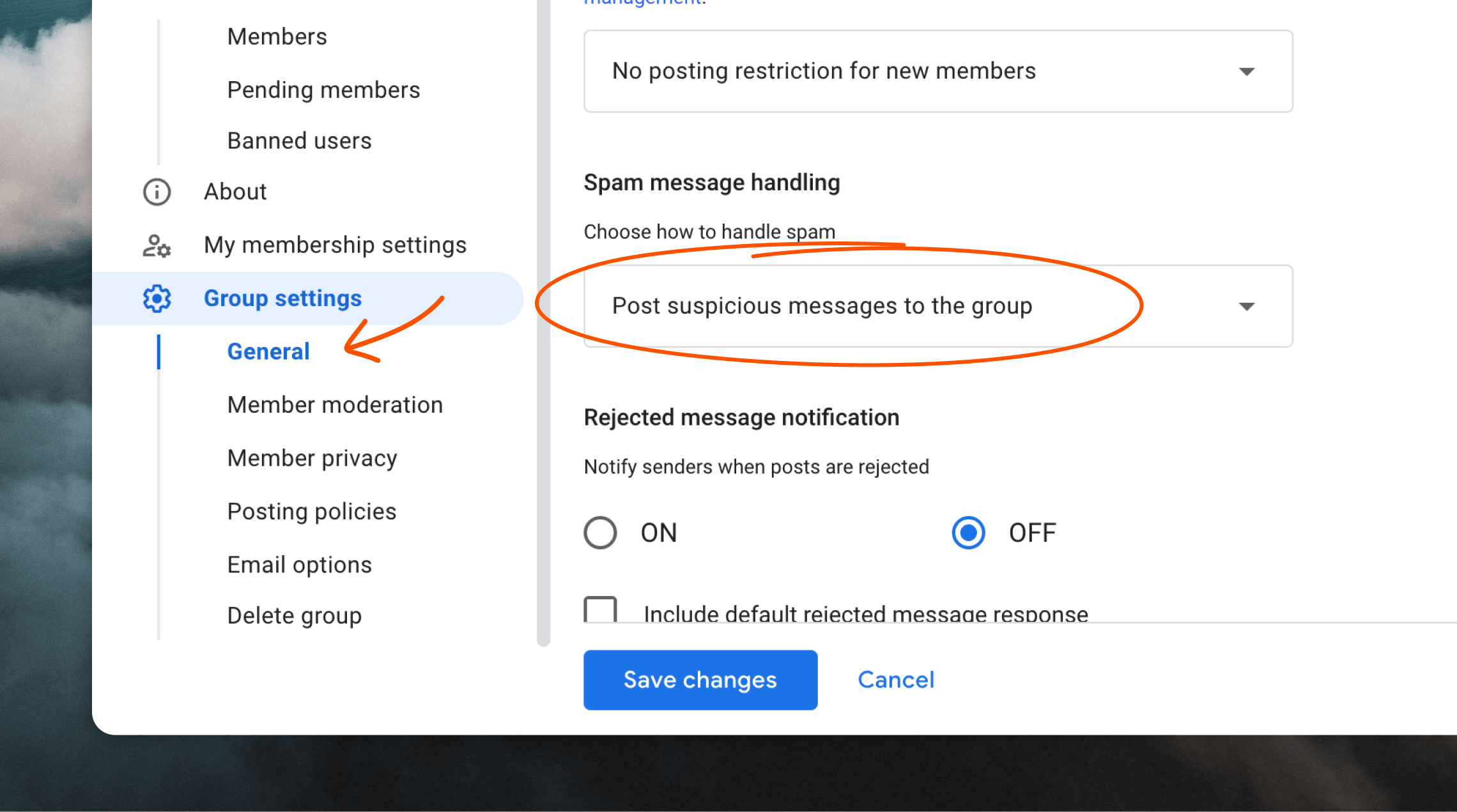
Go to the Group settings in Google Workspace. In the **Posting policies** section, change the **Spam message handling** selection to "Post suspicious messages to the group".
#### Email logs
* Check the email logs at [admin.google.com/ac/emaillogsearch](https://admin.google.com/ac/emaillogsearch)
* Search for specific emails to see their status. Look for emails labeled with "Sent for moderation".
#### Google Admin Moderation queue
* Go to [admin.google.com/moderation](https://admin.google.com/moderation) to view all quarantined email messages.
* Check the queue for emails to group inboxes.
### Preventing future issues
To prevent important emails from being blocked, you can change a setting in Google Groups.
Go to the Group settings in Google Workspace. In the **Posting policies** section, change the **Spam message handling** selection to "Post suspicious messages to the group".
 ## Other troubleshooting steps
If you're still having issues:
1. Verify the email is being sent successfully. For example, in Loops you can check the **Metrics** page of your transactional email to see if the email was sent, delivered and bounced.
2. Check if the email is being received by other group members.
3. Contact your workspace administrator for assistance with group settings.
## Read more
## Other troubleshooting steps
If you're still having issues:
1. Verify the email is being sent successfully. For example, in Loops you can check the **Metrics** page of your transactional email to see if the email was sent, delivered and bounced.
2. Check if the email is being received by other group members.
3. Contact your workspace administrator for assistance with group settings.
## Read more