> ## Documentation Index
> Fetch the complete documentation index at: https://loops.so/docs/llms.txt
> Use this file to discover all available pages before exploring further.
# Sending emails to Apple “Hide my email” addresses
> Ensure Loops emails reach Apple Hide My Email addresses by registering your sending domain with Apple.
Apple has recently begun offering their iCloud+ users more and more privacy options when it comes to how they move and appear on the internet.
What does this mean for email? It turns out… quite a bit.
When it comes to email deliverability, [Hide My Email](https://support.apple.com/guide/icloud/set-up-hide-my-email-mm9d9012c9e8/icloud) provides Apple users the opportunity to create unique, random email addresses that forward to their actual email address. This allows them to keep their real email address hidden from online services and email marketers (likely, you).
This can pose challenges for businesses and marketers that hope to track user engagement or maintain an updated and engaged email list.
## Sending emails to customers using Hide My Email
Sending emails to customers that are using Apple’s Hide My Email feature can result in both hard or soft bounces — meaning your email will not be delivered.
If you’re using [Loops](https://loops.so/) as your ESP (email service provider) to send your marketing and transactional emails, an additional step is needed to ensure these members of your audience remain in the loop (pun intended).
It’s simple.
You will need to register your sending domain with Apple through these quick steps.
1. Login to the Apple Developer Console
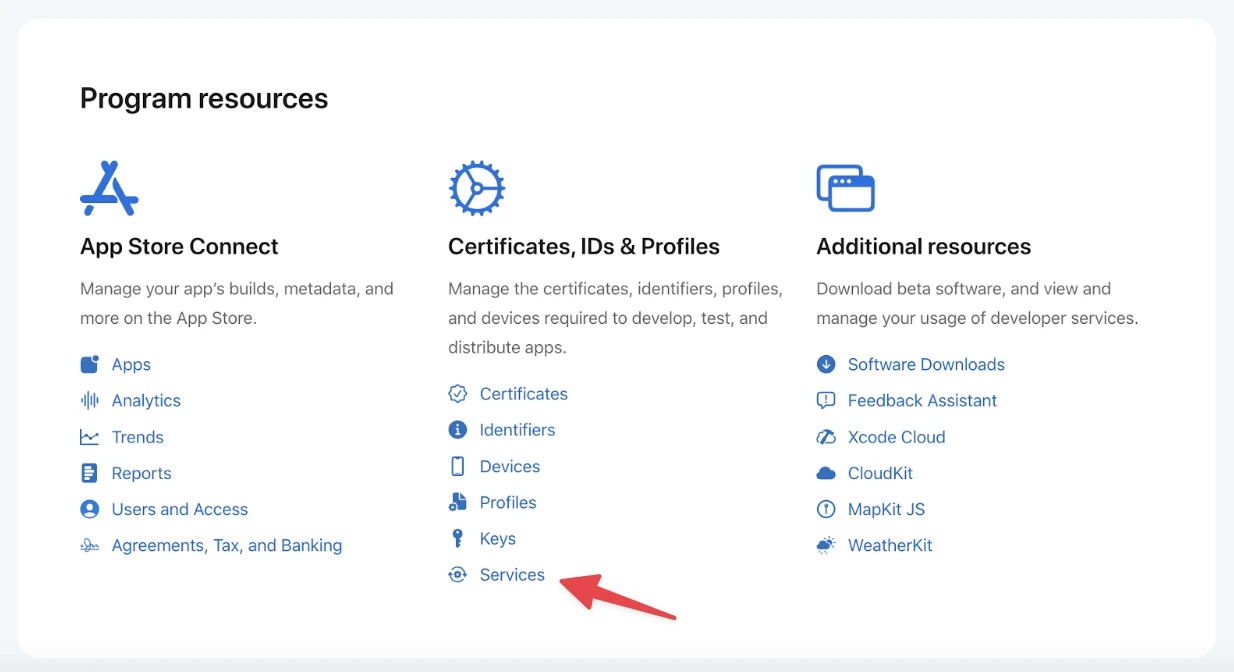
2. Click **Services** under the category labeled Certificates, Identifiers & Profiles
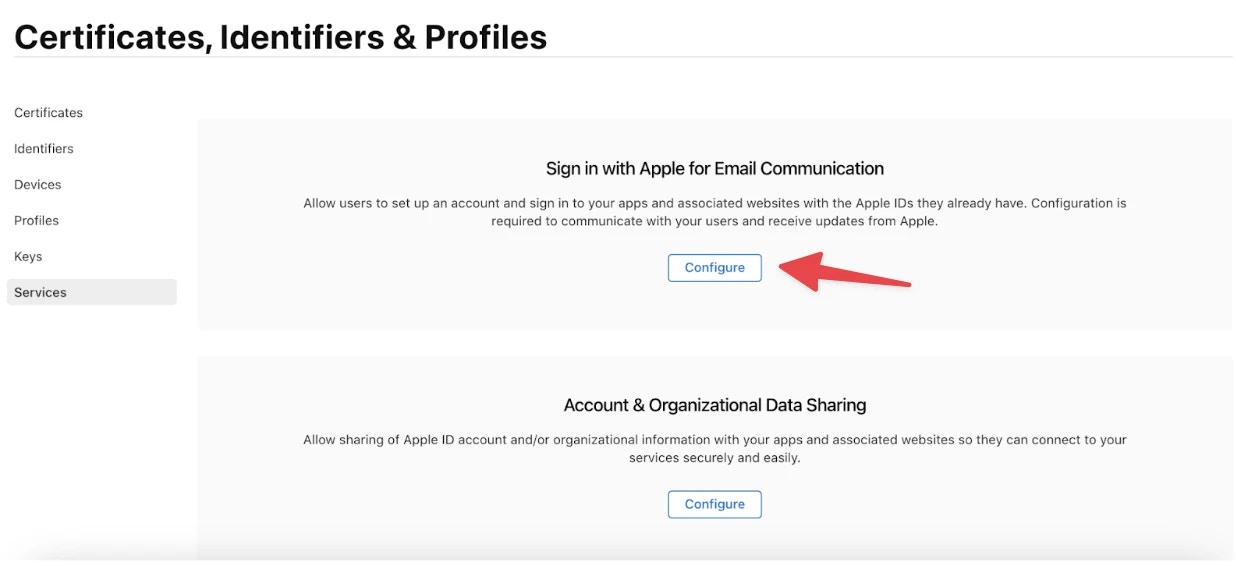
 3. Click **Configure**
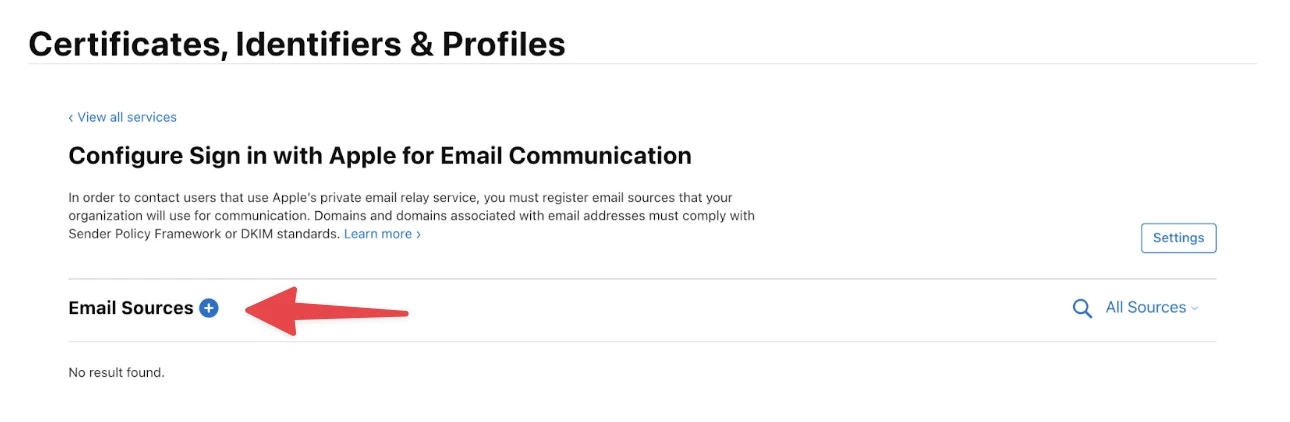
 4. Click the `+` icon under Email Sources
 5. Verify SPF and Send Test
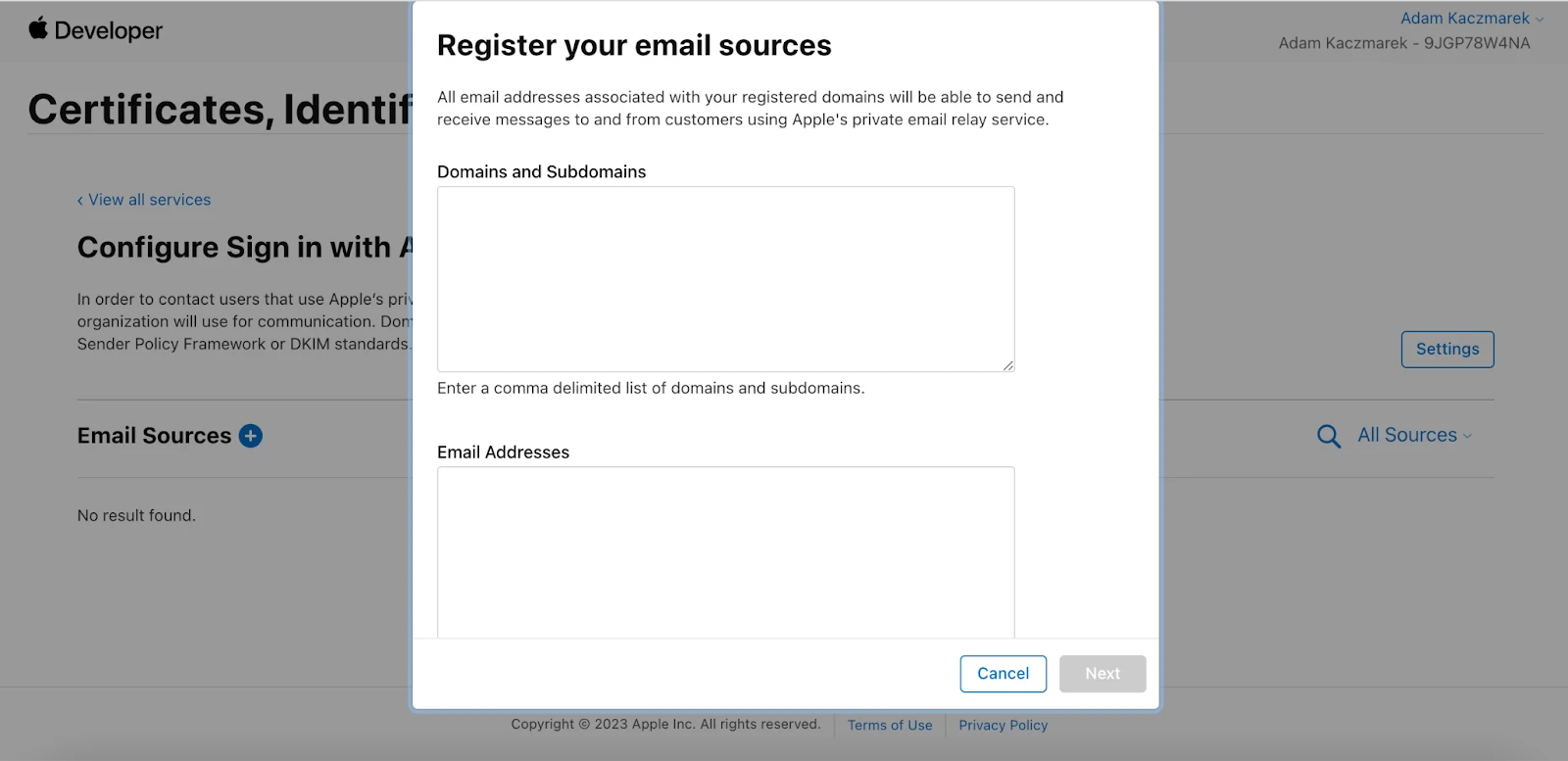 You'll want to register the SPF domain that we provide for you in-app as well as the usual domain.
For example: `envelope.yourdomain.com` (envelope is the part we are generating for you) and `yourdomain.com`.
That’s it! Goodbye bounces and hello inbox.
## What if I don’t do this?
If you don’t register your sending domain with Apple prior to sending emails it may very likely result in a bounce, meaning that your email will not be delivered to the intended recipient.
If you are using Loops and notice bounces to these email addresses in your email metrics please follow the above steps to register your domain.
Once your domain is registered, reach out to us and we can manually remove the emails from our block list.
You'll want to register the SPF domain that we provide for you in-app as well as the usual domain.
For example: `envelope.yourdomain.com` (envelope is the part we are generating for you) and `yourdomain.com`.
That’s it! Goodbye bounces and hello inbox.
## What if I don’t do this?
If you don’t register your sending domain with Apple prior to sending emails it may very likely result in a bounce, meaning that your email will not be delivered to the intended recipient.
If you are using Loops and notice bounces to these email addresses in your email metrics please follow the above steps to register your domain.
Once your domain is registered, reach out to us and we can manually remove the emails from our block list.