> ## Documentation Index
> Fetch the complete documentation index at: https://loops.so/docs/llms.txt
> Use this file to discover all available pages before exploring further.
# Using templates
> Use Loops templates to draft emails faster: choose a template, customize content, and reuse components.
Loops [templates](https://app.loops.so/templates) help you send professionally designed emails fast. Simply replace the placeholder content with your information, and you’re ready to go.
## Template Variations
Loops offers templates across each of the three [email types](https://loops.so/docs/types-of-emails):
### Campaign templates
[Campaigns](https://loops.so/docs/types-of-emails#campaigns) are the right type of email for a one-off send to your audience or a segment of your audience. These emails are a 1-to-many communication, meaning that the same exact email that you craft can (and probably will) be sent and read by a number of recipients or customers.
 ## Workflow templates
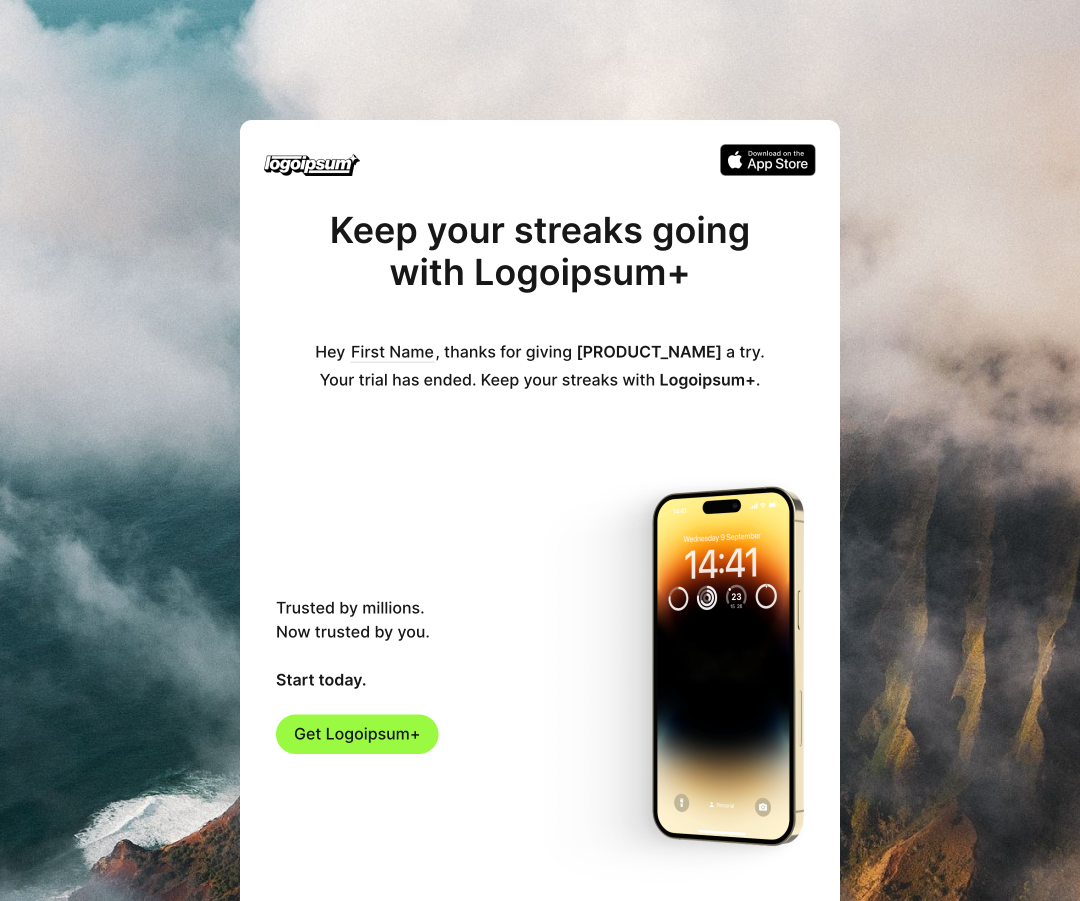
[Workflows](https://loops.so/docs/types-of-emails#workflows) are email sequences triggered by an event, a contact being added to your audience, or a contact property update.
## Workflow templates
[Workflows](https://loops.so/docs/types-of-emails#workflows) are email sequences triggered by an event, a contact being added to your audience, or a contact property update.
 ## Transactional templates
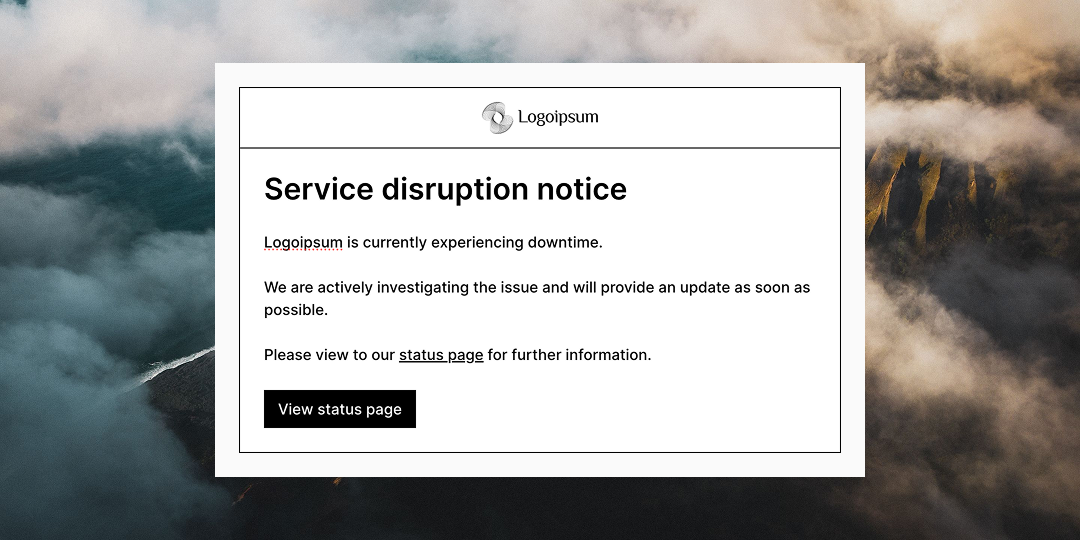
[Transactional](https://loops.so/docs/types-of-emails#transactional) emails are automated messages triggered by a specific contact action.
## Transactional templates
[Transactional](https://loops.so/docs/types-of-emails#transactional) emails are automated messages triggered by a specific contact action.
 ## How to use templates
1. In your Loops account, hit “Templates” in the left-hand sidebar menu.
2. Browse our selection of `Workflow`, `Campaign` and `Transactional` templates.
3. Select the template that most suits your needs.
4. Edit the template, replacing all placeholder information, links, and images with your content.
Note: Remember to double-check all links (which can be places other than buttons) and link to the general section, as [dynamic content](https://loops.so/docs/creating-emails/personalizing-emails#add-dynamic-content-to-emails) can include data variables as well as other things.
5. Once your template is ready to test, send a test email to yourself to see how your design renders in the inbox.
## How to use templates
1. In your Loops account, hit “Templates” in the left-hand sidebar menu.
2. Browse our selection of `Workflow`, `Campaign` and `Transactional` templates.
3. Select the template that most suits your needs.
4. Edit the template, replacing all placeholder information, links, and images with your content.
Note: Remember to double-check all links (which can be places other than buttons) and link to the general section, as [dynamic content](https://loops.so/docs/creating-emails/personalizing-emails#add-dynamic-content-to-emails) can include data variables as well as other things.
5. Once your template is ready to test, send a test email to yourself to see how your design renders in the inbox.