> ## Documentation Index
> Fetch the complete documentation index at: https://loops.so/docs/llms.txt
> Use this file to discover all available pages before exploring further.
# Styling emails
> Learn how to edit emails in the Loops editor.
## Styled vs Plain emails
Loops offers two different email styling options, Styled and Plain.
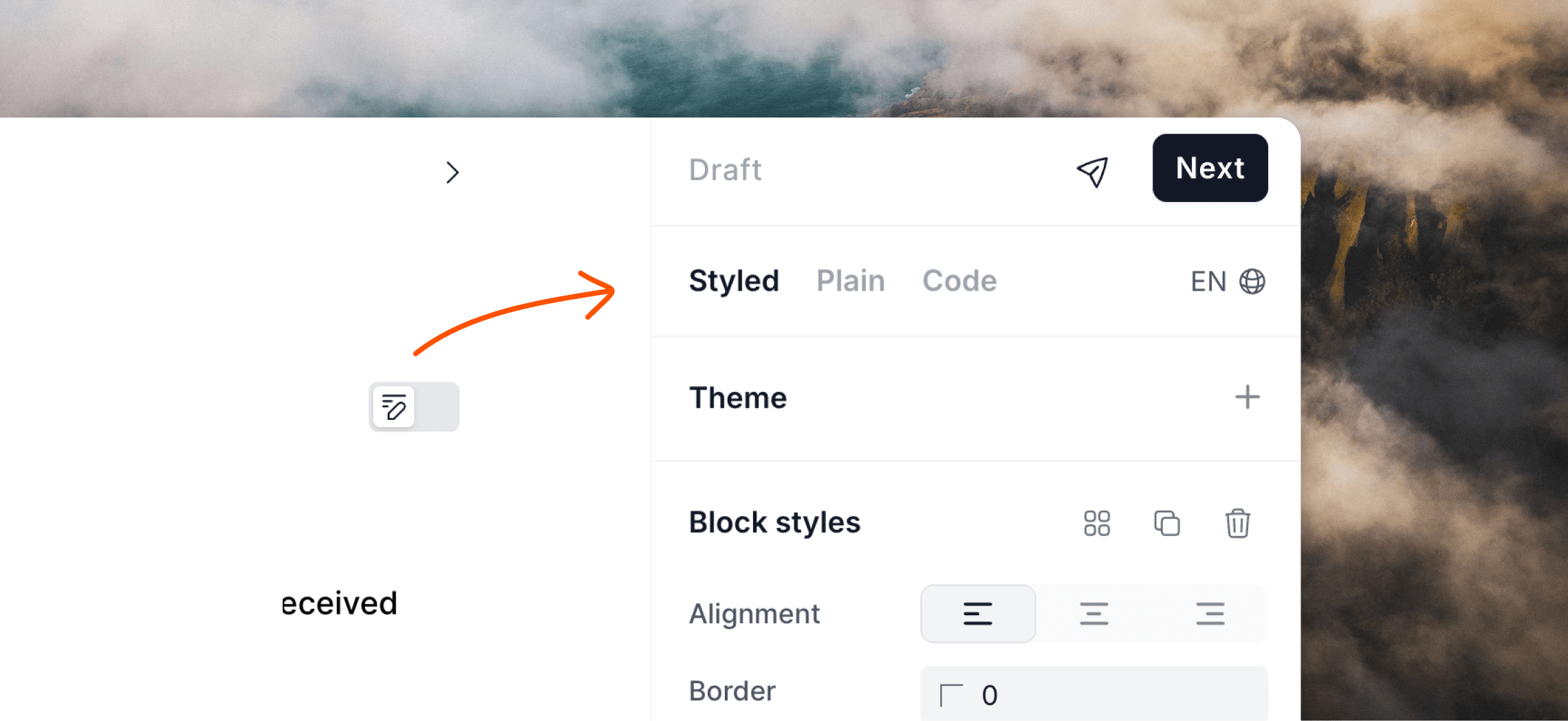 By default new emails are created as **Styled** emails in the editor. This option offers a range of design options that can be used to design the base theme for your email, like text and background colors, padding and borders.
A Styled email layout is a responsive central column with a maximum width of 600 pixels.
When using Styled emails you can also create **Themes**, which unlock more editing options like fonts, plus the ability to set consistent, reusable formatting across multiple elements in your email.
**Plain** emails are full-width emails with no base design options (though you can always format individual content using the editor panel. Plain emails better mimic emails sent from clients like Gmail and Apple Mail.
## Style panel
Both Plain and Styled emails will show an editor side panel with formatting options for elements in your email.
This includes all text, headings, links, buttons and dividers in your email, as well as design options for the main email body (padding, background and border).
By default new emails are created as **Styled** emails in the editor. This option offers a range of design options that can be used to design the base theme for your email, like text and background colors, padding and borders.
A Styled email layout is a responsive central column with a maximum width of 600 pixels.
When using Styled emails you can also create **Themes**, which unlock more editing options like fonts, plus the ability to set consistent, reusable formatting across multiple elements in your email.
**Plain** emails are full-width emails with no base design options (though you can always format individual content using the editor panel. Plain emails better mimic emails sent from clients like Gmail and Apple Mail.
## Style panel
Both Plain and Styled emails will show an editor side panel with formatting options for elements in your email.
This includes all text, headings, links, buttons and dividers in your email, as well as design options for the main email body (padding, background and border).
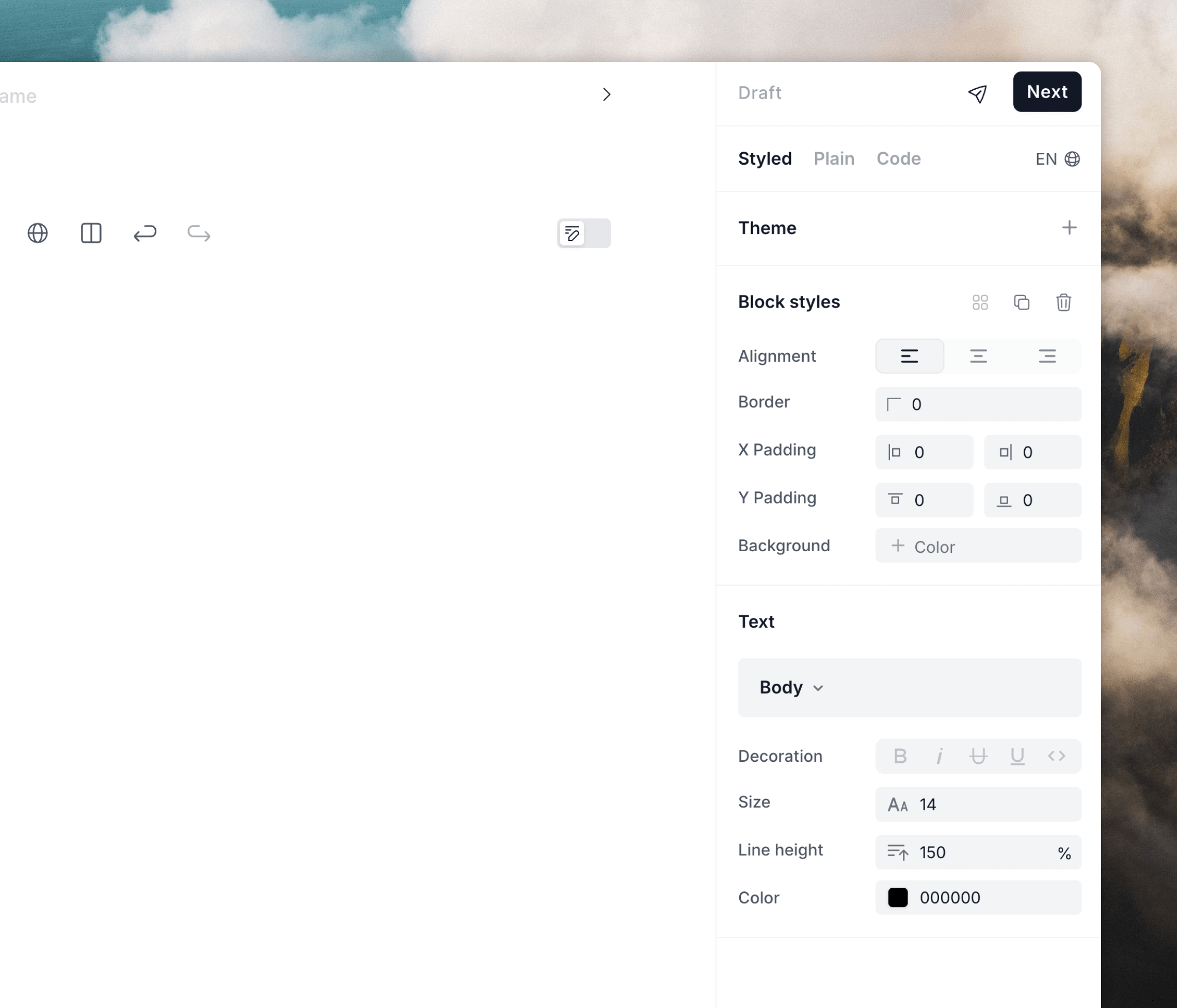 The editor panel changes depending on the currently selected element in your email. For example, if you click on a button, the button formatting options are shown.
There are helpful "Reset to default" icons if you ever want to return styling back to the defaults.
The editor panel changes depending on the currently selected element in your email. For example, if you click on a button, the button formatting options are shown.
There are helpful "Reset to default" icons if you ever want to return styling back to the defaults.
 ### Language selector
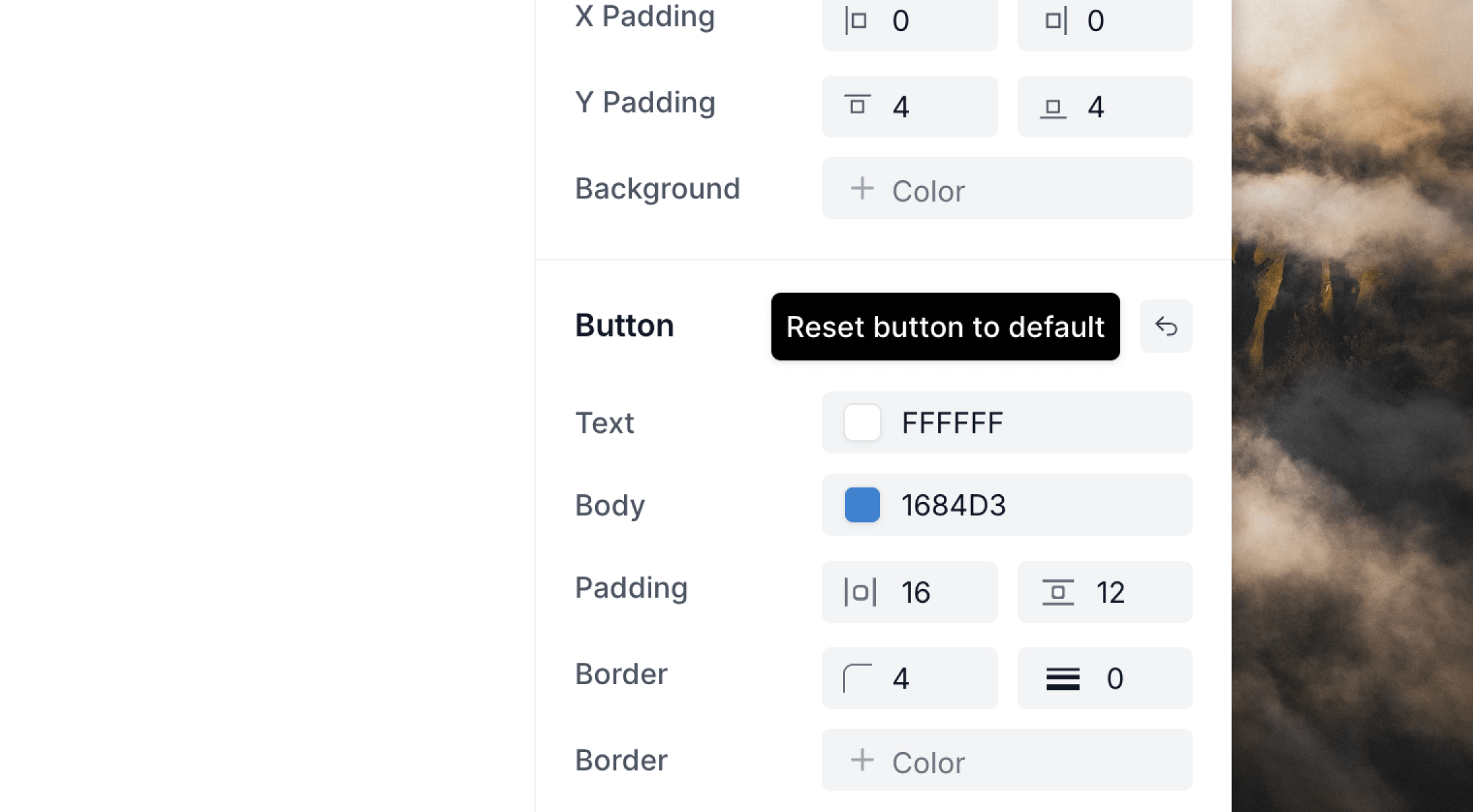
We've included a helpful language selector in the style panel. Using this will tell email clients which language your emails are written in. (It will not translate your emails.)
You can [translate emails inside
Loops](/creating-emails/translating-emails-with-ai).
This increases the accessibility of your emails, plus some email clients may use this language information to auto-translate email content or offer translation options.
The language selector does not have a default value. We recommend selecting the correct language for each of your emails.
### Language selector
We've included a helpful language selector in the style panel. Using this will tell email clients which language your emails are written in. (It will not translate your emails.)
You can [translate emails inside
Loops](/creating-emails/translating-emails-with-ai).
This increases the accessibility of your emails, plus some email clients may use this language information to auto-translate email content or offer translation options.
The language selector does not have a default value. We recommend selecting the correct language for each of your emails.
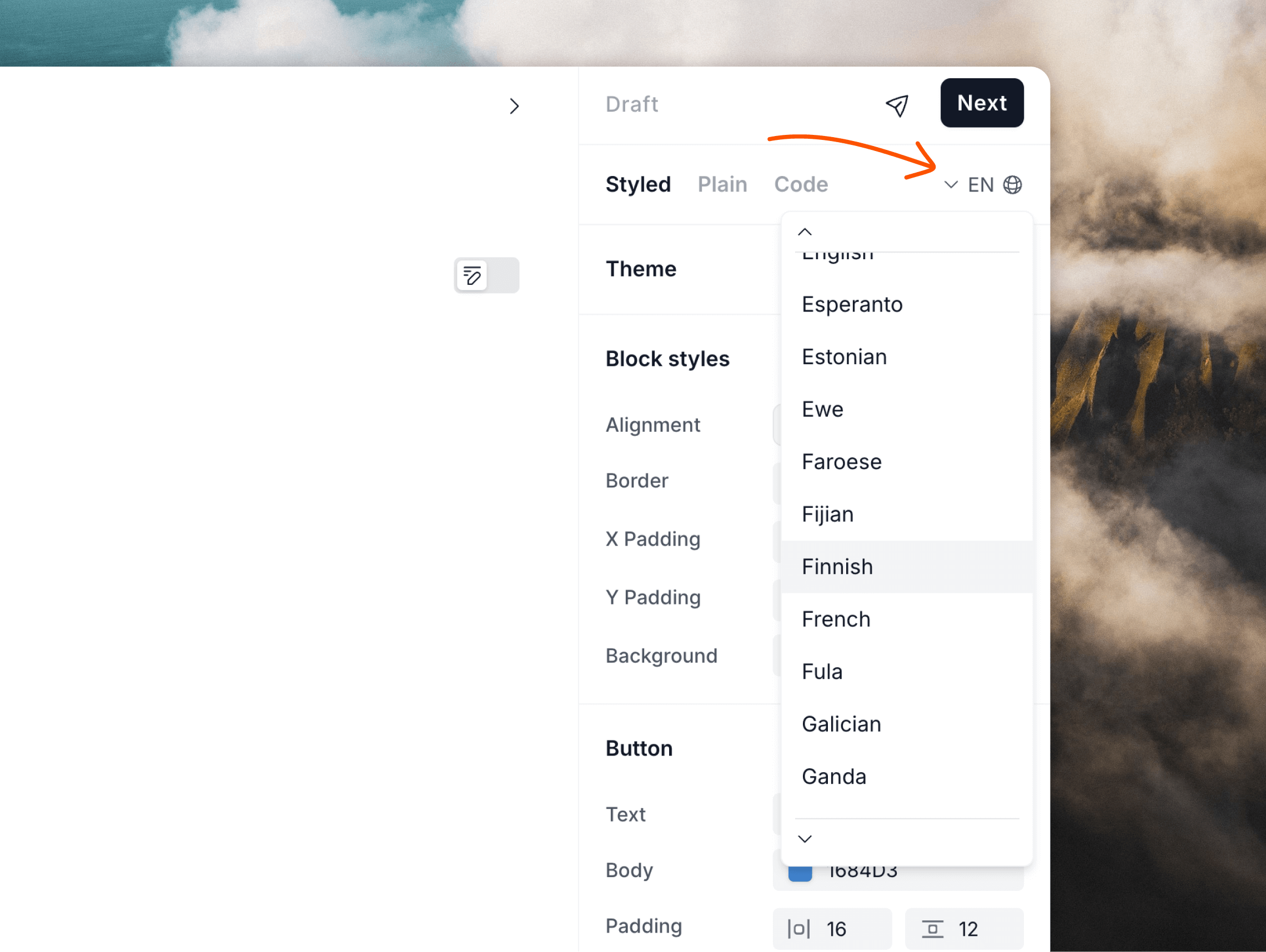 If you send campaigns and workflows in different languages, we recommend using a [custom contact property](/contacts/properties#custom-contact-properties) to store language information for each contact. Then, when it comes to sending emails, create emails in different languages (using the language switcher to specify the language), and [filter your audience](/contacts/filters-segments#audience-filters) for each email to match the language stored for each contact.
For transactional emails, create a new email in each required language. You will need to store language information for each recipient in your application and map transactional IDs to their respective language groups.
## Themes
Themes let you create repeatable styles that can be easily applied to new emails.
Once applied, a theme can be tweaked on each email and changes will also be synced back to the main style set. This makes the same change happen on any other email that the theme is applied to.
Themes are not available on Plain mode emails.
### Create a theme
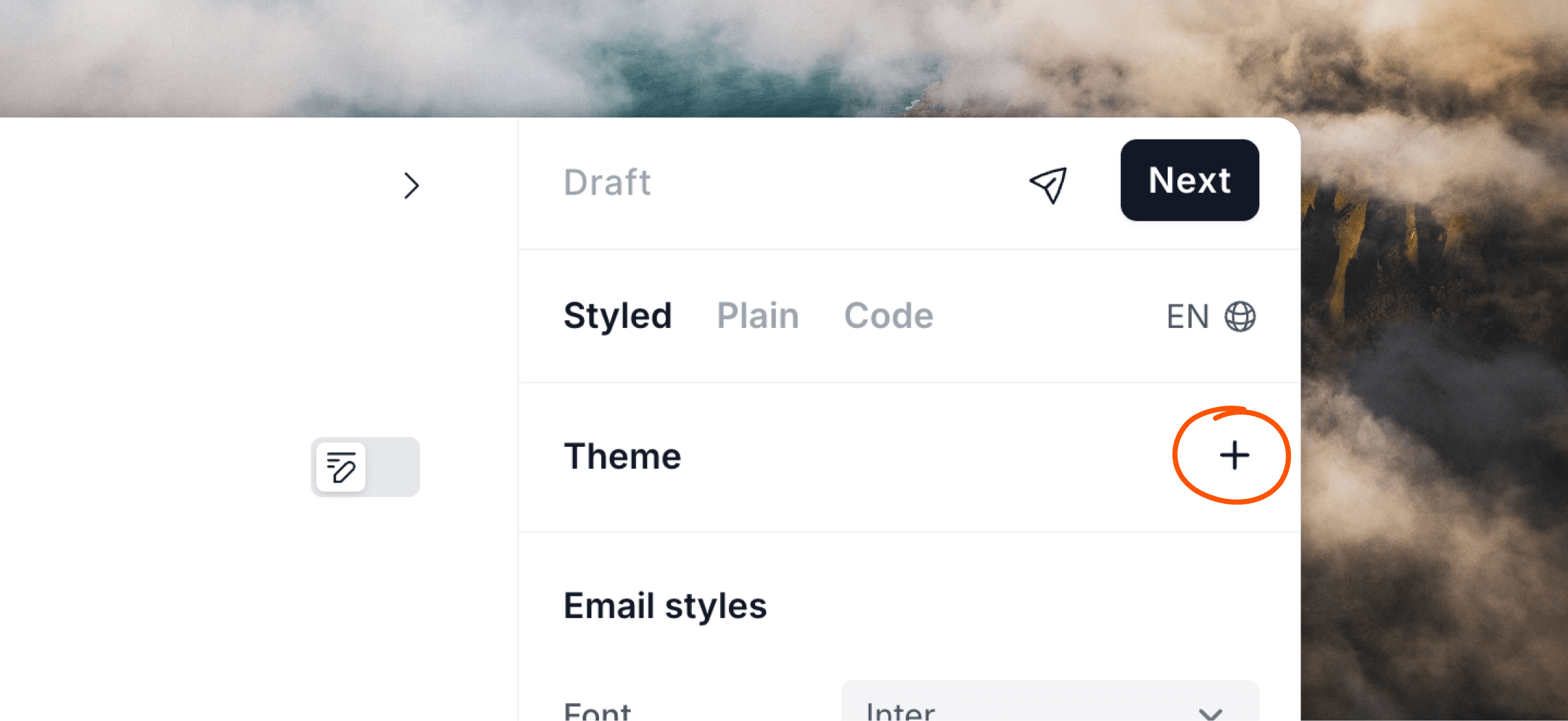
To create a theme, click the `+` plus icon in the **Theme** editor panel.
If you send campaigns and workflows in different languages, we recommend using a [custom contact property](/contacts/properties#custom-contact-properties) to store language information for each contact. Then, when it comes to sending emails, create emails in different languages (using the language switcher to specify the language), and [filter your audience](/contacts/filters-segments#audience-filters) for each email to match the language stored for each contact.
For transactional emails, create a new email in each required language. You will need to store language information for each recipient in your application and map transactional IDs to their respective language groups.
## Themes
Themes let you create repeatable styles that can be easily applied to new emails.
Once applied, a theme can be tweaked on each email and changes will also be synced back to the main style set. This makes the same change happen on any other email that the theme is applied to.
Themes are not available on Plain mode emails.
### Create a theme
To create a theme, click the `+` plus icon in the **Theme** editor panel.
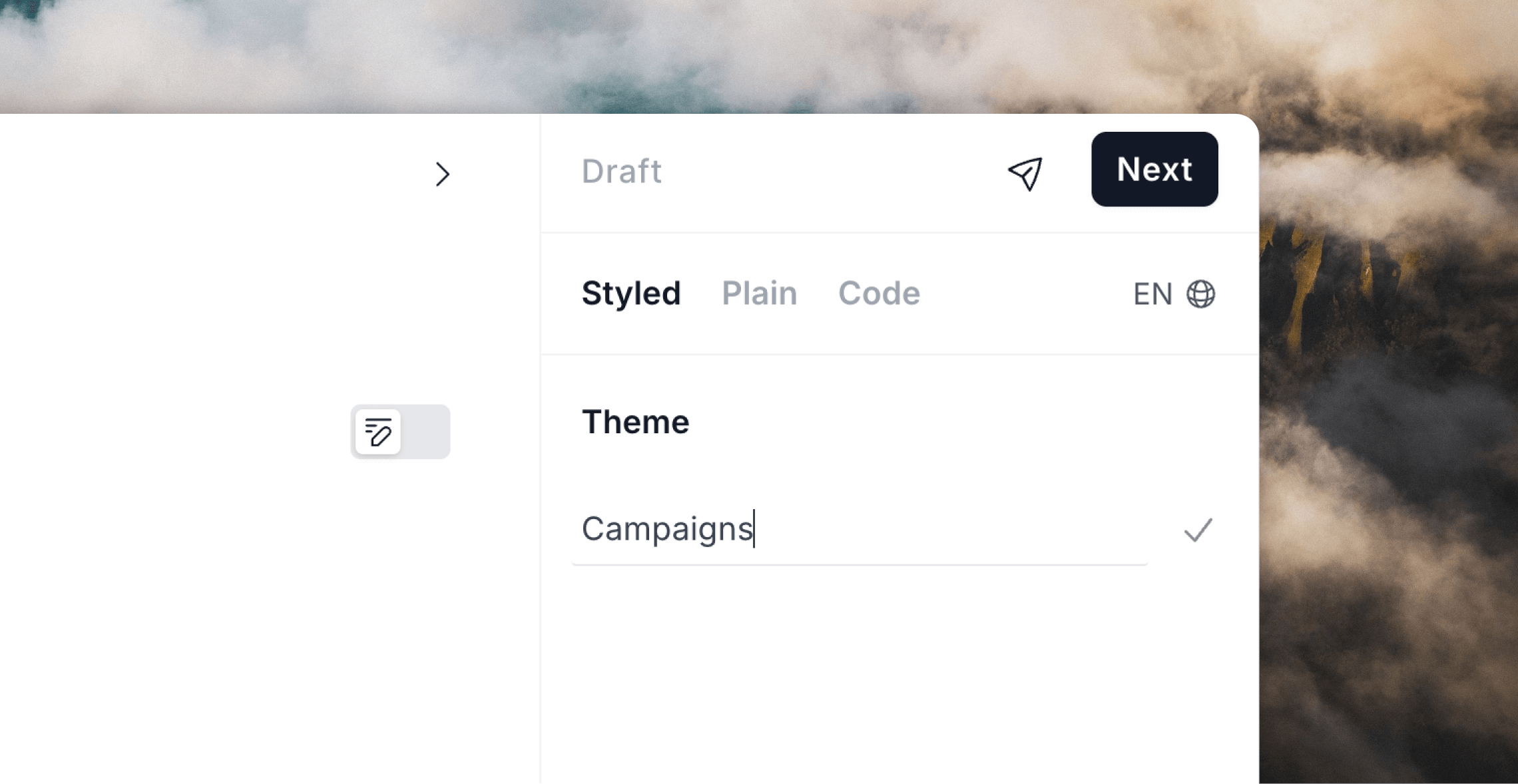
 Give your theme a name and click the `✓` check icon or press Enter. This will create a theme based on the current styling options selected in the style panel and apply it to the current email.
 You can now also add this theme to other emails.
### Apply a theme to an email
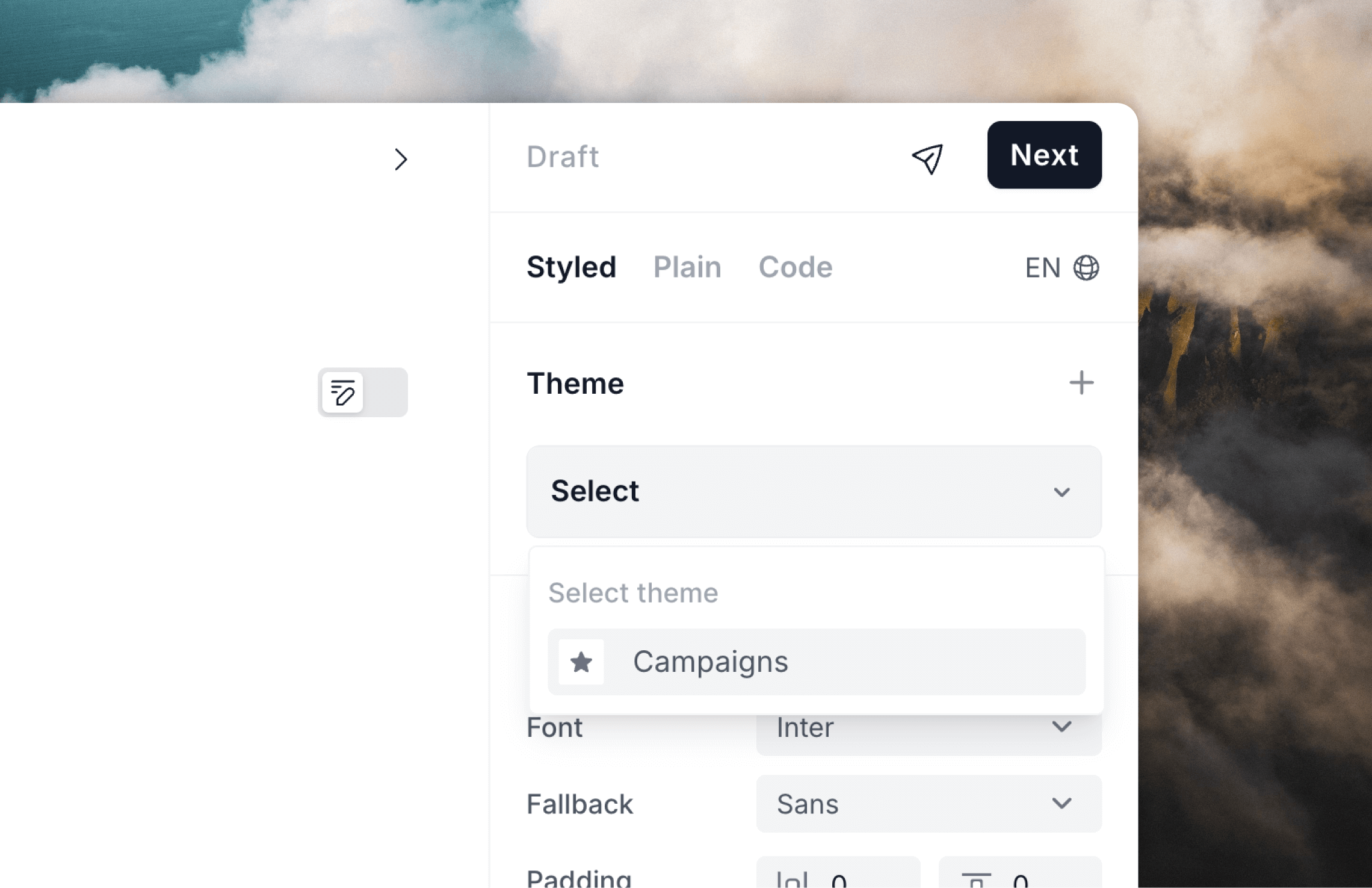
To add an existing theme to an email, click the **Select** dropdown in the **Theme** editor panel and select your desired theme.
You can now also add this theme to other emails.
### Apply a theme to an email
To add an existing theme to an email, click the **Select** dropdown in the **Theme** editor panel and select your desired theme.
 ### Edit a theme
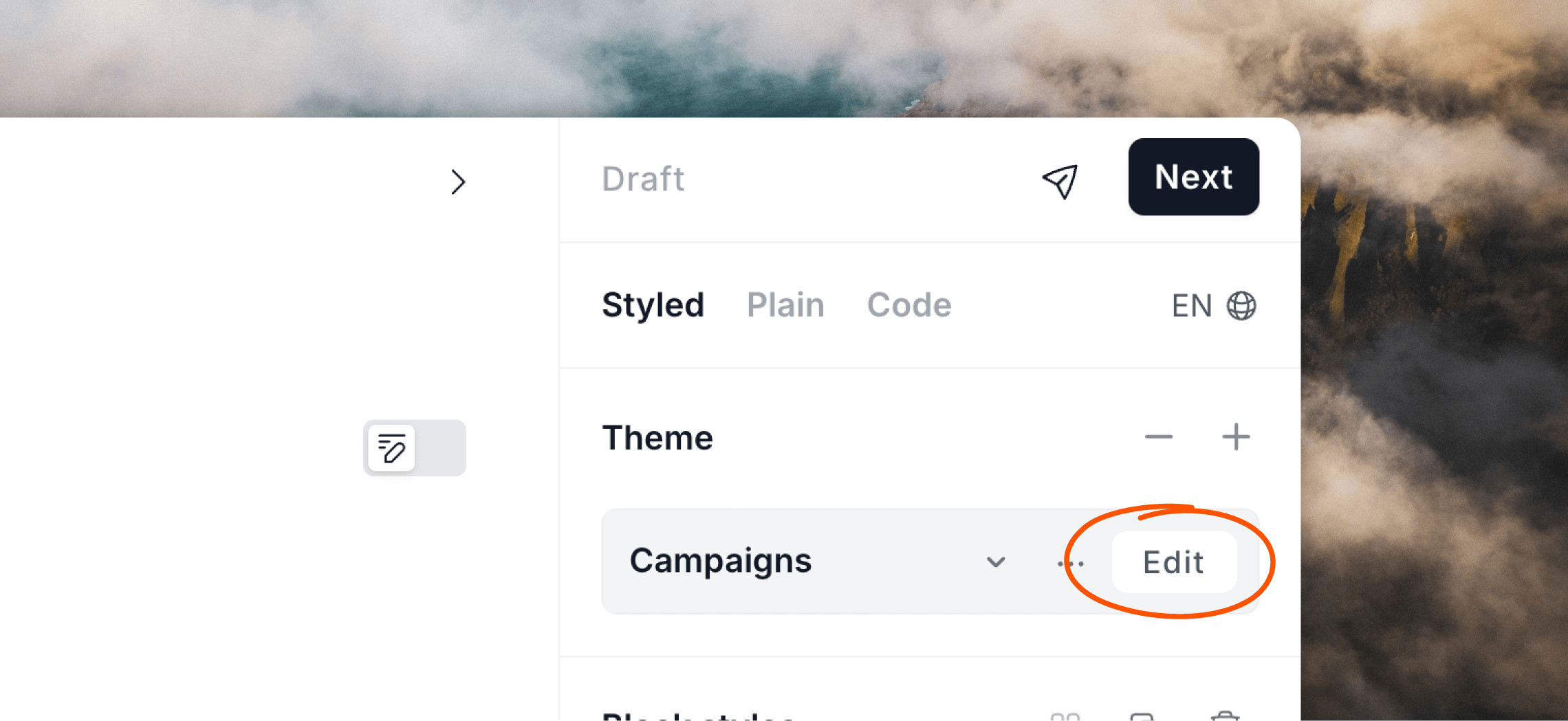
To edit a theme, first open an email with it applied, or apply it to an email. Then click **Edit** to open the theme editor panel.
### Edit a theme
To edit a theme, first open an email with it applied, or apply it to an email. Then click **Edit** to open the theme editor panel.
 When individual styles are changed, you'll notice they are highlighted in purple, which denotes styles that have deviated from the main theme.
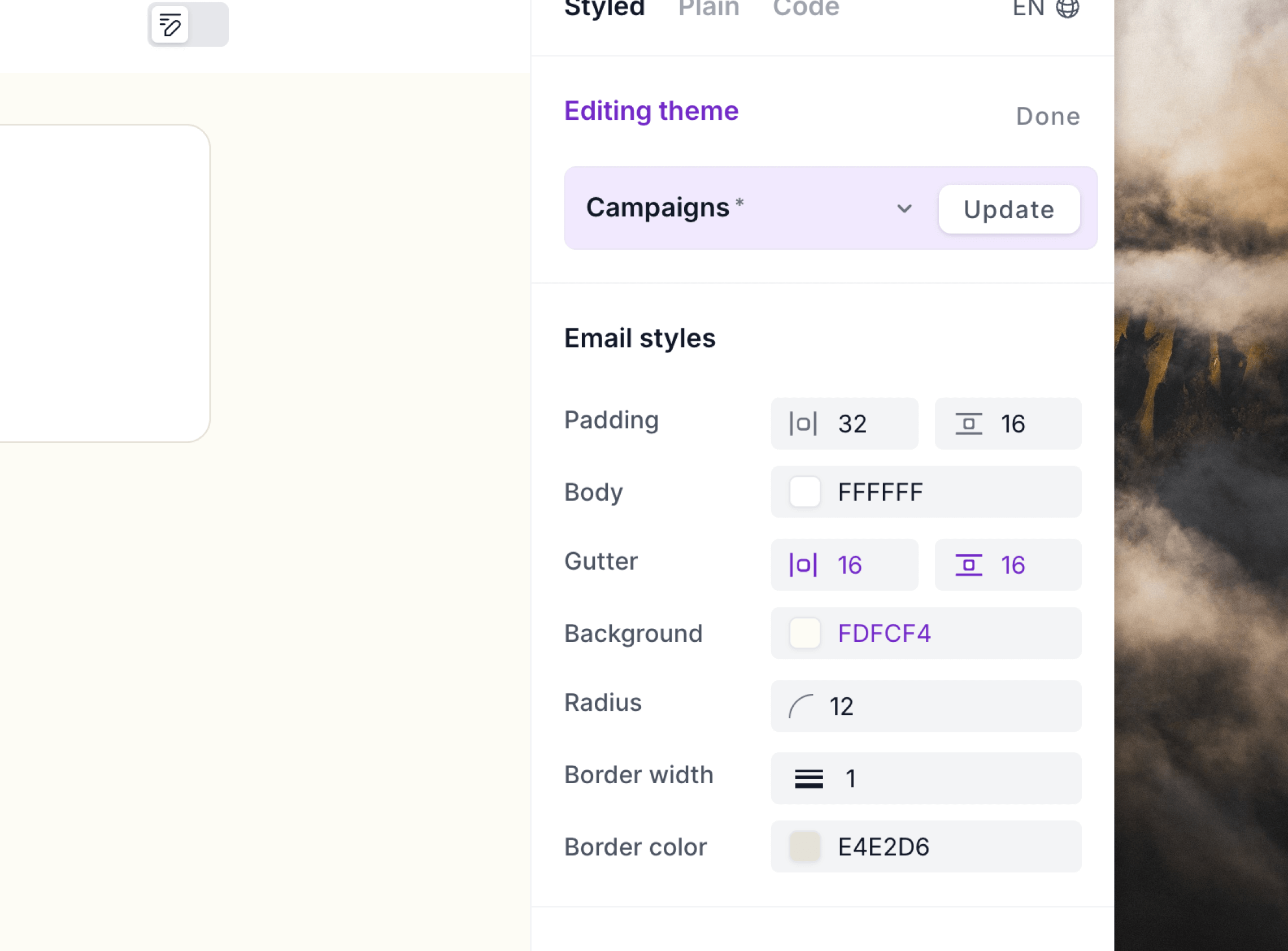 A purple **Update** button also appears. Clicking this button updates the theme and also *applies the changes to all emails that have the theme applied*. This makes it really easy to change styles across many emails at once.
### Make one-off changes to a theme
You are free to make one-off custom design changes to an individual email. If you avoid clicking the **Update** button shown above, changes will not be synced to all other emails using the theme.
Any subsequent updates made to the underlying theme will be synced to your email but your individual style changes made directly on the email will override any synced changes.
### Reset to a theme's defaults
After making design changes to an email with a theme applied, you can get back to the theme's defaults by using the `⤺` reset icons.
You can reset styles for each of the **Email styles**, **Text**, **Button** and **Divider** sections individually.
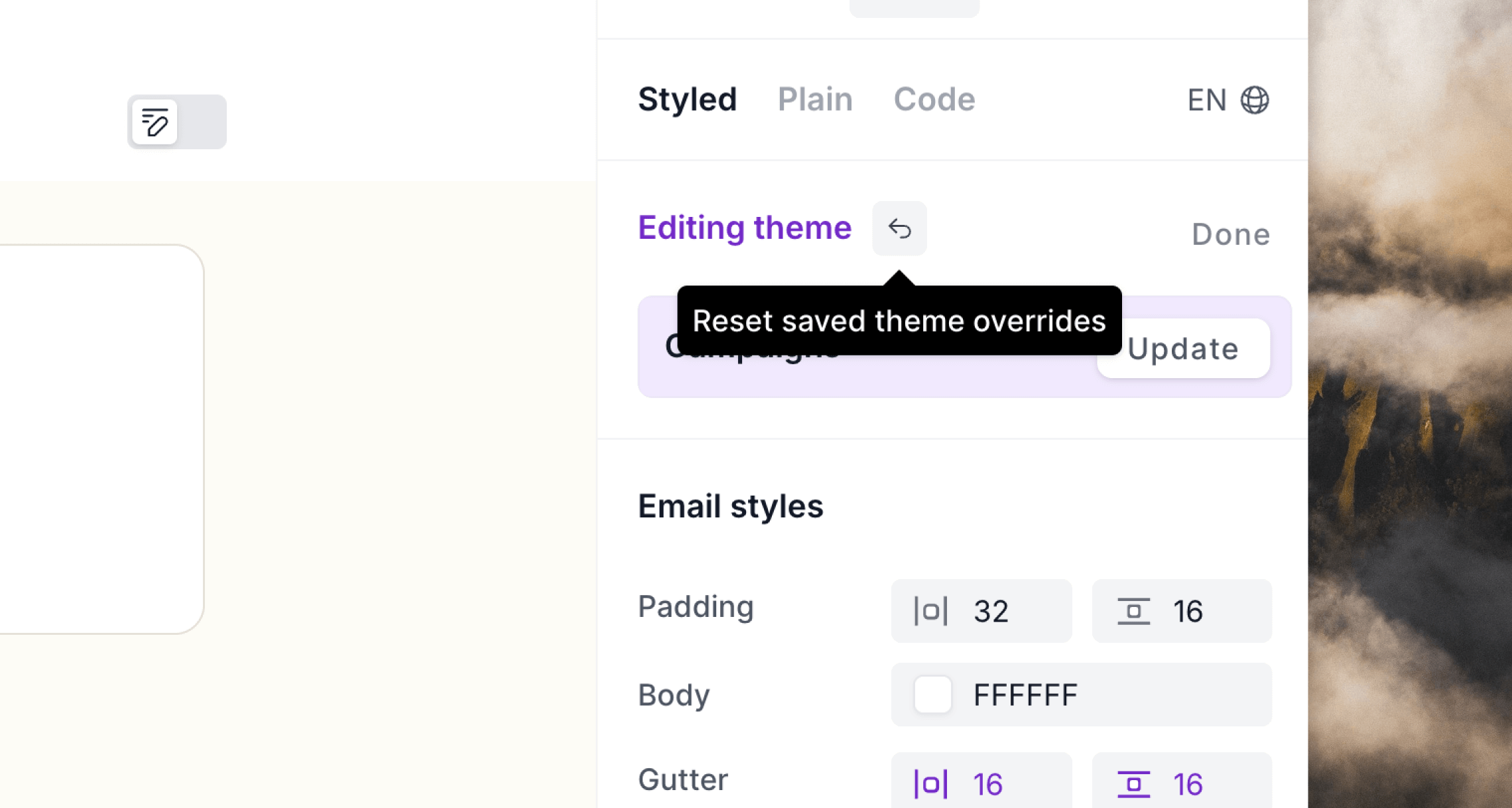
Or if you want to reset all current edits, hover over the **Editing theme** panel at the top and click the reset button there.
This will re-apply the theme's original design to your email and remove *all* current overrides.
A purple **Update** button also appears. Clicking this button updates the theme and also *applies the changes to all emails that have the theme applied*. This makes it really easy to change styles across many emails at once.
### Make one-off changes to a theme
You are free to make one-off custom design changes to an individual email. If you avoid clicking the **Update** button shown above, changes will not be synced to all other emails using the theme.
Any subsequent updates made to the underlying theme will be synced to your email but your individual style changes made directly on the email will override any synced changes.
### Reset to a theme's defaults
After making design changes to an email with a theme applied, you can get back to the theme's defaults by using the `⤺` reset icons.
You can reset styles for each of the **Email styles**, **Text**, **Button** and **Divider** sections individually.
Or if you want to reset all current edits, hover over the **Editing theme** panel at the top and click the reset button there.
This will re-apply the theme's original design to your email and remove *all* current overrides.
 ### Remove a theme from an email
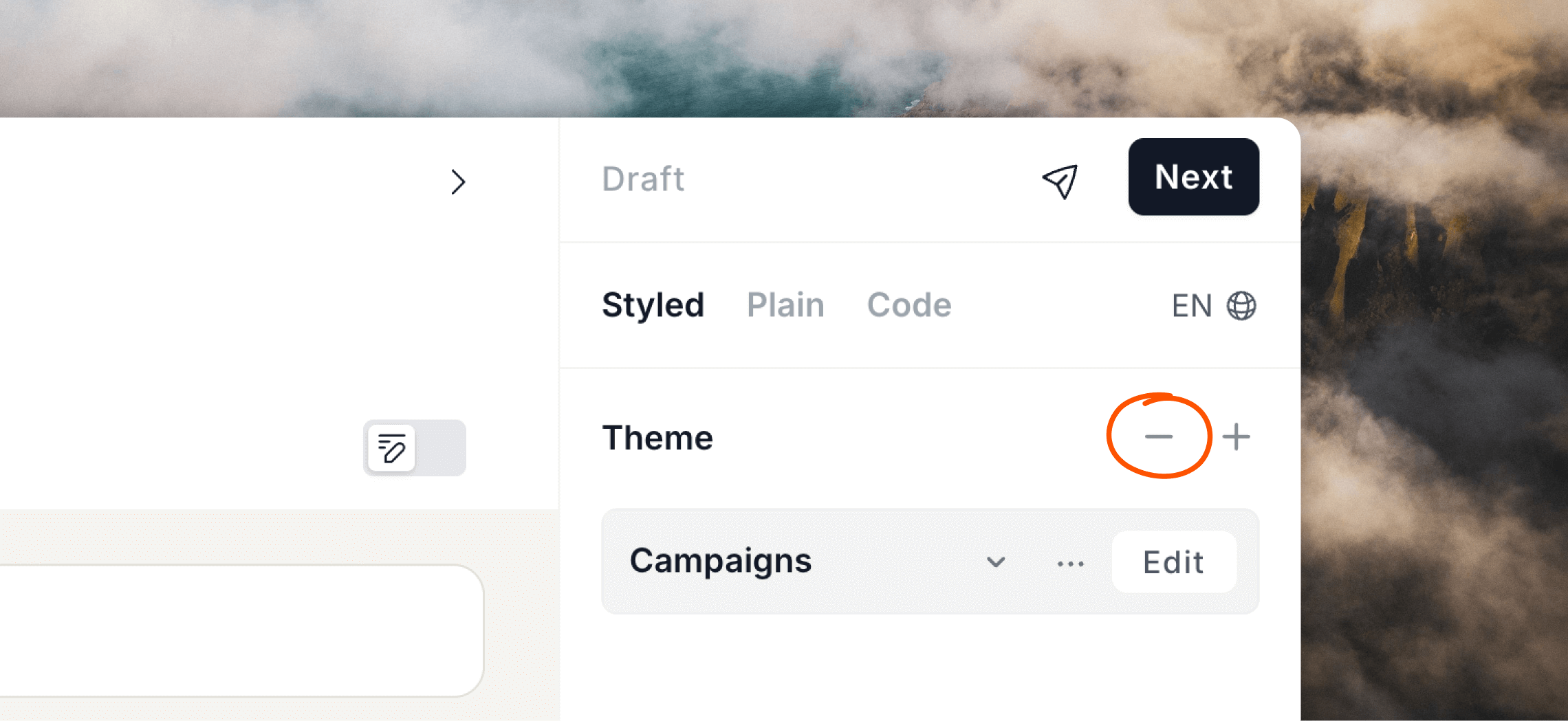
To remove a theme from an email click on the `–` minus icon in the **Theme** editor panel.
This will revert back to any styles directly applied to the email before the theme was applied.
### Remove a theme from an email
To remove a theme from an email click on the `–` minus icon in the **Theme** editor panel.
This will revert back to any styles directly applied to the email before the theme was applied.
 ### Duplicate a theme
To create a new theme based on the current one, you can duplicate by clicking the `•••` menu icon and selecting **Duplicate**.
### Duplicate a theme
To create a new theme based on the current one, you can duplicate by clicking the `•••` menu icon and selecting **Duplicate**.
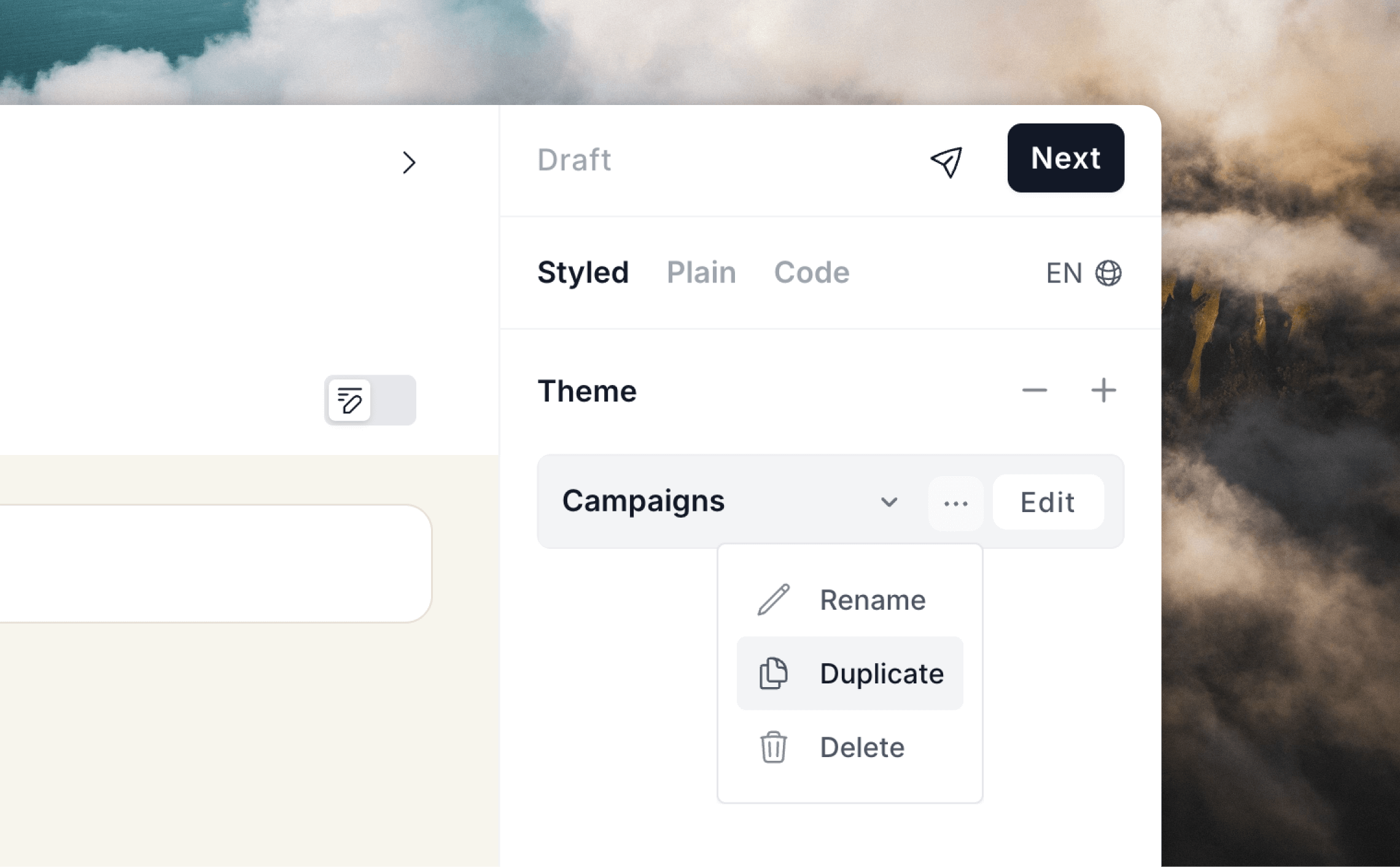 Give your new theme a new name then click the `✓` check icon or press Enter to save.
This will create a new theme using the current styles and apply it to your email.
### Delete a theme
To delete a theme from your account, make sure the theme is applied to the email you have open and then click the `•••` menu icon and select **Delete**.
To make sure there are no unintended design changes to emails in your account, the settings from the deleted theme will get applied individually to each email it was active on.
However, please note that any overrides made to the theme in the affected emails will still be retained even after the style is deleted.
Give your new theme a new name then click the `✓` check icon or press Enter to save.
This will create a new theme using the current styles and apply it to your email.
### Delete a theme
To delete a theme from your account, make sure the theme is applied to the email you have open and then click the `•••` menu icon and select **Delete**.
To make sure there are no unintended design changes to emails in your account, the settings from the deleted theme will get applied individually to each email it was active on.
However, please note that any overrides made to the theme in the affected emails will still be retained even after the style is deleted.