> ## Documentation Index
> Fetch the complete documentation index at: https://loops.so/docs/llms.txt
> Use this file to discover all available pages before exploring further.
# Sending settings
> Set sender name, from/reply, subject/preview, and CC/BCC for emails you send with Loops.
You can set sending settings on every email you send.
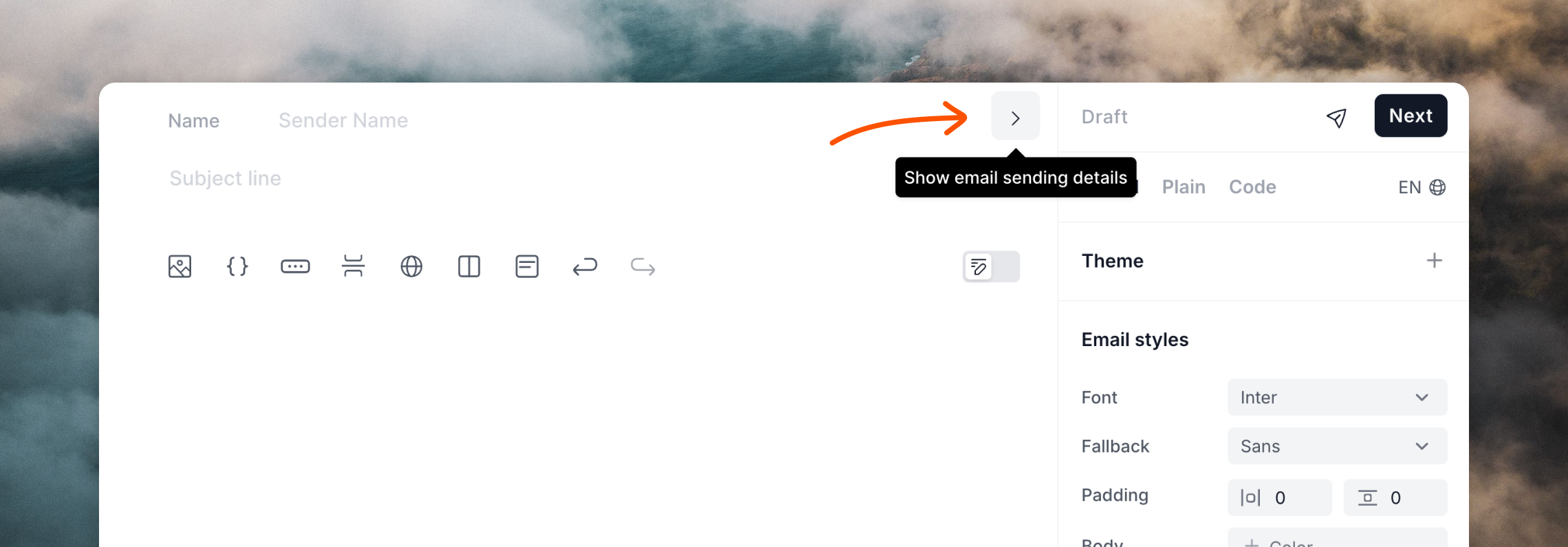
There are a set of fields above the email editor, including **From** and **Reply** addresses, **Subject**, **Preview**, **CC** and **BCC**.
Click the `>` button to reveal all of the fields.
 ## Subject and Preview
These two fields let you specify the text that is shown in email lists in email clients.
The **Subject** field should be short and concise. We recommend using a subject line of less than 50 characters and 10 words. This helps to get your point across while also keeping within cut-offs for different email clients.
The **Preview** field can be used as a sub-title or introduction to your email. It is typically displayed next to or below your subject in email clients.
Note that some email clients do not display previews or offer settings for users to hide previews.
If you do not add a preview to your email, sometimes the beginning of your email content will be displayed instead.
## Name, From and Reply
## Subject and Preview
These two fields let you specify the text that is shown in email lists in email clients.
The **Subject** field should be short and concise. We recommend using a subject line of less than 50 characters and 10 words. This helps to get your point across while also keeping within cut-offs for different email clients.
The **Preview** field can be used as a sub-title or introduction to your email. It is typically displayed next to or below your subject in email clients.
Note that some email clients do not display previews or offer settings for users to hide previews.
If you do not add a preview to your email, sometimes the beginning of your email content will be displayed instead.
## Name, From and Reply
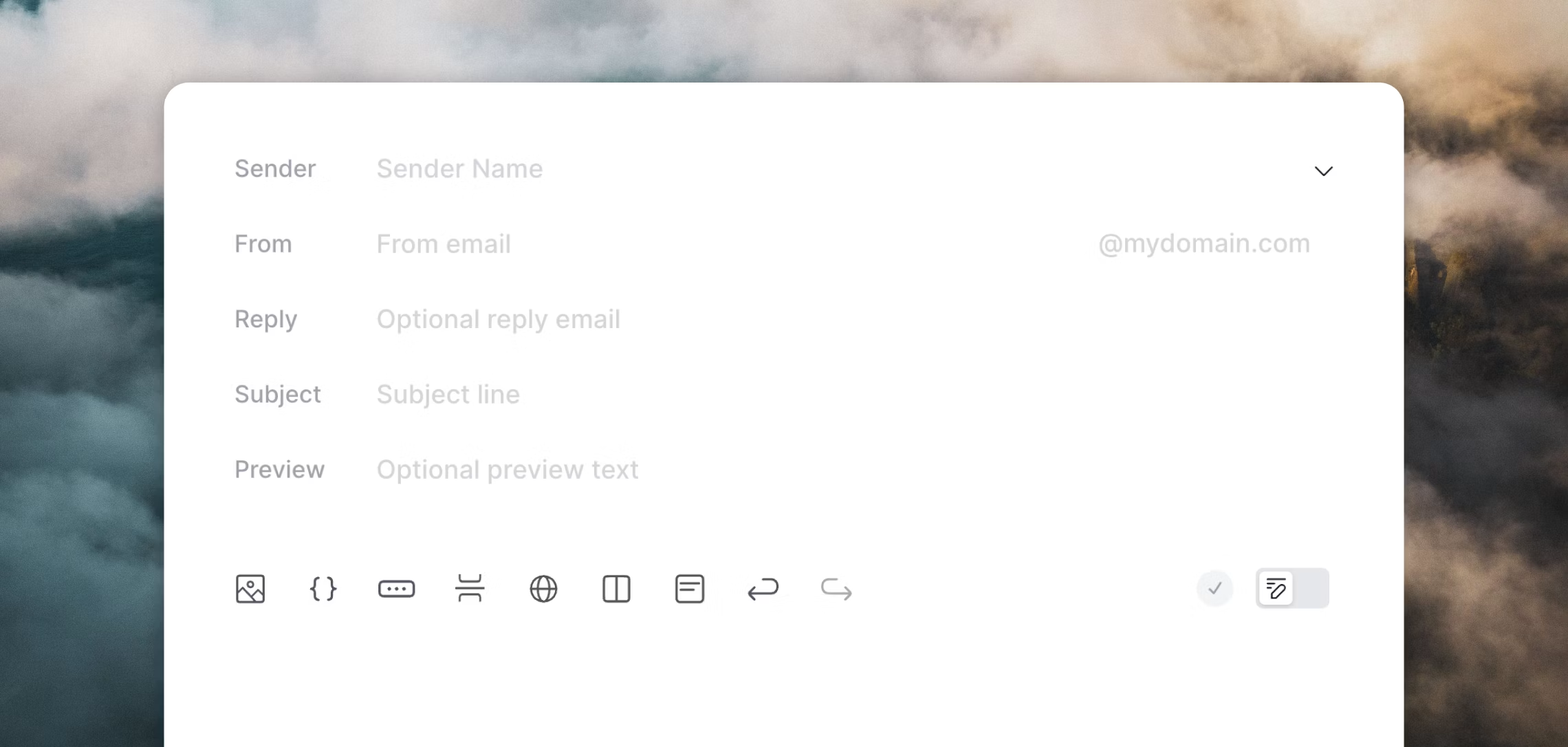 These fields are used to populate the **From** and **Reply** fields in email clients. They are information fields, helping recipients know who sent the email.
**Name** should be the sender name (person or entity) and the **From** field is used to make up the sending address (it is combined with your sending domain).
The **Reply** field is optional but can be used to specify an email address that you want replies sent to. When a recipient clicks "Reply" in their email client, this email address will be inserted into the **To** field automatically.
If **Reply** is left blank, replies will be sent to the **From** address instead.
When you create a new email, we automatically inherit the most recently used email address in the **From** field to save you time.
## CC and BCC
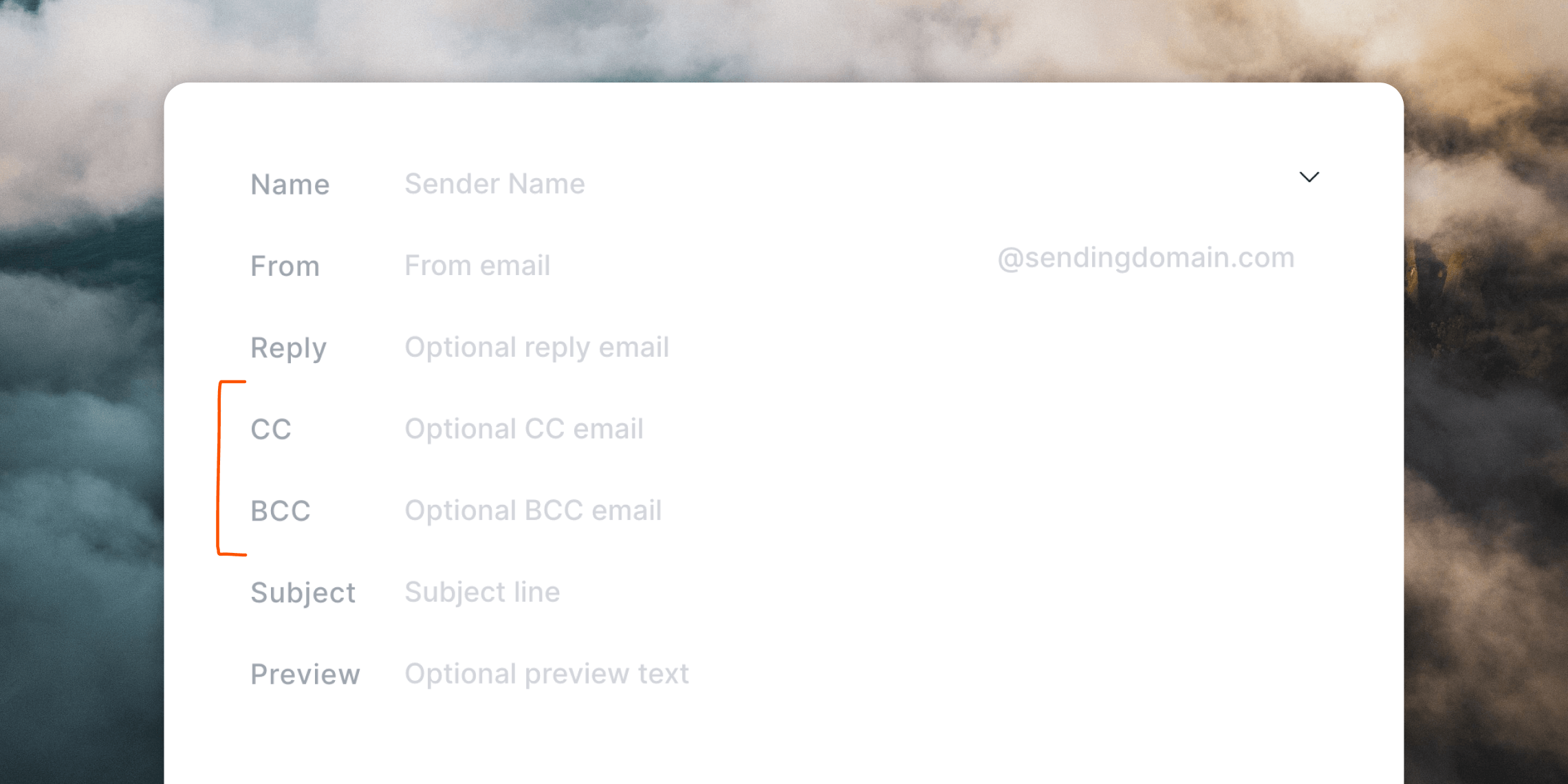
For transactional emails and workflows, you have the option to add a single CC and BCC address, which will send duplicates of each email to the addresses you specify.
Make sure to first enable this option in your [Sending settings](https://app.loops.so/settings?page=sending) to enable these fields in the email editor.
These fields are used to populate the **From** and **Reply** fields in email clients. They are information fields, helping recipients know who sent the email.
**Name** should be the sender name (person or entity) and the **From** field is used to make up the sending address (it is combined with your sending domain).
The **Reply** field is optional but can be used to specify an email address that you want replies sent to. When a recipient clicks "Reply" in their email client, this email address will be inserted into the **To** field automatically.
If **Reply** is left blank, replies will be sent to the **From** address instead.
When you create a new email, we automatically inherit the most recently used email address in the **From** field to save you time.
## CC and BCC
For transactional emails and workflows, you have the option to add a single CC and BCC address, which will send duplicates of each email to the addresses you specify.
Make sure to first enable this option in your [Sending settings](https://app.loops.so/settings?page=sending) to enable these fields in the email editor.
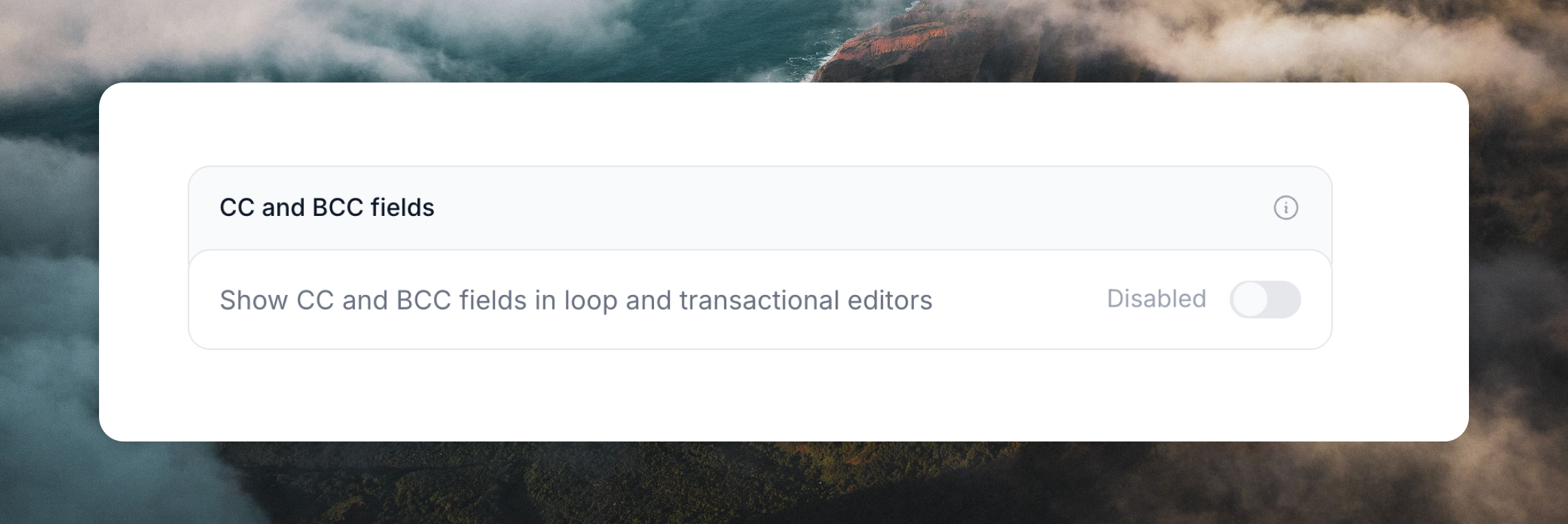 You can then add a CC or BCC to workflow and transactional emails in your account from the sending settings.
 ## Dynamic content
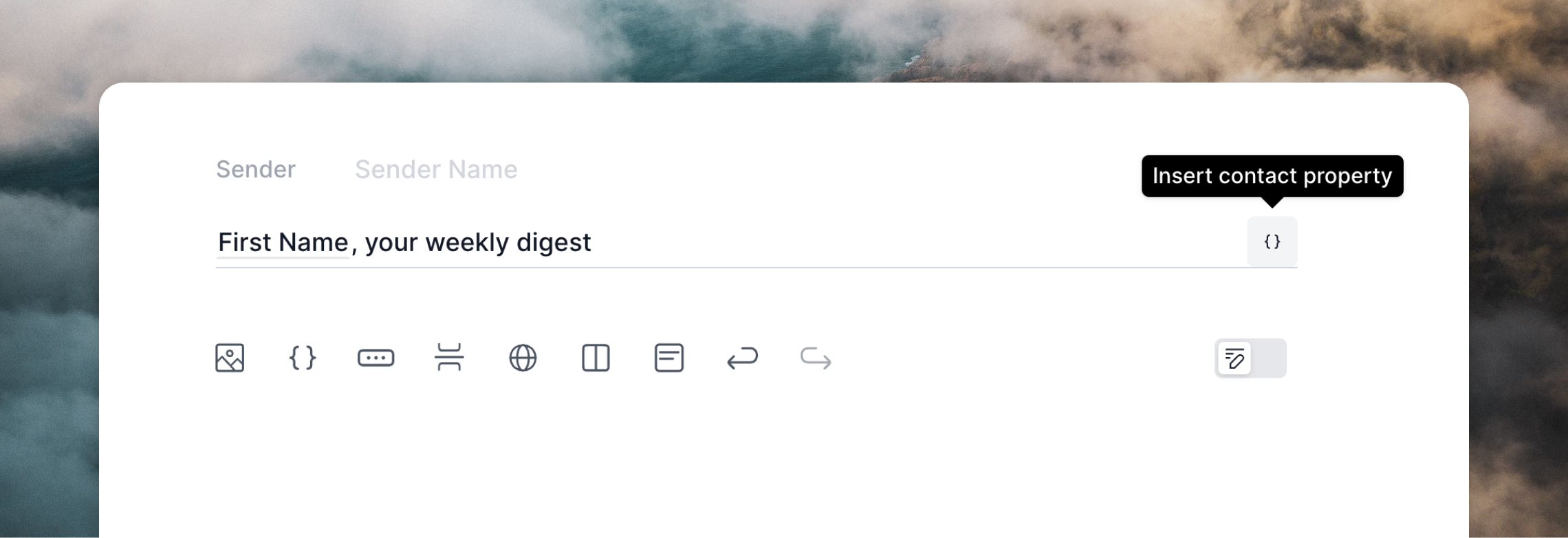
You can include [dynamic variables](/creating-emails/personalizing-emails) in every sending settings field, which lets you personalize them for each recipient. This works for all of your campaigns, workflows and transactional emails.
Just click the contact property icon (campaigns), event property icon (workflows) or data variable icon (transactional emails) that appears when you hover over each field.
## Dynamic content
You can include [dynamic variables](/creating-emails/personalizing-emails) in every sending settings field, which lets you personalize them for each recipient. This works for all of your campaigns, workflows and transactional emails.
Just click the contact property icon (campaigns), event property icon (workflows) or data variable icon (transactional emails) that appears when you hover over each field.
 ### Workflow example
In a workflow email, you can use [event properties](/events/properties) to add dynamic content to fields.
For example, you could insert a `productName` property into the **Subject** field:
> Thank you for your purchase of `productName`!
Then when sending the event to trigger the workflow, include `productName`:
```json {8} theme={"dark"}
{
"email": "test@example.com",
"eventName": "creditWarning",
"eventProperties": {
"creditsPurchased": 1000,
"creditsUsed": 903,
"accountName": "Loops",
"productName": "Pro plan"
}
}
```
Find out more about triggering workflows with events.
### Transactional email example
In a transactional email, an example would be a `replyTo` variable added into the **Reply** field, which would let you set a specific reply email address for every email.
To send this data over the API, add a `replyTo` attribute to your transactional payload:
```json {7} theme={"dark"}
{
"transactionalId": "clfq6dinn000yl70fgwwyp82l",
"email": "test@example.com",
"dataVariables": {
"name": "Chris",
"passwordResetLink": "https://example.com/reset-password",
"replyTo": "chris@loops.so"
}
}
```
Read our guide for sending transactional email with Loops.
### Workflow example
In a workflow email, you can use [event properties](/events/properties) to add dynamic content to fields.
For example, you could insert a `productName` property into the **Subject** field:
> Thank you for your purchase of `productName`!
Then when sending the event to trigger the workflow, include `productName`:
```json {8} theme={"dark"}
{
"email": "test@example.com",
"eventName": "creditWarning",
"eventProperties": {
"creditsPurchased": 1000,
"creditsUsed": 903,
"accountName": "Loops",
"productName": "Pro plan"
}
}
```
Find out more about triggering workflows with events.
### Transactional email example
In a transactional email, an example would be a `replyTo` variable added into the **Reply** field, which would let you set a specific reply email address for every email.
To send this data over the API, add a `replyTo` attribute to your transactional payload:
```json {7} theme={"dark"}
{
"transactionalId": "clfq6dinn000yl70fgwwyp82l",
"email": "test@example.com",
"dataVariables": {
"name": "Chris",
"passwordResetLink": "https://example.com/reset-password",
"replyTo": "chris@loops.so"
}
}
```
Read our guide for sending transactional email with Loops.