> ## Documentation Index
> Fetch the complete documentation index at: https://loops.so/docs/llms.txt
> Use this file to discover all available pages before exploring further.
# Images
> Insert and link images in Loops emails, including dynamic images sourced from contact properties, event properties, or data variables.
Add images:
* by using the image button in the editor toolbar
* by dragging or pasting images into the editor
* by typing `/` in the editor and selecting **Image**
* by hovering over an existing element in your email and clicking the `+` plus icon on the left and selecting **Image**
Images must be under 4 MB in size.
Add a link to an image by selecting the element and then clicking the `+` button in the **Link** editor panel on the right.
## Dynamic images
You can also insert images hosted outside of Loops into your emails.
First, add a placeholder image to your email (which you can use to specify the location and size of the image) and then click `+` in the **Dynamic source** section in the right-hand panel.
Keep in mind that any images you insert must be publicly accessible and the
URL must end with a supported image file extension for email (like `.jpg` or
`.png`). Additionally, these images should be hosted for a period of time that
is relevant to the email's lifecycle as they will not be stored in Loops.
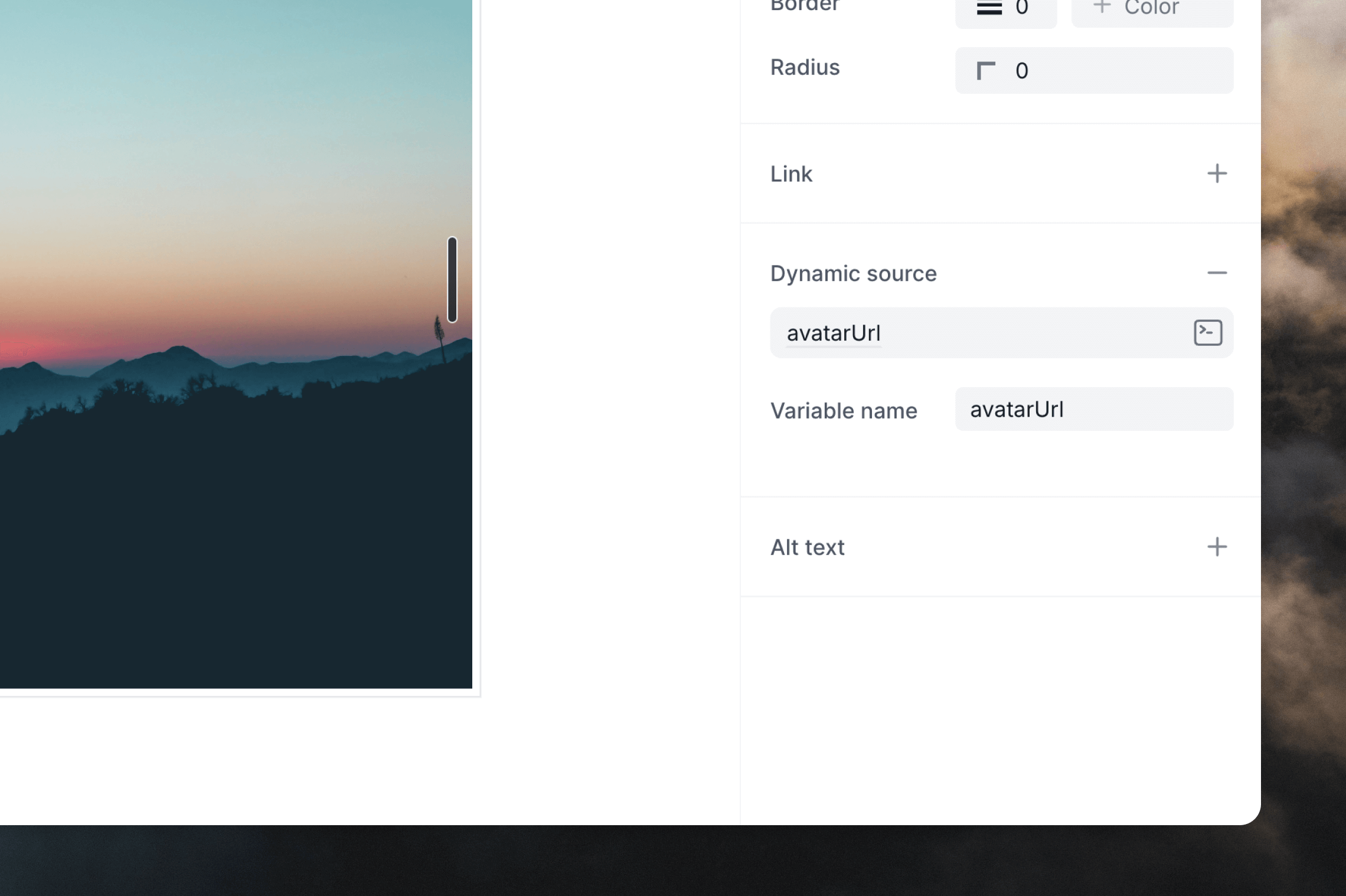
Paste in an image URL or add create dynamic URLs by clicking the icon on the right.
For example, you could insert an `imageUrl` data variable in a transactional email, or use an `avatarUrl` custom contact property in a campaign.
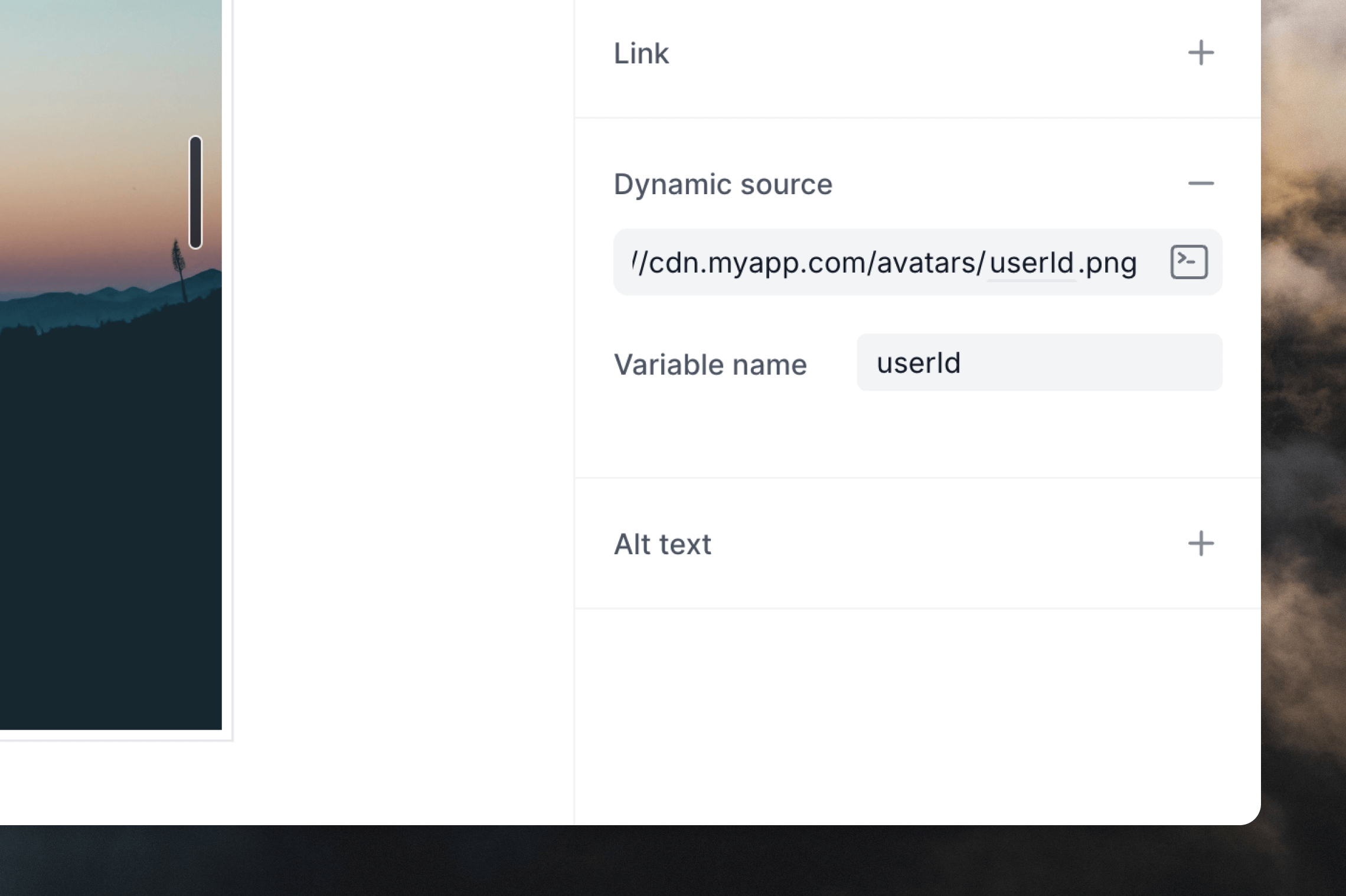
 You can also create dynamic URLs by combining text and dynamic content inside the image source field.
 The placeholder image in the editor will not update when you add a dynamic
source. In order to test dynamic images, you can send [preview
emails](/sending-first-email#preview-your-email).
Note that, just as with other dynamic content, if the contact or event
property used for your dynamic image is missing, the email will not be sent.
The placeholder image in the editor will not update when you add a dynamic
source. In order to test dynamic images, you can send [preview
emails](/sending-first-email#preview-your-email).
Note that, just as with other dynamic content, if the contact or event
property used for your dynamic image is missing, the email will not be sent.