> ## Documentation Index
> Fetch the complete documentation index at: https://loops.so/docs/llms.txt
> Use this file to discover all available pages before exploring further.
# Columns
> Arrange email content side-by-side with layouts of 2 to 4 columns.
Columns allow you to arrange content side by side, creating dynamic layouts for your emails. You can use columns to place elements like images, text, buttons, and more next to each other.
You can use layouts of 2 to 4 columns. Nesting columns within columns is not
yet supported.
## Adding columns
You can add columns to your email in several ways:
* **Using the editor toolbar**: Click on the columns icon to insert a column layout.
* **Using the `/` slash menu in the editor**: Type `/` to open the slash menu then start typing "columns" or click on the **Columns** option.
* **Using the `+` icon**: hover over an existing element in your email and click the `+` plus icon on the left, then select **Columns**.
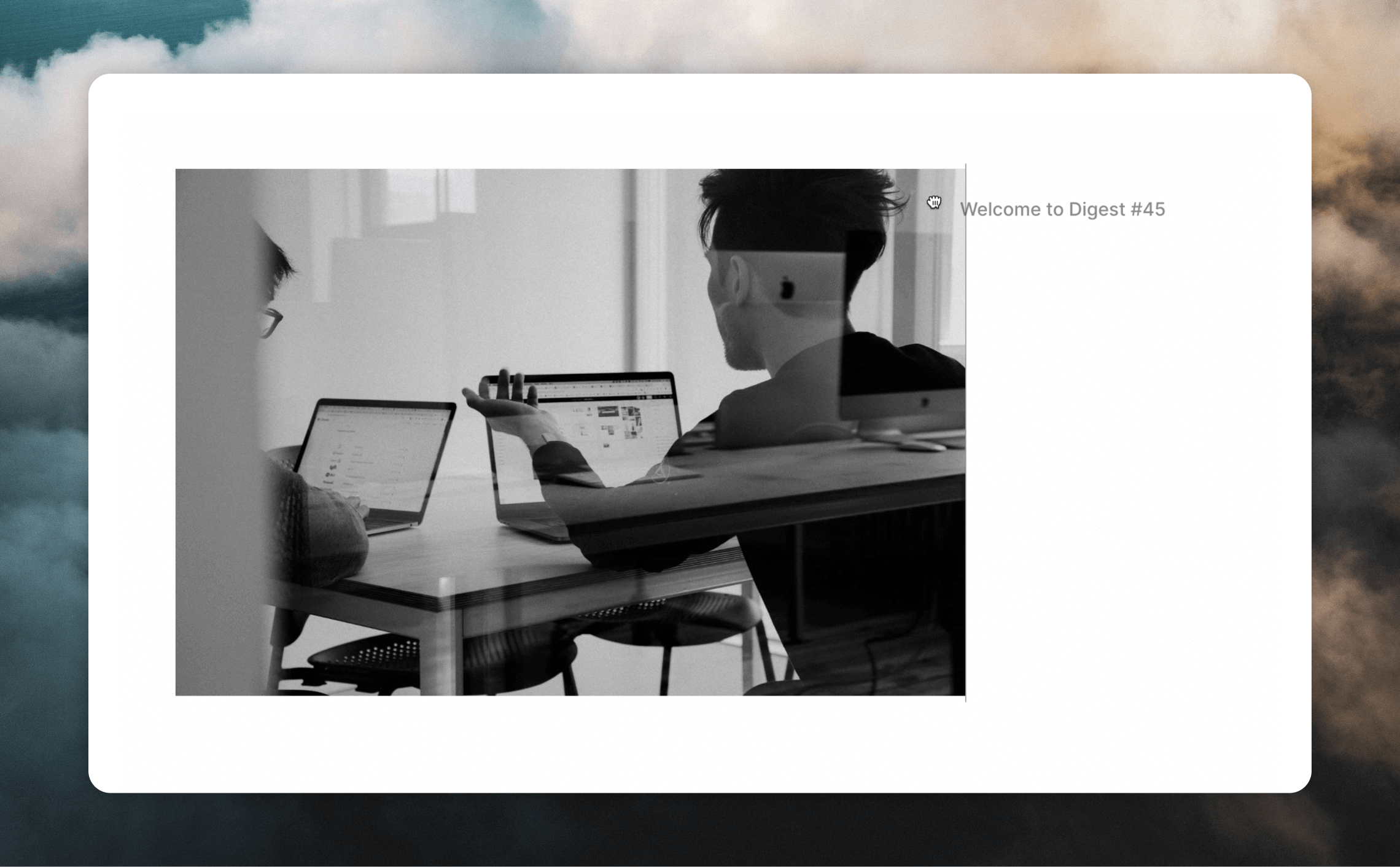
* **Dragging two blocks together**: Click and hold the block settings icon (six dots) to the left of a block. Drag the block next to another one until you see a vertical gray line on the right, which indicates a new column will be created.
 ## Customizing columns
Once you've added columns, you can customize their appearance and behavior to suit your design needs.
### Number of columns
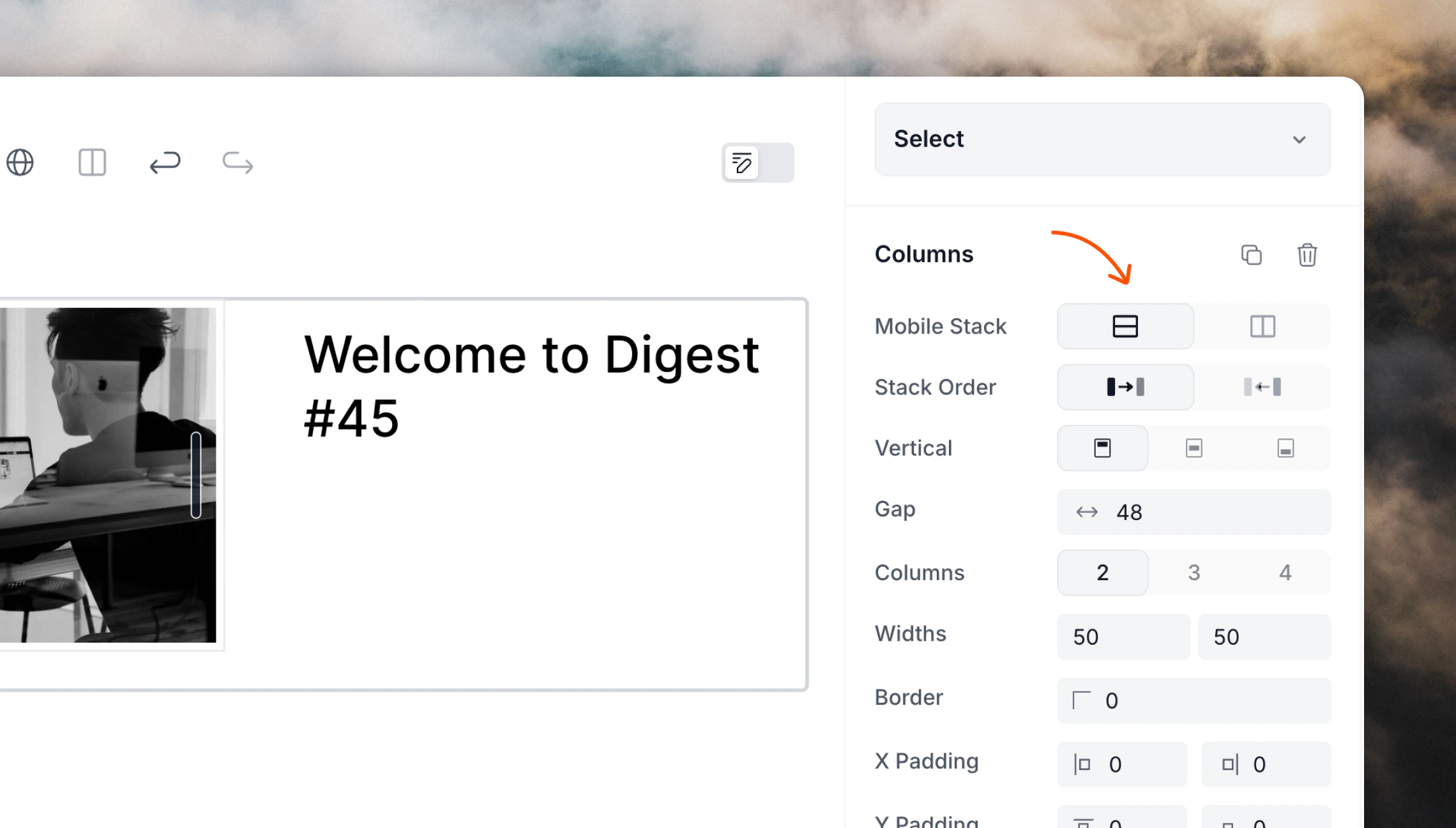
You can choose the number of columns you want to use by clicking on the number of columns you want to use in the **Block styles** editor panel.
## Customizing columns
Once you've added columns, you can customize their appearance and behavior to suit your design needs.
### Number of columns
You can choose the number of columns you want to use by clicking on the number of columns you want to use in the **Block styles** editor panel.
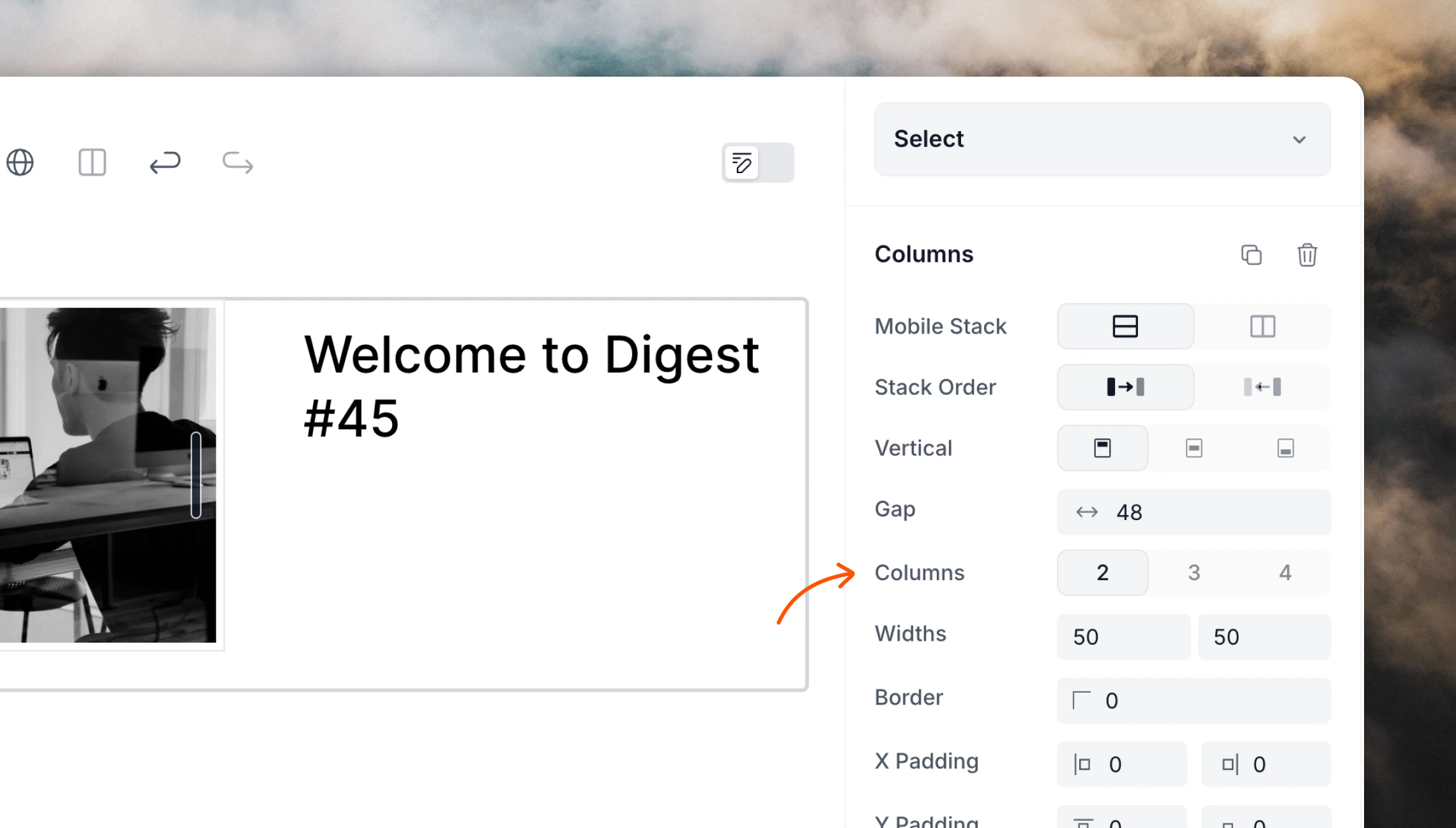 If you decrease the number of columns, the content of the farthest right column is moved to the bottom of the new right-most column.
### Width and spacing
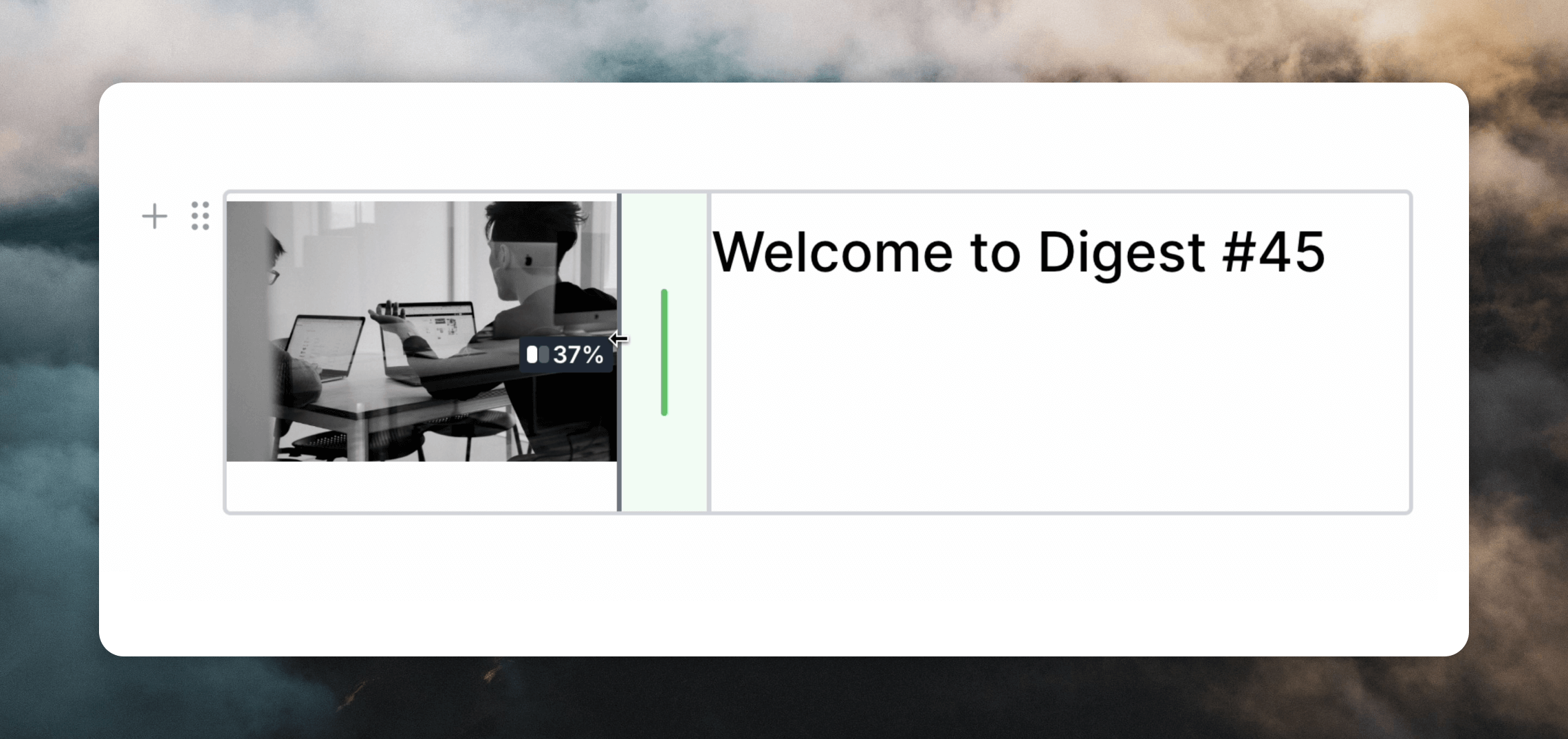
You can adjust the width of a column by clicking and dragging the gray bar between the columns.
If you decrease the number of columns, the content of the farthest right column is moved to the bottom of the new right-most column.
### Width and spacing
You can adjust the width of a column by clicking and dragging the gray bar between the columns.
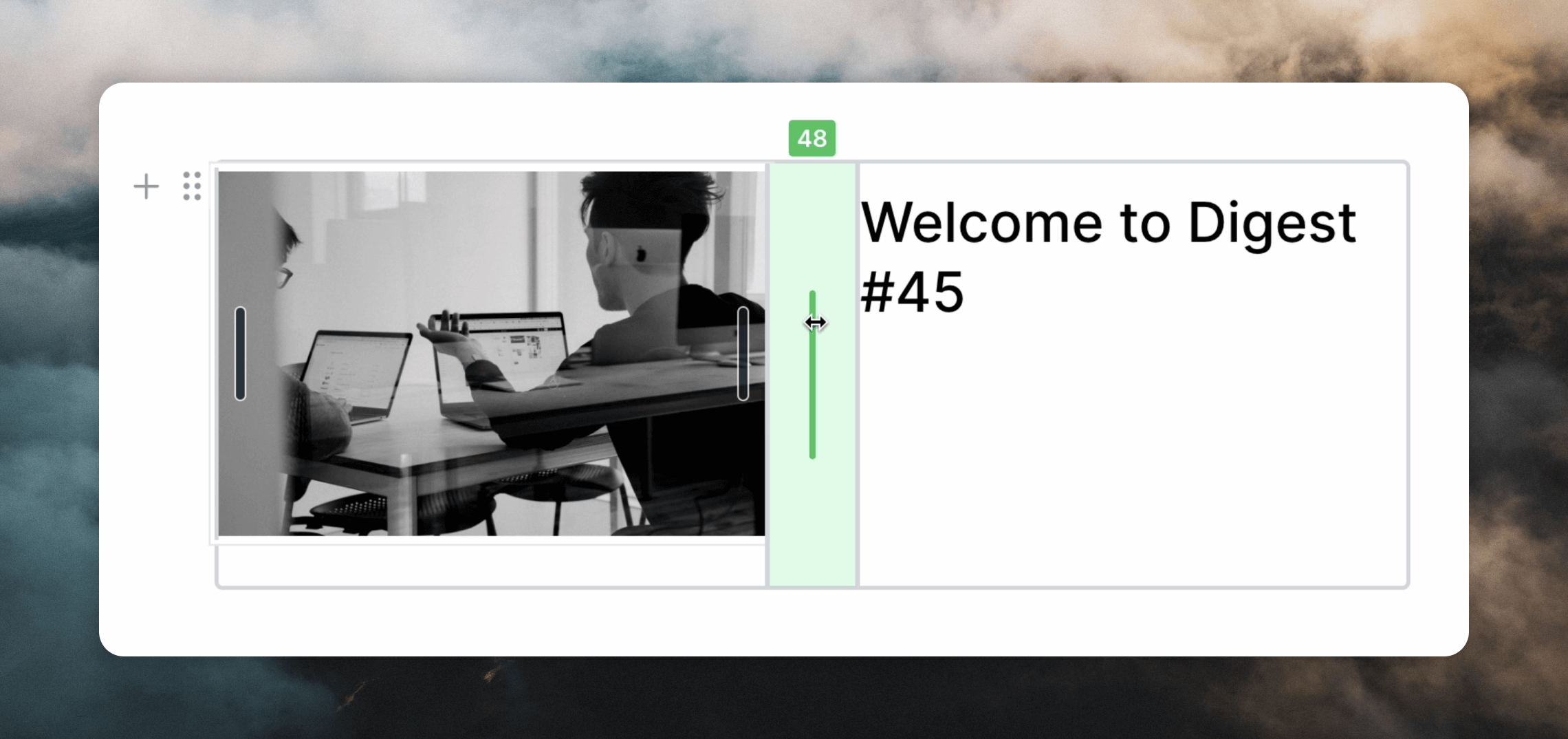
 You can also adjust how much space appears between columns by dragging the green bar between the columns.
 ### Stacking columns on mobile
When emails are viewed on a mobile device (when there is less horizontal space available) you can choose if your columns should stack vertically for better readability or stay as columns.
In the **Block styles** editor panel you'll find the option to stack columns vertically on mobile (when the viewport is 479px or smaller).
### Stacking columns on mobile
When emails are viewed on a mobile device (when there is less horizontal space available) you can choose if your columns should stack vertically for better readability or stay as columns.
In the **Block styles** editor panel you'll find the option to stack columns vertically on mobile (when the viewport is 479px or smaller).
 ### Adding and moving content
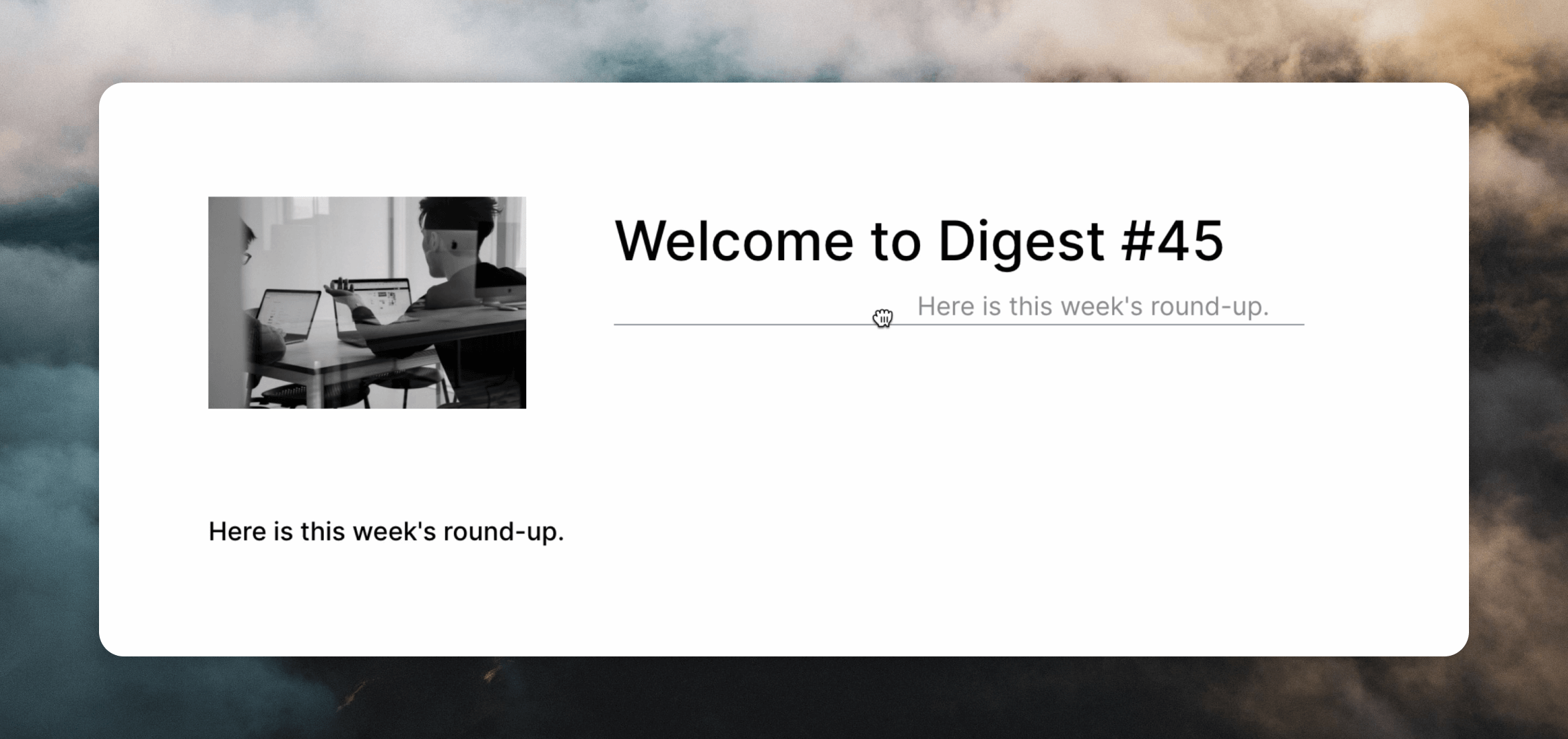
You can drag elements like text blocks, images, and buttons in and out of your columns.
To do this, hold down the `⌘` key (Mac) or `Ctrl` key (Windows) while hovering over the element you want to move. Then click and drag the block settings icon (six dots) to move the block to its new position.
### Adding and moving content
You can drag elements like text blocks, images, and buttons in and out of your columns.
To do this, hold down the `⌘` key (Mac) or `Ctrl` key (Windows) while hovering over the element you want to move. Then click and drag the block settings icon (six dots) to move the block to its new position.
 ## Tips
* **No nested columns**: Keep in mind that nesting columns within columns is not supported. If you need a complex layout, consider adjusting your design to fit within the 2 to 4 column limit.
* **Consistent styling**: Use the block settings to ensure that padding and alignment are consistent across your columns for a polished look.
## Tips
* **No nested columns**: Keep in mind that nesting columns within columns is not supported. If you need a complex layout, consider adjusting your design to fit within the 2 to 4 column limit.
* **Consistent styling**: Use the block settings to ensure that padding and alignment are consistent across your columns for a polished look.