> ## Documentation Index
> Fetch the complete documentation index at: https://loops.so/docs/llms.txt
> Use this file to discover all available pages before exploring further.
# Arrays
> Arrays let you add repeatable content blocks to transactional emails, populated at send time via data variables.
Arrays are a way to add repeatable sections to an email allowing you to add a dynamic list of items, like products.
You can display up to 100 items in each array block.
Arrays are currently supported in transactional emails.
## Adding arrays
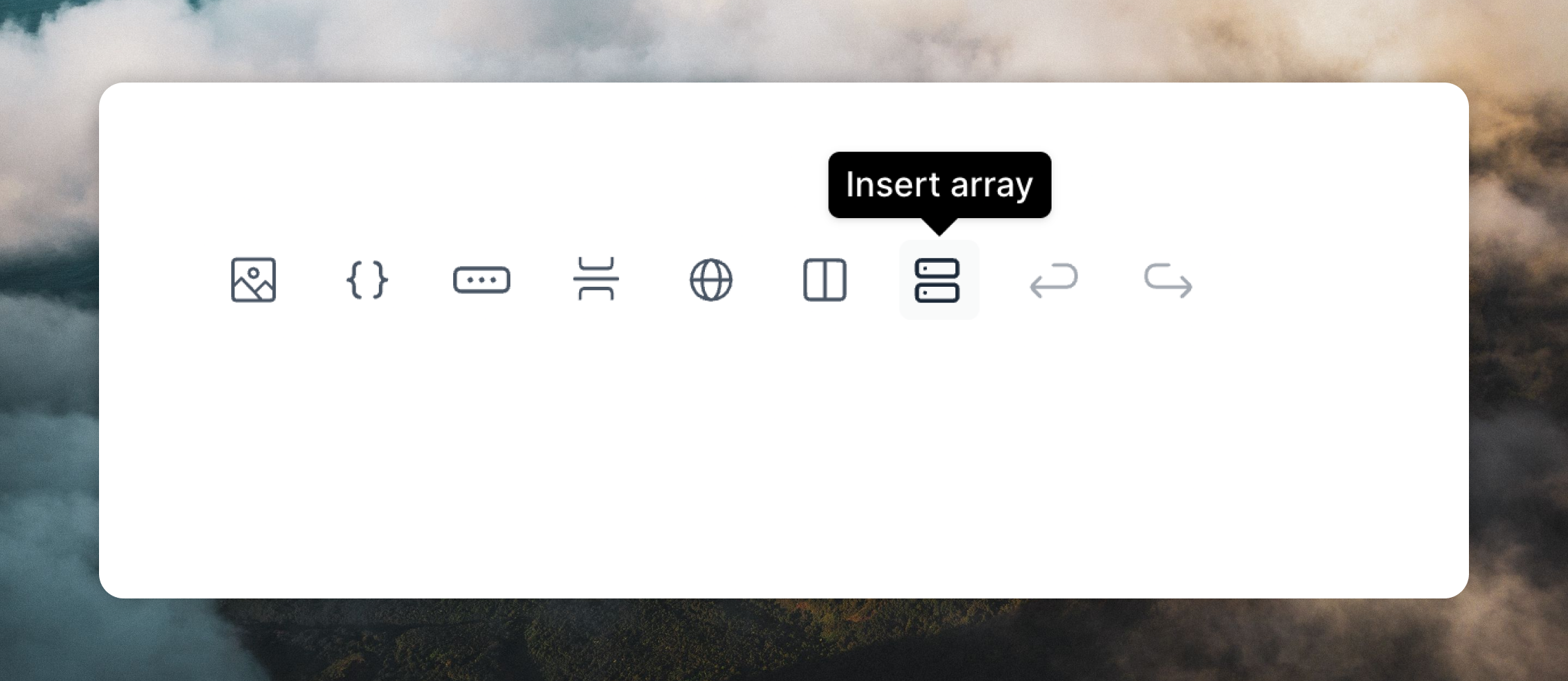
You can add array blocks to your email by using the button in the editor toolbar or typing `/` and selecting **Array**.
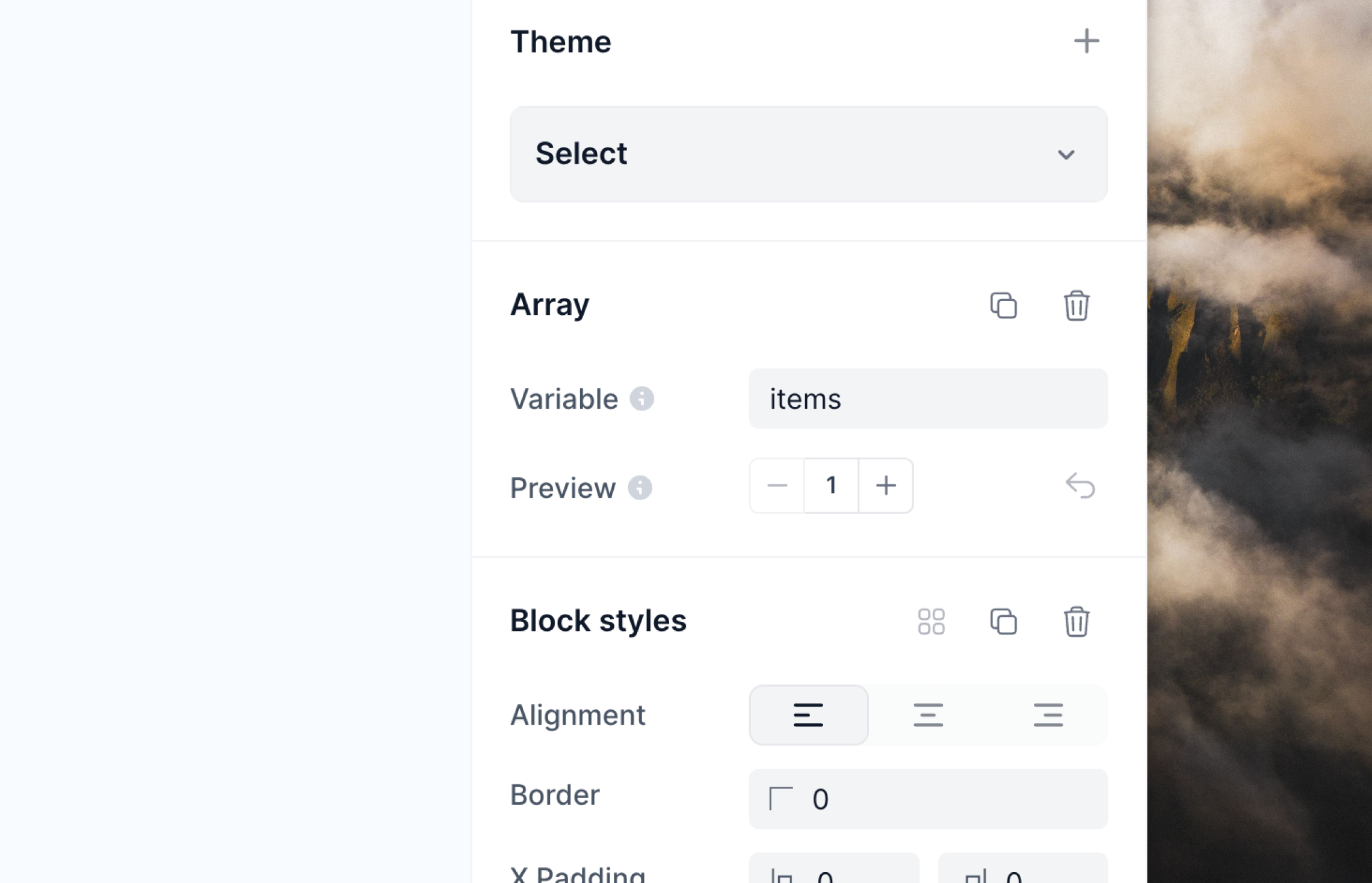
 Arrays are assigned a data variable name (default is `items`) which can be changed in the editor panel in the **Array** section.
 ## Adding content to arrays
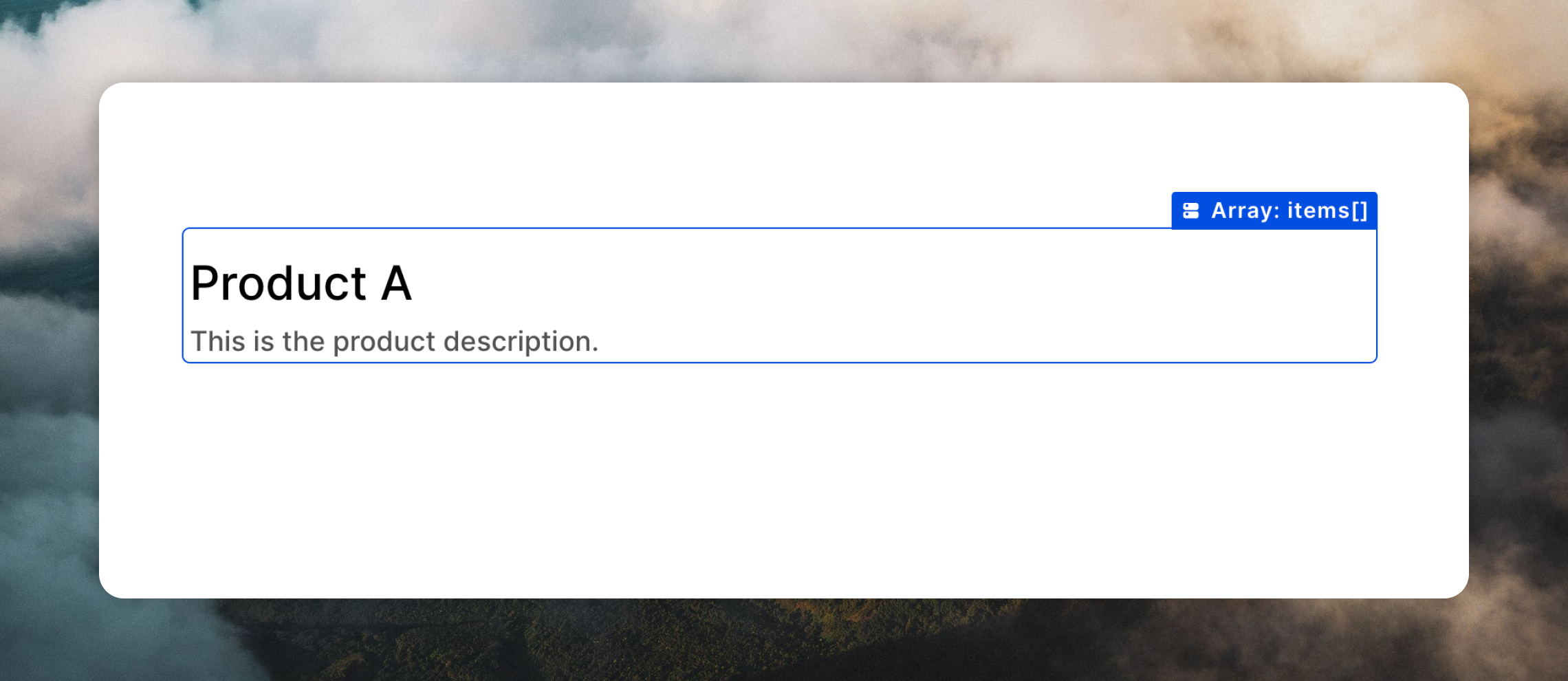
Once the array block is in your email, you can add content inside, which will be repeated for each item in the array.
For example, if you have an array of products and you want to show a name and a description for each product, you can add a heading and a text block inside the array block.
## Adding content to arrays
Once the array block is in your email, you can add content inside, which will be repeated for each item in the array.
For example, if you have an array of products and you want to show a name and a description for each product, you can add a heading and a text block inside the array block.
 ## Adding dynamic content
You can add dynamic content to array blocks by inserting [data variables](/transactional#add-data-variables). These data variables can then be populated with data when you [send your email](/transactional#send-your-email).
You can add data variables by using the button above the editor, typing `{`, or typing `/` and selecting **Data variable**.
## Adding dynamic content
You can add dynamic content to array blocks by inserting [data variables](/transactional#add-data-variables). These data variables can then be populated with data when you [send your email](/transactional#send-your-email).
You can add data variables by using the button above the editor, typing `{`, or typing `/` and selecting **Data variable**.
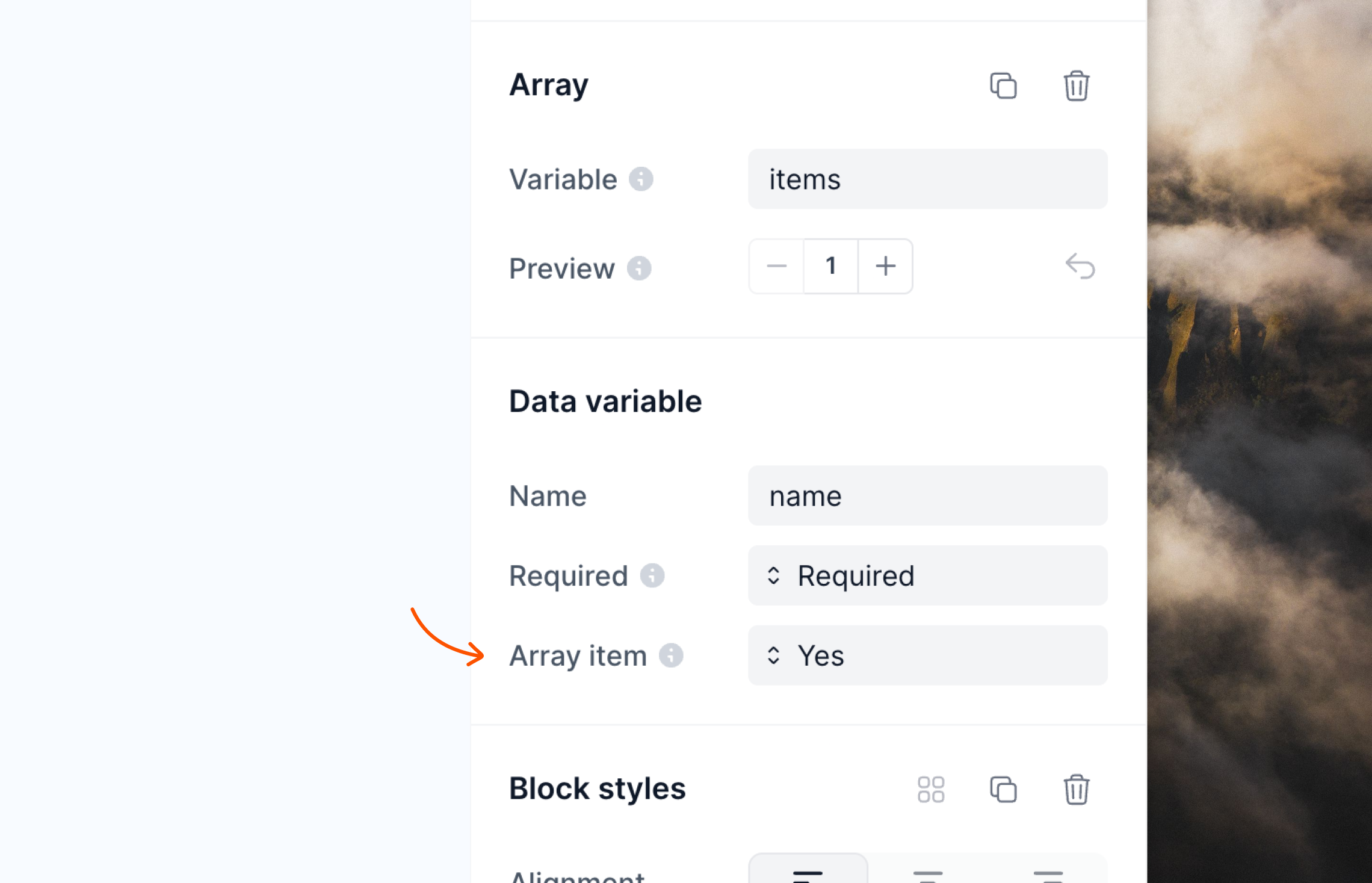
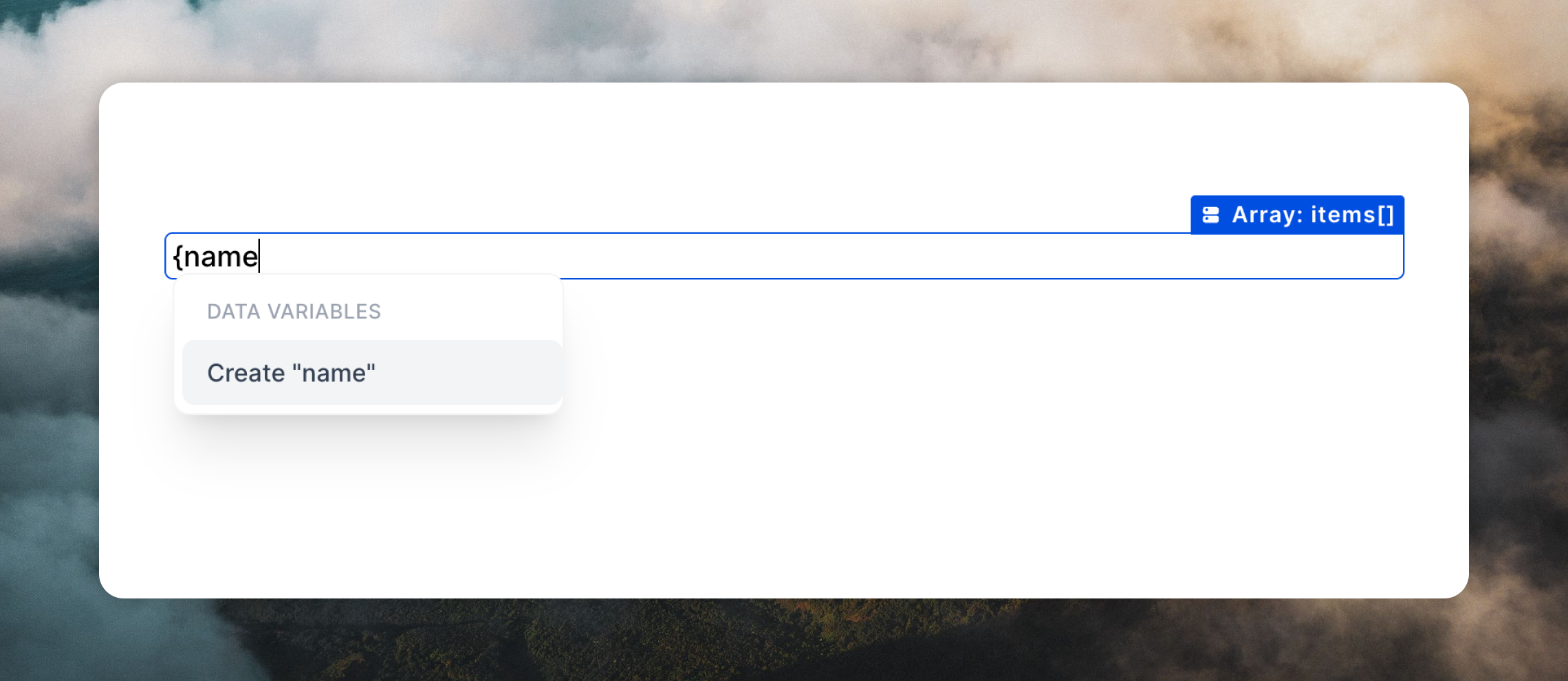 By default, data variables you add will be available within the array block only. You can change variable tags inside array blocks to be "global" by changing the **Array item** option in the right sidebar to **No**.
 ## Previewing arrays
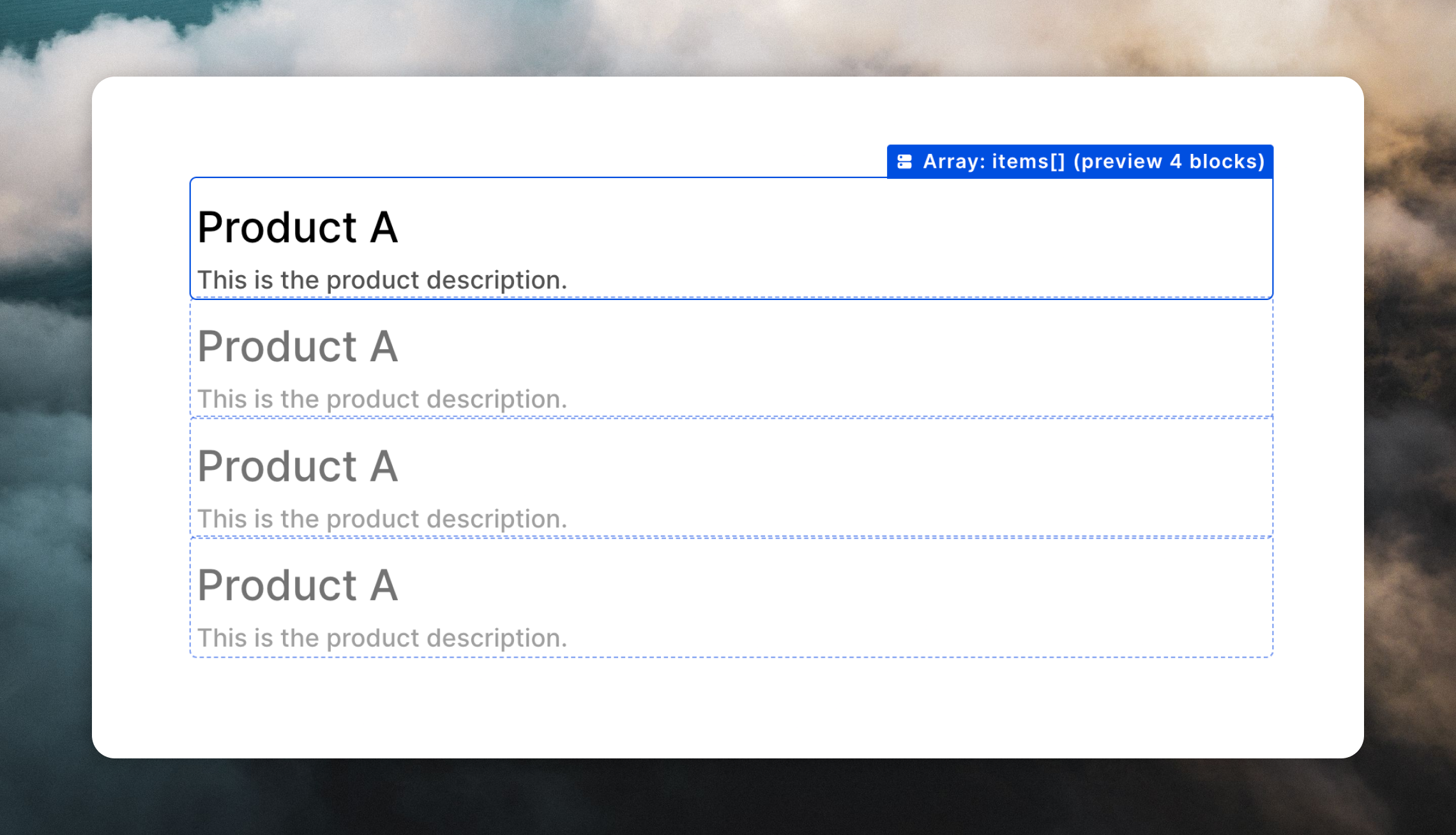
You can preview how multiple items will look in your email by using the `+` and `-` buttons in the **Preview** section of the editor sidebar. These buttons allow you to see how the array will look in your email with different numbers of items.
## Previewing arrays
You can preview how multiple items will look in your email by using the `+` and `-` buttons in the **Preview** section of the editor sidebar. These buttons allow you to see how the array will look in your email with different numbers of items.