> ## Documentation Index
> Fetch the complete documentation index at: https://loops.so/docs/llms.txt
> Use this file to discover all available pages before exploring further.
# The editor
> Loops' email editor has writing mode, themes, dynamic personalization, reusable content blocks, keyboard/Markdown shortcuts and more.
We have built a powerful editor for creating emails. Create any email with our flexible design tools, and write distraction free with Writing mode.
Here are a few of the editor's stand-out features:
* Customizable custom themes to keep your designs consistent
* Writing mode, distraction-free editing which hides the editor interface
* Auto-saves as you type
* Mobile-friendly so you can write and design emails on any device
* Support for images, buttons, social icons, dividers and columns
* The same interface for marketing and transactional emails
* Personalize emails with contact and event properties
* Helpful keyboard and Markdown shortcuts for adding content and formatting text
If you would rather upload emails into Loops, you can [import
MJML](/creating-emails/uploading-custom-email) instead of using the editor.
## Formatting text
Once you have written content in your email, you will see formatting options appear in the right-hand panel. These options will change depending on the element you have selected in the email.
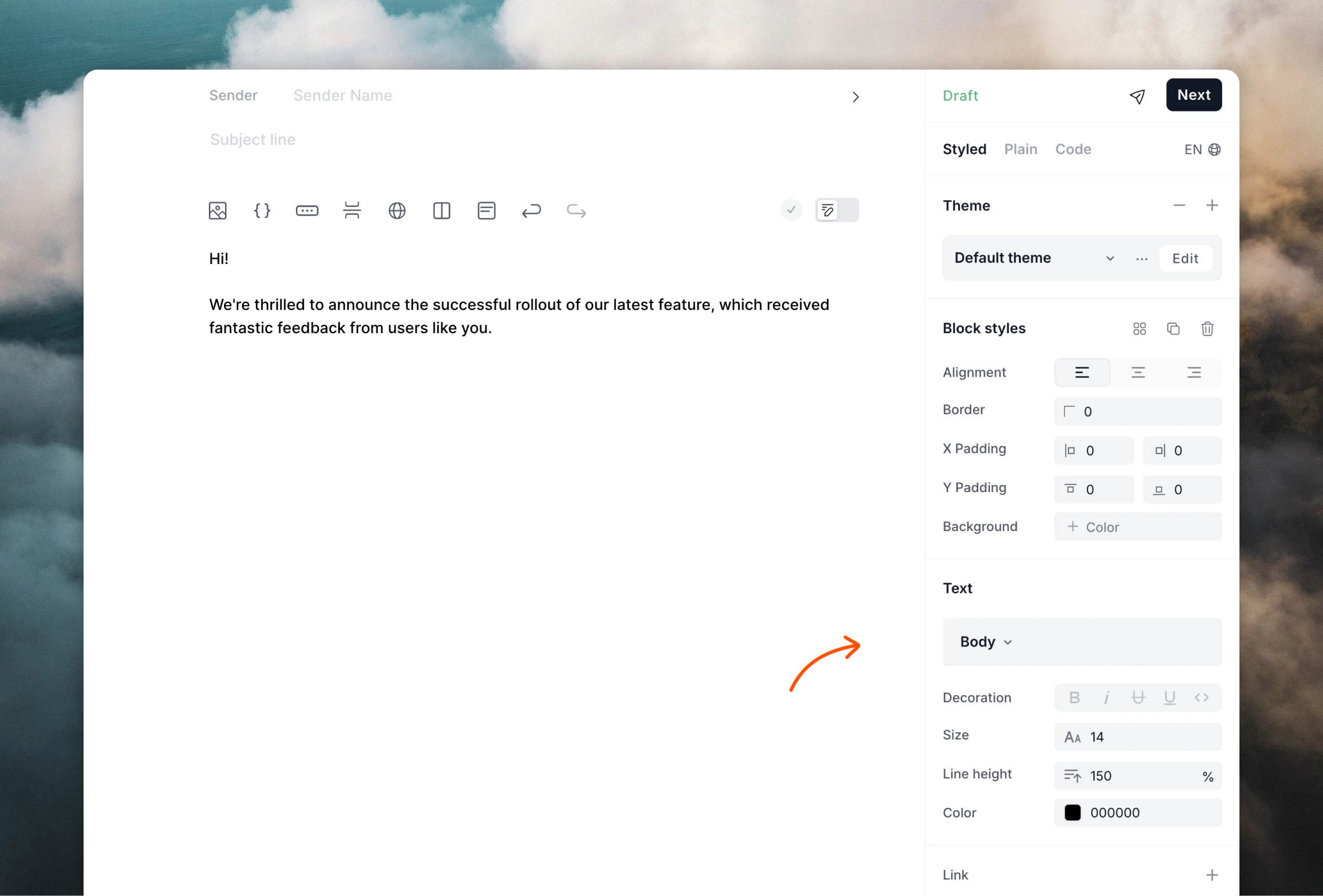 You can choose between different headings, style text **bold**, *italic*, underline as well as add links. You can also change text size and color.
Text can also be easily changed into lists, quotes and [code blocks](/creating-emails/editor/code-blocks).
You can choose between different headings, style text **bold**, *italic*, underline as well as add links. You can also change text size and color.
Text can also be easily changed into lists, quotes and [code blocks](/creating-emails/editor/code-blocks).
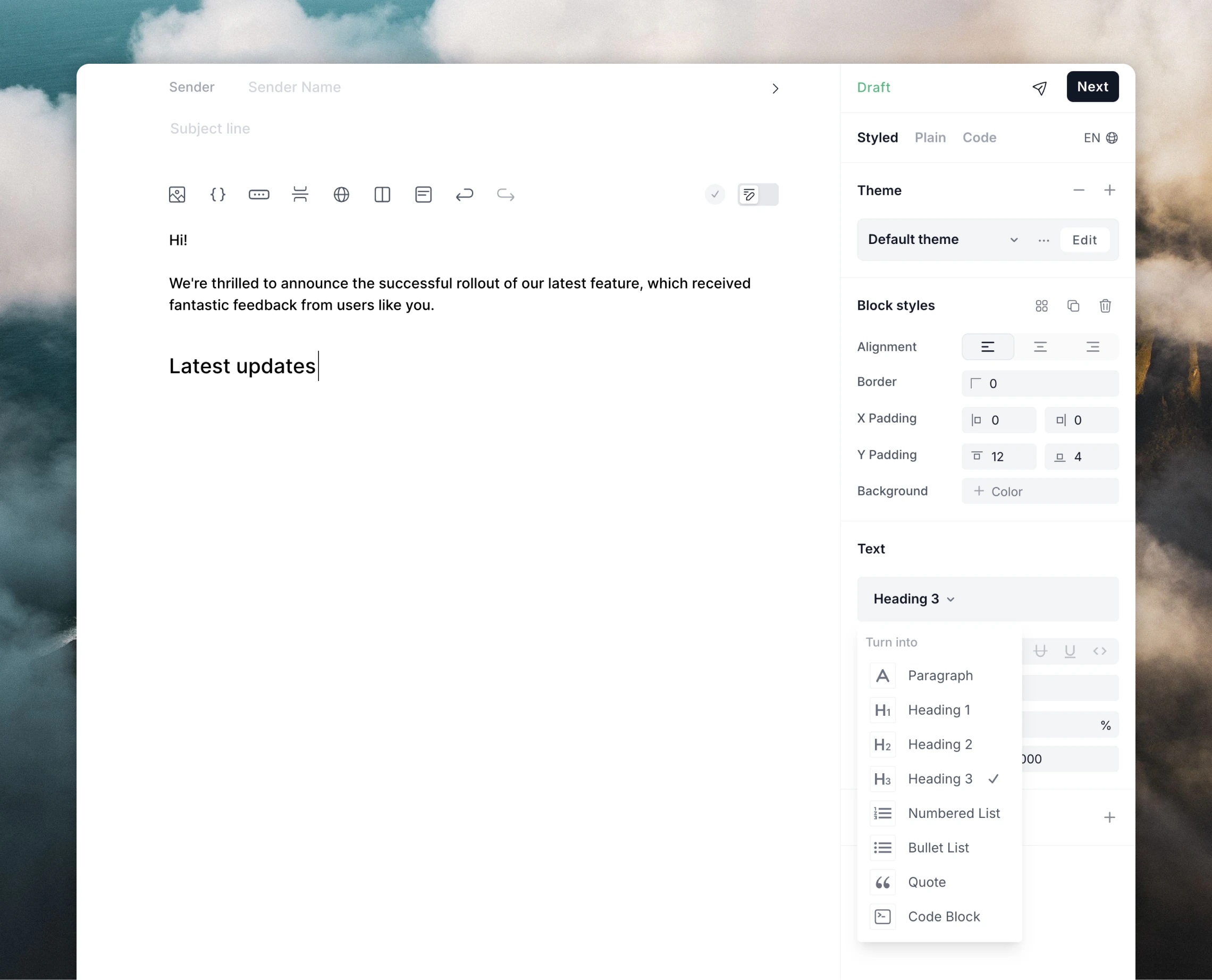 You can also use [keyboard shortcuts](#keyboard-shortcuts) and [Markdown formatting](/creating-emails/editor/markdown) to format your text.
## Writing mode
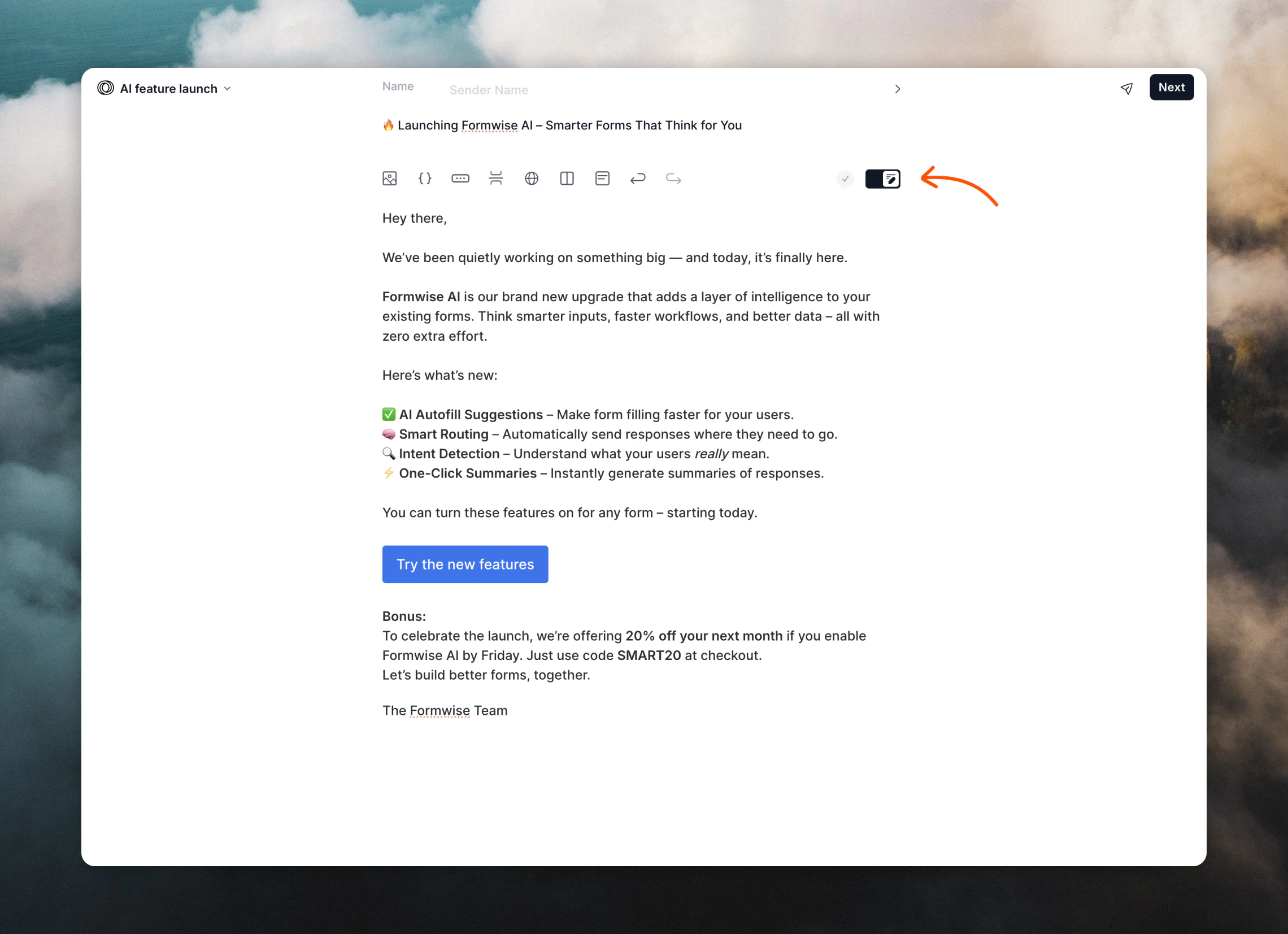
To focus on writing your email, you can enter Writing mode.
To toggle writing mode, use the switch just above the editor or use the `⌘+/` (Mac) or `Ctrl+/` (Windows) keyboard shortcut.
You can also use [keyboard shortcuts](#keyboard-shortcuts) and [Markdown formatting](/creating-emails/editor/markdown) to format your text.
## Writing mode
To focus on writing your email, you can enter Writing mode.
To toggle writing mode, use the switch just above the editor or use the `⌘+/` (Mac) or `Ctrl+/` (Windows) keyboard shortcut.
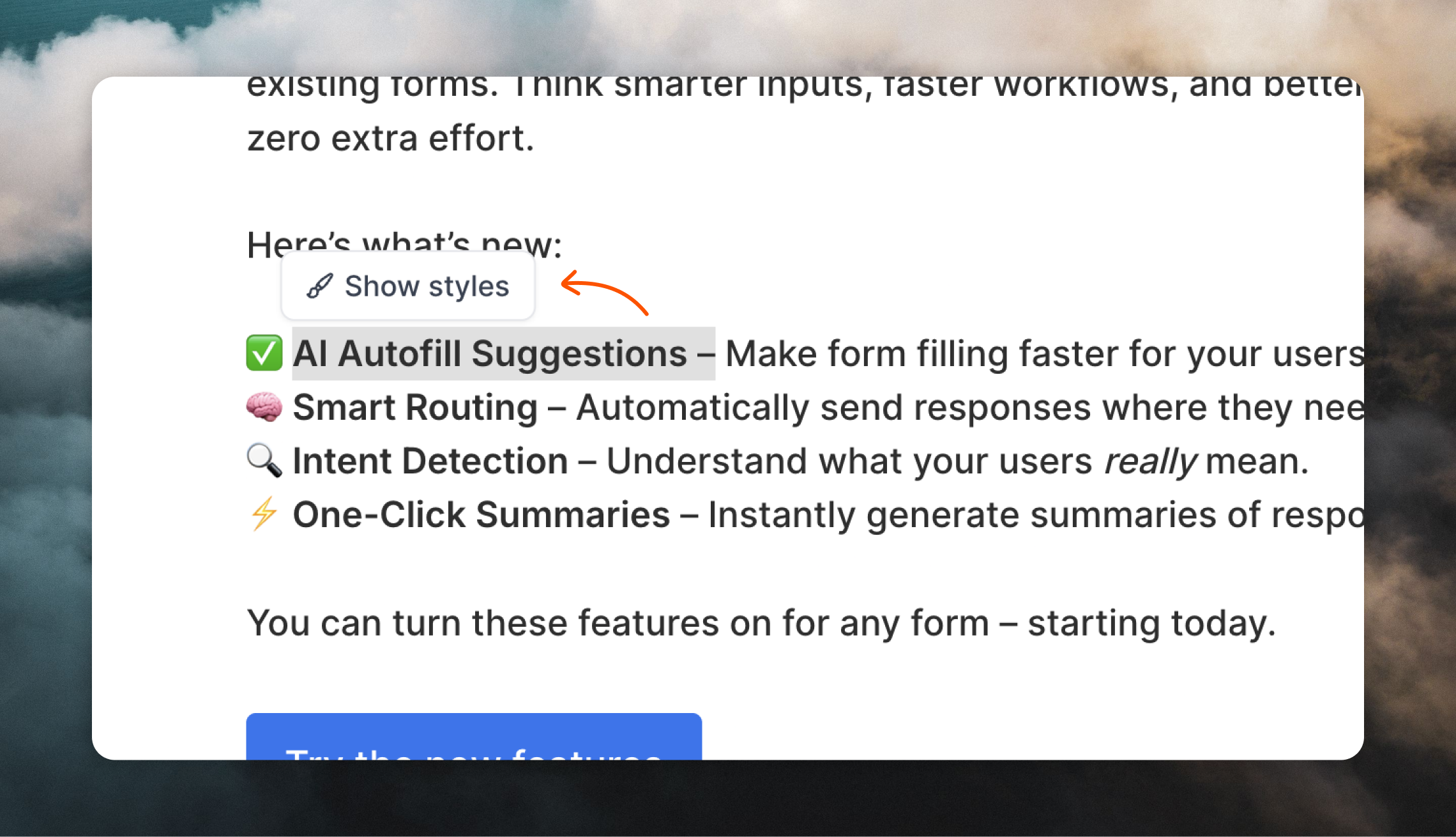
 When in Writing mode, you can edit styles by clicking the **Show styles** button that appears above selected elements. This will open a slide-in editor panel on the right
 ## Adding elements
Emails can be more than just text. You can add the following elements to your emails:
* images
* links
* buttons
* dividers
* social icons
* columns
* sections
* arrays
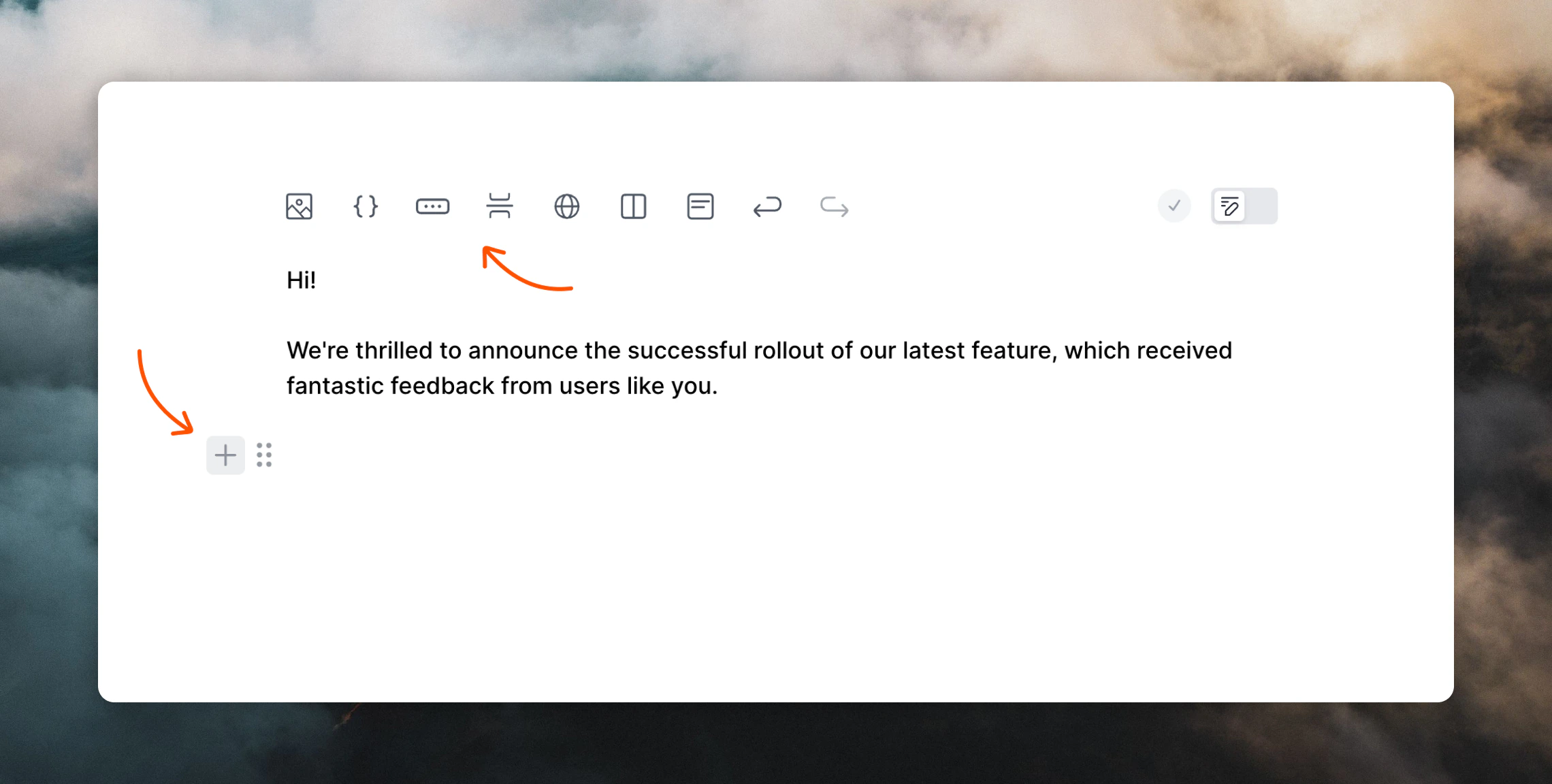
You can add elements from the toolbar above the editor, or by hovering over an existing element in your email and clicking the `+` plus icon on the left.
## Adding elements
Emails can be more than just text. You can add the following elements to your emails:
* images
* links
* buttons
* dividers
* social icons
* columns
* sections
* arrays
You can add elements from the toolbar above the editor, or by hovering over an existing element in your email and clicking the `+` plus icon on the left.
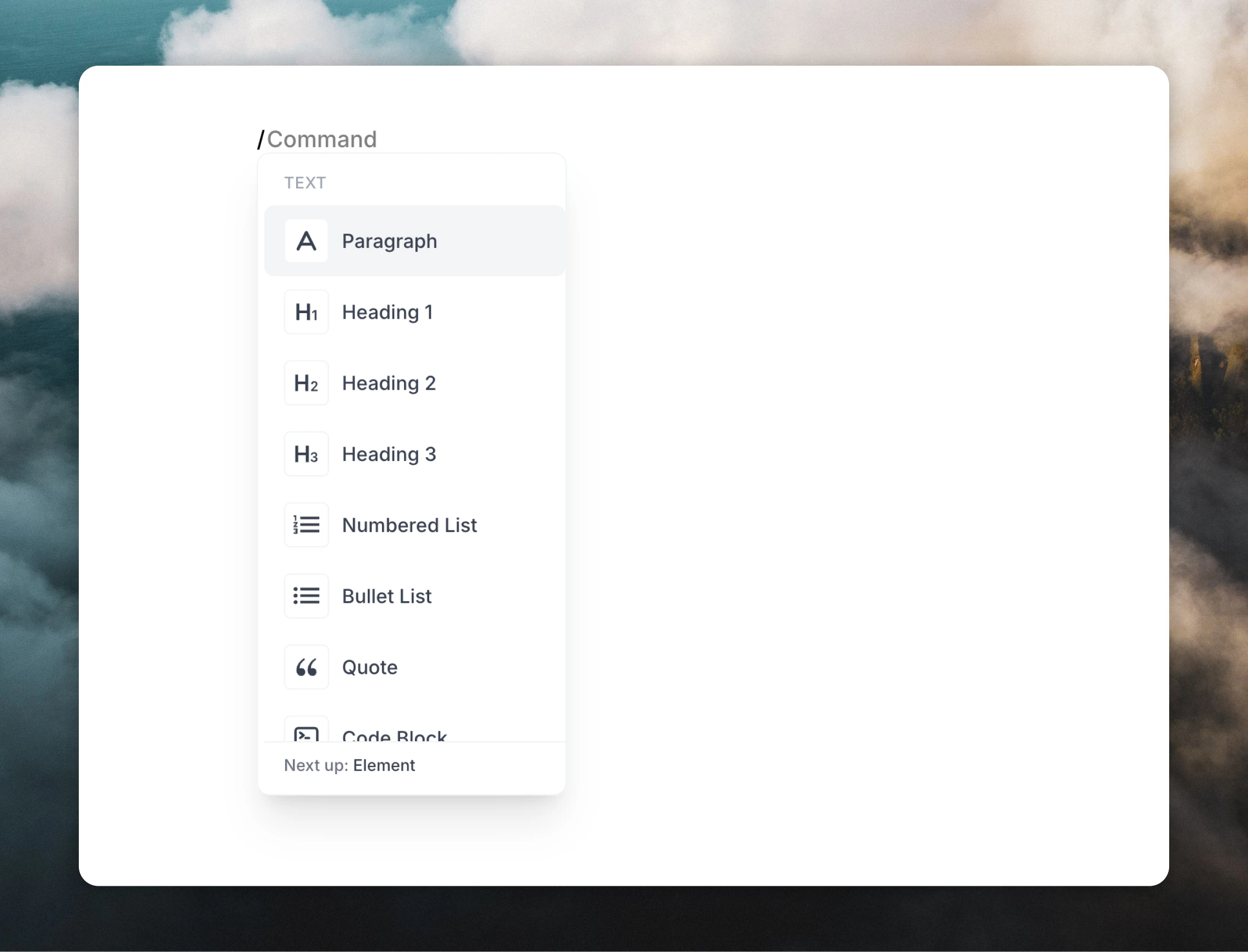
 You can also add elements by typing `/` in the editor:
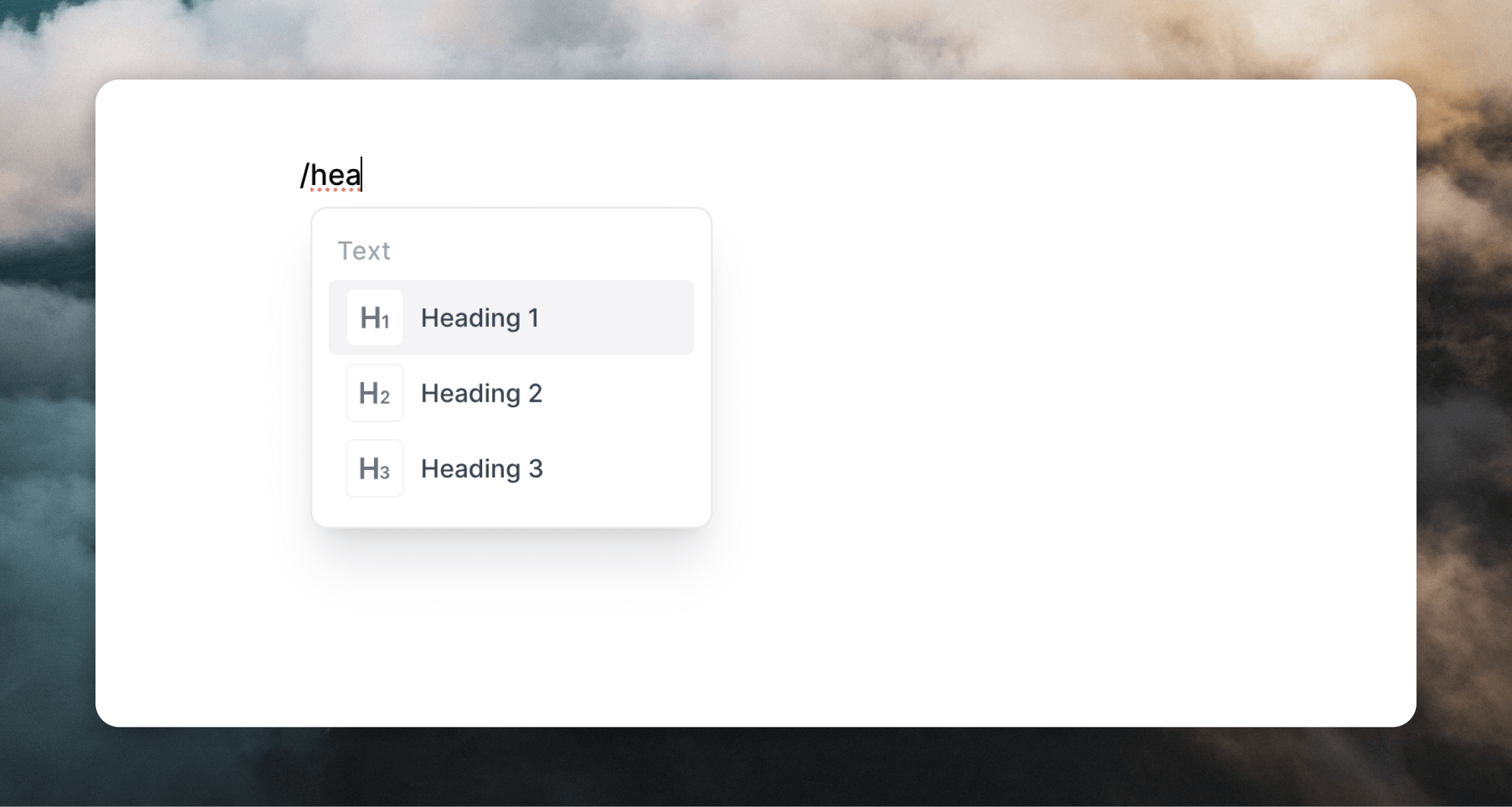
 If you continue typing, you can narrow down the selections. You can use your arrow keys to select items and pressing Enter will confirm your selection.
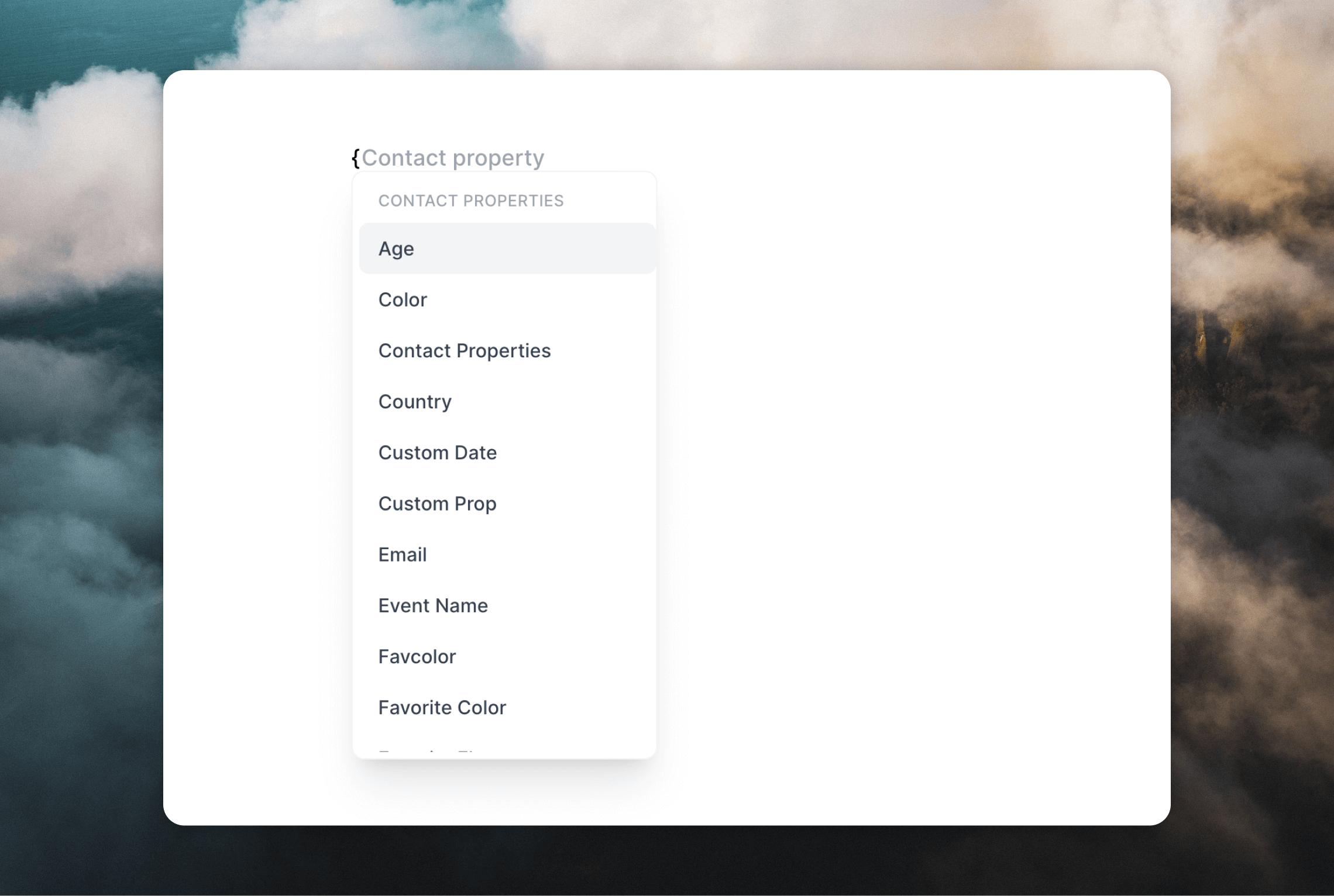
 When adding dynamic content like contact properties to [personalize emails](/creating-emails/personalizing-emails), you can type "\{" to open the dynamic content menu.
 You can also use [keyboard shortcuts](#keyboard-shortcuts) and [Markdown formatting](#markdown-formatting) to add certain elements to your email.
## Reordering content
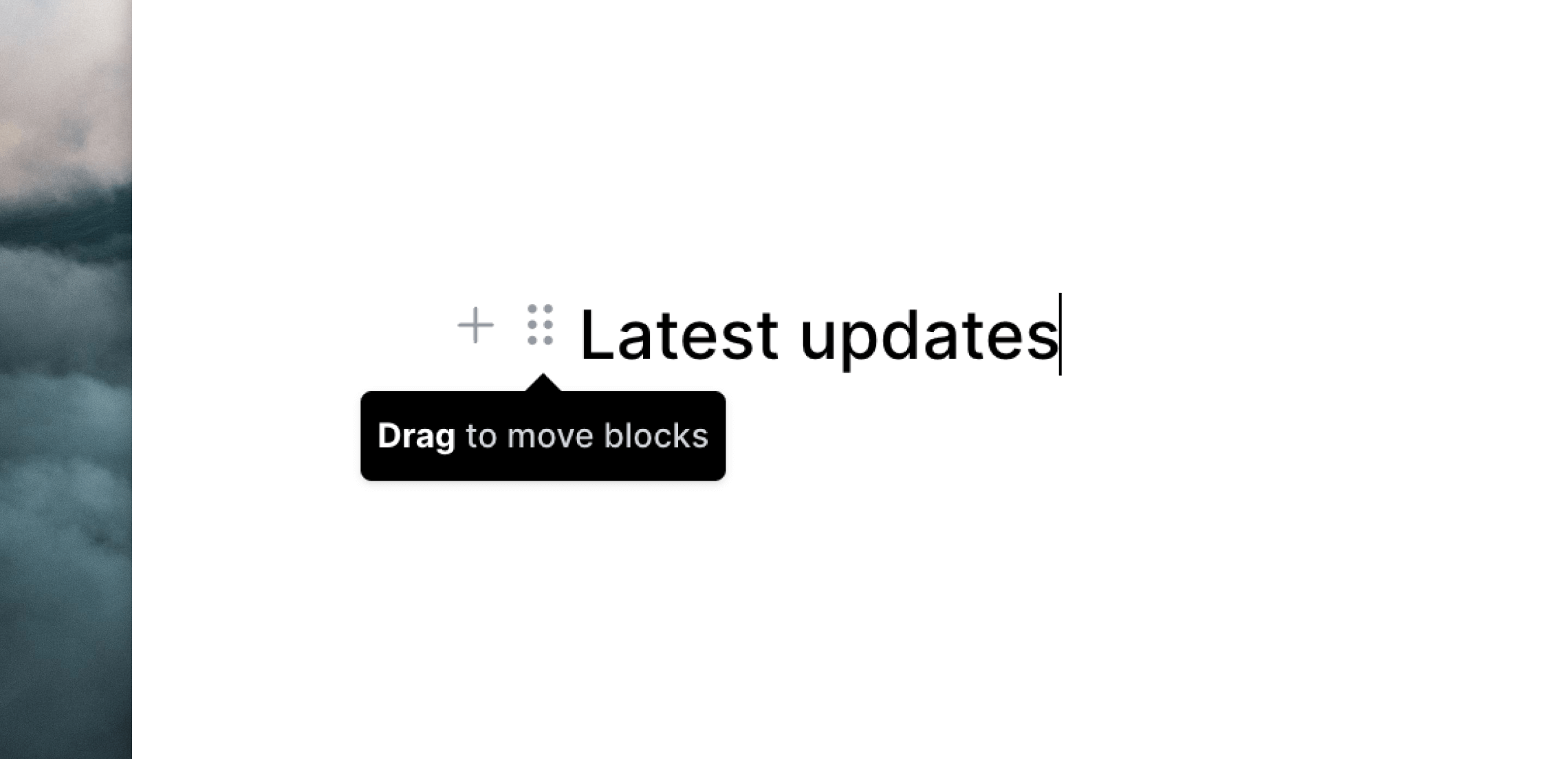
If you hover over a block in your email, you'll see a drag-and-drop icon appear on the left. You can drag this icon to re-order elements in your email.
You can also use [keyboard shortcuts](#keyboard-shortcuts) and [Markdown formatting](#markdown-formatting) to add certain elements to your email.
## Reordering content
If you hover over a block in your email, you'll see a drag-and-drop icon appear on the left. You can drag this icon to re-order elements in your email.
 ## Footer content
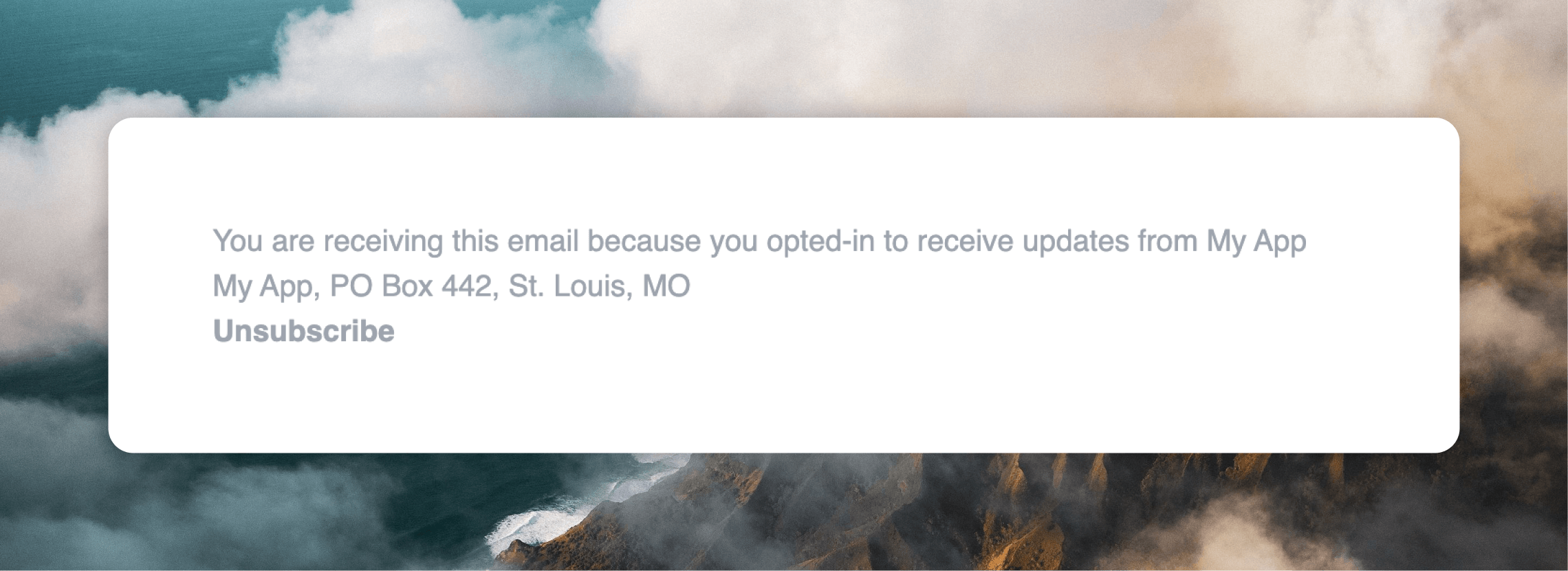
We add an automatic footer into campaign and workflow emails, which includes your company name, address and an unsubscribe link.
## Footer content
We add an automatic footer into campaign and workflow emails, which includes your company name, address and an unsubscribe link.
 Unsubscribe links help prevent your messages from being marked as spam and ensure that your messages are willingly being received by an engaged audience, helping your deliverability.
The unsubscribe link leads to a [Preference Center](/contacts/mailing-lists#preference-center), where your contacts can manage their own subscriptions.
You can edit your company address from [Settings -> Domain](https://app.loops.so/settings?page=domain).
If your email was sent to a [mailing list](/contacts/mailing-lists), the footer will also [include the name of the list](/contacts/mailing-lists#email-footers) the email was sent to.
## Keyboard shortcuts
The following keyboard shortcuts are available in the editor.
You can also use [Markdown formatting](/creating-emails/editor/markdown) to format your text.
The editor automatically saves your work as you type so there is no need to
save manually.
| Shortcut | Action |
| :------------ | :------------------------------- |
| `⌘` `/` | Toggle writing mode |
| `/` | Insert a block (open slash menu) |
| `⌘` `D` | Duplicate a block |
| `⌘` `K` | Insert a link |
| `⌘` `B` | Bold text |
| `⌘` `I` | Italicize text |
| `⌘` `U` | Underline text |
| `Tab` | Indent a list item |
| `Shift` `Tab` | Unindent a list item |
You can also use the following default keyboard shortcuts:
| Shortcut | Action |
| :-------------- | :--------- |
| `⌘` `A` | Select all |
| `⌘` `C` | Copy |
| `⌘` `V` | Paste |
| `⌘` `X` | Cut |
| `⌘` `Z` | Undo |
| `⌘` `Shift` `Z` | Redo |
| Shortcut | Action |
| :------------ | :------------------------------- |
| `Ctrl` `/` | Toggle writing mode |
| `/` | Insert a block (open slash menu) |
| `Ctrl` `D` | Duplicate a block |
| `Ctrl` `K` | Insert a link |
| `Ctrl` `B` | Bold text |
| `Ctrl` `I` | Italicize text |
| `Ctrl` `U` | Underline text |
| `Tab` | Indent a list item |
| `Shift` `Tab` | Unindent a list item |
You can also use the following default keyboard shortcuts:
| Shortcut | Action |
| :----------------- | :--------- |
| `Ctrl` `A` | Select all |
| `Ctrl` `C` | Copy |
| `Ctrl` `V` | Paste |
| `Ctrl` `X` | Cut |
| `Ctrl` `Z` | Undo |
| `Ctrl` `Shift` `Z` | Redo |
Unsubscribe links help prevent your messages from being marked as spam and ensure that your messages are willingly being received by an engaged audience, helping your deliverability.
The unsubscribe link leads to a [Preference Center](/contacts/mailing-lists#preference-center), where your contacts can manage their own subscriptions.
You can edit your company address from [Settings -> Domain](https://app.loops.so/settings?page=domain).
If your email was sent to a [mailing list](/contacts/mailing-lists), the footer will also [include the name of the list](/contacts/mailing-lists#email-footers) the email was sent to.
## Keyboard shortcuts
The following keyboard shortcuts are available in the editor.
You can also use [Markdown formatting](/creating-emails/editor/markdown) to format your text.
The editor automatically saves your work as you type so there is no need to
save manually.
| Shortcut | Action |
| :------------ | :------------------------------- |
| `⌘` `/` | Toggle writing mode |
| `/` | Insert a block (open slash menu) |
| `⌘` `D` | Duplicate a block |
| `⌘` `K` | Insert a link |
| `⌘` `B` | Bold text |
| `⌘` `I` | Italicize text |
| `⌘` `U` | Underline text |
| `Tab` | Indent a list item |
| `Shift` `Tab` | Unindent a list item |
You can also use the following default keyboard shortcuts:
| Shortcut | Action |
| :-------------- | :--------- |
| `⌘` `A` | Select all |
| `⌘` `C` | Copy |
| `⌘` `V` | Paste |
| `⌘` `X` | Cut |
| `⌘` `Z` | Undo |
| `⌘` `Shift` `Z` | Redo |
| Shortcut | Action |
| :------------ | :------------------------------- |
| `Ctrl` `/` | Toggle writing mode |
| `/` | Insert a block (open slash menu) |
| `Ctrl` `D` | Duplicate a block |
| `Ctrl` `K` | Insert a link |
| `Ctrl` `B` | Bold text |
| `Ctrl` `I` | Italicize text |
| `Ctrl` `U` | Underline text |
| `Tab` | Indent a list item |
| `Shift` `Tab` | Unindent a list item |
You can also use the following default keyboard shortcuts:
| Shortcut | Action |
| :----------------- | :--------- |
| `Ctrl` `A` | Select all |
| `Ctrl` `C` | Copy |
| `Ctrl` `V` | Paste |
| `Ctrl` `X` | Cut |
| `Ctrl` `Z` | Undo |
| `Ctrl` `Shift` `Z` | Redo |