> ## Documentation Index
> Fetch the complete documentation index at: https://loops.so/docs/llms.txt
> Use this file to discover all available pages before exploring further.
# Critical notices
> Send legally required emails to every contact in your audience, including those who have unsubscribed from marketing.
Some emails need to reach all of your users, whether or not they have opted in to marketing email. For example, you may be legally required to notify users about changes to your terms of service or subprocessors, or about a data breach.
A **critical notice** is a campaign that has been designated as legally required communication. When a campaign is marked as a critical notice:
* It is sent to all contacts in the selected audience, **including unsubscribed contacts**. The [Subscribed](/docs/contacts/properties#subscribed) status check is bypassed.
* All marketing-related headers and footers are removed. This includes the [automatic footer](/docs/creating-emails/editor#footer-content), so your company address and unsubscribe link are not added to the email.
Critical notices only bypass the global Subscribed status. They still respect:
* **[Suppression](/docs/contacts/suppression).** Suppressed contacts are known bad addresses (hard bounces and complaints), so they will not receive critical notices.
* **[Mailing list](/docs/contacts/mailing-lists) unsubscribes.** If you send a critical notice to a mailing list, contacts who have unsubscribed from that list will not receive it. To reach all of your contacts, send the notice to your whole audience instead of a mailing list.
Critical notices are only for legally required communication. They must not contain any marketing
or promotional content. Sending marketing content to unsubscribed contacts can breach anti-spam
laws and will harm your [sender reputation](/docs/deliverability/sending-reputation).
## When to use a critical notice
Critical notices are appropriate for messages your users need to receive for legal or compliance reasons, such as:
* Changes to your terms of service or privacy policy
* Changes to your list of subprocessors
* Data breach or security incident notifications
If the email is promotional, or if users would reasonably expect to be able to opt out of it, send it as a regular [campaign](/docs/types-of-emails#campaigns) instead. For emails triggered by a specific user action, use [transactional email](/docs/transactional). Read more in [Transactional vs marketing email](/docs/guides/transactional-vs-marketing-email).
## Sending a critical notice
Critical notices are enabled on a per-campaign basis by our team.
### Request a critical notice
1. [Create a campaign](/docs/types-of-emails#campaigns) with your notice content, following the [best practices](#best-practices) below.
2. Contact us at [help@loops.so](mailto:help@loops.so) or via the chat widget in the Loops app, and let us know which campaign you want designated as a critical notice.
3. Once we have marked the campaign as a critical notice, you can review and send it as normal.
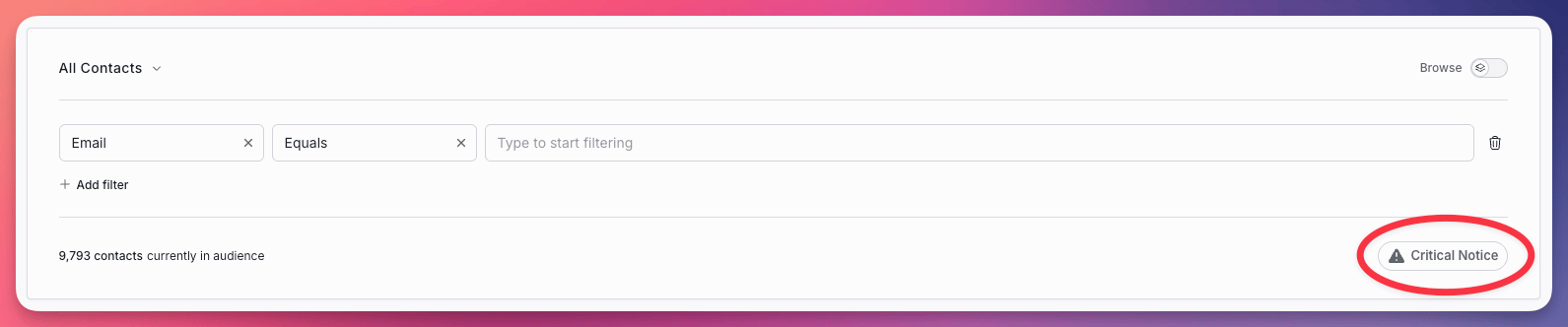
You can confirm that a campaign has been marked as a critical notice on its Audience step. A **Critical Notice** indicator will appear at the bottom right of the audience criteria panel, and the count below the filters will include all contacts in your audience, not just subscribed contacts.
 ### Mark a campaign as a critical notice yourself
For teams who need to send critical notices on a regular basis, we can also enable the option for you to mark campaigns as critical notices yourself. This is enabled on a case-by-case basis and requires manual approval. [Contact us](mailto:help@loops.so) if this would be useful for your team.
Once this option is enabled, you'll see a **Critical Notice** toggle on the Audience step of your campaign, at the bottom right of the audience criteria panel. Turn it on to send the campaign as a critical notice.
### Mark a campaign as a critical notice yourself
For teams who need to send critical notices on a regular basis, we can also enable the option for you to mark campaigns as critical notices yourself. This is enabled on a case-by-case basis and requires manual approval. [Contact us](mailto:help@loops.so) if this would be useful for your team.
Once this option is enabled, you'll see a **Critical Notice** toggle on the Audience step of your campaign, at the bottom right of the audience criteria panel. Turn it on to send the campaign as a critical notice.
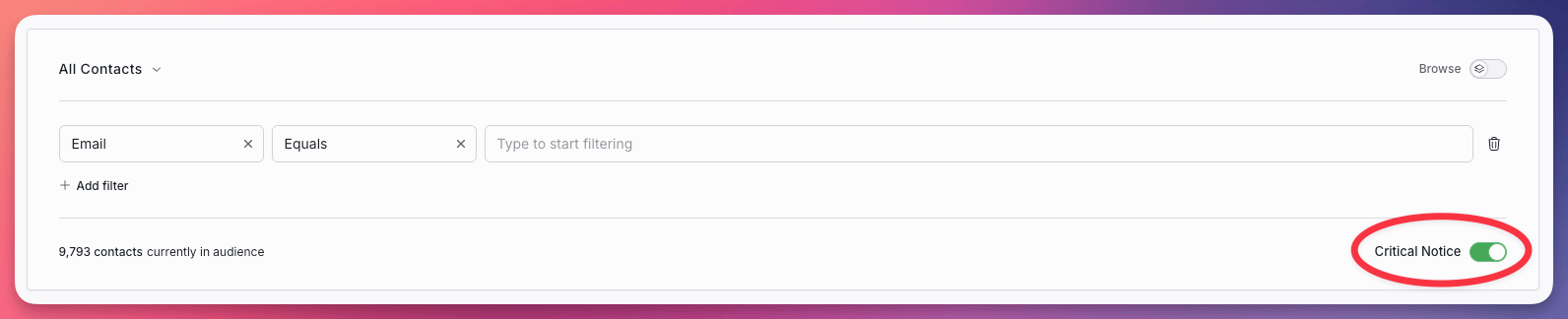 When the toggle is on, the campaign will be sent to unsubscribed contacts that match your audience criteria, and the count below the filters will change from "subscribed contacts" to all contacts in your audience. Double-check your audience filters before sending.
## Best practices
Because critical notices reach contacts who have opted out of your marketing email, it's important that they are clearly identifiable as important, non-promotional messages. This helps recipients recognize the email and protects your deliverability.
### Use Plain mode
Send your notice as a [Plain email](/docs/creating-emails/styles#styled-vs-plain-emails). Plain emails look like messages sent from a regular email client, which helps with deliverability and makes the notice feel less like marketing.
### Explain why the recipient is receiving it
State clearly in the email why the recipient is receiving this notice and that it is legally required. Recipients who have unsubscribed from your marketing email may otherwise be confused about why they are hearing from you.
### Use a descriptive From name
Set the **Name** in your [sending settings](/docs/creating-emails/sending-settings#name-from-and-reply) to something that clearly describes your relationship with the recipient, and that is distinct from the name you use for marketing email. For example:
> Acme: Notification
### Write a clear subject line
Use a clear and concise subject line that makes it obvious the email is important and distinctly different from your other communications. For example:
> Important: Updates to our Terms of Service
### Keep content focused
Only include content that is directly relevant to the notice. Don't include marketing content, product updates, or other announcements.
Limit links to only those that are required (like a link to your updated terms), or don't include any links at all.
## Read more
## Related topics
- [Transactional vs marketing email](/docs/guides/transactional-vs-marketing-email.md)
- [Contact properties](/docs/contacts/properties.md)
- [Types of emails](/docs/types-of-emails.md)
- [Branching workflows](/docs/workflows/branching.md)
- [What is DNS?](/docs/guides/what-is-dns.md)
When the toggle is on, the campaign will be sent to unsubscribed contacts that match your audience criteria, and the count below the filters will change from "subscribed contacts" to all contacts in your audience. Double-check your audience filters before sending.
## Best practices
Because critical notices reach contacts who have opted out of your marketing email, it's important that they are clearly identifiable as important, non-promotional messages. This helps recipients recognize the email and protects your deliverability.
### Use Plain mode
Send your notice as a [Plain email](/docs/creating-emails/styles#styled-vs-plain-emails). Plain emails look like messages sent from a regular email client, which helps with deliverability and makes the notice feel less like marketing.
### Explain why the recipient is receiving it
State clearly in the email why the recipient is receiving this notice and that it is legally required. Recipients who have unsubscribed from your marketing email may otherwise be confused about why they are hearing from you.
### Use a descriptive From name
Set the **Name** in your [sending settings](/docs/creating-emails/sending-settings#name-from-and-reply) to something that clearly describes your relationship with the recipient, and that is distinct from the name you use for marketing email. For example:
> Acme: Notification
### Write a clear subject line
Use a clear and concise subject line that makes it obvious the email is important and distinctly different from your other communications. For example:
> Important: Updates to our Terms of Service
### Keep content focused
Only include content that is directly relevant to the notice. Don't include marketing content, product updates, or other announcements.
Limit links to only those that are required (like a link to your updated terms), or don't include any links at all.
## Read more
## Related topics
- [Transactional vs marketing email](/docs/guides/transactional-vs-marketing-email.md)
- [Contact properties](/docs/contacts/properties.md)
- [Types of emails](/docs/types-of-emails.md)
- [Branching workflows](/docs/workflows/branching.md)
- [What is DNS?](/docs/guides/what-is-dns.md)