> ## Documentation Index
> Fetch the complete documentation index at: https://loops.so/docs/llms.txt
> Use this file to discover all available pages before exploring further.
# CSV Upload
> Easily add contacts to Loops by uploading a CSV file.
Please read through the [contact properties](/contacts/properties) information to understand how to format data in your CSV file.
## Add new contacts via CSV
1. Select **Import** in the top right of the [Audience](https://app.loops.so/audience) page.
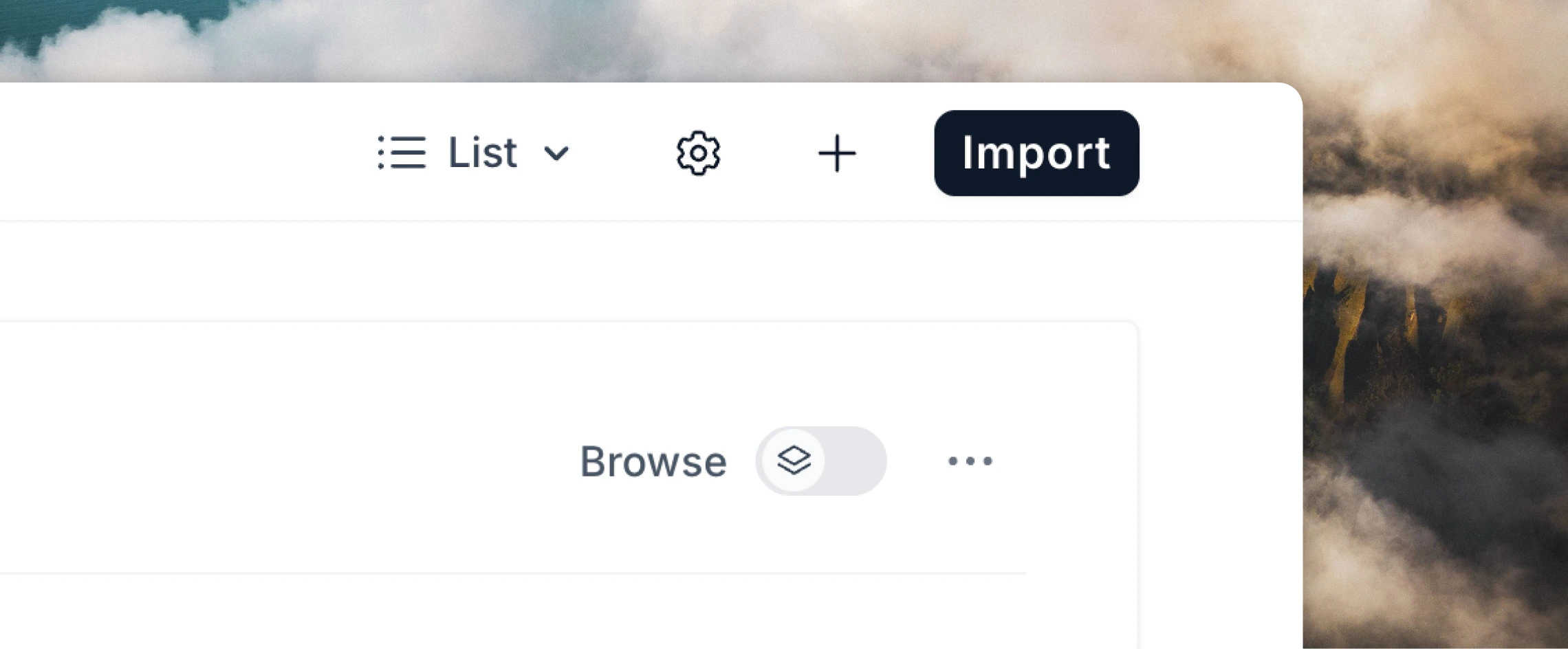 2. Hover on **CSV** and click **Upload CSV**. Download the [example formatted CSV](https://app.loops.so/loops_sample.csv) to get an idea of the columns we use. By default, we recommend using at least `Email`, `First Name`, `Last Name`, `User Group` and `Source` columns.
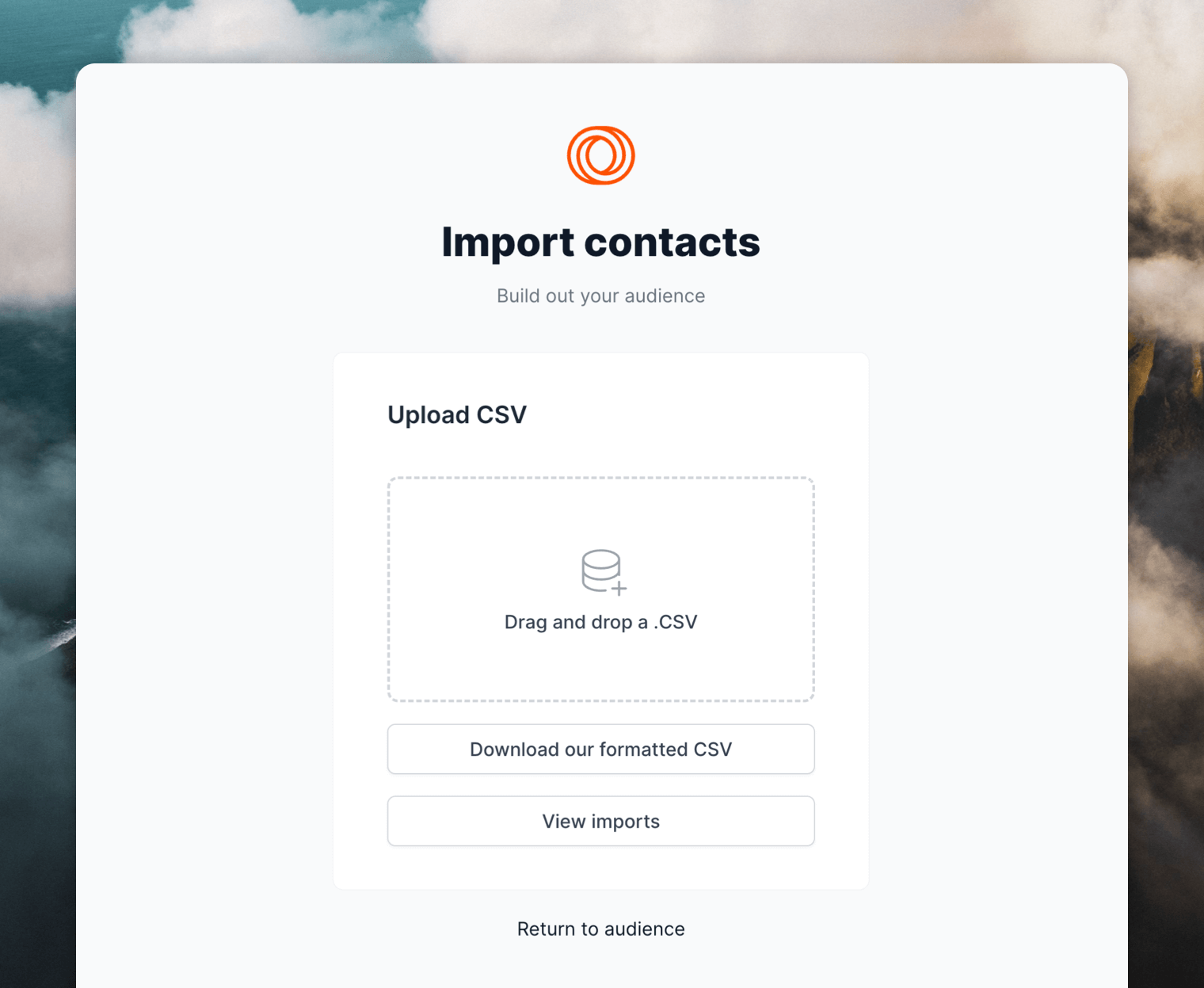 3. After uploading the CSV you'll have a chance to review any duplicates or missing information before finishing.
4. When the upload is finished, all the uploaded contacts can be viewed in the Audience page. That's it! 🎊
### Some important notes
* All new contacts uploaded will be automatically marked as subscribed. If you want to mark imported contacts as unsubscribed add a `Subscribed` column into your CSV file and use "false" as the column value.
* The default `Source` value for each uploaded contact will be "CSV Upload". You can change this by adding a `Source` column to your CSV file and specifying a custom value.
* Dates in your CSV file must be in one of the accepted formats listed on the [contact properties](/contacts/properties#dates) page (timestamps are not supported).
## Update contacts via CSV
You can also upload a CSV file to update your existing contacts in bulk.
You can either download a CSV from your Audience page in Loops, edit the data and re-upload it, or start with a new CSV file and just include the contacts and columns you want to update.
When updating contacts, Loops will first look for a matching contact using the value in the `User ID` column, then the `Email` column.
If a contact is found, Loops will update the contact using the data provided in the CSV file. If a contact is not found with either `User ID` or `Email` values, a new contact will be created using the data provided.
### Some important notes
* The importer does not re-subscribe contacts who are marked as unsubscribed in your Audience, so updating the `Subscribed` column to `true` will not re-subscribe the contact.
* Cells that are empty in the CSV file will not overwrite existing data in Loops. If you want to clear a field, you will need to provide a value of `null` in the CSV file (4 characters, all lowercase). Note, this only works for `string` type fields.
## Trigger workflows via CSV
You can use CSV uploads as a way to trigger workflows on a group of new or existing contacts.
If you want to trigger workflows for existing contacts, download a CSV from your [Audience page](https://app.loops.so/audience) then re-upload the file. Only include the contacts you want to trigger workflows for in the CSV file.
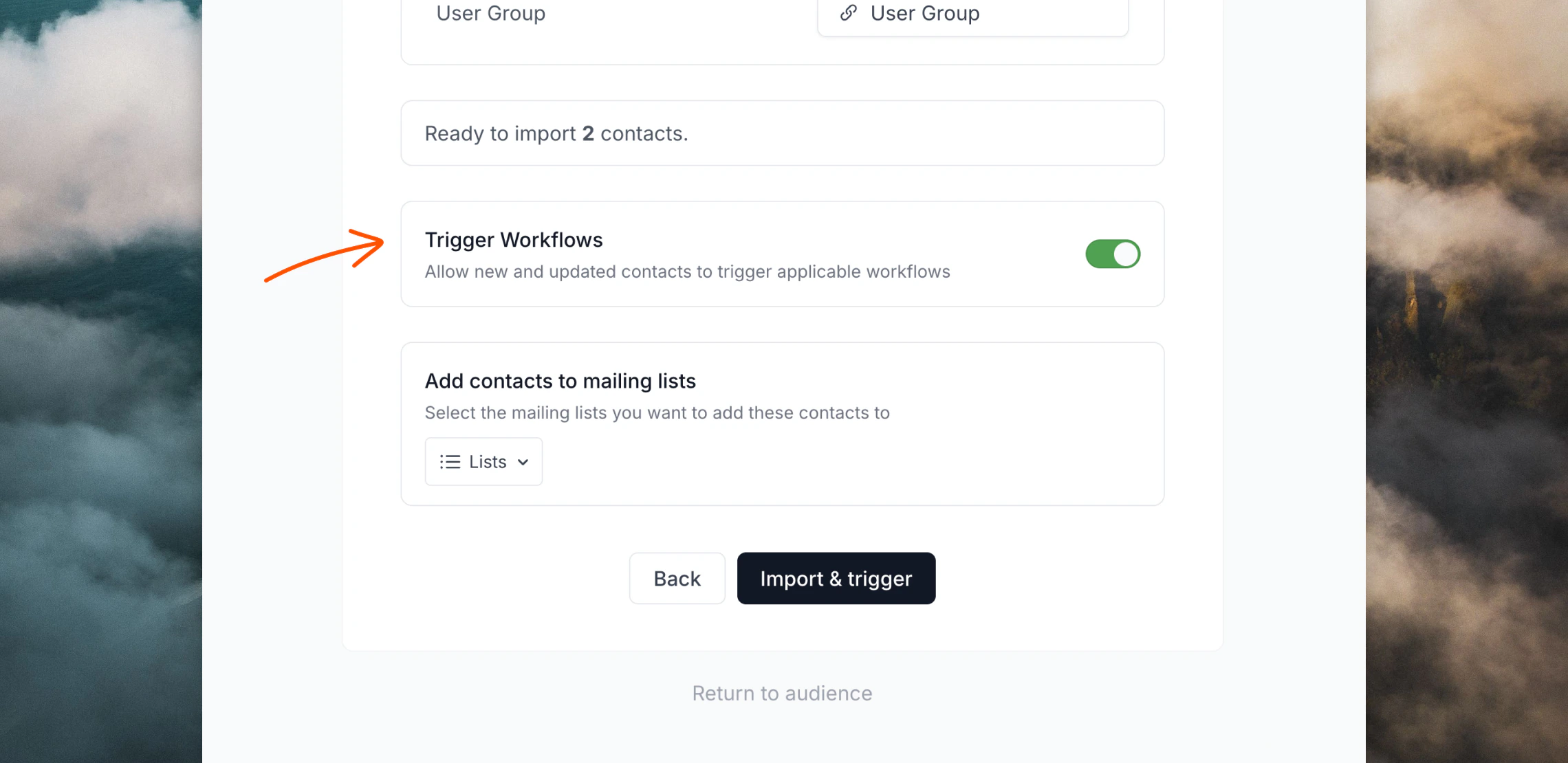
After uploading the CSV, on the Review page select the **Trigger workflows** option. This will trigger all applicable workflows you have set up with **Contact created** and **Contact updated** triggers.
If you select to add contacts to mailing lists on this same page as well as toggle **Trigger workflows** ON, you will also trigger **Contact added to list** workflows.
3. After uploading the CSV you'll have a chance to review any duplicates or missing information before finishing.
4. When the upload is finished, all the uploaded contacts can be viewed in the Audience page. That's it! 🎊
### Some important notes
* All new contacts uploaded will be automatically marked as subscribed. If you want to mark imported contacts as unsubscribed add a `Subscribed` column into your CSV file and use "false" as the column value.
* The default `Source` value for each uploaded contact will be "CSV Upload". You can change this by adding a `Source` column to your CSV file and specifying a custom value.
* Dates in your CSV file must be in one of the accepted formats listed on the [contact properties](/contacts/properties#dates) page (timestamps are not supported).
## Update contacts via CSV
You can also upload a CSV file to update your existing contacts in bulk.
You can either download a CSV from your Audience page in Loops, edit the data and re-upload it, or start with a new CSV file and just include the contacts and columns you want to update.
When updating contacts, Loops will first look for a matching contact using the value in the `User ID` column, then the `Email` column.
If a contact is found, Loops will update the contact using the data provided in the CSV file. If a contact is not found with either `User ID` or `Email` values, a new contact will be created using the data provided.
### Some important notes
* The importer does not re-subscribe contacts who are marked as unsubscribed in your Audience, so updating the `Subscribed` column to `true` will not re-subscribe the contact.
* Cells that are empty in the CSV file will not overwrite existing data in Loops. If you want to clear a field, you will need to provide a value of `null` in the CSV file (4 characters, all lowercase). Note, this only works for `string` type fields.
## Trigger workflows via CSV
You can use CSV uploads as a way to trigger workflows on a group of new or existing contacts.
If you want to trigger workflows for existing contacts, download a CSV from your [Audience page](https://app.loops.so/audience) then re-upload the file. Only include the contacts you want to trigger workflows for in the CSV file.
After uploading the CSV, on the Review page select the **Trigger workflows** option. This will trigger all applicable workflows you have set up with **Contact created** and **Contact updated** triggers.
If you select to add contacts to mailing lists on this same page as well as toggle **Trigger workflows** ON, you will also trigger **Contact added to list** workflows.
 ## View previous CSV uploads
After uploading CSV files you can view a history of your uploads plus details for each file's rows.
On the [Audience page](https://app.loops.so/audience) click **Import contacts**, hover on **CSV** and click **Upload CSV**. On the next page click on **View imports**, which will show you a list of all of your past uploads.
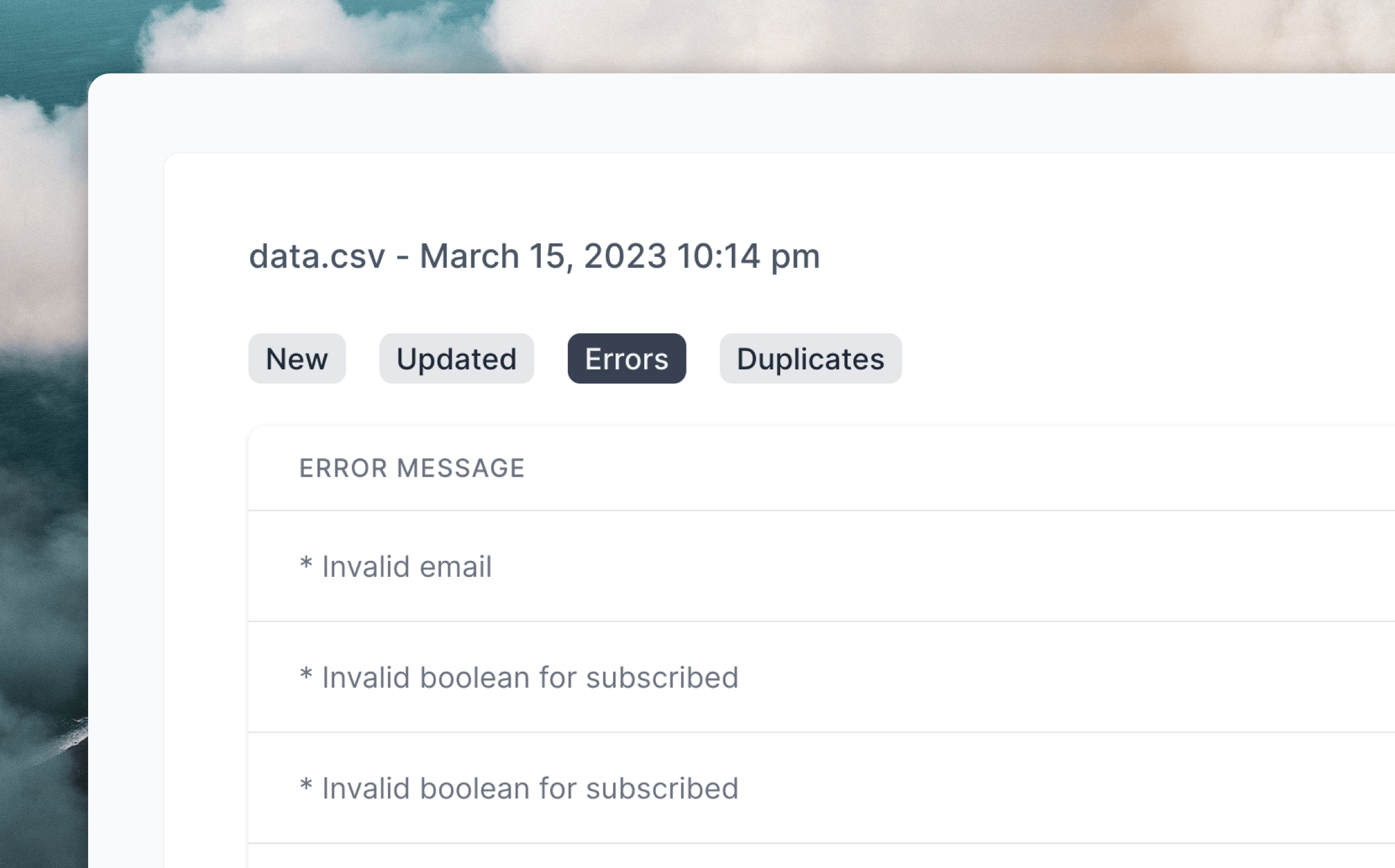
Clicking on one of your uploads will let you view lists of all new, updated or duplicated contacts plus a list of any errors from the import.
## View previous CSV uploads
After uploading CSV files you can view a history of your uploads plus details for each file's rows.
On the [Audience page](https://app.loops.so/audience) click **Import contacts**, hover on **CSV** and click **Upload CSV**. On the next page click on **View imports**, which will show you a list of all of your past uploads.
Clicking on one of your uploads will let you view lists of all new, updated or duplicated contacts plus a list of any errors from the import.