> ## Documentation Index
> Fetch the complete documentation index at: https://loops.so/docs/llms.txt
> Use this file to discover all available pages before exploring further.
# Team switcher
> Learn how to create and connect multiple Loops accounts with one email address.
You may want to have multiple Loops accounts for different products, domains or teams.
You can create new teams from a single Loops account.
You can also combine existing Loops teams under a single email address so you can easily switch between them instead of having to log out every time.
 The existing [team member features](/account/team-members) allow you to invite and remove users to and from individual teams.
Free users can be in maximum 3 teams. As soon as a user joins a paid team, they can be added to unlimited teams.
## Create a new team
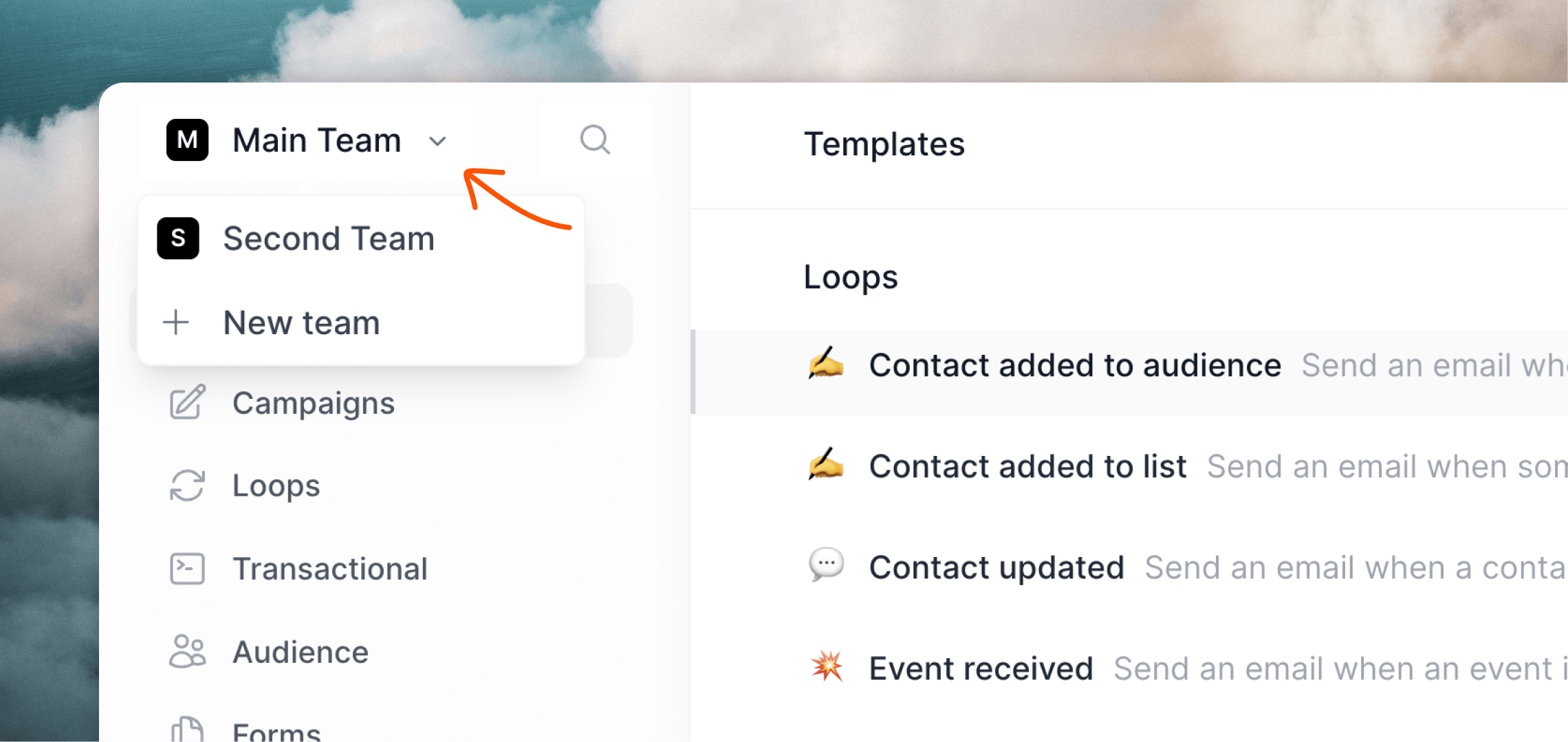
If you want to create a new team, click on the team switcher in the top left of your Loops account, then select **+ New team**.
This will create a new team and ask you to set up a new sending domain.
## Connect existing accounts
If you have existing accounts that you want to merge under one email address, there are a few steps to complete.
In this example **Team A** is the main account you want to log in with, and **Team B** is the account you want to connect.
Make sure you're signed in to the Loops account you want to be your only account (Team A).
**In a different browser** (or incognito window) log in to Team B (the account you want to connect) and invite your selected Team A email address from the [Team settings page](https://app.loops.so/settings?page=team).
An invitation email will be sent to your Team A email address. Since you are already logged in to Team A, you can ignore the email.
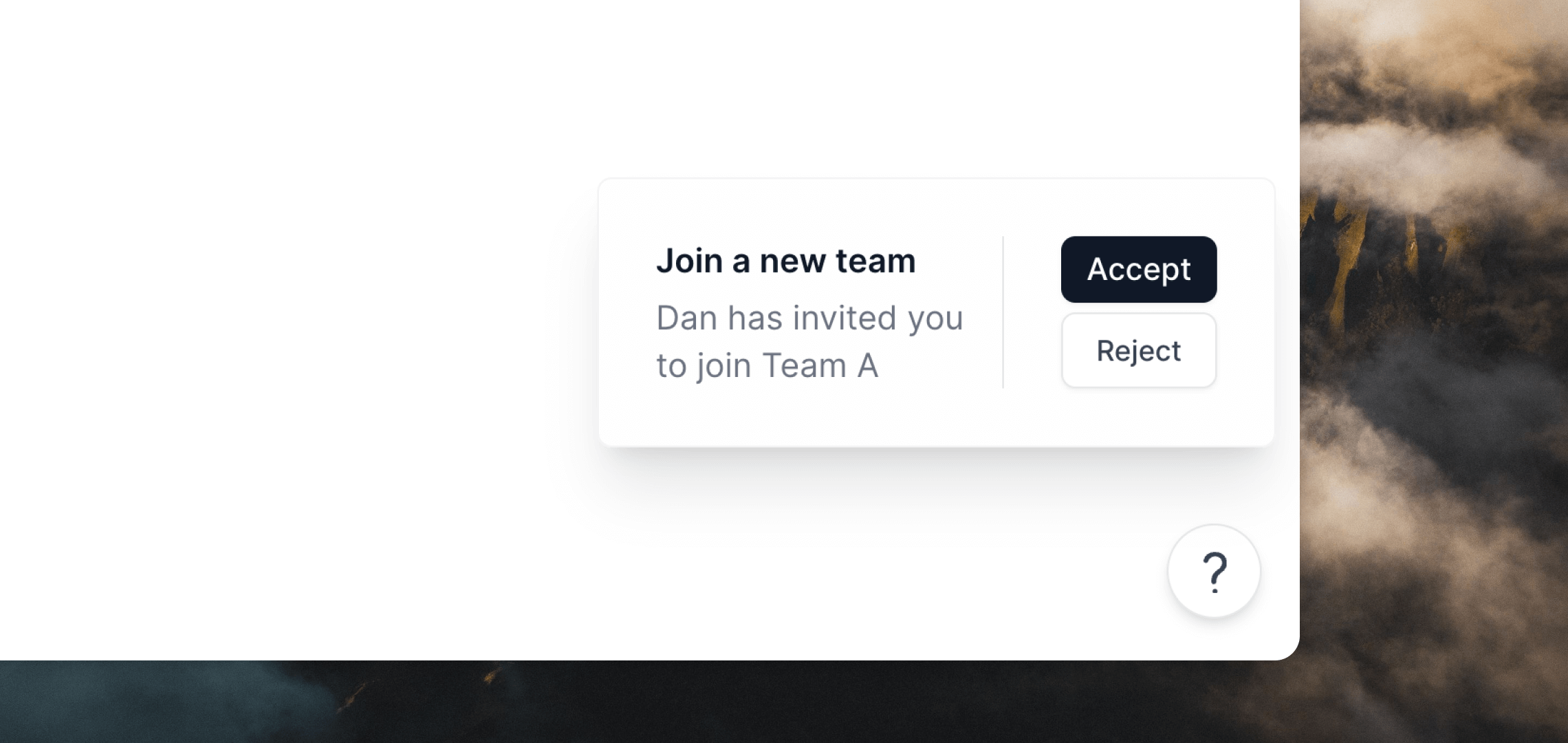
Refresh the Team settings page and you will see an invite alert appear in the bottom right corner. Click **Accept**.
The existing [team member features](/account/team-members) allow you to invite and remove users to and from individual teams.
Free users can be in maximum 3 teams. As soon as a user joins a paid team, they can be added to unlimited teams.
## Create a new team
If you want to create a new team, click on the team switcher in the top left of your Loops account, then select **+ New team**.
This will create a new team and ask you to set up a new sending domain.
## Connect existing accounts
If you have existing accounts that you want to merge under one email address, there are a few steps to complete.
In this example **Team A** is the main account you want to log in with, and **Team B** is the account you want to connect.
Make sure you're signed in to the Loops account you want to be your only account (Team A).
**In a different browser** (or incognito window) log in to Team B (the account you want to connect) and invite your selected Team A email address from the [Team settings page](https://app.loops.so/settings?page=team).
An invitation email will be sent to your Team A email address. Since you are already logged in to Team A, you can ignore the email.
Refresh the Team settings page and you will see an invite alert appear in the bottom right corner. Click **Accept**.
 Accepting the invite will automatically switch you to the Team A account.
If you want to become the [owner](/account/team-members#owner-role) of Team B (giving you full permissions), go back to Team B in the other browser window and refresh the Team page. Give the **Owner** role to your Team A email address by clicking the `•••` menu button.
Becoming owner is not required but is necessary if you are the only user in the team.
You can sign out of Team B (or close your incognito window), because you can now access it through your Team A account.
If you want, you can safely remove the previous email address you used to sign in to Team B from the [Team settings page](https://app.loops.so/settings?page=team).
## Invite members to teams
If you want your team members to access multiple teams, simply invite the same email address to different teams. Once they accept the invitation, they will be able to switch between the teams they have access to.
## Billing within teams
Billing is handled individually per team. When you switch between teams you will be able to handle billing separately for each.
Accepting the invite will automatically switch you to the Team A account.
If you want to become the [owner](/account/team-members#owner-role) of Team B (giving you full permissions), go back to Team B in the other browser window and refresh the Team page. Give the **Owner** role to your Team A email address by clicking the `•••` menu button.
Becoming owner is not required but is necessary if you are the only user in the team.
You can sign out of Team B (or close your incognito window), because you can now access it through your Team A account.
If you want, you can safely remove the previous email address you used to sign in to Team B from the [Team settings page](https://app.loops.so/settings?page=team).
## Invite members to teams
If you want your team members to access multiple teams, simply invite the same email address to different teams. Once they accept the invitation, they will be able to switch between the teams they have access to.
## Billing within teams
Billing is handled individually per team. When you switch between teams you will be able to handle billing separately for each.